Capability catalog
Every capability, in one place
Everything SurveyAnalytica does today, by product module or by the outcome you need. Open any capability to see its options, where it is in the product and what each plan includes.
- 11
- 12
- 2
- 2
Surveys and forms
50 capabilitiesOpen the pageBuild, share and score surveys, quizzes and order forms in many languages.
Surveys and forms at a glance
Build forms, surveys, tests and order forms in one designer. Start from a sentence, one of 90 templates or a Google Form, then add any of 23 question types, rules and code. Publish once and collect on WhatsApp, email, links, QR codes, websites, apps and offline. Every answer lands in one set of results, ready for analytics and flows.
- question types
- 23
- rule actions
- 10
- languages to choose from
- 191
- templates in 7 languages
- 90
Start here
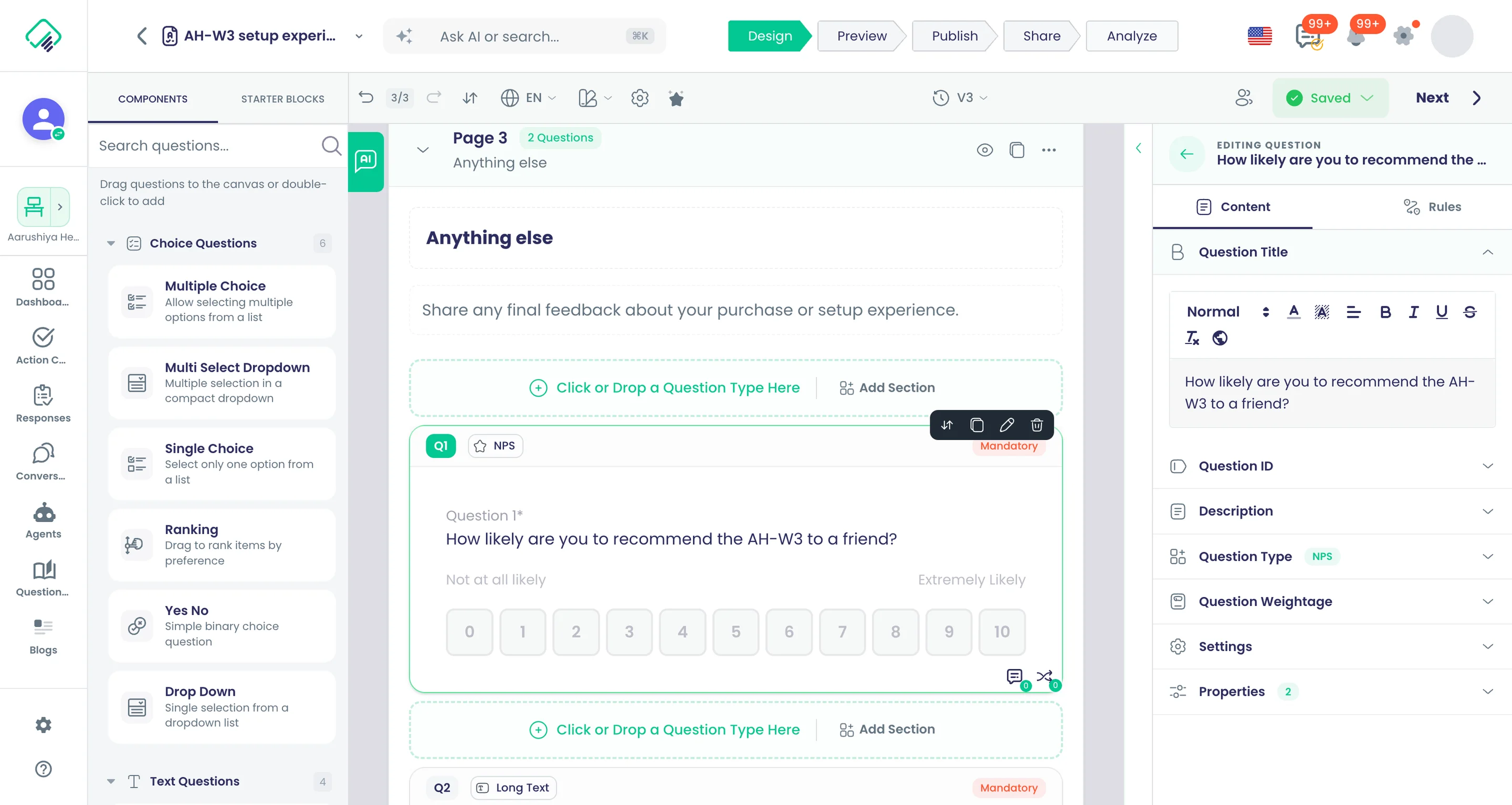
- One designer: palette, canvas and a Content and Rules panel for every question
- 23 question types, from NPS and matrix to signatures, video and product cards
- 10 rule actions skip, end, disqualify, show or hide pages, questions and options
- Sell from the form: product cards, Stripe Checkout, stock and refunds
- Choose languages from 191; every text is translated when you save
Build and design
Drag-and-drop survey designer
Build on one canvas: a Components palette, Starter Blocks, pages and sections, and a Content and Rules panel for each question.
What it does
The survey designer is where every survey is built. Drag question types from the Components palette or blocks from Starter Blocks onto the canvas, organise pages and sections, and select a question to edit it in the Content and Rules tabs. The toolbar holds themes, languages, timer, variables, versions and test settings, and five steps take the survey from design to results.
Highlights and options
- Components palette: 23 question types in 6 groups
- Starter Blocks: 23 ready blocks in 5 groups
- Pages, section headers and repeatable sections
- Question panel: Content and Rules tabs
- Toolbar: Question Order, Themes, Timer, Analytics, Variables, Version
- Toolbar: Manage Languages and Test Configuration
- Steps: Design, Preview, Publish, Share, Analyze
- Autosave, undo and redo, and editing together
Where in the product
Surveys › open a survey › Design
Plans and limits
- All plans
Related capabilities
Per-question settings
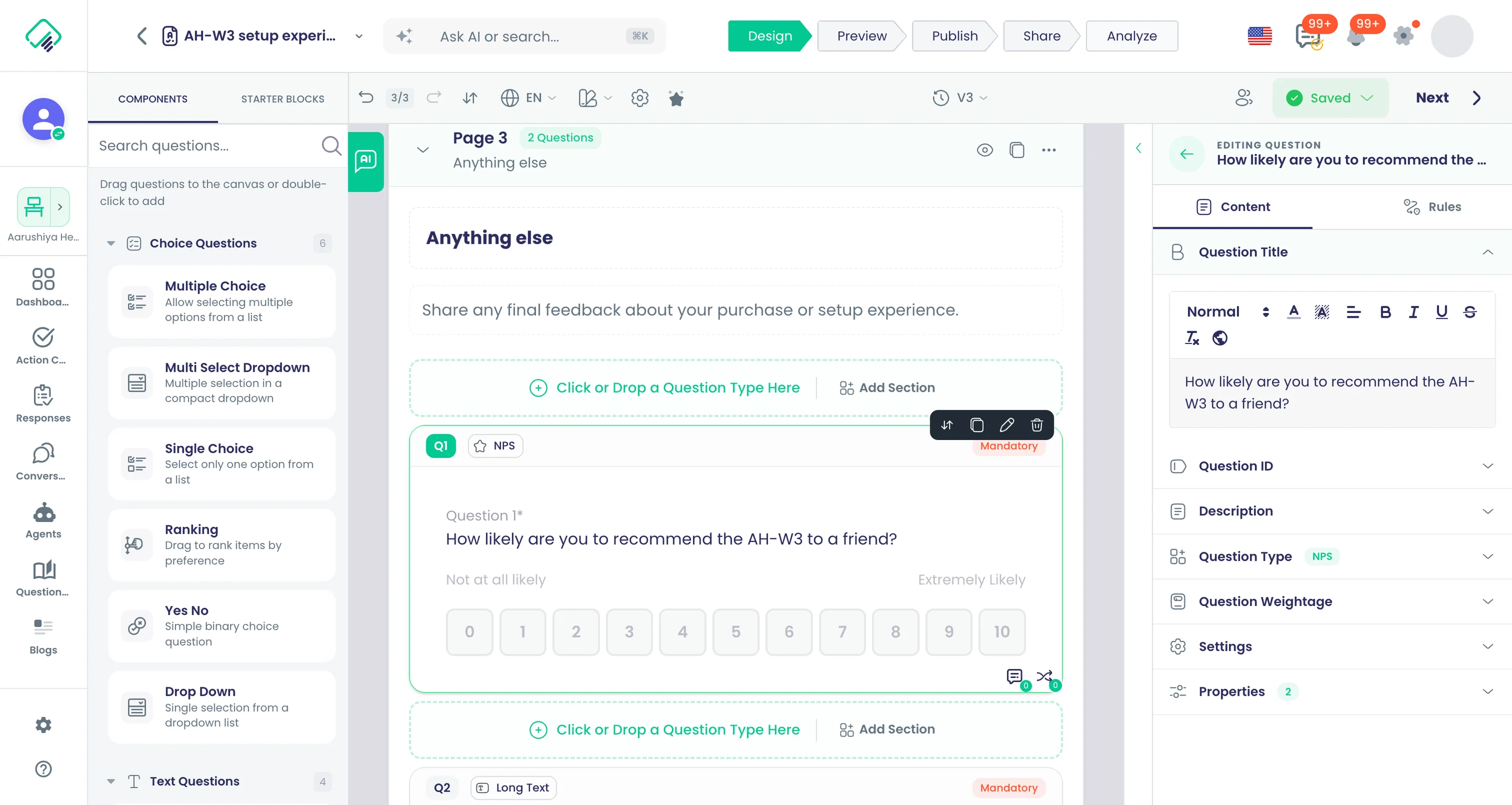
Make each question required, hidden, read-only, randomised, piped or AI-analysed, and give it its own ID and time limit.
What it does
Every question carries its own switches in the designer toolbar. Set whether it must be answered, whether it shows, whether answers can be edited, and how its options behave. AI switches send its answers for sentiment, entities, classification or file analysis.
Highlights and options
- Required, Visible, Read Only
- Auto Apply default answer
- Randomize Options and Dynamic Options
- Split Survey ID (part of the unique response key)
- Custom Question IDs
- Time limit (sec) per question
- AI: Sentiment Analysis, Entity Detection, Content Classification
- AI: Analyze Content on files and video; Multiple Files on uploads
Where in the product
Surveys › open a survey › Design › select a question
Plans and limits
- All plans
Related capabilities
AI survey builder from a prompt
Describe the form in your own words and the AI assistant drafts pages and questions, then opens them in the designer.
What it does
Describe the survey in a chat: its subject, audience and number of questions. The AI Assistant drafts the pages and questions, checks that at least one page has questions, and opens the draft in the designer. You keep chatting to change it before you build it.
Highlights and options
- Start from a chat on the survey start screen
- Drafts pages and questions in one pass
- Opens the result in the designer for editing
- Refine the draft in the same chat before building
Where in the product
Workspaces › open a workspace › Surveys › create a survey › AI Assistant
Plans and limits
- All plans
Related capabilities
AI edits the open survey
Ask the in-designer assistant for changes in plain words and it edits the survey you are working on.
What it does
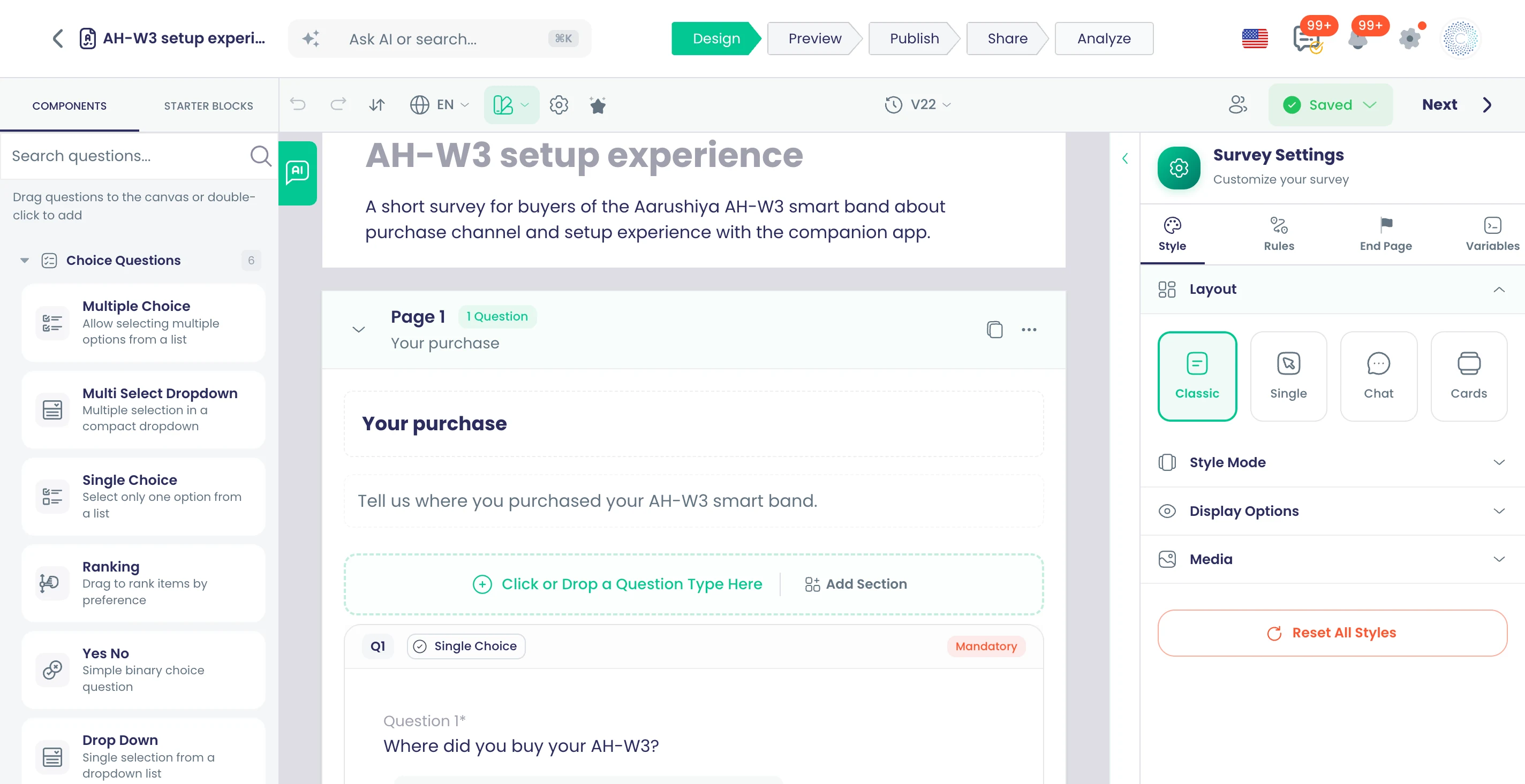
Inside the designer, an assistant reads the survey you have open and changes it on request. Ask it to add a question, reword an option or restructure a page, and it applies the edit to the current survey.
Highlights and options
- Works on the survey that is open, not a new draft
- Add, reword or remove questions and options in plain words
- Keeps the chat history for follow-up requests
Where in the product
Surveys › open a survey › Design › AI assistant chat
Plans and limits
- All plans
Related capabilities
90 templates in 7 languages
Start from ready templates for feedback, HR, research, training, events, registrations and order forms, each in seven languages.
What it does
90 ready templates across 14 collections, each written in English, French, Italian, German, Spanish, Russian and Hindi. Open one, adjust it in the designer and publish. Removed templates open their successor, so old links keep working.
Highlights and options
- Customer feedback: CSAT, NPS, transactional NPS, CES, post-purchase, churn
- Employee engagement, lifecycle and performance
- Market research: concept tests, segmentation, Gabor-Granger pricing
- Product experience: product-market fit, usability (SUS), beta feedback
- Brand awareness, perception and loyalty
- Academic: course evaluation, student satisfaction, programme assessment
- Forms: contact, lead, support, returns (RMA), warranty claims, exchanges
- Registrations: event, course, membership, volunteer, contest
- Payment forms: product purchase, donation, event ticket, service payment
- Industry: hotel, restaurant reservations, waitlists, catering enquiries
- Events and training collections
Where in the product
Workspaces › open a workspace › Surveys › create a survey › From Template
Plans and limits
- All plans
90 templates, 14 collections, 7 languages each.
Related capabilities
NPS and post-purchase templates
Ready NPS and post-purchase feedback surveys give customer-experience teams a working starting point.
What it does
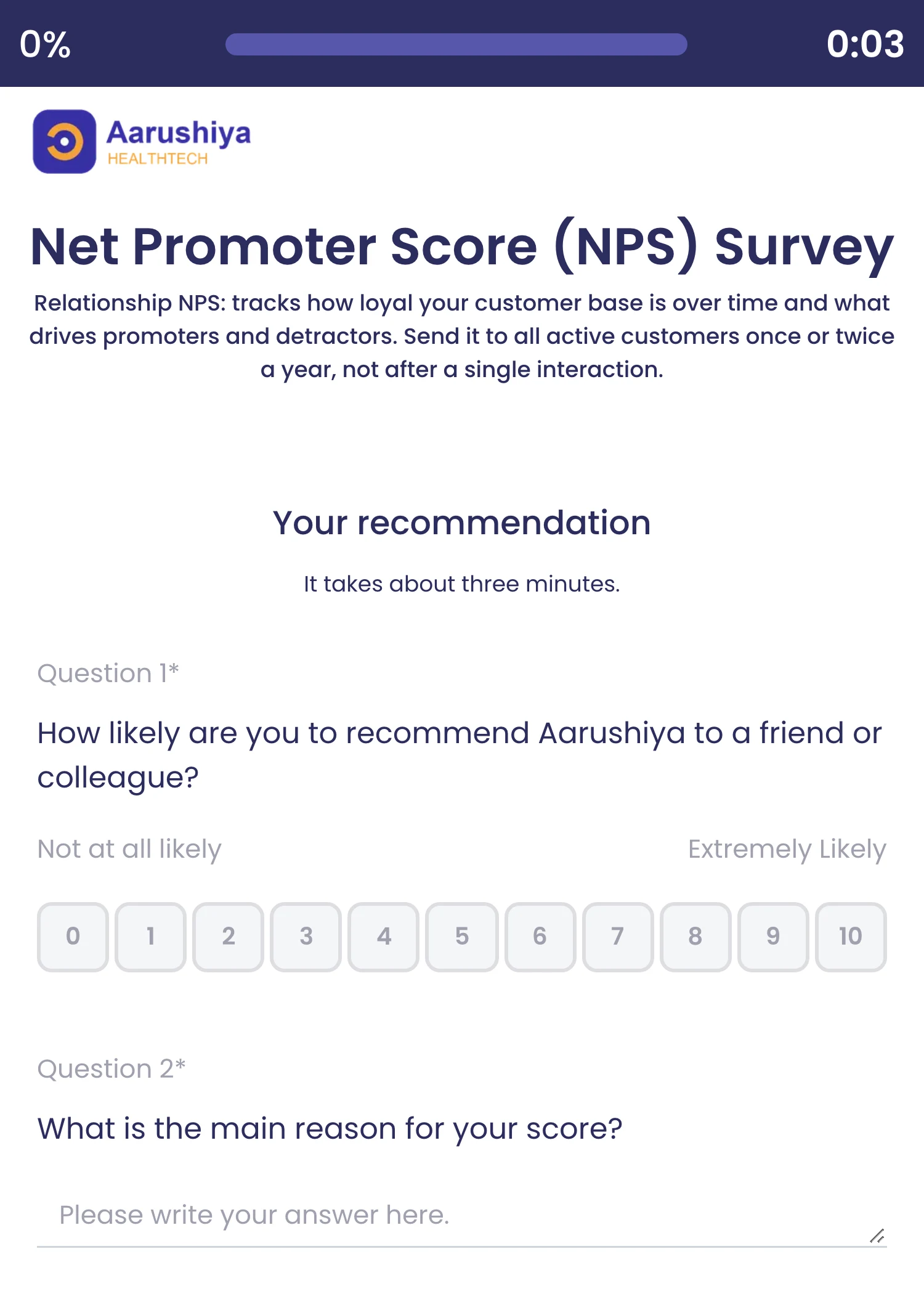
Customer-experience templates ready to send, each with guidance on when to use it. Relationship NPS tracks loyalty over time; transactional NPS and CES follow a single delivery, ticket or visit.
Highlights and options
- Customer Satisfaction Score (CSAT) Survey
- Net Promoter Score (NPS) Survey
- Transactional NPS (Post-Interaction) Survey
- Customer Effort Score (CES) Survey
- Post-Purchase Survey and Post-Delivery Feedback Survey
- Product Feedback Survey
- Customer Cancellation & Churn Survey
- B2B Customer Relationship Survey
Where in the product
Workspaces › open a workspace › Surveys › create a survey › From Template
Plans and limits
- All plans
Related capabilities
Employee engagement and lifecycle templates
Templates for engagement, work-life balance, onboarding at 30/60/90 days, exit interviews, 360 feedback and skills gaps.
What it does
Templates for the employee lifecycle, from hiring to exit. Each comes in seven languages and opens in the designer for your own wording.
Highlights and options
- Employee Engagement Survey and Employee Pulse Survey
- Employee Net Promoter Score (eNPS) Survey
- Work-Life Balance, Team Collaboration and Leadership Effectiveness
- Employee Recognition and Employee Benefits Preference
- Diversity, Equity & Inclusion (Belonging) Survey
- New Hire Onboarding Survey (30/60/90 Days)
- Candidate Experience Survey and Exit Interview Survey
- 360-Degree Feedback, Performance Self-Review, Skills Gap & Training Needs
- IT Help Desk Satisfaction Survey
Where in the product
Workspaces › open a workspace › Surveys › create a survey › From Template
Plans and limits
- All plans
Related capabilities
Import Google Forms with responses
Bring an existing Google Form into the designer, optionally with its past responses, or import questions from CSV.
What it does
Connect a Google account, pick a form and import it into the designer, with its past responses if you switch that on. Or upload a CSV of questions: one row per question and language, with page and question numbers, so a multilingual survey arrives in one file.
Highlights and options
- Google Forms: pick from the forms in your connected Google account
- Optional: import the form's past responses
- CSV: columns for page number, question number, question type and language
- CSV rows in several languages create a multilingual survey
- Download a CSV template to start from
Where in the product
Workspaces › open a workspace › Surveys › create a survey › Import
Plans and limits
- All plans
Related capabilities
Clone any survey
Copy an existing survey as the starting point for a new one, or start from blank.
What it does
Copy any survey in your workspace as the start of a new one, with its pages, questions, rules and styling. Change what differs and publish it as a separate survey with its own results.
Highlights and options
- Search and pick the survey to copy
- Keeps pages, questions, rules and styling
- The copy gets its own collectors and results
Where in the product
Workspaces › open a workspace › Surveys › create a survey › Clone Survey
Plans and limits
- All plans
Related capabilities
Ready question blocks
Insert prebuilt blocks for contact details, feedback, research, business and consent, translated into the survey's languages.
What it does
23 prebuilt blocks of ready-configured questions in 5 groups. Insert a block and its questions arrive with types, required flags and placeholders set, translated into the survey's languages.
Highlights and options
- Contact & Info: Basic Contact Info, Verified Contact (OTP), Complete Contact Form
- Contact & Info: Address Collection, Demographics
- Feedback & Ratings: Customer Satisfaction (CSAT), NPS with Follow-up
- Feedback & Ratings: Likert Agreement Scale, Likert Frequency Scale
- Feedback & Ratings: Product Feedback, Service Quality Feedback
- Market Research: Brand Awareness, Purchase Intent, Competitor Comparison
- Market Research: UX Feedback (SUS-inspired)
- Business & Events: Lead Generation, Event Registration
- Business & Events: Employee Engagement, Simple Order Form
- Consent & Legal: Consent with Signature, Photo/Video Release and more
Where in the product
Surveys › open a survey › Design › Starter Blocks
Plans and limits
- All plans
23 blocks in 5 groups.
Related capabilities
Reusable question banks
Keep reusable question libraries with tags and versions and pull questions from them into any survey.
What it does
Keep reusable question libraries outside any one survey. Tag and filter banks, keep versions you can compare and restore, translate a bank into new languages in one go, and pull its questions into any survey.
Highlights and options
- Tags with filtering, plus category and status filters
- Version history with compare and Restore this version
- Add a language and the bank's questions are translated
- AI assistant generates, edits or removes questions in a bank
- Pick questions from a bank inside the survey designer
Where in the product
Question Banks (sidebar)
Plans and limits
- All plans
Related capabilities
Edit together in real time
Several teammates edit the same survey at once and see each other's changes as they happen.
Also in: Collaboration
What it does
Several teammates open the same survey and edit at once. Each change is sent to everyone in the designer as it is made, so nobody overwrites another person's work or waits for a save.
Highlights and options
- Changes reach every open designer as they happen
- Works with undo, redo and autosave
- Combine with locking and threads for review
Where in the product
Surveys › open a survey › Design
Plans and limits
- All plans
Related capabilities
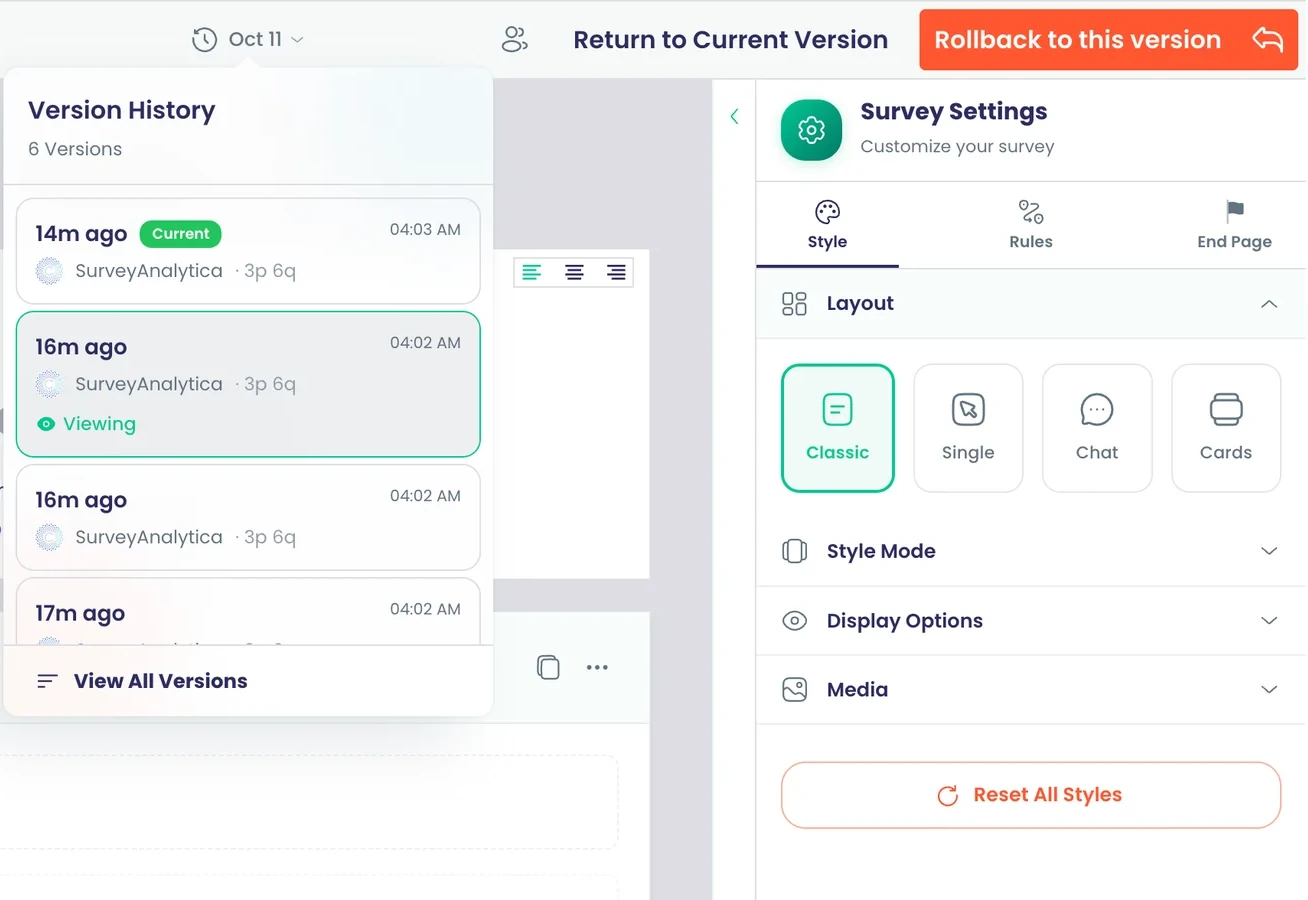
Version history with rollback
Browse the saved versions of a survey and roll back to any earlier one.
Also in: Collaboration
What it does
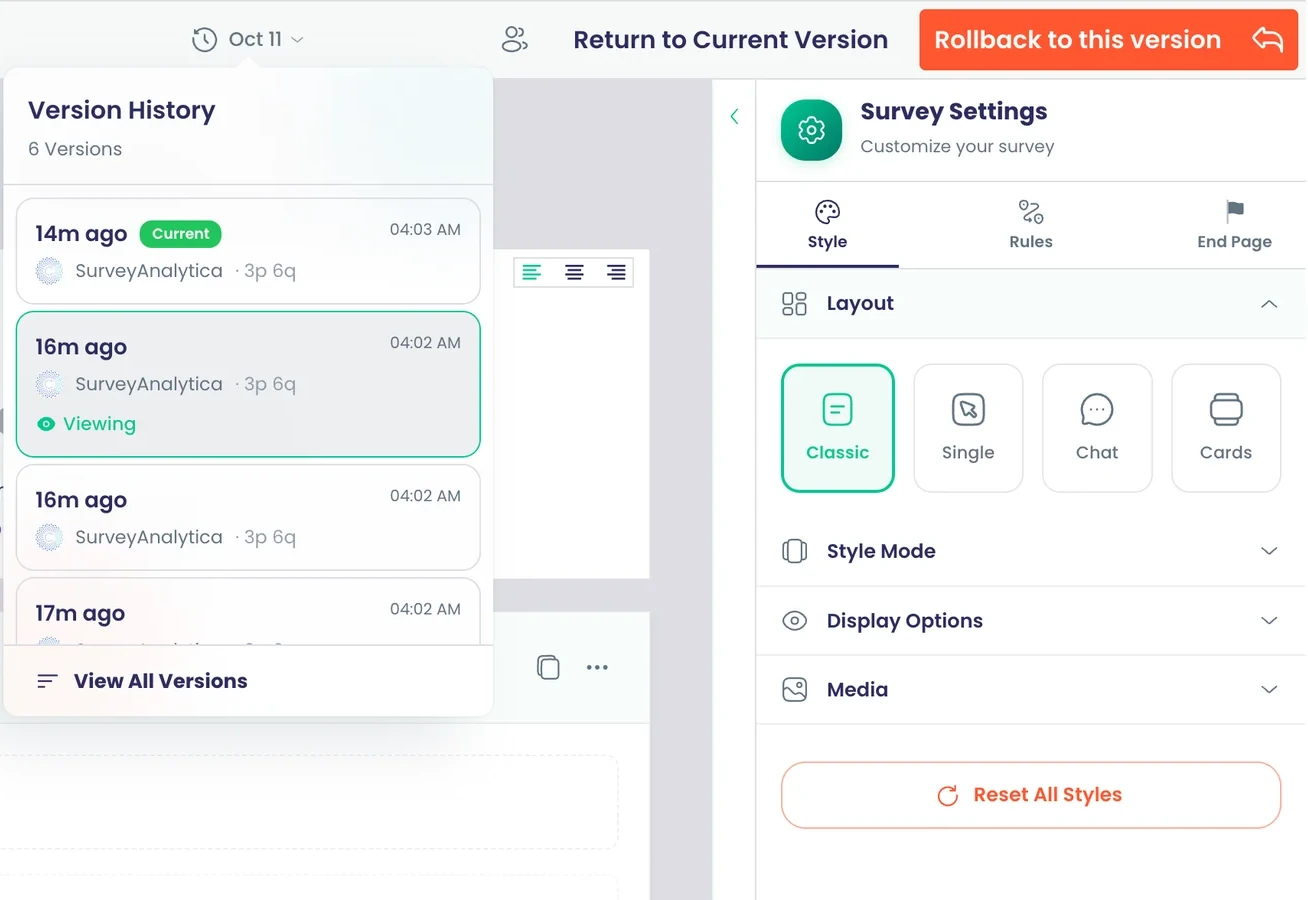
Every saved version of a survey is listed with its author and time. Open an older version read-only, compare it with the current one, then Return to Current Version or Rollback to this version.
Highlights and options
- Author name and time on each version
- View an older version without changing the live survey
- Rollback to this version, or Return to Current Version
- Versions are kept for 30 days
Where in the product
Surveys › open a survey › Design › Version
Plans and limits
- All plans
Each version is kept for 30 days.
Related capabilities
Undo, redo and autosave
Undo or redo up to 50 designer steps while changes save automatically.
What it does
Every edit in the designer saves automatically. Undo and redo step back and forward through your last 50 changes in the current session.
Highlights and options
- Up to 50 undo steps
- Redo after an undo
- Automatic saving, no Save button to remember
Where in the product
Surveys › open a survey › Design
Plans and limits
- All plans
Up to 50 undo and redo steps per session.
Related capabilities
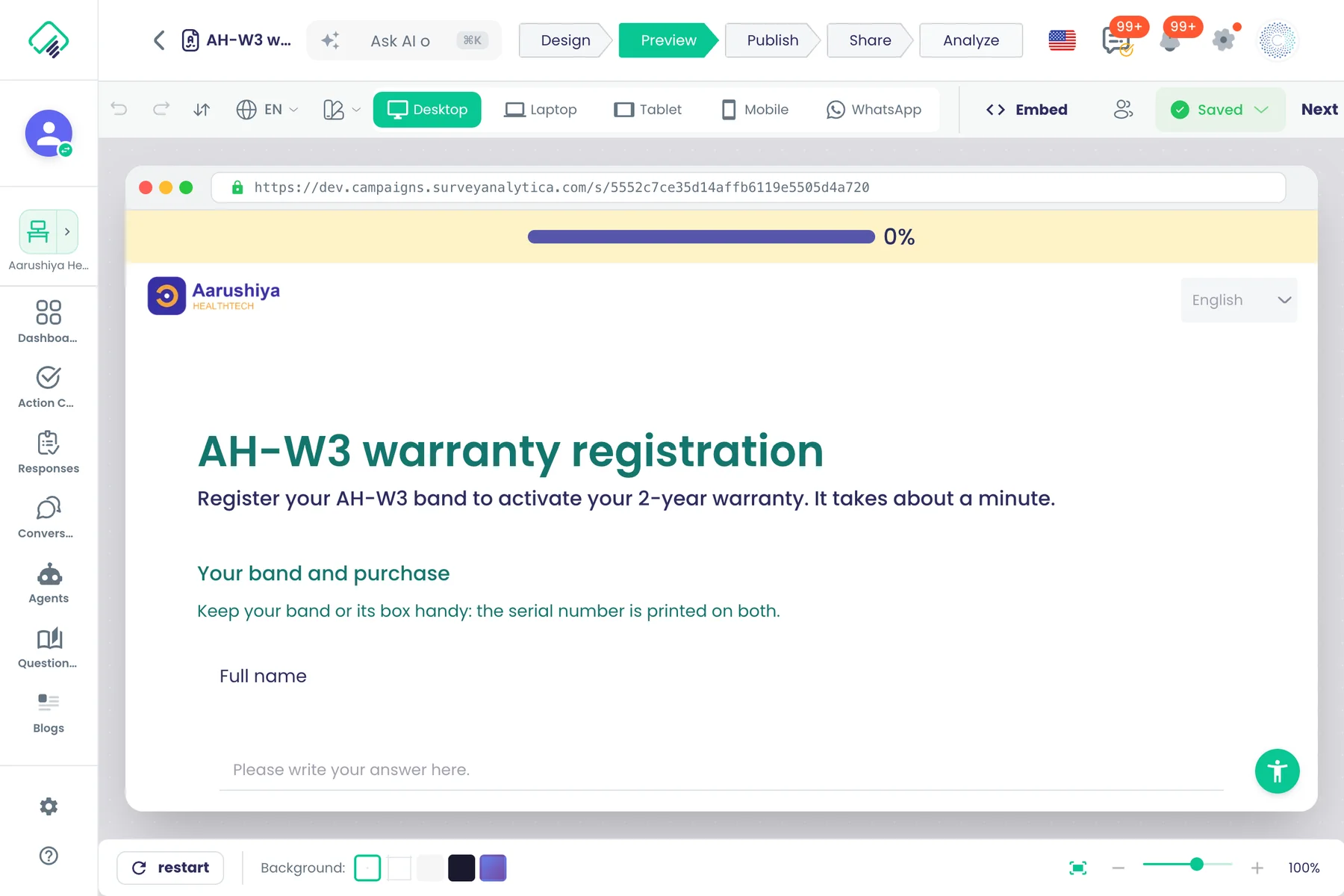
Preview on every device
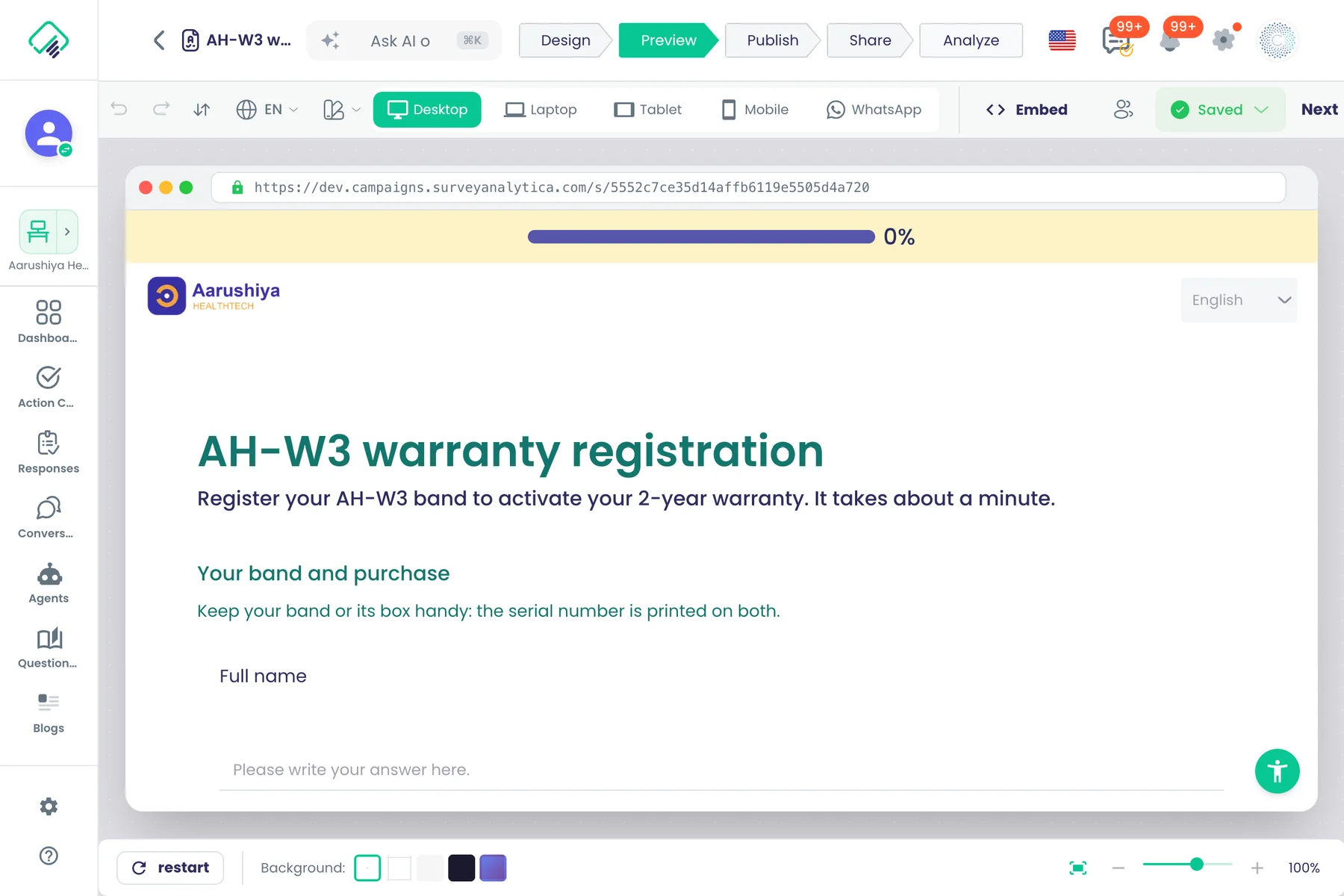
Preview the survey as it looks on desktop, laptop, tablet, phone and inside WhatsApp before publishing.
Also in: Collaboration
What it does
Check the survey at real screen sizes before you publish, including a WhatsApp frame. Preview runs the survey's rules, so you can click through each path.
Highlights and options
- Desktop: full window
- Laptop: 1280 × 800
- Tablet: 768 × 1024
- Mobile: 390 × 844
- WhatsApp: the survey inside a WhatsApp frame, 390 × 844
Where in the product
Surveys › open a survey › Preview
Plans and limits
- All plans
Related capabilities
Share a preview with reviewers
Send a preview link and invite reviewers by email, including people outside your organisation, and revoke or restore each invite.
What it does
Send a preview link and invite reviewers by email, including people outside your organisation, and revoke or restore each invite.
Highlights and options
- Invite reviewers by email
- Revoke or restore an invite
Where in the product
Surveys › open a survey › Design › Share preview
Plans and limits
- All plans
Preview without side effects
Preview answers are stored apart from real responses, restrictions and test protections are skipped, and no payment is taken.
What it does
Preview answers are stored apart from real responses, restrictions and test protections are skipped, and no payment is taken.
Highlights and options
- Preview answers kept apart from real responses
- No payment taken in preview
Where in the product
Surveys › open a survey › Preview
Plans and limits
- All plans
AI builds question banks from your files
Describe a bank or upload a PDF, Excel or CSV file or an image, and the AI assistant turns its content into questions in the bank.
What it does
Describe a bank or upload a PDF, Excel or CSV file or an image, and the AI assistant turns its content into questions in the bank.
Highlights and options
- PDF, Excel, CSV and image uploads
Where in the product
Question Banks (sidebar) › open a bank › AI assistant
Plans and limits
- All plans
Ask our team to build it
Choose Request Help when you create a survey and send our team a brief to build it for you.
What it does
Choose Request Help when you create a survey and send our team a brief to build it for you.
Highlights and options
- Request Help on the create screen
Where in the product
Workspaces › open a workspace › Surveys › create a survey › Request Help
Plans and limits
- All plans
Question types
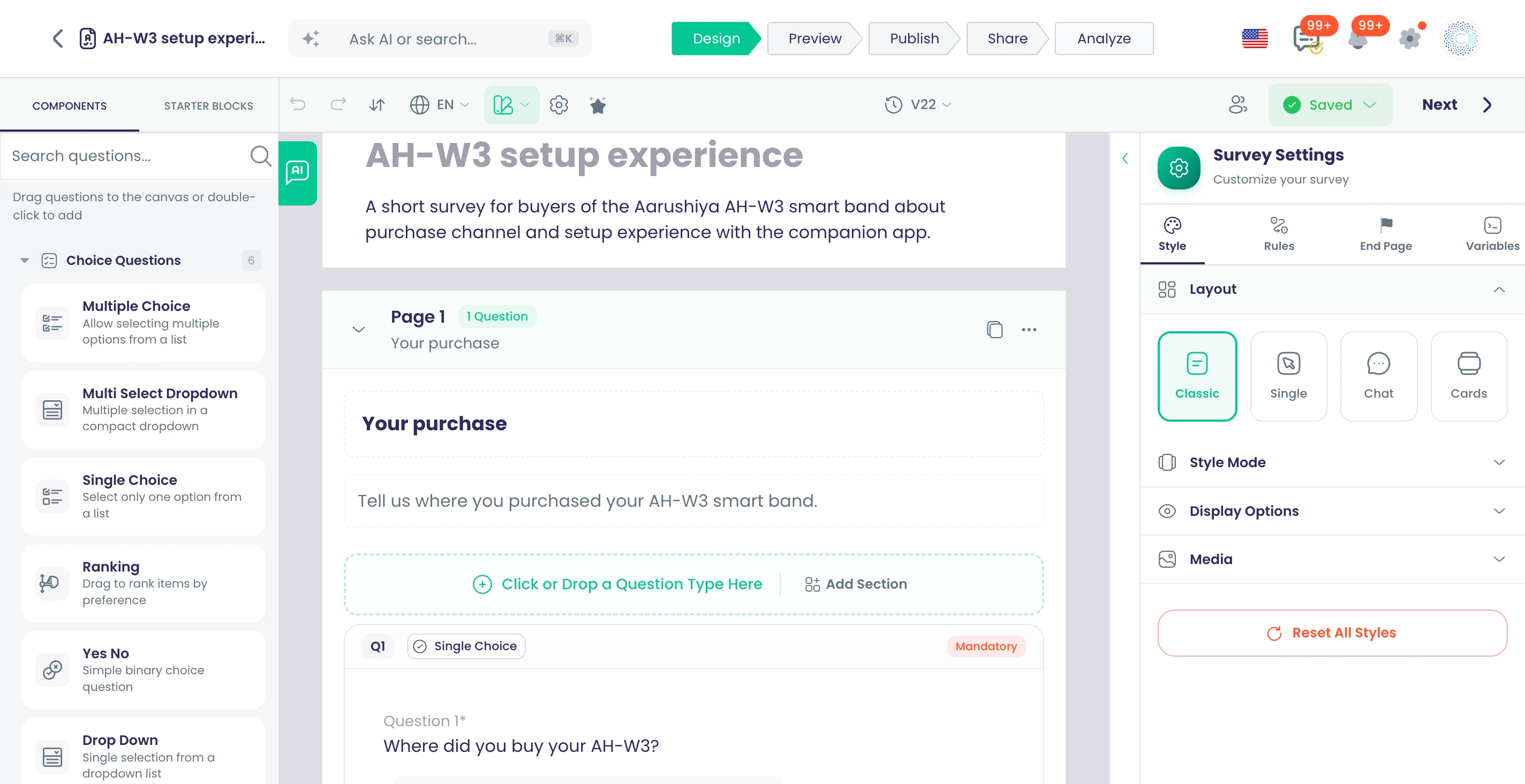
23 question types
Choices, ranking, text, date, slider, NPS, ratings, matrix, image choice, files, video, phone, payment, booking, product cards and signature.
What it does
The Components palette holds 23 question types in six groups. Drag one onto the canvas, then set its options in the Content tab and its rules in the Rules tab.
Highlights and options
- Multiple Choice
- Multi Select Dropdown
- Single Choice
- Ranking
- Yes No
- Drop Down
- Free Text
- Restricted Text
- Multiple Textboxes
- Date
- Slider
- NPS
- CSAT Rating
- Image Choice
- Upload File
- Video Recorder
- Matrix
- Payment
- Appointment
- Product Cards
- ID Generator
- Phone Number
- Signature
Where in the product
Surveys › open a survey › Design › Components
Plans and limits
- All plans
Groups: Choice Questions, Text Questions, Scale & Rating, Media & Files, Advanced, Contact Info.
Related capabilities
Answer labels from 11 ready scales
Type an answer option and pick matching wording from 11 balanced five-point scales, such as satisfaction, agreement and frequency.
What it does
As you type an answer option, the editor suggests matching labels from eleven balanced five-point scales. Pick one to fill the option, so the wording stays consistent from one end of the scale to the other.
Highlights and options
- Satisfaction: Very Dissatisfied to Very Satisfied
- Difficulty: Very Difficult to Very Easy
- How well: Very Poorly to Very Well
- Confidence: Very Unconfident to Very Confident
- Likelihood: Very Unlikely to Very Likely
- Agreement: Strongly Disagree to Strongly Agree
- Effectiveness: Very Ineffective to Very Effective
- Quality: Very Poor to Very Good
- Frequency: Never to Always
- Importance: Not Important to Very Important
- Trust: Do not Trust to Strongly Trust
Where in the product
Surveys › open a survey › Design › select a question › type an answer option
Plans and limits
- All plans
Related capabilities
Multiple choice with scores
Pick several options, with a minimum and maximum, a score and negative mark per option, and options that hide or come from earlier answers.
What it does
Respondents tick one or more options. Set how many they must or may pick, score each option, and penalise wrong ticks without the question ever scoring below zero.
Highlights and options
- Minimum and maximum selections, with your own error message
- Score weight and negative marking penalty per option
- Hide options per option or by rule
- Randomize Options and Dynamic Options
- Partial credit in tests
Where in the product
Surveys › open a survey › Design › Components › Choice Questions › Multiple Choice
Plans and limits
- All plans
Related capabilities
Searchable multi-select dropdown
A dropdown for long lists: search as you type, pick several, and load options from your own system page by page.
What it does
Respondents search a long list and pick several entries. With question code, the list loads from your system as they type and scroll, so a catalogue of thousands stays fast.
Highlights and options
- Search as you type
- Pick several entries
- Infinite scroll with question code
- Options from your own endpoint
Where in the product
Surveys › open a survey › Design › Components › Choice Questions › Multi Select Dropdown
Plans and limits
- All plans
Related capabilities
Ranking by drag or keyboard
Respondents put options in order by dragging, or with the arrow keys.
What it does
Respondents order a list from most to least preferred. They drag items, or move the focused item with the up and down arrow keys, so ranking works without a mouse.
Highlights and options
- Drag to reorder
- Up and down arrow keys
- Ranked options can trigger rules
Where in the product
Surveys › open a survey › Design › Components › Choice Questions › Ranking
Plans and limits
- All plans
Related capabilities
Free text with checks and AI
Open answers with a placeholder, length and pattern checks, a model answer for scoring, and AI sentiment and entities.
What it does
A multi-line answer box for open comments. Set its placeholder, height, maximum length and an optional pattern. Give it a model answer to score it in tests, or switch on AI to tag sentiment, entities and topics.
Highlights and options
- Placeholder text
- Minimum rows (height)
- Maximum length and pattern
- Model answer for scoring
- AI: Sentiment Analysis, Entity Detection, Content Classification
Where in the product
Surveys › open a survey › Design › Components › Text Questions › Free Text
Plans and limits
- All plans
Related capabilities
Multiple text boxes in one question
Several typed inputs under one question, three by default and up to five.
What it does
Collect related values together, such as a name, email and phone, under one question. Each box takes its own input type and placeholder.
Highlights and options
- 3 boxes by default, up to 5
- Input types: Text, Name, Number, Email, Phone, URL
- Input types: Color, Time, Month, Week
- Placeholder per box
Where in the product
Surveys › open a survey › Design › Components › Text Questions › Multiple Textboxes
Plans and limits
- All plans
Related capabilities
Date and time questions
Ask for a date, a time, a date and time, or a month, with limits and a default of yesterday, now or tomorrow.
What it does
A date picker in four formats. Set the earliest and latest allowed value and a default, so a delivery date can never be in the past.
Highlights and options
- Formats: Date & Time, Date Only, Time Only, Month
- Minimum and maximum
- Default: yesterday, now or tomorrow
Where in the product
Surveys › open a survey › Design › Components › Text Questions › Date
Plans and limits
- All plans
Related capabilities
Image choice
Options shown as pictures, with single or multiple selection.
What it does
Respondents choose between pictures, such as product designs or packaging. Allow one choice or several, and use the choice in rules like any option.
Highlights and options
- Selection Type: Single Select or Multi Select
- Picture per option
- Triggers rules like other choice questions
Where in the product
Surveys › open a survey › Design › Components › Media & Files › Image Choice
Plans and limits
- All plans
Related capabilities
Slider
A slider with your own minimum, maximum and starting value, 0 to 100 starting at 50 by default.
What it does
Respondents drag to a value on a scale. Set the range and where the handle starts; the slider also works in the swipeable Cards layout.
Highlights and options
- Minimum, 0 by default
- Maximum, 100 by default
- Starting value, 50 by default
- Works in the Cards layout
Where in the product
Surveys › open a survey › Design › Components › Scale & Rating › Slider
Plans and limits
- All plans
Related capabilities
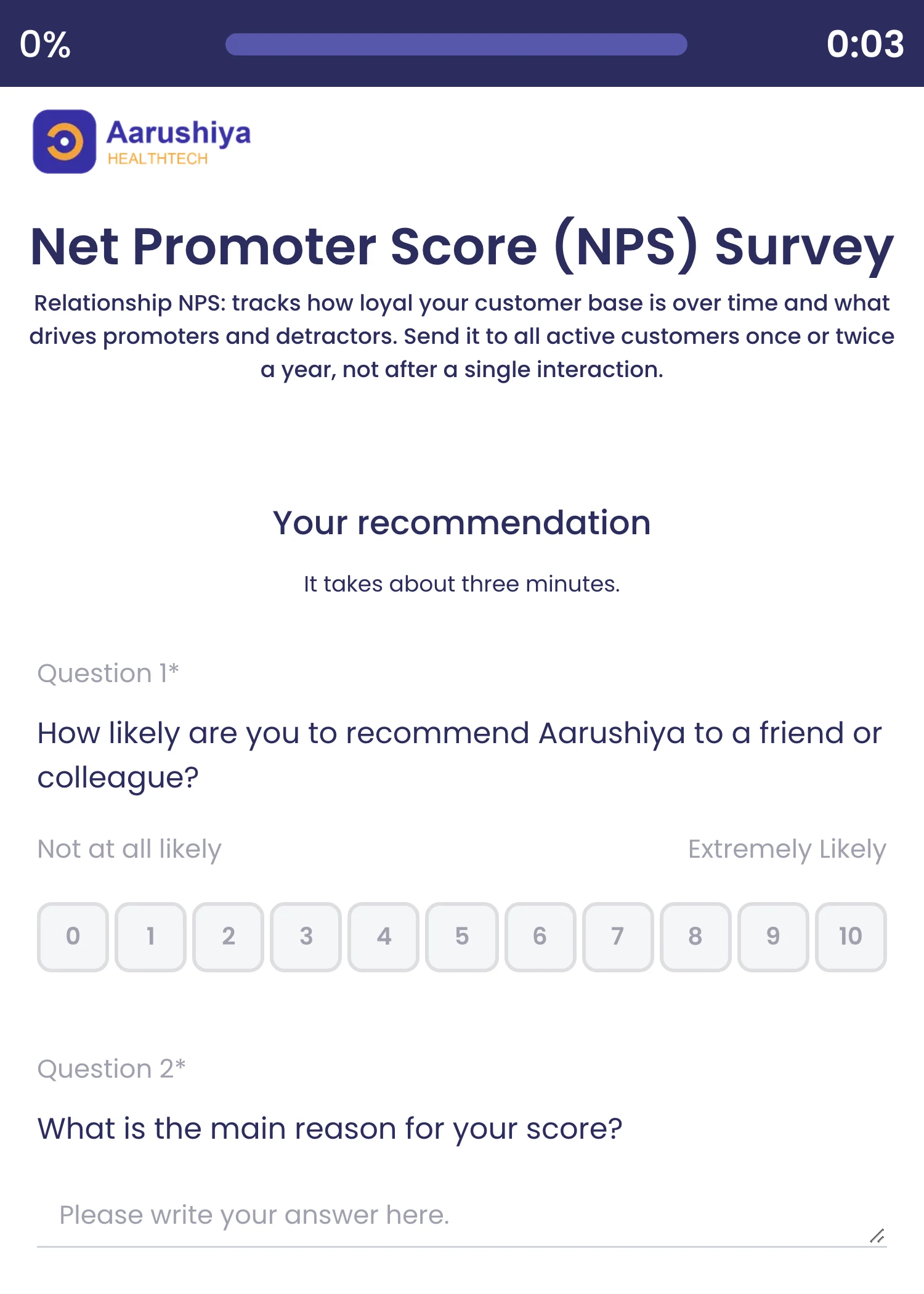
NPS question
A 0–10 Net Promoter Score question with your own end labels, ready for promoter and detractor follow-up.
What it does
A 0 to 10 Net Promoter Score question with your own end labels in every survey language. Rules can act on detractor, passive or promoter answers, and end pages can show the NPS score, category and percentage.
Highlights and options
- 0 to 10 scale
- End labels: 'Not at all likely' and 'Extremely Likely' by default, editable
- Rules on any score, for example a follow-up for 0 to 6
- End-page formulas: NPS Score, NPS Category, NPS Percentage
- NPS Thank You end-page template
Where in the product
Surveys › open a survey › Design › Components › Scale & Rating › NPS
Plans and limits
- All plans
Related capabilities
CSAT ratings in icon styles
Rating questions in stars, hearts, thumbs, emoji and other icon styles for satisfaction scores.
What it does
A rating question with eight icon styles. Pick the style that fits the brand and question; answers score like any rating and can drive rules.
Highlights and options
- Stars
- Emoji
- Hearts
- Thumbs
- Numbers
- Lightning
- Flags
- Diamonds
Where in the product
Surveys › open a survey › Design › Components › Scale & Rating › CSAT Rating
Plans and limits
- All plans
Related capabilities
Matrix and Likert scales
Matrix questions with ready answer scales for satisfaction, agreement, frequency and importance.
What it does
Matrix questions put several statements in rows against one answer scale in columns. Start from one of 11 ready five-point scales or write your own columns.
Highlights and options
- Rows and columns, each translatable
- Satisfaction: Very Dissatisfied to Very Satisfied
- Difficulty: Very Difficult to Very Easy
- How well, confidence and likelihood scales
- Agreement: Strongly Disagree to Strongly Agree
- Effectiveness and quality scales
- Frequency: Never to Always
- Importance: Not Important to Very Important
- Trust: Do not Trust to Strongly Trust
- Matrix rows can trigger rules
Where in the product
Surveys › open a survey › Design › Components › Advanced › Matrix
Plans and limits
- All plans
Related capabilities
Typed text inputs
Text boxes restricted to number, email, phone, URL, date, time or colour, plus multiple text boxes.
What it does
A single text box that accepts only one kind of value, checked as the person types. Multiple Textboxes puts several inputs under one question, three by default and up to five.
Highlights and options
- Text
- Name
- Number
- Phone
- URL
- Color
- Time
- Month
- Week
- ID Generator
Where in the product
Surveys › open a survey › Design › Components › Text Questions › Restricted Text
Plans and limits
- All plans
11 input types. Multiple Textboxes: 3 by default, up to 5.
Related capabilities
File uploads, 10 per question
Accept any file type or only the types you choose, up to ten files per question.
What it does
Respondents attach files to their answer. Accept any file type or only the formats you tick, set a size limit, and take up to ten files per question.
Highlights and options
- JPEG, PNG or all image formats
- MS Word (DOC and DOCX) and PDF
- PowerPoint and Excel
- Email files (Outlook .msg)
- Any file type
- Size limit in MB, set per question
- Custom upload and delete button text and drop-zone title
- Optional AI: Analyze File Content on uploaded files
Where in the product
Surveys › open a survey › Design › Components › Media & Files › Upload File
Plans and limits
- All plans
Up to 10 files per question. Size limit set per question.
Related capabilities
On-screen signatures
Respondents sign on screen with a finger or mouse as part of the form.
What it does
Respondents sign on screen with a finger, stylus or mouse. The signature is saved with the response and can appear on end pages and certificates through the Signature formula.
Highlights and options
- Three pen sizes: thin, medium, thick
- Two ink colours: black and blue
- Clear and sign again
- Shown on end pages through the Signature formula
- Service Agreement end-page template
Where in the product
Surveys › open a survey › Design › Components › Contact Info › Signature
Plans and limits
- All plans
Related capabilities
Video answers in the browser
Respondents record a video answer in the browser instead of typing.
What it does
Respondents record a video answer in the browser. They see a live preview, a three-second countdown and a microphone meter, then review the clip before it uploads.
Highlights and options
- Switch between front and back camera
- 3-second countdown before recording
- Time limit per question, with a progress ring
- Microphone level meter
- Review the recording before sending
- Optional upload while recording for long answers
Where in the product
Surveys › open a survey › Design › Components › Media & Files › Video Recorder
Plans and limits
- All plans
Maximum length set per question.
Related capabilities
Mobile number SMS verification
A phone question checks the respondent's mobile number with a one-time code sent by SMS.
What it does
The Phone Number question can verify the number before the survey goes on. The respondent picks a country, enters the number and types the one-time code sent to it by SMS.
Highlights and options
- Country picker for the dialling code
- One-time code sent by SMS
- Code checked before the answer is accepted
- Verified Contact (OTP) starter block
Where in the product
Surveys › open a survey › Design › Components › Contact Info › Phone Number
Plans and limits
- All plans
Related capabilities
Appointment booking in the form
Respondents pick a slot from Google Calendar, Outlook or Calendly availability without leaving the survey.
What it does
The Appointment question shows a calendar and open time slots from a connected Calendly, Google Calendar or Microsoft Outlook account. The respondent books inside the survey and the slot is reserved on that calendar.
Highlights and options
- Calendly availability
- Google Calendar availability
- Microsoft Outlook availability
- Calendar and time-slot picker inside the form
- Booking made on the connected calendar
Where in the product
Surveys › open a survey › Design › Components › Advanced › Appointment
Plans and limits
- All plans
Related capabilities
Reference number generator
Build reference, order or registration numbers from your own text, answers, dates and random characters.
What it does
Builds a reference number when the form is submitted, such as a registration, claim or certificate number. Combine your own text, earlier answers, the date and random characters, padded to a fixed length.
Highlights and options
- Parts: your own text, an earlier answer, a date, random characters
- Fixed length with padding
- Can take its value from question code
- Used as the order number when a form takes orders
Where in the product
Surveys › open a survey › Design › Components › Advanced › ID Generator
Plans and limits
- All plans
Related capabilities
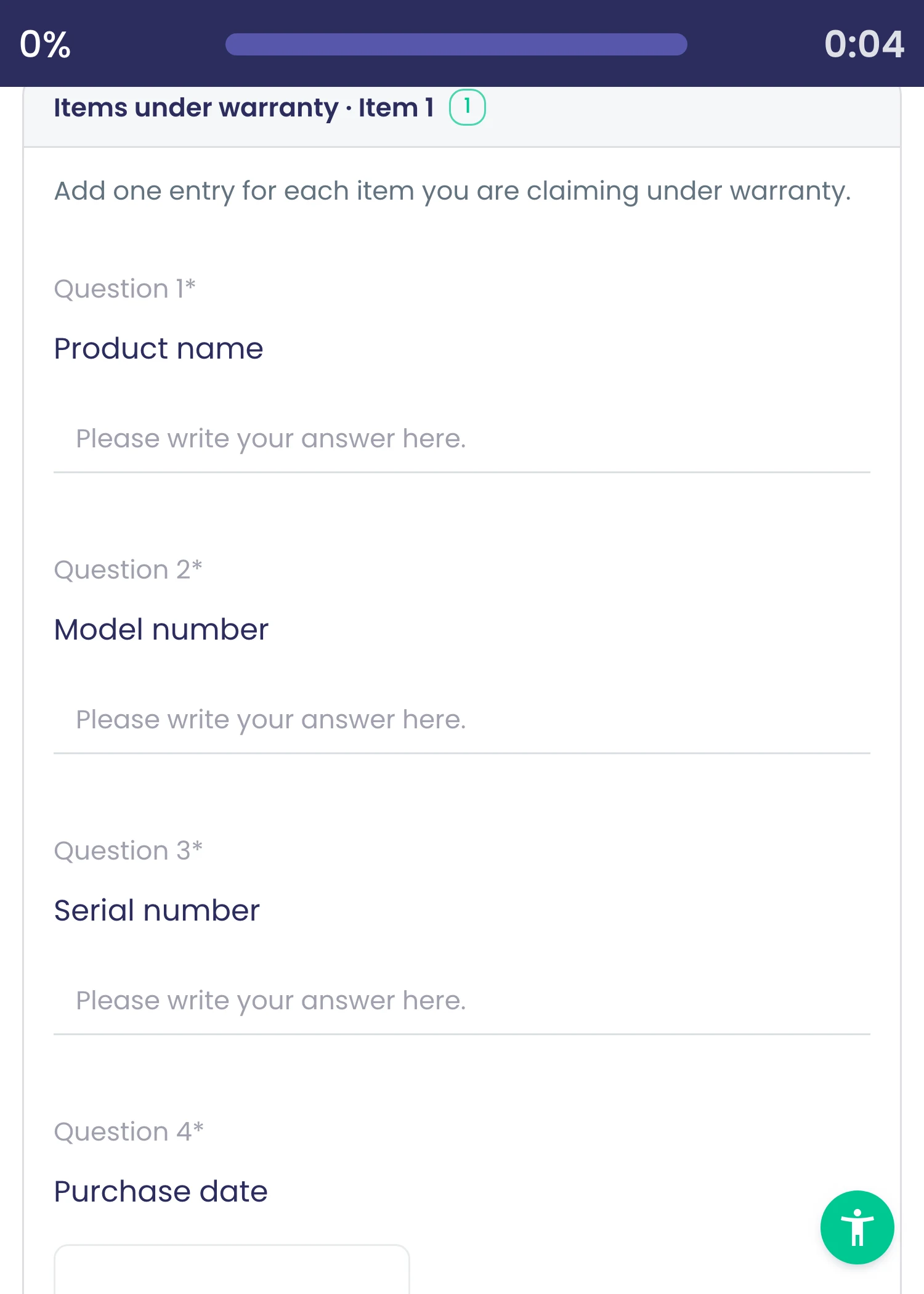
Repeatable sections
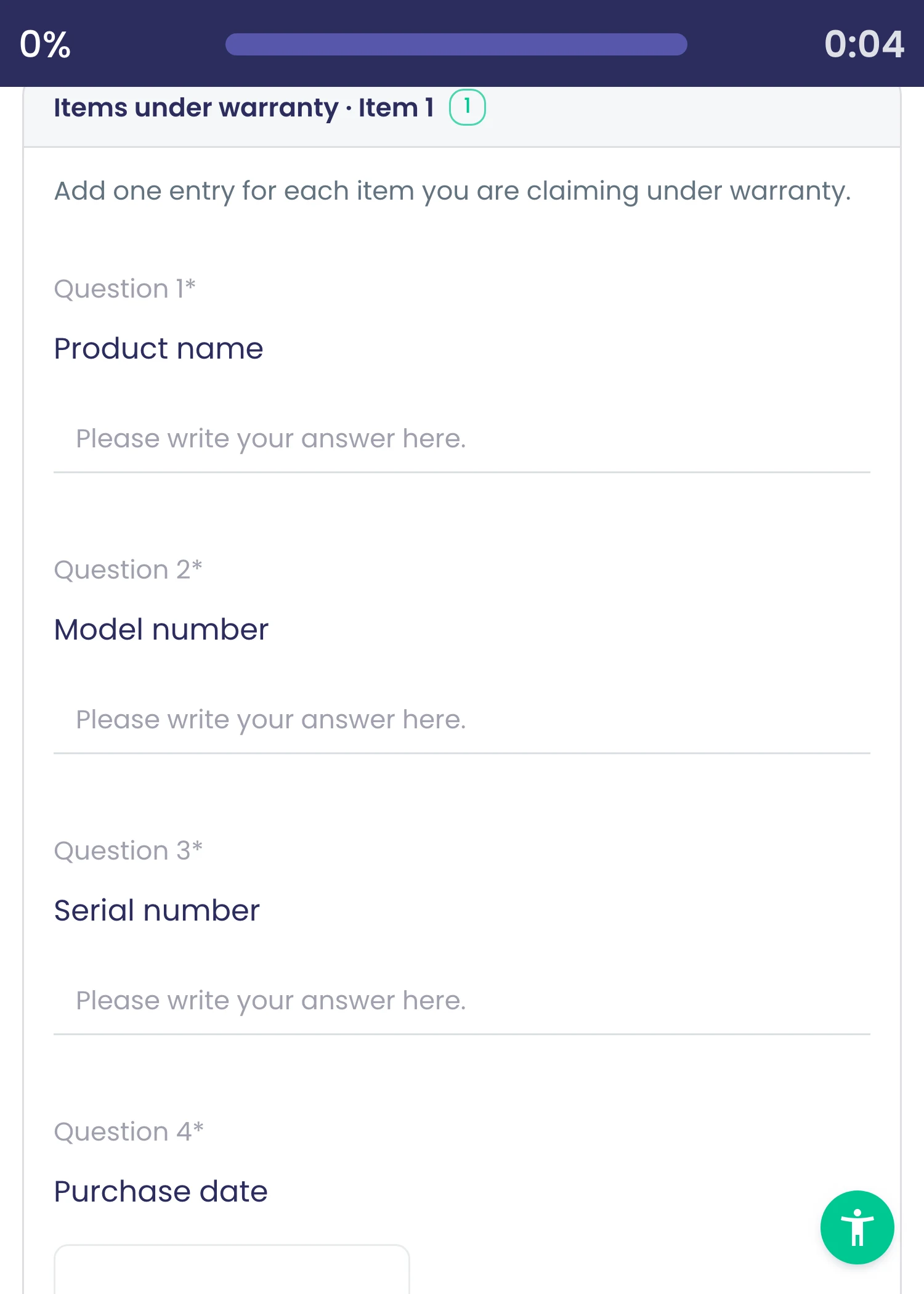
Group questions into a section respondents can repeat with Add another, for extra devices, people or sites.
What it does
Group questions into a section that respondents repeat with Add another, such as one block per device, family member or site. Each repeat is stored as its own set of answers.
Highlights and options
- Add another button, with its own translatable label
- Limit how many times a section repeats
- Each repeat stored separately with the response
- Webhook body templates can send repeats as a nested list
Where in the product
Surveys › open a survey › Design › Add Section Header
Plans and limits
- All plans
Related capabilities
Rich content in questions
Question text and descriptions take headings, links, images, embedded video, math formulas and raw HTML, with automatic translation in the editor.
What it does
Question text and descriptions take headings, links, images, embedded video, math formulas and raw HTML, with automatic translation in the editor.
Highlights and options
- Images, embedded video and math formulas
- Raw HTML and automatic translation
Where in the product
Surveys › open a survey › Design › select a question › Content
Plans and limits
- All plans
Logic and code
Skip and branch logic
Based on any answer, jump to a page or question, end the survey, or disqualify the respondent.
What it does
Rules move each respondent through the survey based on their answers. Jump ahead, end the survey politely, or end it as disqualified. If an answer changes and the condition no longer holds, the survey returns to the original path.
Highlights and options
- Skip to Page
- Skip to Question
- End Survey
- Disqualify Respondent
- Path reverts when an answer changes
- Triggered by choices, dropdowns, image choice, NPS, ratings, matrix, products, text
Where in the product
Surveys › open a survey › Design › select a question › Rules
Plans and limits
- All plans
Free plan includes unlimited rules.
Related capabilities
Show or hide pages, questions, options
Rules show or hide whole pages, individual questions and single answer options based on earlier answers.
What it does
Rules show or hide whole pages, single questions and individual answer options based on earlier answers. Hidden items are skipped for that respondent only.
Highlights and options
- Show Page
- Hide Page
- Show Question
- Hide Question
- Filter Options (hide chosen options)
- Show Only Options
Where in the product
Surveys › open a survey › Design › select a question › Rules
Plans and limits
- All plans
Related capabilities
AND/OR rule conditions
Combine conditions with AND or OR, and add as many rules as the survey needs.
What it does
Each rule holds one or more conditions joined by AND or OR, and a survey can hold as many rules as it needs. Choice questions and text questions get their own condition lists.
Highlights and options
- Join conditions with AND or OR
- Choices: Equals exactly, Includes any of, Includes exactly one of
- Choices: Includes all of, Does not include any of
- Text: Equals exactly, Does not equal, Contains, Does not contain
- Text: Matches regex pattern, Is empty, Is not empty
Where in the product
Surveys › open a survey › Design › select a question › Rules
Plans and limits
- All plans
Related capabilities
AI rule builder
Describe a rule in plain words, such as a follow-up when rating is below 3, and the AI writes it.
What it does
Describe a rule in a sentence and the AI writes the conditions and actions for you to check and save. It reads your survey's questions and options, so names in your sentence map to the right items.
Highlights and options
- Example: Skip to page 3 if someone selects 'No'
- Example: Disqualify NPS detractors (0-6)
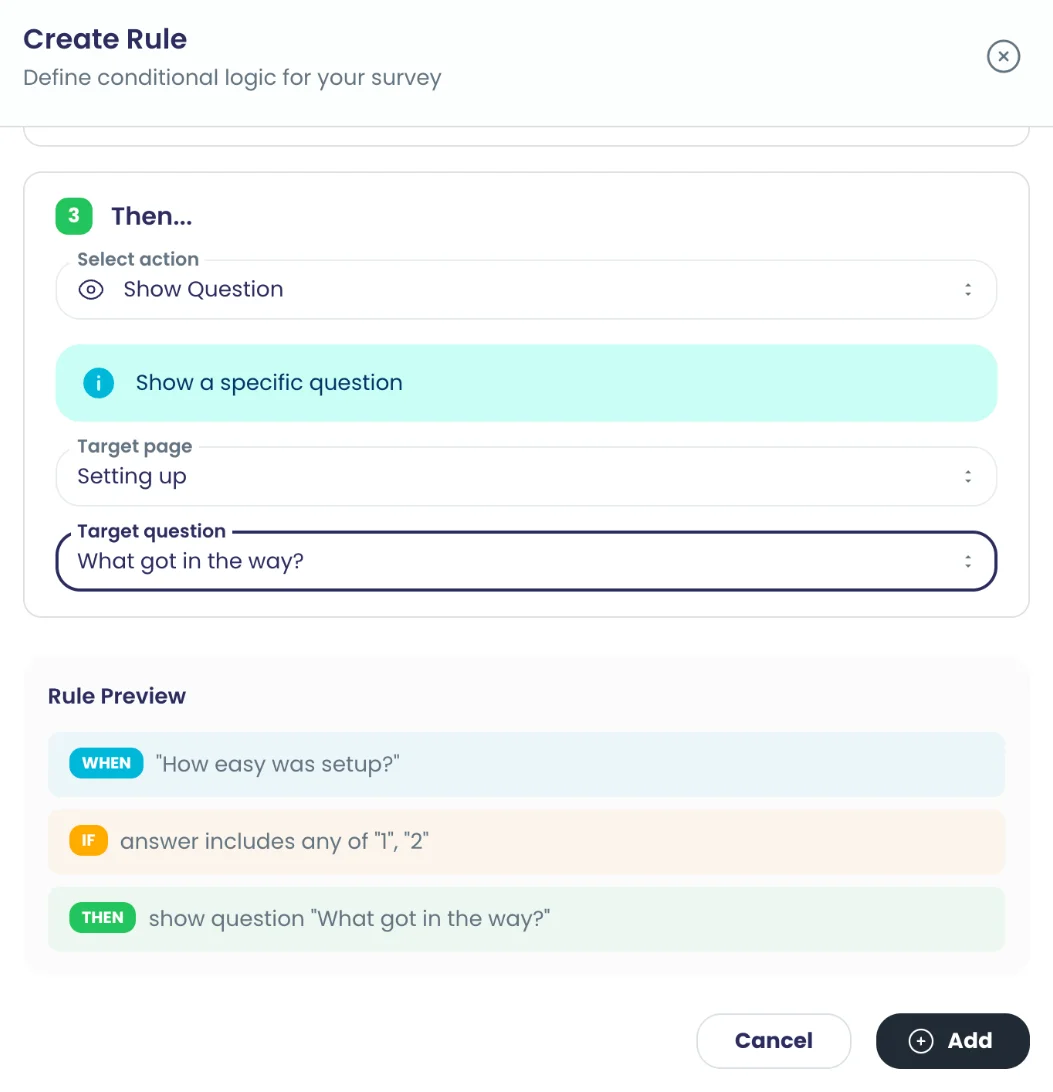
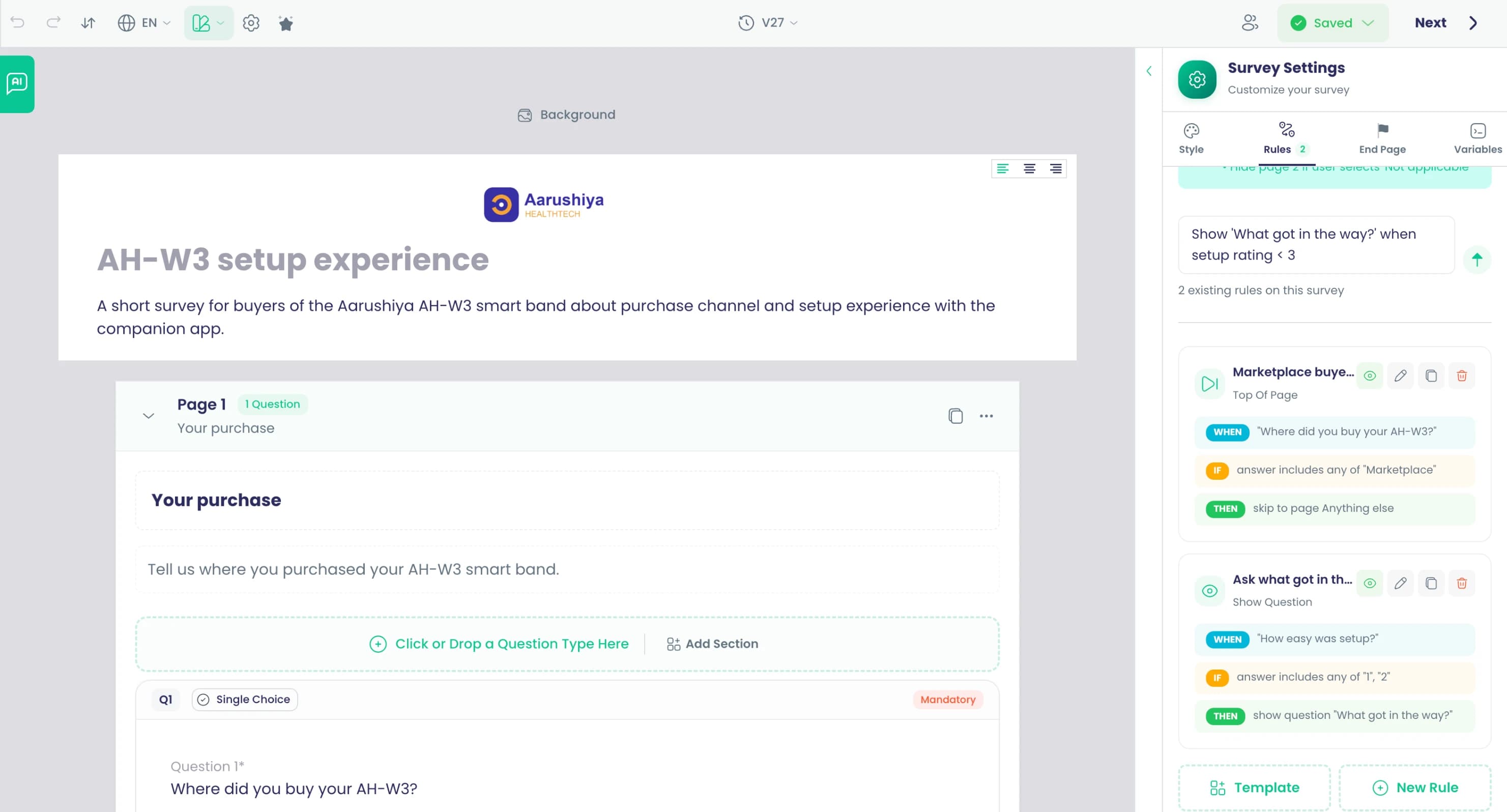
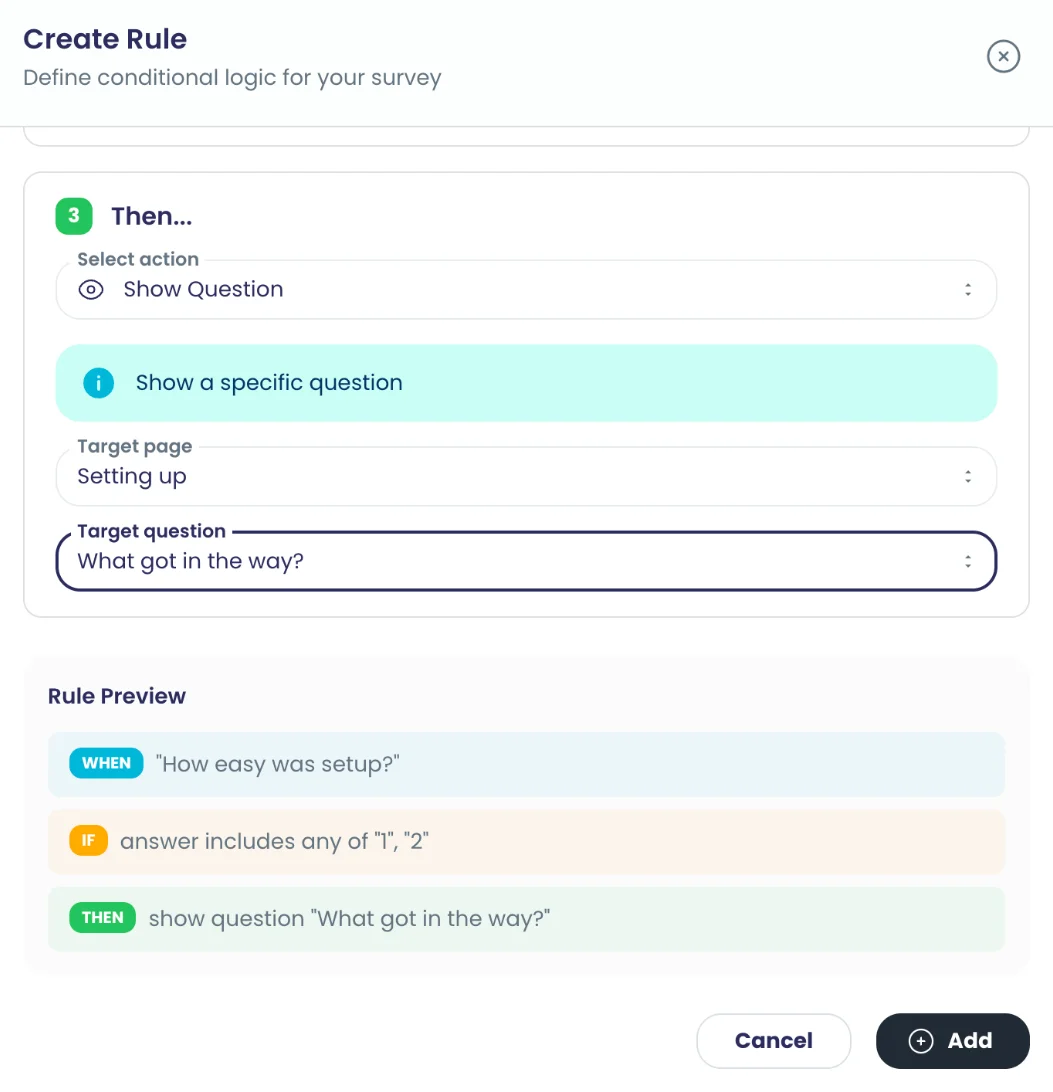
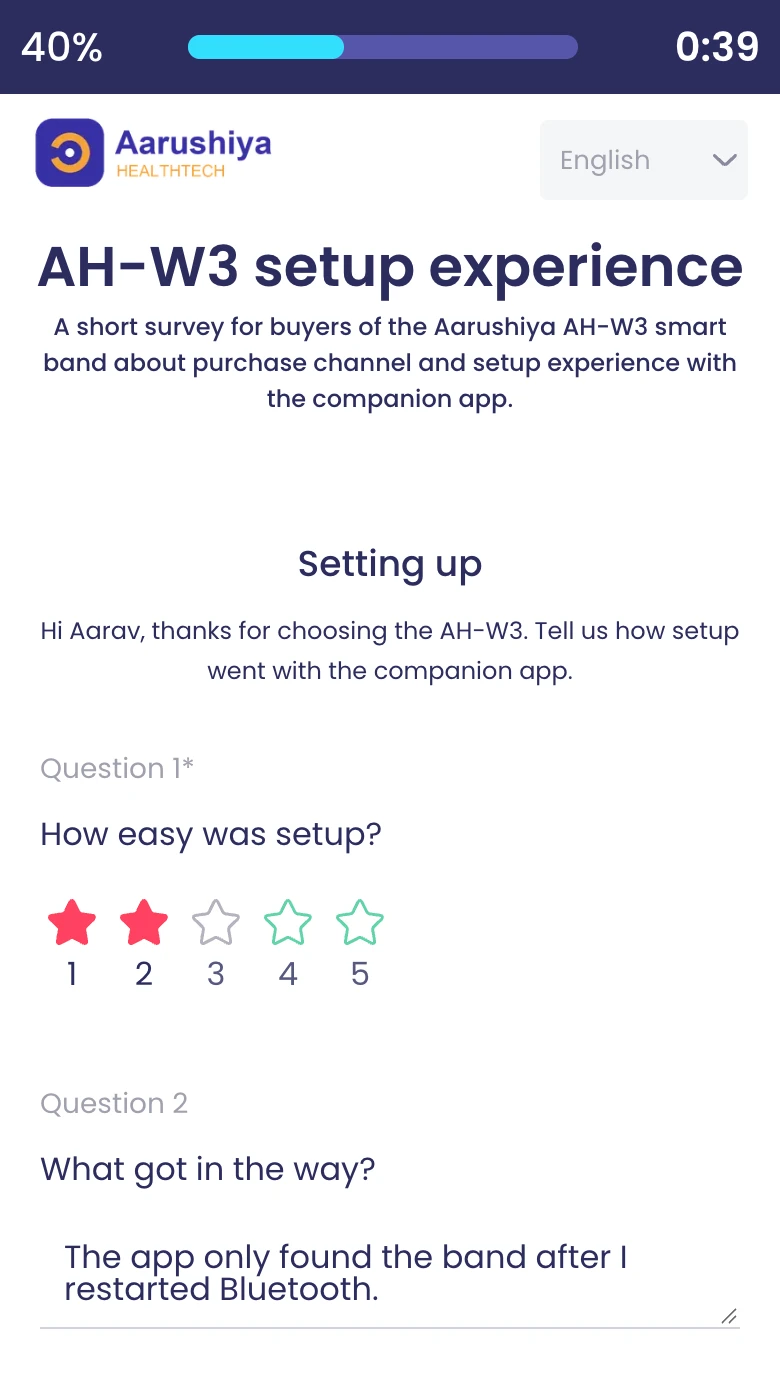
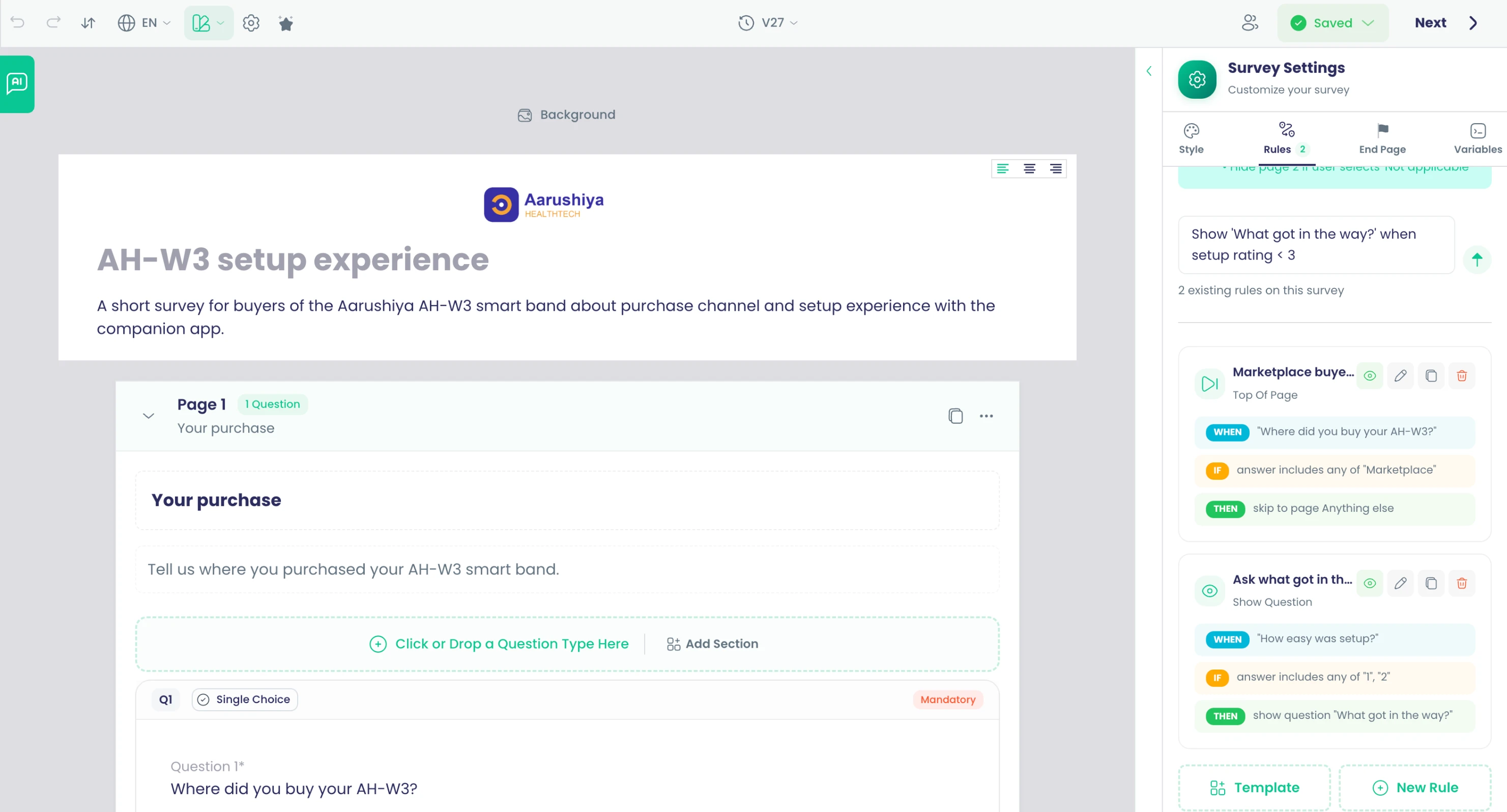
- Example: Show follow-up question when rating < 3
- Example: Hide page 2 if user selects 'Not applicable'
- Review the generated rule before it is added
Where in the product
Surveys › open a survey › Design › select a question › Rules › AI rule builder
Plans and limits
- All plans
Related capabilities
Answer and link-value piping
Insert earlier answers into later questions and the thank-you page to personalise the survey.
What it does
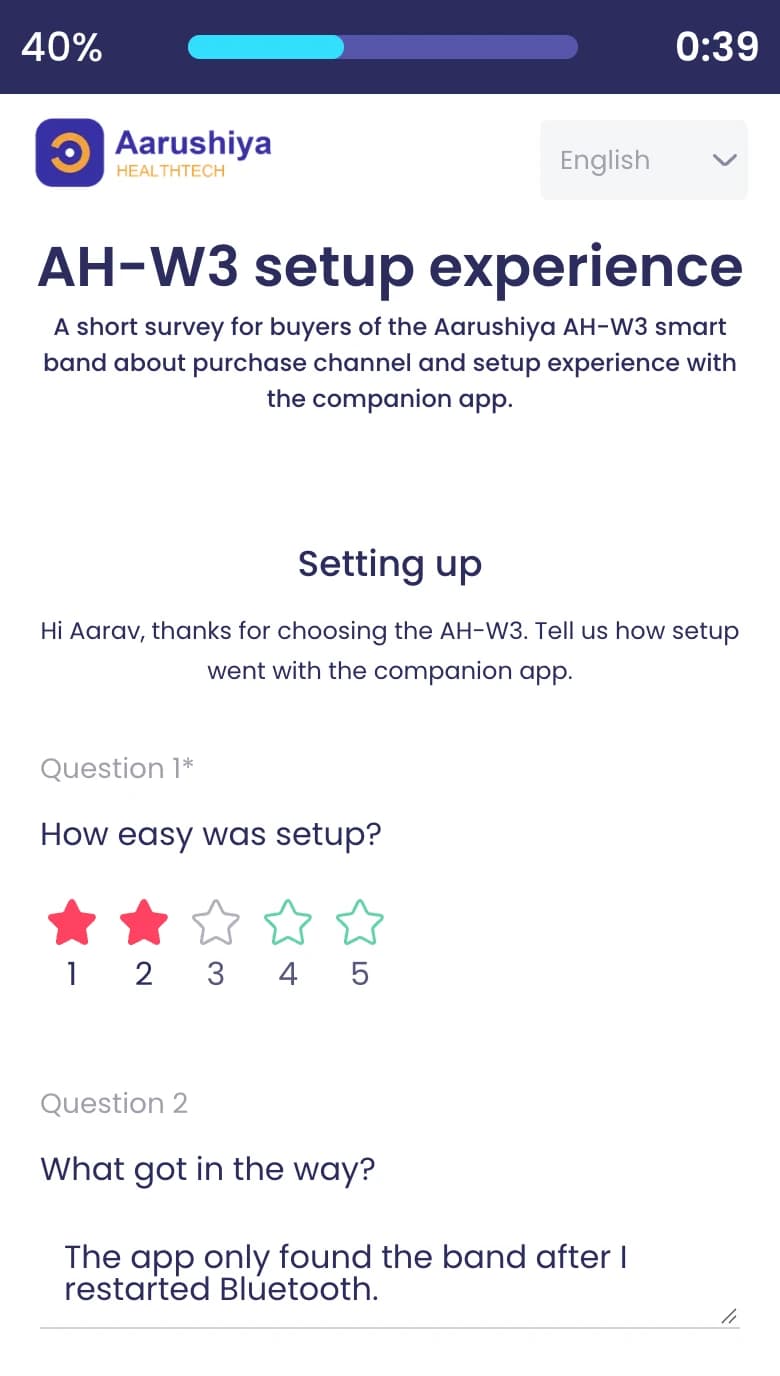
Insert earlier answers and values passed in the survey link into later question text, options and the end page. A guest named in the link is greeted by name; a low score can be quoted back in the follow-up.
Highlights and options
- Pipe an earlier answer into a later question
- Pipe link values such as first name or store
- Works in question titles, options and end pages
- Greeting with Name formula on end pages
Where in the product
Surveys › open a survey › Design › select a question › Content › Piping
Plans and limits
- All plans
Related capabilities
Custom variables in links
Pass values such as store, customer ID or first name through each collector link; stored with the response.
What it does
Define variables such as store, customer ID or first name, and each collector link carries them as parameters. The values are stored with the response, can be piped into questions and are available as filters in analytics.
Highlights and options
- Define variables once per survey
- Each collector link fills its own values
- Stored with every response
- Pipe into question text and end pages
- Filter results by variable in analytics
Where in the product
Surveys › open a survey › Design › Variables
Plans and limits
- Professional and Enterprise
Related capabilities
Randomise options, questions, pages
Shuffle answer options, questions or pages; each person keeps the same order if they reload.
What it does
Shuffle answer options, questions or pages to remove order bias. The order is seeded per session, so a respondent who reloads sees the same order.
Highlights and options
- Randomize Options per question
- Randomize Questions for the survey
- Randomize Pages for the survey
- Same order for the same respondent after a reload
- Question and page order stay as designed when skip rules exist
Where in the product
Surveys › open a survey › Design › Settings
Plans and limits
- All plans
Related capabilities
Code-driven dynamic questions
A few lines of code per question supply options, prices or values from earlier answers or your own API.
What it does
Add a few lines of JavaScript to a question to supply its options, prices or value. Code can read earlier answers, calculate, or call your own endpoint, and long lists load as the respondent searches and scrolls. If code fails, the question falls back to its formula, then its fixed options.
Highlights and options
- Helpers: getResponseValue, getSelectedOptions, getQuestionById
- Helpers: createOption, createProductOption
- Helpers: fetchApi, fetchProducts
- Helpers: calculateSum, calculateAverage, formatCurrency, parseJSON
- Search-as-you-type and infinite scroll for long lists
- Runs in the respondent's browser for up to 10 seconds
Where in the product
Surveys › open a survey › Design › select a question › Content › Dynamic Options
Plans and limits
- Professional and Enterprise
10-second limit per run.
Related capabilities
Ready code templates
Start question code from templates for dynamic options, external APIs, conditional logic and dynamic pricing.
What it does
Start question code from four templates instead of a blank editor. Each is a working example you edit for your own questions and endpoints.
Highlights and options
- Basic Dynamic Options
- External API Integration
- Conditional Logic
- Dynamic Pricing
Where in the product
Surveys › open a survey › Design › select a question › Content › Dynamic Options › templates
Plans and limits
- Professional and Enterprise
Related capabilities
Formula-based options and values
Without code, build options from earlier answers and combine values or scores with arithmetic formulas.
What it does
Without code, build a question's options from earlier answers, or combine their values and scores with add, subtract, multiply and divide. Product card totals combine by addition.
Highlights and options
- Options built from earlier answers
- Arithmetic: +, −, ×, ÷ on values and scores
- Order totals from product cards feed the Payment question
- Used as the fallback when question code fails
Where in the product
Surveys › open a survey › Design › select a question › Content › Dynamic Options
Plans and limits
- Professional and Enterprise
Related capabilities
Answer validation
Required answers, patterns, length limits, value ranges and date limits keep answers clean at entry.
What it does
Checks run as people answer, so bad data never reaches results. Each question type has its own checks, and the error messages can be written per survey language.
Highlights and options
- Mandatory answers
- Pattern (regular expression) on text
- Maximum length on text
- Minimum and maximum values and default on Slider and Date
- Date defaults: yesterday, now or tomorrow
- Restricted input types: number, email, phone, URL and more
- File types and a size limit on uploads
- Minimum and maximum amount on Payment
Where in the product
Surveys › open a survey › Design › select a question › Content
Plans and limits
- All plans
Related capabilities
Duplicate response check
A check before the survey opens stops the same person or link from answering twice.
What it does
Before the survey opens, a check confirms whether this person or link has already answered. If one response per person is set, a second attempt sees the Already Responded message instead of the form.
Highlights and options
- Checked before the first page loads
- Works per respondent and per link
- Editable Already Responded message
- Pairs with Allow Multiple Responses for retakes
Where in the product
Surveys › open a survey › Design › Settings
Plans and limits
- All plans
Related capabilities
Condition operators and option filters
Test choices with includes any of, exactly one of, all of or none of, and narrow a later question with Filter Options or Show Only Options.
What it does
Test choices with includes any of, exactly one of, all of or none of, and narrow a later question with Filter Options or Show Only Options.
Highlights and options
- Includes any of, exactly one of, all of, none of
- Filter Options and Show Only Options
Where in the product
Surveys › open a survey › Design › select a question › Rules
Plans and limits
- All plans
Rules re-checked on every answer
Rules run again whenever an answer changes, and a jump is undone when its condition no longer holds.
What it does
Rules run again whenever an answer changes, and a jump is undone when its condition no longer holds.
Highlights and options
- Jumps undone when the condition stops holding
Where in the product
Surveys › open a survey › Design › select a question › Rules
Plans and limits
- All plans
Answers as the response key
Mark questions as the response key, so a repeat with the same answers updates the earlier response instead of adding a new one.
What it does
Mark questions as the response key, so a repeat with the same answers updates the earlier response instead of adding a new one.
Highlights and options
- Marked questions become required
Where in the product
Surveys › open a survey › Design › select a question
Plans and limits
- Professional and Enterprise
Quizzes and assessments
Weighted quiz scoring
Weight questions and options, use negative marking, and never let multi-select questions score below zero.
What it does
Give each question a weight and each option a score, including negative marks for wrong answers. Multi-select questions can award partial credit and never score below zero.
Highlights and options
- Weightage per question
- Score weight per option
- Negative marking penalty per option
- Partial Credit (Checkbox)
- Multi-select score floored at zero
- End-page formulas: Total Score, Percentage, Score Breakdown
Where in the product
Surveys › open a survey › Design › select a question › Content › Weightage
Plans and limits
- All plans
Related capabilities
Pass mark, attempts, score policy
Set a pass mark and attempt limit, and choose whether best, latest or average score counts.
What it does
Set a passing score as a percentage and how many attempts each person gets. When retakes are allowed, choose which attempt counts.
Highlights and options
- Passing Score (%) from 0 to 100
- Max Attempts from 1 to 100
- Score Policy: Best, Latest or Average
- Show Results Immediately, or hold them
Where in the product
Surveys › open a survey › Design › Test Configuration
Plans and limits
- All plans
1 to 100 attempts.
Related capabilities
Timers and locked sections
Time limits for the whole test, each section or each question, with optional no-going-back navigation.
What it does
Put a time limit on the whole test, on each section or on each question. Lock navigation on a section so finished sections cannot be reopened.
Highlights and options
- Timer for the whole survey
- Time Limit (sec) per section
- Time limit (sec) per question
- Lock Navigation per section
- Randomize Questions and Randomize Pages for tests
Where in the product
Surveys › open a survey › Design › Test Configuration
Plans and limits
- All plans
Related capabilities
Tab-switch and copy protection
Warn on tab switches and auto-submit after a set count; block copy, paste and right-click.
What it does
Detect tab switching during a test and warn the candidate each time. After the number of warnings you set, the test can submit itself. Copy and paste can be blocked. These checks are off in preview and on in published links.
Highlights and options
- Detect Tab Switching
- Max Warnings from 1 to 10, 3 by default
- Auto-Submit on Excessive Switching
- Disable Copy & Paste
Where in the product
Surveys › open a survey › Design › Test Configuration
Plans and limits
- All plans
1 to 10 warnings.
Related capabilities
Free-text answer scoring
Free-text answers are scored by how close they are to your model answer.
What it does
Give a Free Text question a model answer, and each response is scored by how close it is. Candidates can write in the survey's other languages.
Highlights and options
- Model answer per Free Text question
- Score by closeness to the model answer
- Adds to the total score like any question
Where in the product
Surveys › open a survey › Design › select a question › Content
Plans and limits
- All plans
Related capabilities
Skill tags and explanations
Tag questions with competencies for per-skill scores and show answer explanations after the test.
What it does
Tag questions with competencies to see a score per skill, not just a total. Add an explanation to each question, shown with the correct answer after the test, in each survey language.
Highlights and options
- Competency tags per question
- Score per competency
- Answer explanation per question
- End-page formulas: Section Score, Question Correct Answer
Where in the product
Surveys › open a survey › Design › select a question › Content
Plans and limits
- All plans
Related capabilities
Hold and release results
Keep results hidden for review, then release them for everyone or for one candidate.
What it does
Keep results hidden while you review them. Release them to everyone at once, or to one candidate at a time.
Highlights and options
- Hold results after submission
- Release results for all candidates
- Release results for one response
Where in the product
Surveys › open a survey › Design › Test Configuration
Plans and limits
- All plans
Related capabilities
PDF certificates
Issue PDF certificates carrying the respondent's name, score and a unique certificate number.
What it does
Issue a PDF certificate for each attempt, with the person's name, the survey, the score, the date and a unique certificate number. Certificates are A4, in portrait or landscape, and can be designed as an end page.
Highlights and options
- Auto-Generate Certificate for tests
- Name, survey title, score, date and certificate ID
- A4 in portrait or landscape
- Certificate of Completion end-page template
- End-page formulas: Certificate URL and Certificate ID
- Certificate link can be refreshed by the owner or the participant
Where in the product
Surveys › open a survey › Design › Test Configuration
Plans and limits
- All plans
Related capabilities
Leaderboard with optional anonymity
Rank participants on a leaderboard, with names hidden if you prefer.
What it does
Rank participants by score on a leaderboard. Anonymize it to show positions and scores without names.
Highlights and options
- Enable Leaderboard
- Anonymize Leaderboard
- Ranked by score
Where in the product
Surveys › open a survey › Design › Test Configuration
Plans and limits
- All plans
Related capabilities
Save and resume tests
Signed-in candidates' test progress saves every 30 seconds so they can pick up where they left off.
What it does
For signed-in candidates, test and quiz progress is saved every 30 seconds. If they close the tab or lose connection, they pick up where they left off.
Highlights and options
- Saves every 30 seconds
- For tests and quizzes taken while signed in
- Resume from the last saved point
Where in the product
Applies automatically to tests and quizzes
Plans and limits
- All plans
Saved every 30 seconds.
Related capabilities
Late submissions flagged
A test submitted more than 30 seconds after its time limit is flagged as overtime, with the seconds over.
What it does
A test submitted more than 30 seconds after its time limit is flagged as overtime, with the seconds over.
Highlights and options
- Overtime flag with the seconds over
Where in the product
Surveys › open a survey › Analyze › Responses
Plans and limits
- All plans
30-second grace period.
Scores in the respondent's language, recalculated on edit
Free-text answers are compared with the model answer in the respondent's language, and the score and pass result are recalculated when a response is edited.
What it does
Free-text answers are compared with the model answer in the respondent's language, and the score and pass result are recalculated when a response is edited.
Highlights and options
- Score and pass result recalculated on edit
Where in the product
Surveys › open a survey › Design › Test Configuration
Plans and limits
- All plans
Completion time and tie-breaks
Each result records how long the test took, and leaderboard ties go to the faster response.
What it does
Each result records how long the test took, and leaderboard ties go to the faster response.
Highlights and options
- Ties broken by response time
Where in the product
Surveys › open a survey › Design › Test Configuration
Plans and limits
- All plans
A4 certificates, portrait or landscape
Certificates are A4 PDFs in portrait or landscape with charts and a QR code, and you or the participant can refresh the download link.
What it does
Certificates are A4 PDFs in portrait or landscape with charts and a QR code, and you or the participant can refresh the download link.
Highlights and options
- A4, portrait or landscape
- Charts and QR code
Where in the product
Surveys › open a survey › Design › End Page
Plans and limits
- All plans
Each download link lasts 7 days and can be refreshed.
Orders and payments
Product cards with stock
Sell from the form with product cards showing photos, multi-currency prices, stock and low-stock labels.
Also in: Platform
What it does
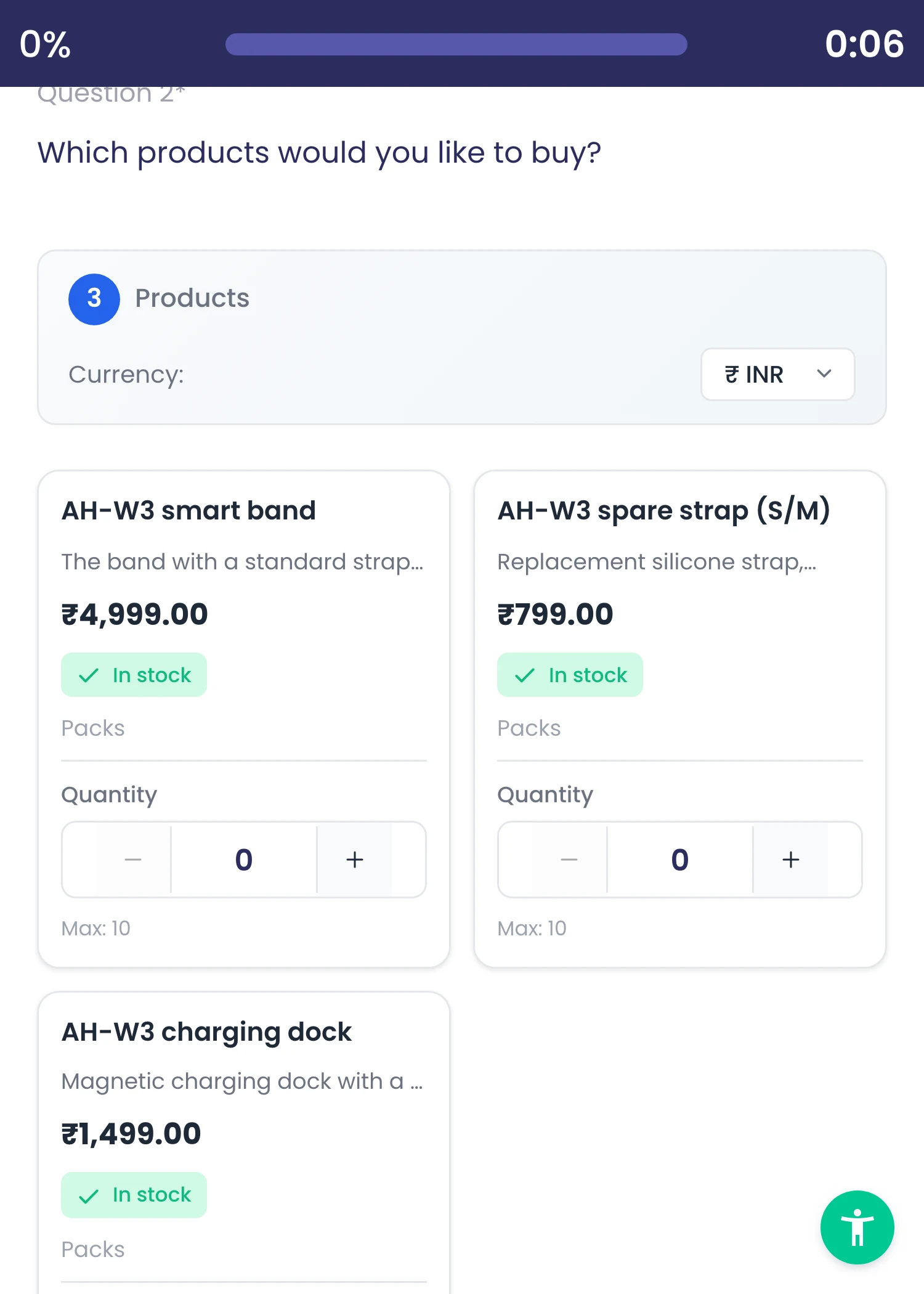
Sell from the form with product cards: photo, title, description, price in each currency, sale unit, badge and stock. Shoppers pick quantities and the total updates. Cards show 'Only N left' when stock is low and stop at the per-order limit.
Highlights and options
- Prices per currency, with an original price for sales
- Badges: New, Sale, Popular, Featured
- 55 sale units in 7 groups, or your own unit
- Stock count or unlimited; low-stock label at 10 or fewer
- Per-order quantity limit
- Products can come from your system through question code
Where in the product
Surveys › open a survey › Design › Components › Advanced › Product Cards
Plans and limits
- Professional and Enterprise
Low-stock label at 10 units or fewer.
Related capabilities
Stripe Checkout to your account
Payment questions open Stripe Checkout and money goes straight to your own connected Stripe account.
Also in: Platform
What it does
Connect your Stripe account once. The Payment question opens Stripe Checkout and the money goes straight to your account; the shopper then returns to the form. Charge fixed amounts per currency, an amount the payer enters within your limits, or the product-card total.
Highlights and options
- Your own connected Stripe account
- Fixed amounts per currency
- Other amount entered by the payer, with minimum and maximum
- Order total from product cards
- Editable payment button text
- Returns to the survey after payment
- First currency shown follows the shopper's browser locale, then time zone, then your order
- 16 zero-decimal currencies, such as JPY and KRW, charged in the right units
Where in the product
Account › Organisation › Receive Payments; then Design › Components › Advanced › Payment
Plans and limits
- Professional and Enterprise
One-time charges in whole currency units.
Related capabilities
Optional Stripe receipts and invoices
Switch Stripe email receipts and invoices on or off per connected payment account.
Also in: Platform
What it does
Choose per connected Stripe account whether Stripe emails a receipt for each payment and whether it issues an invoice. Both switches apply to every form using that account.
Highlights and options
- Email receipts on or off
- Issue invoices on or off
- Set per connected payment account
Where in the product
Account › Organisation › Receive Payments
Plans and limits
- All plans
Related capabilities
Stock held during payment
Stock is held at submit, counted when paid, and released when a payment fails or expires.
Also in: Platform
What it does
Stock is held when the shopper submits, counted as sold when payment succeeds, and released when a payment fails or the checkout expires. If stock runs out mid-checkout, nothing is charged and the card says so.
Highlights and options
- Held at submit
- Allocated when payment succeeds
- Released on failed or expired payment
- Restocked on a confirmed refund if you choose
- No charge if stock runs out during checkout
- A checkout the shopper leaves expires, its stock comes back and they can submit again
Where in the product
Applies automatically to forms with product cards
Plans and limits
- All plans
Related capabilities
Order numbers and confirmation page
Each order gets a server-issued order number and an order confirmation end page.
Also in: Platform
What it does
Each order gets a number issued on the server, in the form ORD-yyyymmdd-XXXXXXXX, or your ID Generator's value if the form has one. The Order Confirmation end page shows the number, items and payment status, with Stripe's receipt link for paid orders.
Highlights and options
- Format ORD-yyyymmdd-XXXXXXXX
- Or the form's ID Generator value
- Order Confirmation end-page template
- End-page formulas: Order Summary, Payment Status
Where in the product
Surveys › open a survey › Publish › Survey End Page
Plans and limits
- All plans
Related capabilities
Refunds, cancellations and restock
Refund by item or amount, or cancel the order, and choose whether items go back into stock.
Also in: Platform
What it does
Refund an order from the response itself: by item, by amount, or cancel the whole order. For item refunds and cancellations, choose whether the items go back into stock.
Highlights and options
- Refund by items
- Refund a fixed amount
- Cancel the order
- Restock choice on item refunds and cancellations
- Every refund needs a reason; orders with a Stripe invoice get a credit note
Where in the product
Surveys › open a survey › Analyze › Responses › open an order › Refund
Plans and limits
- All plans
Related capabilities
Disputes shown on orders
Stripe disputes appear on the order with the date to respond by.
Also in: Platform
What it does
When a shopper disputes a charge with their bank, the dispute appears on the order in the Responses view with the date you must respond by in Stripe.
Highlights and options
- Dispute status on the order
- Respond-by date
- Updated from Stripe dispute events
Where in the product
Surveys › open a survey › Analyze › Responses › open an order
Plans and limits
- All plans
Related capabilities
Paid responses protected from deletion
Responses with a taken payment cannot be deleted by mistake, keeping paid orders on record.
What it does
Responses with a taken payment cannot be deleted from the Responses table by mistake, so every paid order stays on record.
Highlights and options
- Delete is refused for paid responses
- Refund or cancel instead of deleting
Where in the product
Surveys › open a survey › Analyze › Responses
Plans and limits
- All plans
Related capabilities
Refunds with a reason on record
Every refund needs a reason and gets a credit note when invoices are on; refunds made in the Stripe dashboard update the order too.
What it does
Every refund needs a reason and gets a credit note when invoices are on; refunds made in the Stripe dashboard update the order too.
Highlights and options
- Reason required on every refund
- Credit note when invoices are on
Where in the product
Surveys › open a survey › Analyze › Responses › open an order › Refund
Plans and limits
- All plans
Totals checked on the server
The server recalculates the amount to charge and rejects a submission whose total was changed in the browser.
What it does
The server recalculates the amount to charge and rejects a submission whose total was changed in the browser.
Highlights and options
- Changed totals rejected
Where in the product
Surveys › open a survey › Design › select a question
Plans and limits
- All plans
Order summary in analytics
See orders by status, revenue per currency as gross, refunded and net, never added across currencies, and units sold net of refunds.
What it does
See orders by status, revenue per currency as gross, refunded and net, never added across currencies, and units sold net of refunds.
Highlights and options
- Revenue per currency: gross, refunded, net
- Units sold net of refunds
Where in the product
Surveys › open a survey › Analyze › Dashboard
Plans and limits
- All plans
Order changes run your flows
When a payment or refund changes an order, the survey's flow runs again as an update carrying the order change.
What it does
When a payment or refund changes an order, the survey's flow runs again as an update carrying the order change.
Highlights and options
- Runs as an update with the order change
Where in the product
Flows › open a flow › trigger › Survey Response
Plans and limits
- Professional and Enterprise
Several product cards, one order
One order can span several product cards in the form, and an ID Generator answer can serve as the order number.
What it does
One order can span several product cards in the form, and an ID Generator answer can serve as the order number.
Highlights and options
- ID Generator answer as the order number
Where in the product
Surveys › open a survey › Design › select a question
Plans and limits
- All plans
Abandoned checkouts kept
A checkout that fails or expires stays on record, its held stock is released, and the respondent can submit again.
What it does
A checkout that fails or expires stays on record, its held stock is released, and the respondent can submit again.
Highlights and options
- Held stock released
- The respondent can submit again
Where in the product
Surveys › open a survey › Analyze › Responses
Plans and limits
- All plans
Order-form templates
Start an order form from the Product Purchase, Donation, Event Ticket Payment or Service Payment templates.
What it does
Start an order form from the Product Purchase, Donation, Event Ticket Payment or Service Payment templates.
Highlights and options
- Product Purchase Form
- Donation Form, Event Ticket Payment, Service Payment Form
Where in the product
Workspaces › open a workspace › Surveys › create a survey › From Template
Plans and limits
- All plans
Orders in the Responses table
Responses show order number, order and payment status and amount as sortable columns, with Refund and Cancel on each row.
What it does
Responses show order number, order and payment status and amount as sortable columns, with Refund and Cancel on each row.
Highlights and options
- Sortable order and payment columns
- Refund and Cancel per row
Where in the product
Surveys › open a survey › Analyze › Responses
Plans and limits
- All plans
Languages
Multilingual surveys from 191 languages
Choose survey languages from 191; two per survey on Free, up to ten on Professional and Enterprise.
Also in: Platform
What it does
Choose a survey's languages from a list of 191, with search and the most-used languages first. Change the default language at any time; the designer flags anything still untranslated.
Highlights and options
- 191 languages to choose from
- Search and most-used languages first
- Change the default language at any time
- Warning for untranslated text
- Quick Add from the language menu
Where in the product
Surveys › open a survey › Design › Manage Languages
Plans and limits
- All plans
Free: 2 languages per survey. Professional and Enterprise: up to 10.
Related capabilities
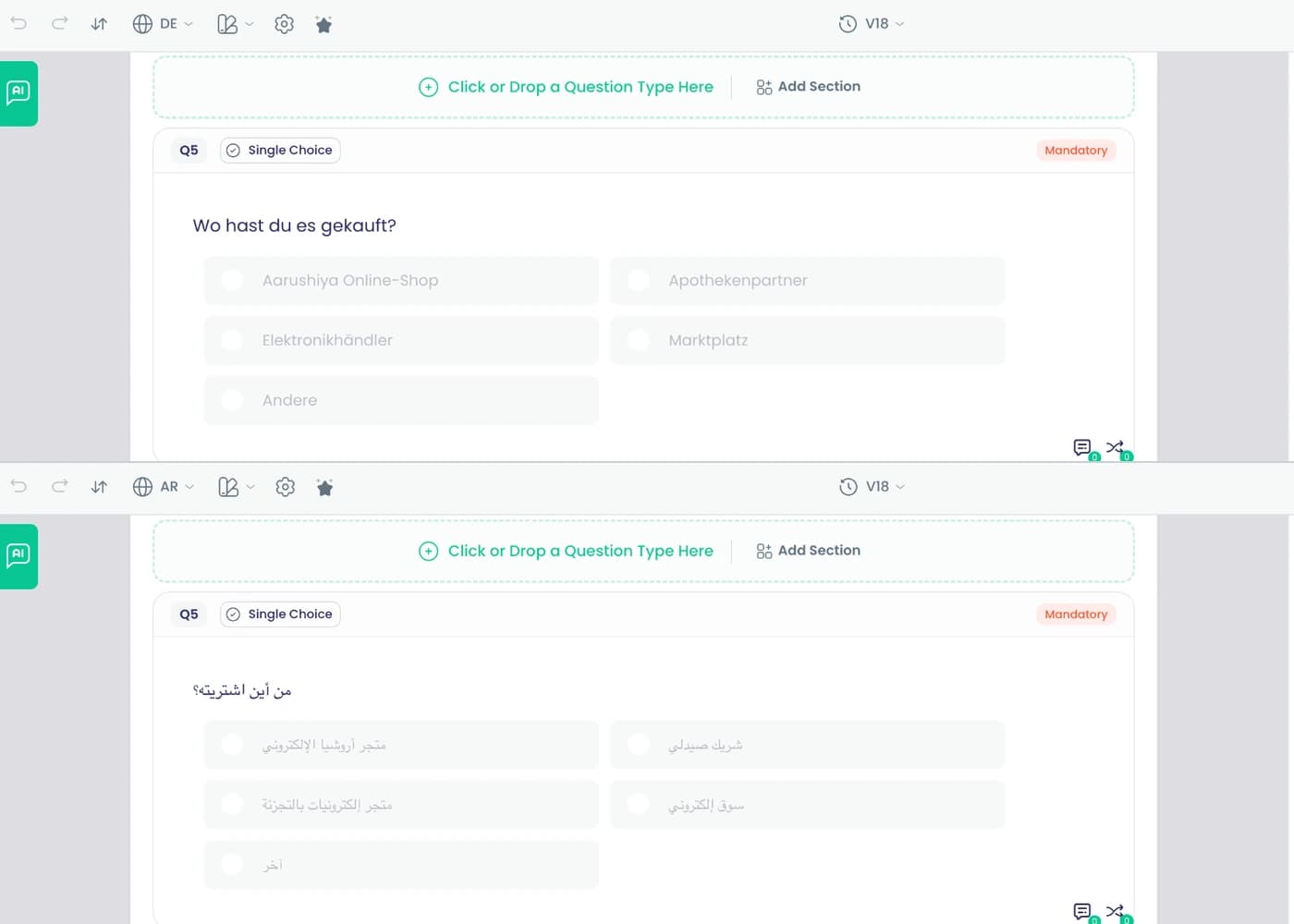
Automatic translation on save
Questions, options, buttons and end pages are translated on save, keeping your manual corrections and placeholders.
Also in: Platform
What it does
When you save, every survey text is translated into the survey's languages. Your manual corrections stay, and a text is translated again only if its source changes. Placeholders such as {order_number} pass through unchanged.
Highlights and options
- Questions, options, pages, buttons and messages
- End pages
- Manual corrections kept
- Only changed texts are retranslated
- Placeholders kept intact
- Starter blocks translated when inserted
Where in the product
Applies on save in Surveys › open a survey › Design
Plans and limits
- All plans
Related capabilities
Respondent language and right-to-left
Respondents get their browser language or pick one; Arabic, Hebrew, Persian and Urdu read right to left.
Also in: Platform
What it does
Respondents get the survey in their browser's language when it is one of the survey's languages, and can switch from a language list. Arabic, Hebrew, Persian and Urdu render right to left.
Highlights and options
- Browser language picked automatically
- Language switcher for respondents
- Right to left: Arabic, Hebrew, Persian, Urdu
- Built-in texts such as Next and Submit in each language
Where in the product
Applies automatically on published surveys
Plans and limits
- All plans
Related capabilities
Buttons and messages in every language
Next, Previous, Submit, error messages and the terms text are shown in each respondent's language.
What it does
Next, Previous, Submit, error messages and the terms text are shown in each respondent's language.
Highlights and options
- Next, Previous, Submit and error messages
Where in the product
Surveys › open a survey › Design › Manage Languages
Plans and limits
- All plans
Change the default language
Switch a survey's default language at any time, with a warning when some texts are not translated yet.
What it does
Switch a survey's default language at any time, with a warning when some texts are not translated yet.
Highlights and options
- Warning when texts are not translated yet
Where in the product
Surveys › open a survey › Design › Manage Languages
Plans and limits
- All plans
Campaigns, WhatsApp forms and banks in every language
Campaigns, WhatsApp forms and question banks take languages too, each with its own language settings.
What it does
Campaigns, WhatsApp forms and question banks take languages too, each with its own language settings.
Highlights and options
- Campaigns, WhatsApp forms, question banks
Where in the product
Dashboard › Campaigns › open a campaign › Design
Plans and limits
- All plans
Branding and end pages
Themes, fonts and saved brand theme
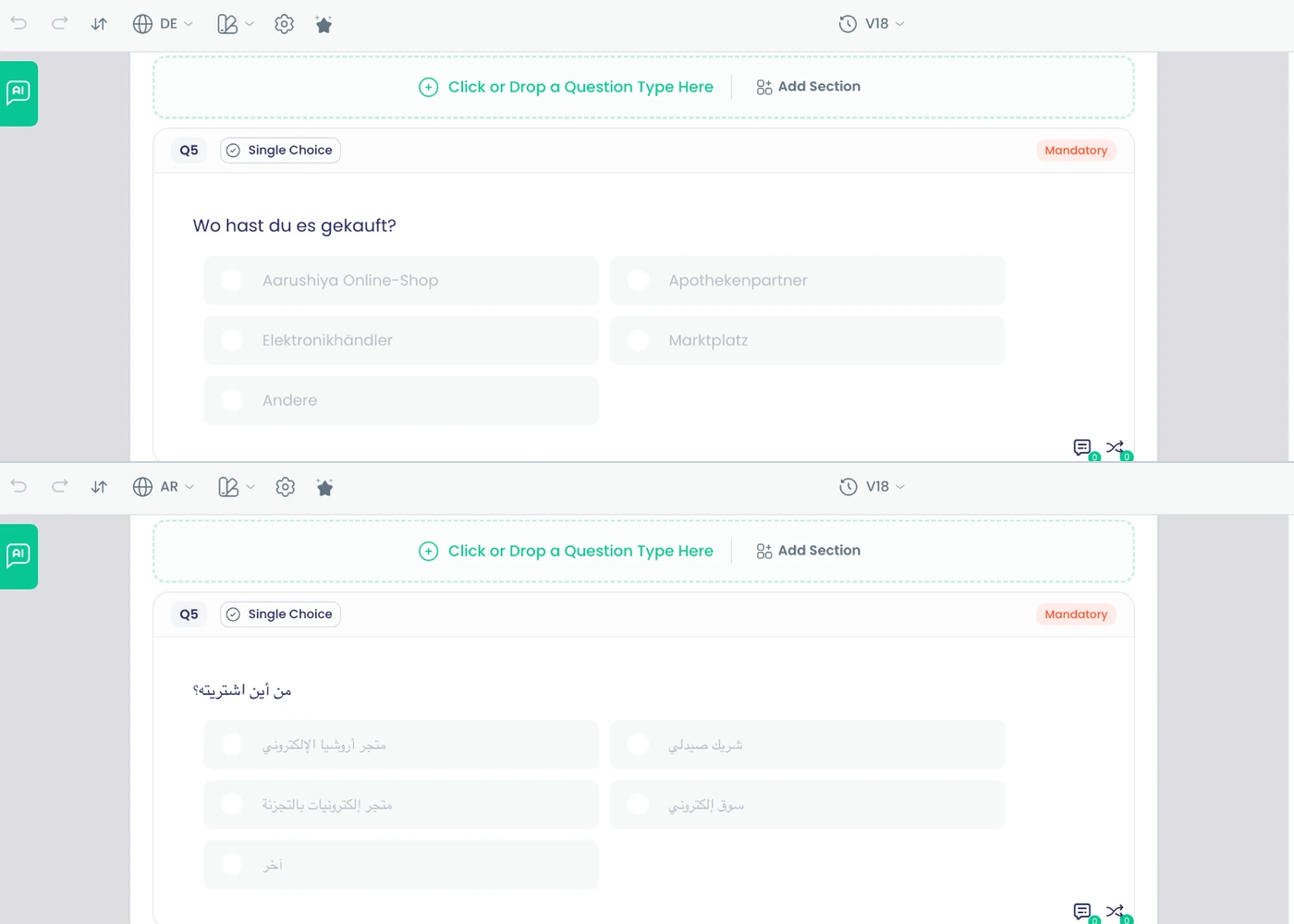
Pick from 33 themes and 1,539 Google Fonts, set colours and logo, and save your own theme.
What it does
Start from 33 ready themes, then set colours, logo, backgrounds and fonts from 1,539 Google Fonts. Save the result as your own theme and reuse it on every survey.
Highlights and options
- 33 prebuilt themes
- 1,539 Google Fonts
- Style each text role: size, weight and spacing
- Buttons, question boxes, options, inputs, progress bar, footer
- Background images from your media library or Unsplash
- Show or hide progress bar, question numbers, required asterisk, title, timer
- Save current theme under My Themes
Where in the product
Surveys › open a survey › Design › Themes
Plans and limits
- All plans
Related capabilities
Your own logo on surveys
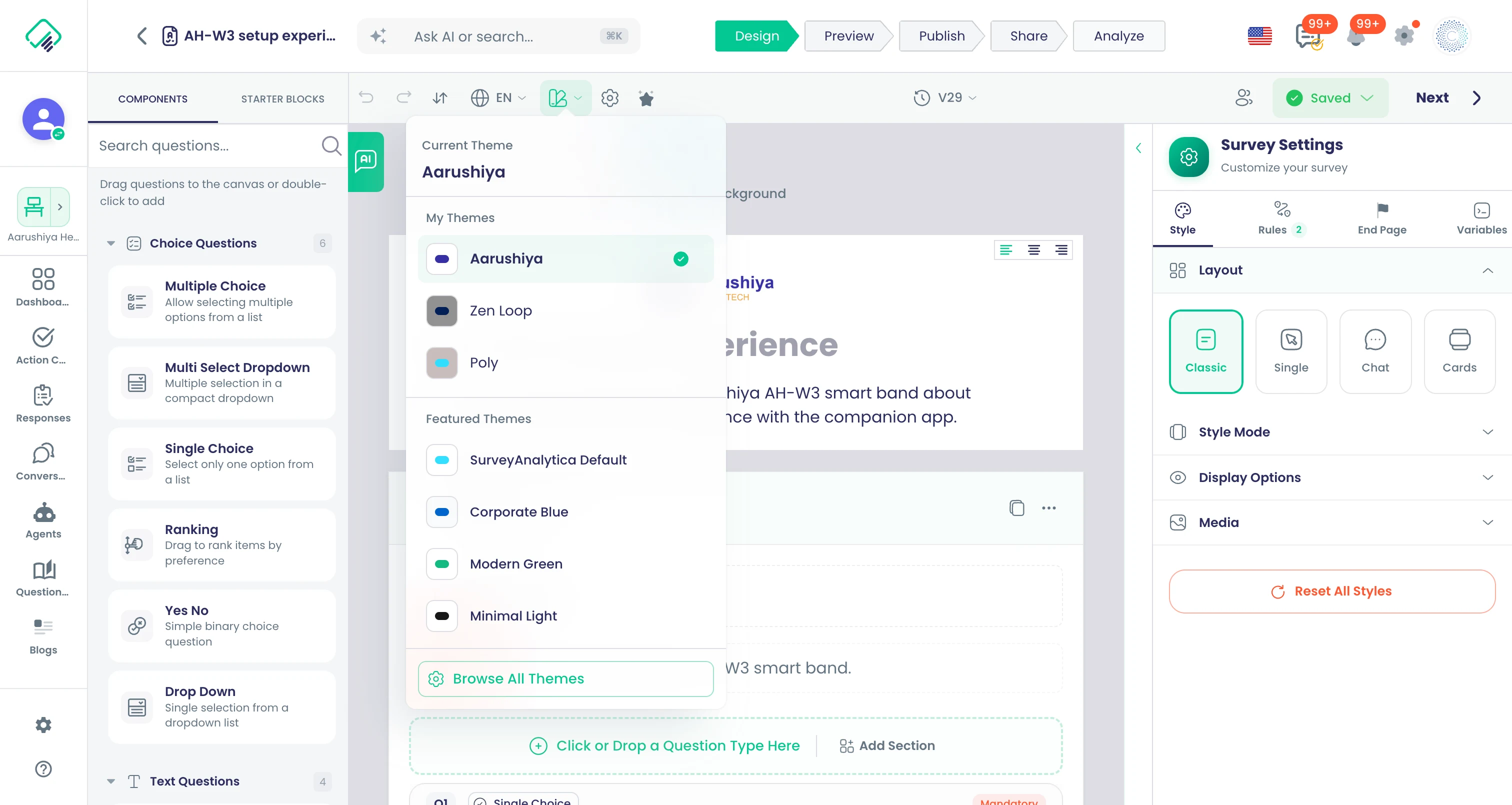
Add your company logo to surveys.
Also in: Platform
What it does
Add your company logo to surveys so respondents see your brand from the first page.
Highlights and options
- Upload or pick a logo
- Shown on survey pages
- Combine with a saved theme
Where in the product
Surveys › open a survey › Design › Themes
Plans and limits
- Professional and Enterprise
Related capabilities
Four survey layouts
Classic pages, one question at a time, chat-style dialogue or carousel, chosen per survey.
What it does
Choose how the survey is presented, per survey. The same questions and rules work in all four layouts.
Highlights and options
- Classic: multi-page, all questions on a page visible
- Single: one question at a time
- Chat: a conversational, chat-style flow
- Cards: swipeable cards
Where in the product
Surveys › open a survey › Design › Themes
Plans and limits
- All plans
Related capabilities
Surveys on your own domain
Run survey links on your own web address instead of the SurveyAnalytica domain.
Also in: Platform
What it does
Register your own domain or subdomain and survey links run on it instead of the SurveyAnalytica address.
Highlights and options
- Your own domain or subdomain for survey links
- Status shown per domain
- Applies to every collector link
Where in the product
Account › Organisation › My Domains
Plans and limits
- Professional and Enterprise
Related capabilities
Designed end pages
Design thank-you pages from templates, personalised with names, scores and conditional text.
What it does
Design what people see after submitting, starting from 13 templates. Personalise with 40 formulas for names, scores, NPS, certificates and orders, and show different text with IF, SWITCH, AND, OR and NOT.
Highlights and options
- Simple, Colorful and Social Share Thank You
- Score Results, Quiz Results, Comprehensive Results
- NPS Thank You and Personalized Results
- Certificate of Completion and Service Agreement
- RMA Confirmation and RMA Authorization Certificate
- Order Confirmation
- Formula groups: Scores, Respondent, Quiz, NPS, Survey Info
- Formula groups: Certificate, Order, Logic
- Templates suggested from the survey's questions
Where in the product
Surveys › open a survey › Publish › Survey End Page
Plans and limits
- Professional and Enterprise
13 templates, 40 formulas.
Related capabilities
Redirect after completion
Send respondents to your own website when they finish, with chosen answers attached.
What it does
Send respondents to your own website when they finish. Choose which answers to attach to the address, so your site can pick up where the survey left off.
Highlights and options
- External Link after completion
- Send Fields to External Link
- Pick the answers to attach
Where in the product
Surveys › open a survey › Publish › Survey End Page › External Link
Plans and limits
- Professional and Enterprise
Related capabilities
40 end-page formulas
Show scores, names, NPS, certificate links, order summaries and conditional text on thank-you pages with 40 formulas in 8 groups.
What it does
Formulas fill in end pages with each respondent's own results. Pick from scores, quiz answers, NPS, respondent and survey details, certificates and orders, and use logic formulas to show different text by score or answer.
Highlights and options
- Scores (13): Total, Sum, Average, Percentage, Max, Question and Section scores
- Scores: Performance Message, Custom Message, Score Breakdown
- Respondent (5): Name, Email, Phone, Signature, Greeting with Name
- Survey Info (5): Organization, Survey Title, Current and Submission Date, Response ID
- Quiz (5): Correct and Incorrect Answers, Question Answer, Correct Answer, Breakdown
- NPS (3): NPS Score, NPS Category, NPS Percentage
- Certificate (2): Certificate URL, Certificate ID
- Order (2): Payment Status, Order Summary
- Logic (5): IF, SWITCH, AND, OR, NOT
Where in the product
Surveys › open a survey › Publish › Survey End Page
Plans and limits
- Professional and Enterprise
Related capabilities
Respondent accessibility controls
Respondents can switch on high contrast, larger text and reduced motion while answering.
What it does
Respondents open an accessibility menu on any survey and adjust it for themselves. Settings stay on their device for the next survey.
Highlights and options
- Text size: Small, Medium, Large, Extra Large
- High contrast mode
- Reduce motion
- Underline all links
- Increased line spacing and wider letter spacing
- Enhanced focus indicators
- Announce changes for screen readers
Where in the product
Published survey › accessibility settings button
Plans and limits
- All plans
Related capabilities
Restart for the next respondent
End on the start page so a kiosk or shared tablet is ready for the next person.
What it does
End on the start page so a kiosk or shared tablet is ready for the next person.
Highlights and options
- Back to the start page after each response
Where in the product
Surveys › open a survey › Design › End Page
Plans and limits
- All plans
Terms and conditions block
Add a terms and conditions text to the survey, styled your way and translated with the rest of the survey.
What it does
Add a terms and conditions text to the survey, styled your way and translated with the rest of the survey.
Highlights and options
- Own style, every survey language
Where in the product
Surveys › open a survey › Design
Plans and limits
- All plans
Text styles, visibility switches and Unsplash backgrounds
Style ten text roles, show or hide the progress bar, question numbers and other elements, and pick backgrounds from Unsplash.
What it does
Style ten text roles, show or hide the progress bar, question numbers and other elements, and pick backgrounds from Unsplash.
Highlights and options
- Ten text roles
- Unsplash background picker
Where in the product
Surveys › open a survey › Design › Themes
Plans and limits
- All plans
Distribution
WhatsApp forms inside the chat
Send the survey on WhatsApp as a native in-chat form or as a link to the full survey.
Also in: Campaigns
What it does
Send the survey on WhatsApp as a form that opens inside the chat, or as a link to the full survey. In-chat forms carry your questions, rules and repeatable sections; the designer lists any rule that cannot run in WhatsApp.
Highlights and options
- Form inside the WhatsApp chat
- Or a link to the full survey
- Rules and repeatable sections carried into the chat form
- Unsupported rules listed before sending
- WhatsApp preview frame in the designer
Where in the product
Surveys › open a survey › Share › WhatsApp
Plans and limits
- All plans
Related capabilities
Email sends with reminders
Email the survey to contact lists on a schedule, with reminders only to people who have not answered.
What it does
Email the survey to a contact list on a schedule. Add reminders a set number of days later, sent to non-respondents only or to everyone.
Highlights and options
- Send to contact lists
- Schedule the send
- Remind after N days
- Send to: Non-respondents only, or All contacts
- Personal links tie each response to its contact
Where in the product
Surveys › open a survey › Share › Email
Plans and limits
- All plans
Related capabilities
Website embeds and popups
Embed in eight styles, triggered on load, scroll, delay or exit intent, on WordPress, Wix, Shopify, Webflow and more.
What it does
Put the survey on your website in eight styles, with copy-paste code for each platform. Show it on page load, after a scroll depth, after a delay or on exit intent, and only where your conditions match.
Highlights and options
- Styles: NPS/CSAT Widget, PopUp, Slider, Popover
- Styles: Side Tab, Standard, New Page, Mobile App
- Platforms: HTML, WordPress, Wix, Squarespace, Shopify, Webflow
- Triggers: Page Load, Scroll Depth, Time Delay, Exit Intent
- Conditions: Page URL, User Logged In, Custom Attribute
- Matching: equals, not equals, contains, starts with, ends with
Where in the product
Surveys › open a survey › Share › Website
Plans and limits
- All plans
8 styles, 10 platforms including mobile apps.
Related capabilities
Surveys inside your mobile app
Show surveys inside native iOS, Android and React Native apps.
What it does
Show surveys inside your own mobile app with the Mobile App embed style and platform code for native and cross-platform apps.
Highlights and options
- iOS Native
- Android Native
- React Native
- Flutter
Where in the product
Surveys › open a survey › Share › Website › Mobile App
Plans and limits
- All plans
Related capabilities
Shopify storefront placement
Place the survey on Shopify store pages through the app block.
What it does
Place the survey on your Shopify store through the SurveyAnalytica app block. Copy the collector ID, open the theme editor and add the block where you want it.
Highlights and options
- Pages: product, cart, collection, home
- Pages: blog, blog article, search results
- Sections: new app section, main content, header, footer, sidebar
- Opens the Shopify theme editor at the chosen page
Where in the product
Surveys › open a survey › Share › Shopify
Plans and limits
- All plans
Related capabilities
Offline field collection
Field staff collect answers on a tablet or phone without signal; answers sync when back online.
What it does
Field staff collect answers on a tablet or phone with no signal. Answers are kept on the device and sent when it is back online, with a Sync Center to watch what is pending.
Highlights and options
- Collect Offline Responses switch per survey
- Field-agent screens: Collect, Responses, Sync Center
- Answers stored on the device until online
- Sends automatically when the connection returns
Where in the product
Surveys › open a survey › Design › Settings › Offline Responses
Plans and limits
- All plans
Related capabilities
Opens and responses per collector
Every link, QR code and channel counts its own opens and responses.
What it does
Every collector, from a WhatsApp send to a single QR code, counts its own opens and responses. Compare channels in the Share step and see where each response came from.
Highlights and options
- Opens per collector
- Responses per collector
- Collectors: WhatsApp, Email, Web Link, QR Code
- Collectors: Download Survey, Website, Social Media, Shopify
Where in the product
Surveys › open a survey › Share
Plans and limits
- All plans
Related capabilities
Google Analytics on surveys
Send survey page views and submit events to your Google Analytics property.
What it does
Enter your Google Analytics 4 measurement ID and survey page views and submit events are sent to your property.
Highlights and options
- GA4 measurement ID per survey
- Page view events
- Submit events
Where in the product
Surveys › open a survey › Design › Analytics
Plans and limits
- Professional and Enterprise
Related capabilities
Embed events API
Show, hide or close an embedded survey from your page's code, and react to its ready, height and submitted events.
What it does
Show, hide or close an embedded survey from your page's code, and react to its ready, height and submitted events.
Highlights and options
- show, hide and close calls
- ready, height and submitted events
Where in the product
Surveys › open a survey › Share › Website
Plans and limits
- All plans
Embed targeting rules
Show an embedded survey only on chosen page URLs, to signed-in visitors or by a custom attribute, and hide it once the visitor has answered.
What it does
Show an embedded survey only on chosen page URLs, to signed-in visitors or by a custom attribute, and hide it once the visitor has answered.
Highlights and options
- Page URL, signed-in visitors, custom attribute
- Hidden once answered
Where in the product
Surveys › open a survey › Share › Website
Plans and limits
- All plans
Access and settings
Who can answer restrictions
Limit answers to signed-in people, your email domain, listed emails or mobile numbers, or a location.
What it does
Decide who can open the survey. Restricted surveys ask people to sign in and check them against your rule; others see the message you write, in each survey language.
Highlights and options
- Anyone signed in
- People at one company (email domain)
- Specific people by email, typed or uploaded
- Specific people by mobile number
- People near a place, within a distance you set (20 km by default)
- Your own message for people who are not eligible
Where in the product
Surveys › open a survey › Publish › Who can respond
Plans and limits
- All plans
Related capabilities
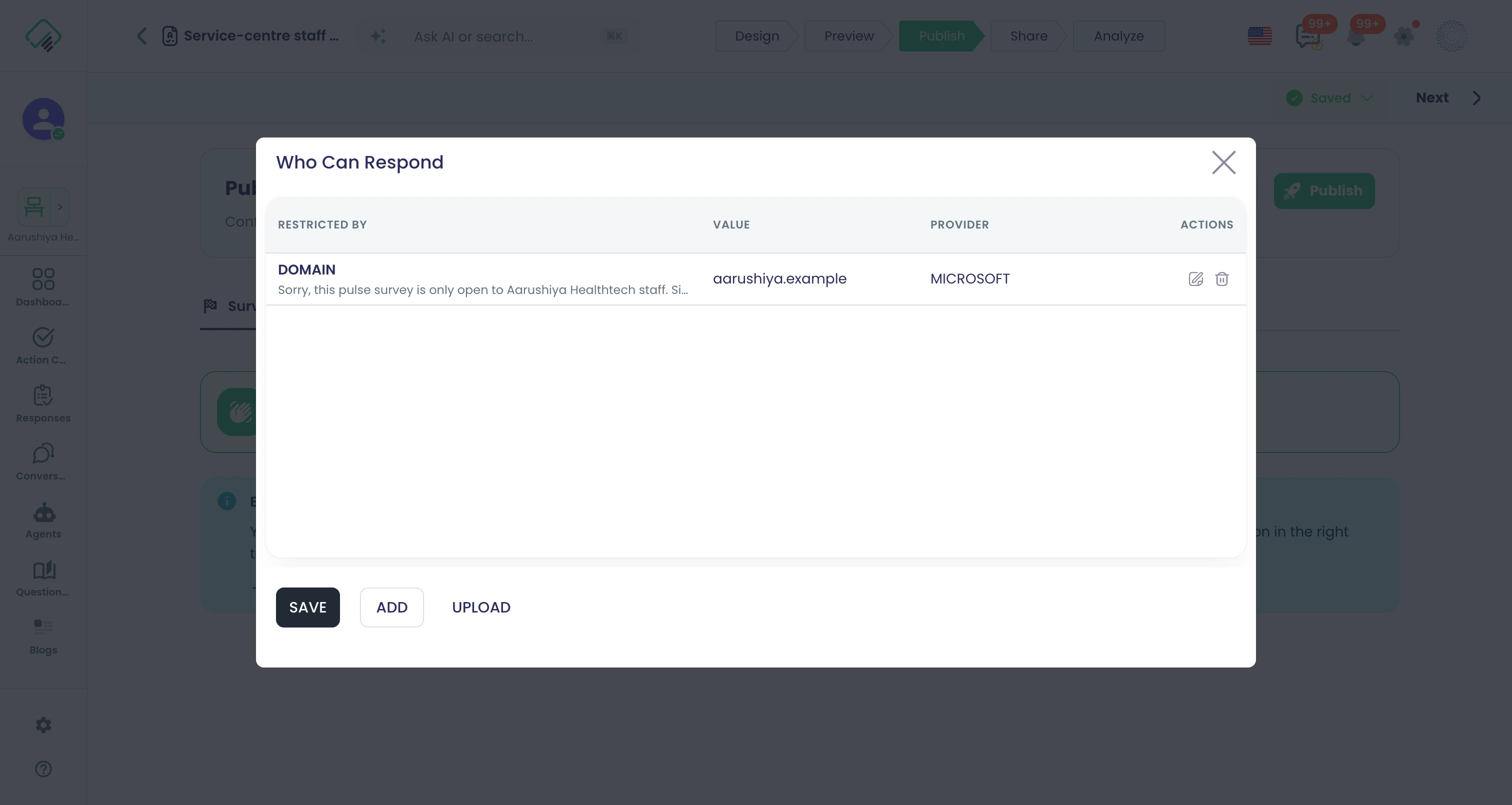
Respondent sign-in with Google, Apple, Microsoft
Restricted surveys let respondents sign in with Google, Apple or Microsoft accounts.
What it does
When a survey needs sign-in, respondents use the account they already have or an email and password.
Highlights and options
- Apple
- Microsoft
- Email and password
Where in the product
Applies automatically on restricted surveys
Plans and limits
- All plans
Related capabilities
Public surveys without login
Let anyone with the link respond without signing in.
What it does
Switch Public Survey on and anyone with the link can respond without signing in.
Highlights and options
- Public Survey switch
- No sign-in needed
- Combine with response limits and schedules
Where in the product
Surveys › open a survey › Design › Settings
Plans and limits
- All plans
Related capabilities
Opening and closing dates
Set when a survey opens and stops taking answers.
What it does
Set a start and end date and time. The survey takes answers only inside that window.
Highlights and options
- Start date and time
- End date and time
- Checked on the server when a response arrives
Where in the product
Surveys › open a survey › Publish › Schedule
Plans and limits
- All plans
Related capabilities
Response limits with auto-close
Set a response limit with a sample-size calculator, and close the survey automatically when it is reached.
What it does
Set a maximum number of responses and the survey closes itself when it is reached. A sample-size calculator suggests the number from your population, confidence level and margin of error.
Highlights and options
- Maximum responses
- Closes automatically at the limit
- Sample-size calculator: 90%, 95% or 99% confidence
- Margin of error, 5% by default
- Editable Response Limit Reached message
Where in the product
Surveys › open a survey › Publish › Response goals
Plans and limits
- Professional and Enterprise
Related capabilities
Respondent rewards and vouchers
Reward respondents with voucher codes you upload or generate, shown on the thank-you page.
What it does
Reward respondents with voucher codes shown on the thank-you page. Upload your own codes or have them generated, and cap how many are given out.
Highlights and options
- Upload voucher codes
- Or generate codes
- Maximum vouchers to give out
- Shown on the thank-you page
Where in the product
Surveys › open a survey › Publish › Response goals
Plans and limits
- Professional and Enterprise
Related capabilities
One response or retakes
Allow one response per person, or multiple responses up to a limit.
What it does
Allow one response per person, or let people respond again up to a limit. Tests use the score policy to decide which attempt counts.
Highlights and options
- Allow Multiple Responses switch
- Maximum attempts
- Maximum Attempts and Already Responded messages
- Score Policy for tests
Where in the product
Surveys › open a survey › Design › Settings
Plans and limits
- All plans
Related capabilities
Edit responses after submitting
Let respondents change their answers after submitting, for as long as you choose.
What it does
Let respondents change their answers after submitting. Set an edit window in hours, or leave it empty for no time limit.
Highlights and options
- Allow Response Editing switch
- Edit Window (hours); empty means no time limit
Where in the product
Surveys › open a survey › Design › Settings
Plans and limits
- All plans
Related capabilities
Partial response capture
Save the answers given so far when someone leaves before finishing.
What it does
Save the answers given so far when someone leaves before finishing. Partial answers are sent as the page closes, so you see where people stop.
Highlights and options
- Collect Partial Responses switch
- Sent when the page is closed or hidden
- Shows where respondents drop off
Where in the product
Surveys › open a survey › Design › Settings
Plans and limits
- All plans
Related capabilities
Record response location
Optionally record where each response was given.
What it does
Switch on Track Location to record where each response was given. The respondent's browser asks for permission first.
Highlights and options
- Track Location switch
- Browser permission prompt
- Location stored with the response
Where in the product
Surveys › open a survey › Design › Settings
Plans and limits
- All plans
Related capabilities
Limits enforced on the server
Response limits, attempt limits and product stock are checked on the server, not only in the browser.
What it does
Response limits, attempt limits and product stock are checked on the server, not only in the browser.
Highlights and options
- Responses, attempts and stock
Where in the product
Surveys › open a survey › Publish › Response goals
Plans and limits
- All plans
Switch collectors on or off
Close one collector without unpublishing the survey; unpublishing stops every collector at once.
What it does
Close one collector without unpublishing the survey; unpublishing stops every collector at once.
Highlights and options
- Active or Inactive per collector
Where in the product
Surveys › open a survey › Share
Plans and limits
- All plans
Your own not-eligible message
People who do not meet a restriction see your own message, shown in each survey language.
What it does
People who do not meet a restriction see your own message, shown in each survey language.
Highlights and options
- Shown in each survey language
Where in the product
Surveys › open a survey › Publish › Who can respond
Plans and limits
- All plans
Visit sessions with referrer
Each visit is recorded as a session with its link, referrer and language.
What it does
Each visit is recorded as a session with its link, referrer and language.
Highlights and options
- Link, referrer and language per visit
Where in the product
Surveys › open a survey › Share
Plans and limits
- All plans
Sessions are kept for 90 days.
Stop repeat answers on a collector
Turn on Disable Response Override on a collector and a contact who has already answered through their personal link sees a notice instead of the survey.
What it does
Turn on Disable Response Override on a collector and a contact who has already answered through their personal link sees a notice instead of the survey.
Highlights and options
- For contacts with a personal link
Where in the product
Surveys › open a survey › Share
Plans and limits
- All plans
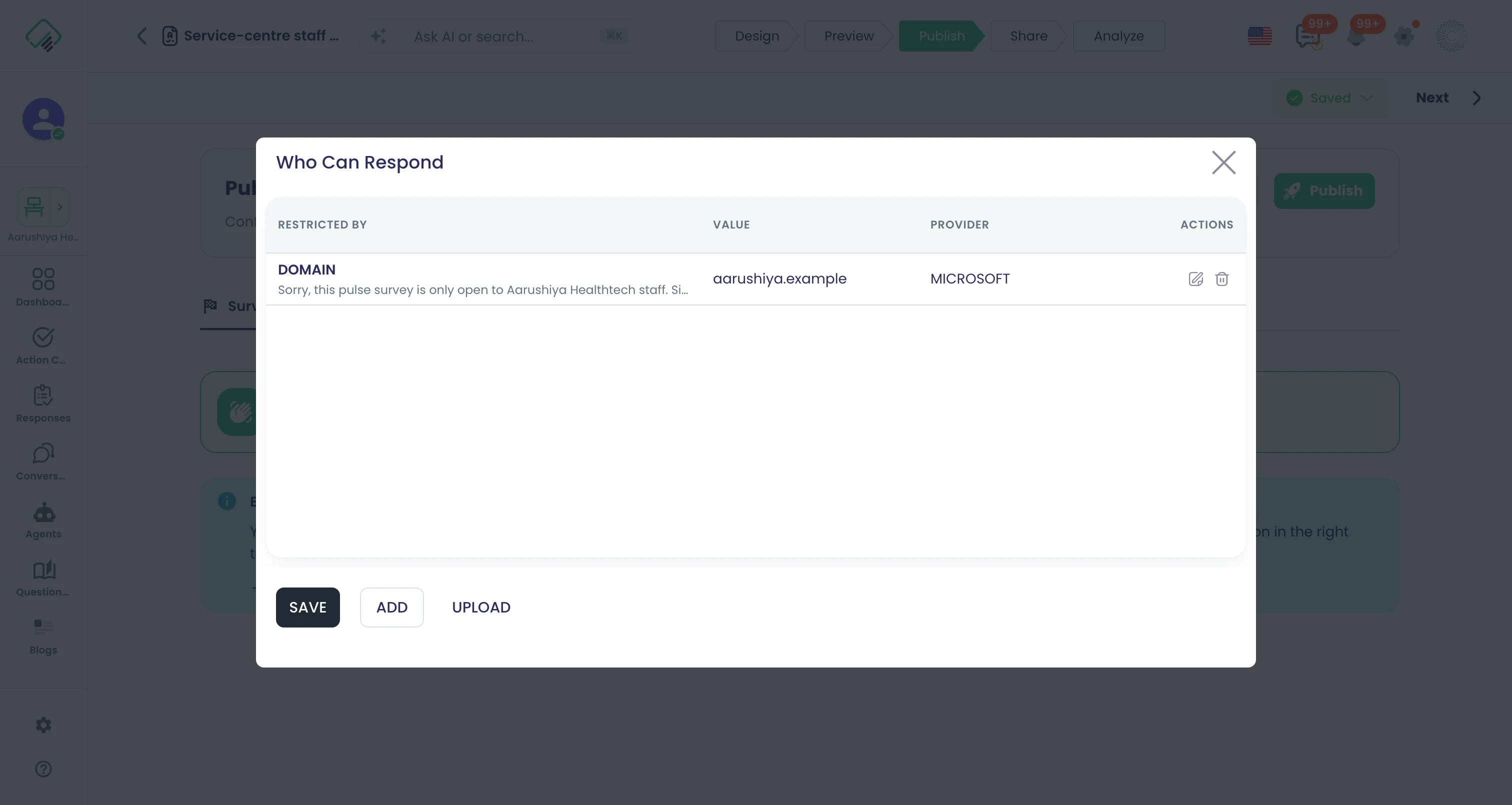
Follow-up
Team alerts on new responses
Notify your team by email whenever a new response arrives.
Also in: Collaboration
What it does
Turn on Notifications and your workspace admins get an email for every new response.
Highlights and options
- Notifications switch per survey
- Email to workspace admins
- One email per new response
Where in the product
Surveys › open a survey › Design › Settings › Notifications
Plans and limits
- All plans
Related capabilities
Six sentiment levels
Text answers get one of six sentiment levels, from very negative through mixed to very positive, with a score from -1 to 1 in analytics.
What it does
Text answers get one of six sentiment levels, from very negative through mixed to very positive, with a score from -1 to 1 in analytics.
Highlights and options
- Very negative to very positive, plus mixed
- Score from -1 to 1 in analytics
Where in the product
Surveys › open a survey › Design › select a question
Plans and limits
- Professional and Enterprise
Uploads and videos read by AI
AI classifies and finds entities in uploaded images, PDFs and video answers, including the sound in videos, and gives a summary or the full text.
What it does
AI classifies and finds entities in uploaded images, PDFs and video answers, including the sound in videos, and gives a summary or the full text.
Highlights and options
- Images, PDFs and video answers
- Summary or full text
Where in the product
Surveys › open a survey › Design › select a question
Plans and limits
- Professional and Enterprise
Your corrections come first
Correct a sentiment or an entity in text analytics and your correction is used from then on, with the original kept.
What it does
Correct a sentiment or an entity in text analytics and your correction is used from then on, with the original kept.
Highlights and options
- Originals kept
Where in the product
Surveys › open a survey › Analyze › Dashboard › Text Analytics
Plans and limits
- All plans
What appears in a video, and when
A multimodal step in a flow lists what appears in a video answer, with timestamps.
What it does
A multimodal step in a flow lists what appears in a video answer, with timestamps.
Highlights and options
- Visual entities with timestamps
Where in the product
Flows › open a flow
Plans and limits
- Professional and Enterprise
Survey Response trigger
Start a flow when a response is created, updated or deleted, with its AI results attached, and branch on sentiment, classes, entities, content or segments.
What it does
Start a flow when a response is created, updated or deleted, with its AI results attached, and branch on sentiment, classes, entities, content or segments.
Highlights and options
- Created, updated or deleted
- Branch on AI results and segments
Where in the product
Flows › open a flow › trigger › Survey Response
Plans and limits
- Professional and Enterprise
26 survey flow templates
Start from ready survey flows such as Detractor Follow-Up Escalation, WhatsApp NPS Routing and Survey to Google Sheets.
What it does
Start from ready survey flows such as Detractor Follow-Up Escalation, WhatsApp NPS Routing and Survey to Google Sheets.
Highlights and options
- Detractor Follow-Up Escalation
- WhatsApp NPS Routing, Survey to Google Sheets
Where in the product
Templates › Flows
Plans and limits
- Professional and Enterprise
26 templates.
Actions on every submission
Send an SMS from our sender or your own Telnyx or Twilio account, call webhooks with basic or OAuth sign-in, add to Mailchimp with double opt-in, update Shopify or run an AI agent.
What it does
Send an SMS from our sender or your own Telnyx or Twilio account, call webhooks with basic or OAuth sign-in, add to Mailchimp with double opt-in, update Shopify or run an AI agent.
Highlights and options
- SMS from our sender or your Telnyx or Twilio account
- Webhooks, Mailchimp, Shopify, AI agents
Where in the product
Flows › open a flow
Plans and limits
- Professional and Enterprise
Campaigns
52 capabilitiesOpen the pagePlan, send and measure email, WhatsApp, SMS, social and Ads campaigns from one timeline.
Campaigns at a glance
Campaigns plans every channel on one timeline. Drag email, WhatsApp, SMS, Slack, Teams, social posts, Google Ads, landing pages and surveys onto a day grid, design the content, then preview, test and launch in four steps. Follow-up flows react to opens, clicks, replies and bounces, and the Analyze step shows what each step achieved. Deliverability is built in: your own sending domain and tenant, suppression and one-click unsubscribe.
- channels a campaign step can send on
- 12
- ready-made multichannel campaign plans
- 10
- email and landing page templates
- 32
- engagement events that start a follow-up
- 7
Start here
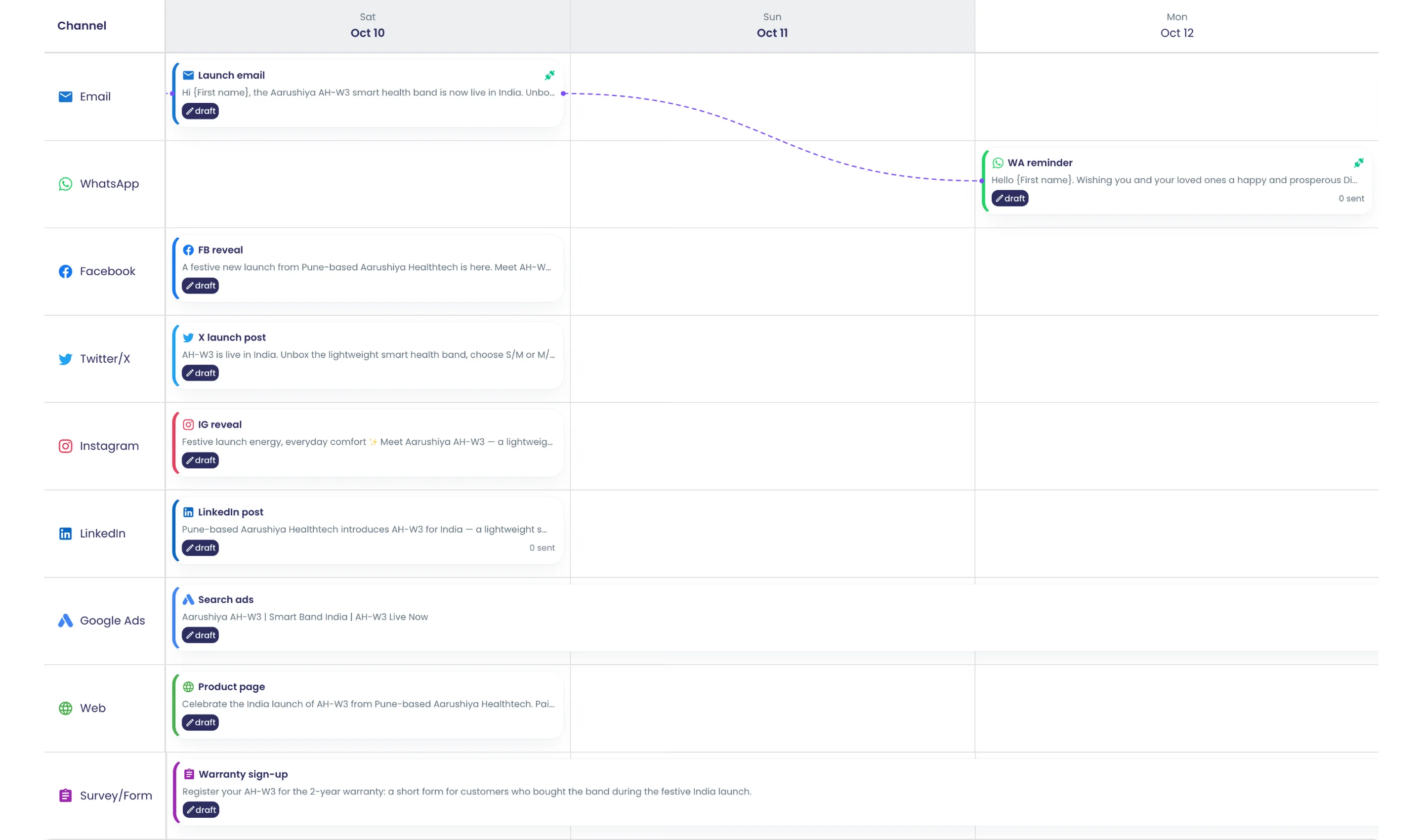
Designer and planning
Four-step campaign workspace
Design, Preview & Testing, Distribution and Analyze steps keep one campaign's plan, checks, launch and results together.
What it does
Every campaign opens in one workspace with four steps across the top: Design, Preview & Testing, Distribution and Analyze. You plan steps on the timeline, check each one, launch, then read the results without leaving the campaign.
Highlights and options
- Design: timeline, Events and Flows tabs, Content Schedule
- Preview & Testing: per-channel previews and test sends
- Distribution: audiences, distributors, launch and the live event tracker
- Analyze: overview, funnel, timing, contact lists, links and social engagement
Where in the product
Dashboard › Campaigns › open a campaign
Plans and limits
- Professional and Enterprise
Related capabilities
Drag-and-drop campaign timeline
Drag a channel onto a day grid to add a step; move bars to reschedule; web, survey and Ads steps span days.
What it does
Plan a campaign on a day grid with one lane per channel. Drag a channel from the channel panel onto a day to add a step, then drag its bar to reschedule. Web pages, surveys and Google Ads run for a period, so their bars span several days. Dashed connectors show which follow-up flow links one step to the next.
Highlights and options
- Lanes for Email, WhatsApp, SMS, Slack, Teams, Facebook, X, Instagram, LinkedIn
- Lanes for Google Ads, Web and Survey/Form
- Drag a channel onto a day to create a step
- Drag a bar to move its date
- Web, Survey/Form and Google Ads steps span several days
- Dashed connectors draw follow-up flows between steps
- Templates place steps on relative days, such as 7 days before start and Day 4
Where in the product
Dashboard › Campaigns › open a campaign › Design
Plans and limits
- Professional and Enterprise
Related capabilities
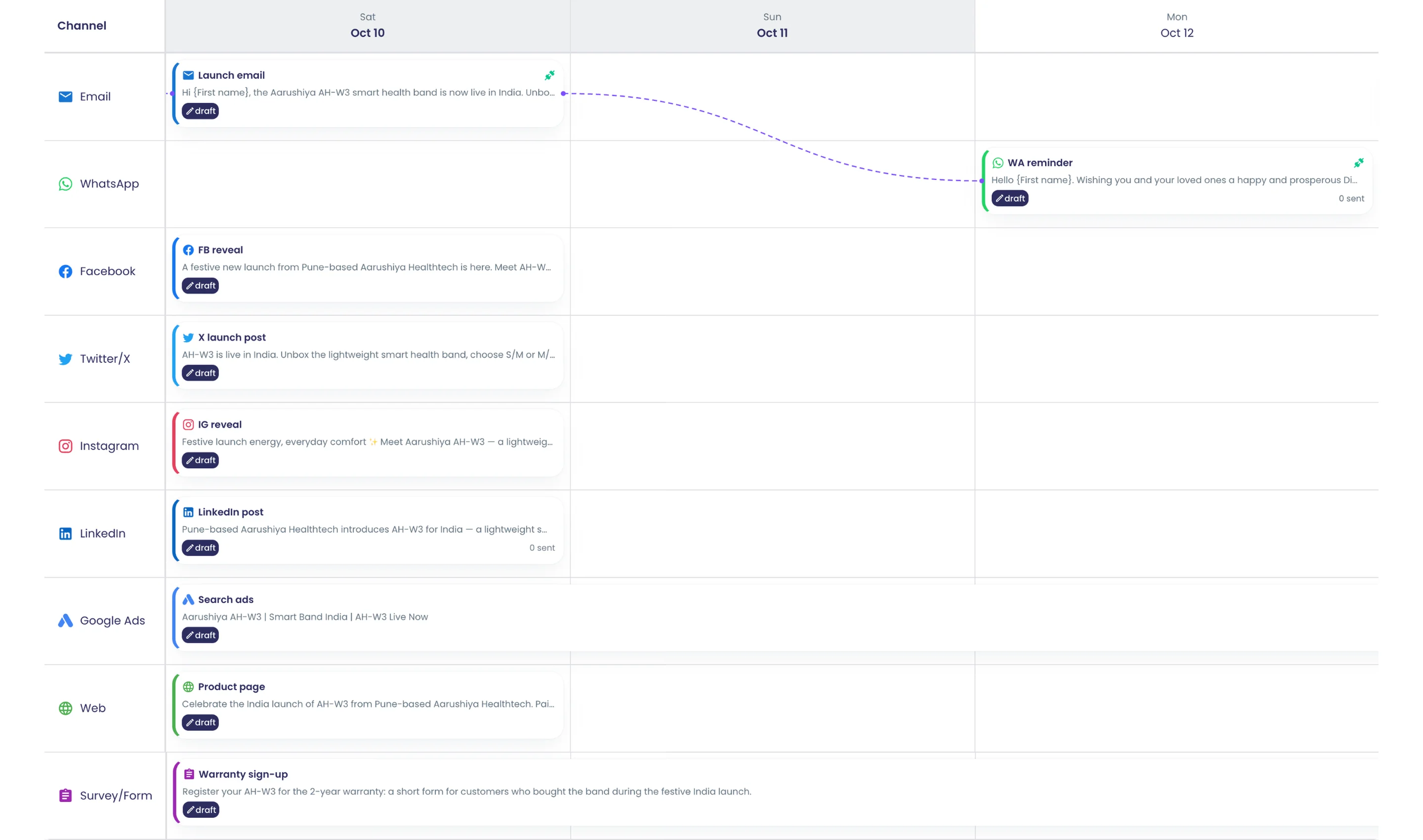
Steps table with quick actions
Every step listed with channel, date, status and template, plus preview, test, edit, delete and add-follow-up actions.
What it does
Below the timeline, the Events tab lists every step with its name, channel, scheduled date, status and template. Each row has Preview, Test, Edit and Delete, plus Add follow-up to start a flow from that step. Social steps show whether they were posted.
Highlights and options
- Columns: Event Name, Channel, Scheduled Date, Status, Template, Attachments
- Row actions: Preview, Test, Edit, Delete
- Add follow-up opens the in-campaign flow builder
- Social steps marked Posted or Not posted
- Flows and Content Schedule tabs sit beside Events
Where in the product
Dashboard › Campaigns › open a campaign › Design › Events
Plans and limits
- Professional and Enterprise
Related capabilities
Goals, budget and brand settings
Record goal, KPIs, budget, currency and dates, and set brand logo, colours, font and brand voice for the campaign.
What it does
Campaign Settings keeps the plan behind a campaign: its goal, KPIs, budget and dates. The Brand tab stores a logo, colours, a font and a brand voice. The Accounts tab sets the default sender for each channel.
Highlights and options
- General: name, description, goal, KPIs, budget, currency, start and end dates
- Budget currencies: USD, EUR, GBP, INR
- Brand: logo (PNG, JPG or SVG), primary and secondary colours
- 10 fonts, including Inter, Roboto, Poppins, Playfair Display and Georgia
- Brand voice presets: professional, friendly, playful, authoritative, inspirational
- Accounts: default sender per channel and Connect New Account
Where in the product
Dashboard › Campaigns › open a campaign › Design › Campaign Settings
Plans and limits
- Professional and Enterprise
Related capabilities
Default sender per channel
Set one sender account per channel; new steps pick it up, and missing accounts are flagged with a Set Defaults fix.
What it does
Pick one sender account per channel and every new step on that channel starts with it. When a channel on the timeline has no default, a Missing Accounts notice lists it and offers Set Defaults.
Highlights and options
- One default account per channel
- New steps pick up the default automatically
- Missing Accounts notice: "Channels missing defaults" with Set Defaults
- Connect New Account from the same tab
Where in the product
Dashboard › Campaigns › open a campaign › Design › Campaign Settings › Accounts
Plans and limits
- Professional and Enterprise
Related capabilities
Content in several languages
Write each step's subject, message and page in multiple languages; bulk sends use the campaign's main language.
What it does
Add languages to a campaign and write each step's subject, message, page and template in each one. One language is the default. Landing pages open in the language of their link.
Highlights and options
- Search languages or pick from Popular Languages
- Set as default: one main language per campaign
- Per-language subject, message, HTML, template and media
- Landing pages render in the language of the link
- Spreadsheet import adds subject and message columns per language
Where in the product
Dashboard › Campaigns › open a campaign › Design › Manage Languages
Plans and limits
- Professional and Enterprise
Bulk email, WhatsApp and SMS sends use the campaign's default language for every recipient. The number of languages follows your plan.
Related capabilities
Restorable version history
Every save becomes a version showing steps added, removed, renamed or edited; restoring keeps the current version too.
Also in: Collaboration
What it does
Every save creates a version. Version History lists each one with what changed: steps added, removed or renamed, and content changed. View or compare any version, then restore it after a confirm step.
Highlights and options
- Versions are created automatically on every save
- Change list: Event Added, Event Removed, Event Renamed, Content changed
- Compares name, description, goal, dates, channels and content references
- View any version and open a diff against the current one
- Restore with Confirm Restore
Where in the product
Dashboard › Campaigns › open a campaign › Design › Version History
Plans and limits
- Professional and Enterprise
Related capabilities
Undo, redo and autosave
Undo and redo designer edits, with autosave and a conflict state when another save lands first.
What it does
Undo and redo designer edits from the toolbar. Changes save automatically, and the toolbar shows when a save is pending. If someone else saves first, the designer shows a conflict instead of overwriting their work.
Highlights and options
- Undo and Redo buttons
- Save states: Saving..., Saved, Unsaved changes, Auto-save pending
- Conflict state when another save lands first
- Return to Latest after viewing an older state
Where in the product
Dashboard › Campaigns › open a campaign › Design (toolbar)
Plans and limits
- Professional and Enterprise
Related capabilities
Clone an existing campaign
Start a new campaign as a copy of an existing one, keeping its steps and content.
What it does
Start a new campaign as a copy of one you already ran. It keeps the steps and their content, ready for new dates and a new launch.
Highlights and options
- Four starts: AI Assistant, Use Template, Clone Campaign, Start Blank
- Pick any existing campaign to duplicate
- Steps and content are copied into a new draft
Where in the product
Dashboard › Campaigns › Create Campaign › Clone Campaign
Plans and limits
- Professional and Enterprise
Related capabilities
Import steps from spreadsheet
Download a template, list steps by channel, day, name and language in CSV or Excel, preview, then import.
What it does
Plan steps in a spreadsheet and import them. Download a CSV or Excel template, fill one row per step, check the Import Preview, then import into a new or an existing campaign. The template adds subject and message columns for each language you pick.
Highlights and options
- CSV or Excel (.xlsx) files
- Core columns: event_name, channel, day_offset, scheduled_date
- Per-language columns: subject_<lang>, message_<lang>
- Content columns: html_content, wa_template_name, wa_category, wa_body, link_url
- AI columns: image_gen_prompt, video_gen_prompt
- Channels: email, sms, whatsapp, facebook, instagram, twitter, linkedin, web, survey
- Import Into a new campaign or an existing one
Where in the product
Dashboard › Campaigns › Create Campaign › Import from File
Plans and limits
- Professional and Enterprise
Related capabilities
Channels
Email campaigns
Send designed HTML email to contact lists from your own sender, with open, click, bounce and complaint tracking.
What it does
Email steps send designed HTML email to your contact lists from your own sender address. Each send skips suppressed contacts, adds an unsubscribe footer and one-click headers, and tracks every message. Links carry a per-recipient id, so a click ties back to the contact.
Highlights and options
- HTML built in the drag-and-drop designer, per language
- Sends from your verified address with your sender name
- Deduplicated by email address; contacts without one are skipped
- Unsubscribed, complained and hard-bounced addresses are skipped
- Tracked: sent, delivered, opened, clicked, bounced, complained, replied
- Replies arrive in Conversations
Where in the product
Dashboard › Campaigns › open a campaign › Design › drag Email onto the timeline
Plans and limits
- Professional and Enterprise
Each blast counts against your plan's email allowance: Free 100, Professional 10,000 to 500,000 by plan size, Enterprise set per contract.
Related capabilities
WhatsApp template campaigns
Send approved WhatsApp templates with variables, media header and URL, quick-reply or Flow buttons from your number.
What it does
WhatsApp steps send Meta-approved templates from your own WhatsApp Business number. Map each variable to a contact field, add the media header and set button values. A Flow button opens a survey as a native WhatsApp form.
Highlights and options
- Choose Template, or Create New Template from the step panel
- Header types: text, image, video, document, location
- Buttons: URL (with a dynamic suffix), quick reply, Flow
- Template variables mapped to contact fields
- Sends from your WhatsApp Business number; deduplicated by phone number
- Tracked: sent, delivered, read, clicked, failed, replied
Where in the product
Dashboard › Campaigns › open a campaign › Design › drag WhatsApp onto the timeline
Plans and limits
- Professional and Enterprise
Related capabilities
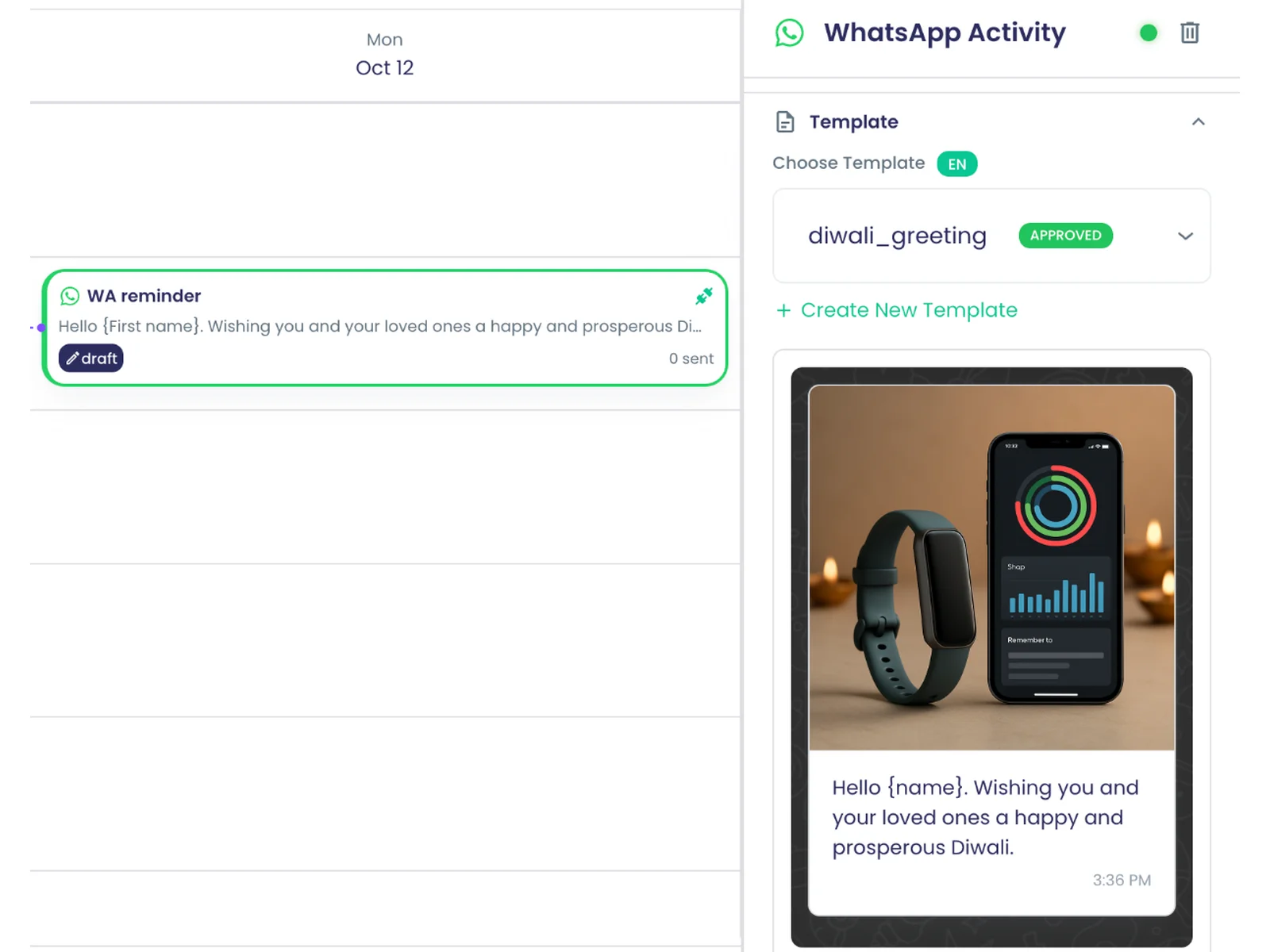
SMS from your own number
Send SMS from your Twilio or Telnyx number, which takes replies, or through the shared sender without replies.
What it does
SMS steps send text to the phone numbers in your contact lists. Send from your own Twilio or Telnyx number, which also receives replies, or from the shared sender, which cannot. Links in the text carry a per-recipient id for click tracking.
Highlights and options
- Your own number: Twilio or Telnyx
- Shared sender when no number is chosen (no replies)
- Deduplicated by phone number
- Per-recipient link click tracking
- Replies to your own number arrive in Conversations
Where in the product
Dashboard › Campaigns › open a campaign › Design › drag SMS onto the timeline
Plans and limits
- Professional and Enterprise
Related capabilities
Slack and Microsoft Teams posts
Post a step to chosen Slack channels or Teams channels and chats as part of the campaign.
What it does
Post a campaign step to Slack channels, or to Microsoft Teams channels and chats, from a workspace you connect. Content uses the rich-text editor. Each post is stored as a message, so it can start a follow-up flow.
Highlights and options
- Slack: pick channels from the connected workspace
- Microsoft Teams: a team channel or a chat
- Rich-text content
- Can trigger campaign follow-up flows
Where in the product
Dashboard › Campaigns › open a campaign › Design › drag Slack or Microsoft Teams onto the timeline
Plans and limits
- Professional and Enterprise
Related capabilities
Google Ads campaign creation
Create a paused Google Ads campaign with budget, bidding, keywords, match types, locations and language for you to enable.
What it does
A Google Ads step creates a campaign with a responsive search ad in your connected Google Ads account. It is created paused, so you review it and enable it in Google Ads. Set the budget, bidding, keywords with match types, locations and language.
Highlights and options
- Bidding: Maximize Clicks, Manual CPC, Target CPA, Maximize Conversions
- Keyword match types: Broad, Phrase, Exact
- Location presets: US, UK, Canada, Australia, India, Germany, France, Japan, Brazil, Mexico
- 10 language presets, from English and Hindi to Arabic and Japanese
- Responsive search ad: headlines, descriptions, final URLs
- Runs over several days on the timeline
Where in the product
Dashboard › Campaigns › open a campaign › Design › drag Google Ads onto the timeline
Plans and limits
- Professional and Enterprise
Related capabilities
Campaign landing pages
Design a web page that publishes at launch to its own campaign link, ready to share or put on a QR code.
What it does
Design a web page in the campaign designer. At launch it publishes to its own campaign link, in the language of the URL. Share it through a named web link or QR code, or send it to a contact list.
Highlights and options
- Built with the drag-and-drop designer
- Published at launch to a /c/ campaign link
- Runs over several days on the timeline
- Distributors: Contact List, Web Link, QR Code
- Event tracker counts views
Where in the product
Dashboard › Campaigns › open a campaign › Design › drag Web onto the timeline
Plans and limits
- Professional and Enterprise
Related capabilities
Survey and form steps
Add a survey as a campaign step; its latest version publishes at launch and responses count in the tracker.
What it does
Add a survey or form as a campaign step. At launch its latest version publishes, and the event tracker counts views and responses. A WhatsApp step can also open the survey as a native WhatsApp form.
Highlights and options
- Pick any survey in the workspace
- Latest version published at launch
- Distributors: Contact List, Web Link, QR Code
- Views and Responses in the event tracker
Where in the product
Dashboard › Campaigns › open a campaign › Design › drag Survey/Form onto the timeline
Plans and limits
- Professional and Enterprise
Related capabilities
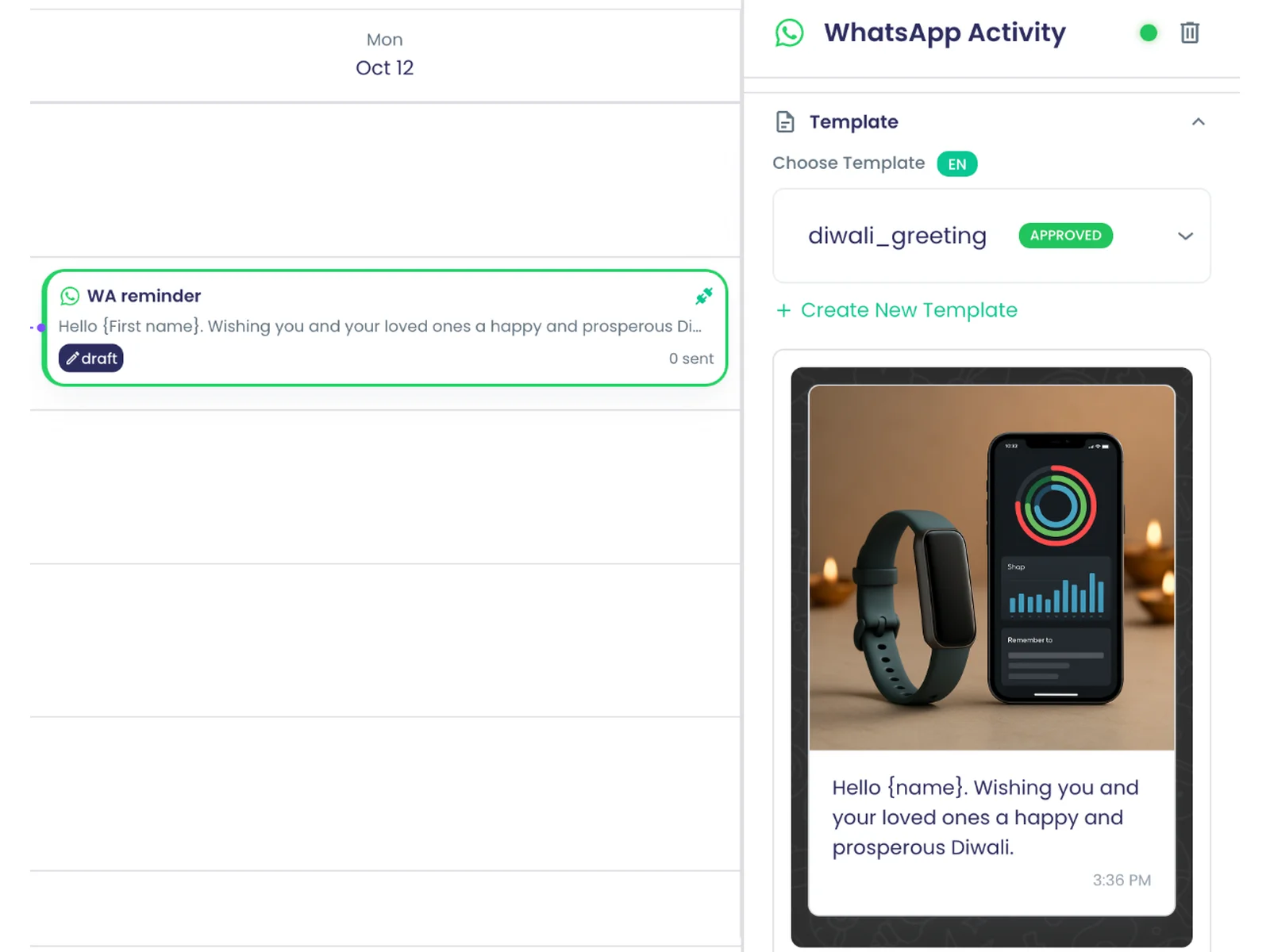
Audience and distribution
QR codes for steps
Give a web, survey or social step a named QR code with PNG and SVG downloads for print.
What it does
Give a web, survey or social step a named QR code, for example one printed on a warranty card. Download it as PNG or SVG for print. Scans open the step's live link, and views and responses count on the card.
Highlights and options
- For Web, Survey/Form and social steps
- Name and description per QR code
- PNG and SVG downloads
- Copy the live link
- Views and Responses shown on the card
Where in the product
Dashboard › Campaigns › open a campaign › Distribution › New Distributor › QR Code
Plans and limits
- Professional and Enterprise
Related capabilities
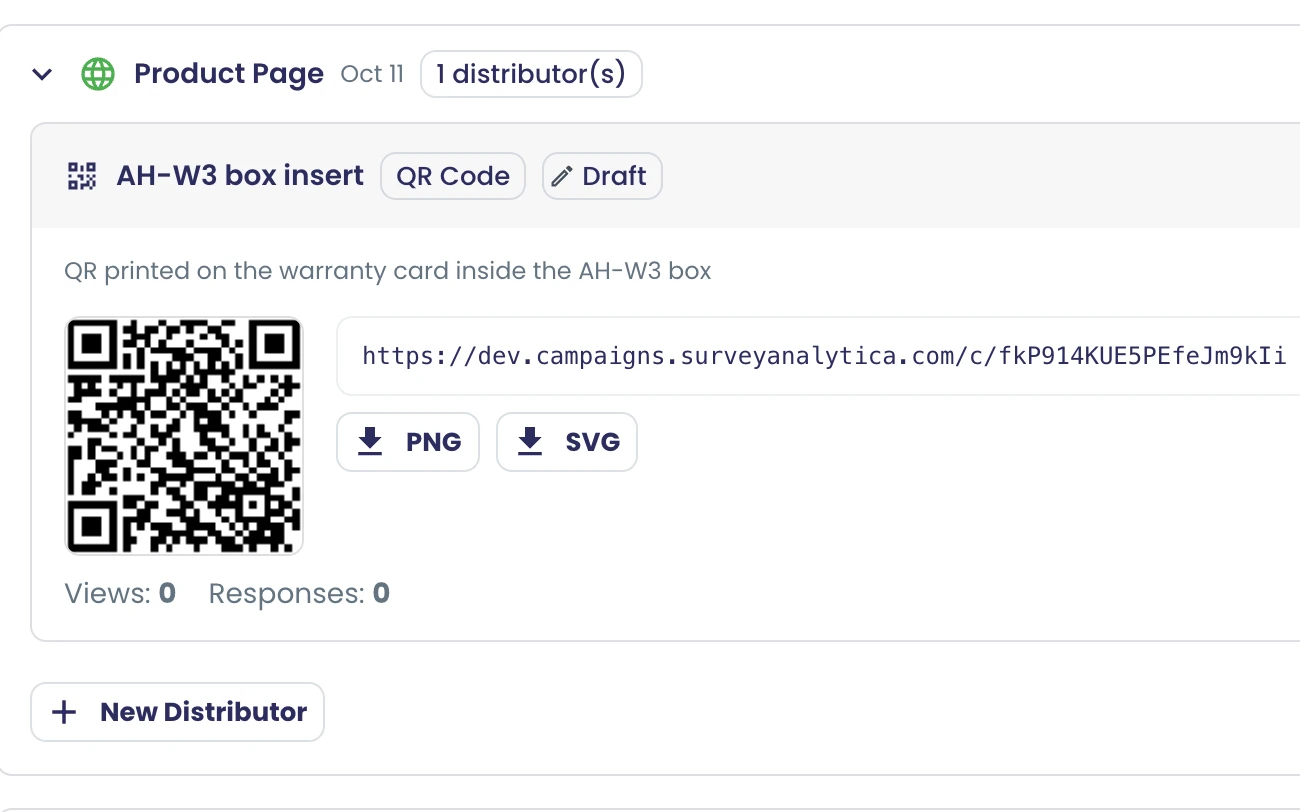
Named web-link distributors
Share web and survey steps through named links, such as a homepage link, alongside contact-list sends.
What it does
Share a web or survey step through named links, such as a homepage link or a newsletter link. Each distributor has a name and an optional description, so you know where each link went. Social steps can use web links too.
Highlights and options
- Distributor types: Contact List, Web Link, QR Code
- Name and optional description
- Copy Link and Open in New Tab
- Status: Draft, Active, Frozen
Where in the product
Dashboard › Campaigns › open a campaign › Distribution › New Distributor › Web Link
Plans and limits
- Professional and Enterprise
Related capabilities
Static and dynamic audiences
Target static contact lists or dynamic lists whose AND/OR filters are re-evaluated at send time.
Also in: Contacts and lists
What it does
Send email, SMS and WhatsApp steps to contact lists. A static list is a fixed set of contacts. A dynamic list stores AND/OR filters, nested if you need, and works out who matches at the moment of sending.
Highlights and options
- Static lists: a fixed set of contacts
- Dynamic lists: nested AND/OR filter groups
- Dynamic lists are re-evaluated at send time
- Text: equals, not equals, contains, not contains, starts with, ends with
- Numbers and dates: greater/less than (or equal), between
- Sets and blanks: in, not in, is empty, is not empty
Where in the product
Dashboard › Campaigns › open a campaign › Distribution › Add Contact Lists
Plans and limits
- Professional and Enterprise
Related capabilities
Multiple lists, deduplicated
Send a step to several lists; recipients are deduplicated by email or phone and contacts lacking the address are skipped.
Also in: Contacts and lists
What it does
Send one step to several contact lists. Each person gets it once: email steps match on email address, WhatsApp and SMS steps on phone number. Contacts without that address are skipped, and the designer shows how many are reachable.
Highlights and options
- Several lists per email, SMS or WhatsApp step
- Email deduplicated by address
- WhatsApp and SMS deduplicated by phone number
- Contacts without the address are skipped
- Reachability hint in the designer
Where in the product
Dashboard › Campaigns › open a campaign › Distribution › Add Contact Lists
Plans and limits
- Professional and Enterprise
Related capabilities
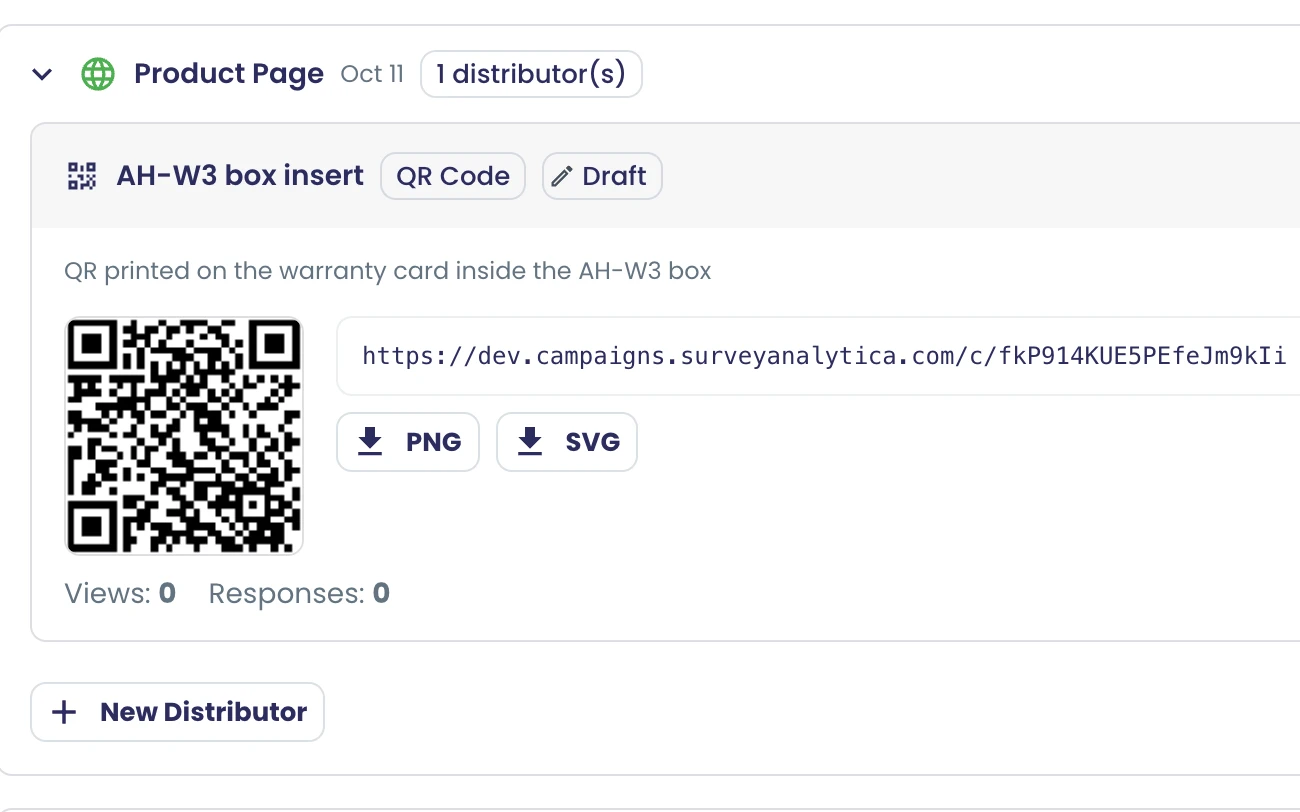
Content and templates
Drag-and-drop email and page designer
Build emails and pages from text, images, video, buttons, columns, tables, calendar and HTML, with desktop and mobile preview.
What it does
Build emails and landing pages by clicking or dragging components onto the page. The palette covers text, media, layout and widgets such as calendars, HTML, embedded surveys and reports. Preview as Desktop, Mobile or Email while you work.
Highlights and options
- Text: Paragraph, Heading, Table, Classic
- Media: Image, Video
- Design: Button, Link, Columns, Navigation, Separator, Spacer
- Widgets: Calendar, HTML, Script, Survey, Formula, Visualization, Report
- Components, Blocks and Layout tabs
- Search components by name
- Preview: Desktop, Mobile, Email
Where in the product
Dashboard › Campaigns › open a campaign › Design › open an Email or Web step › edit content
Plans and limits
- Professional and Enterprise
Related capabilities
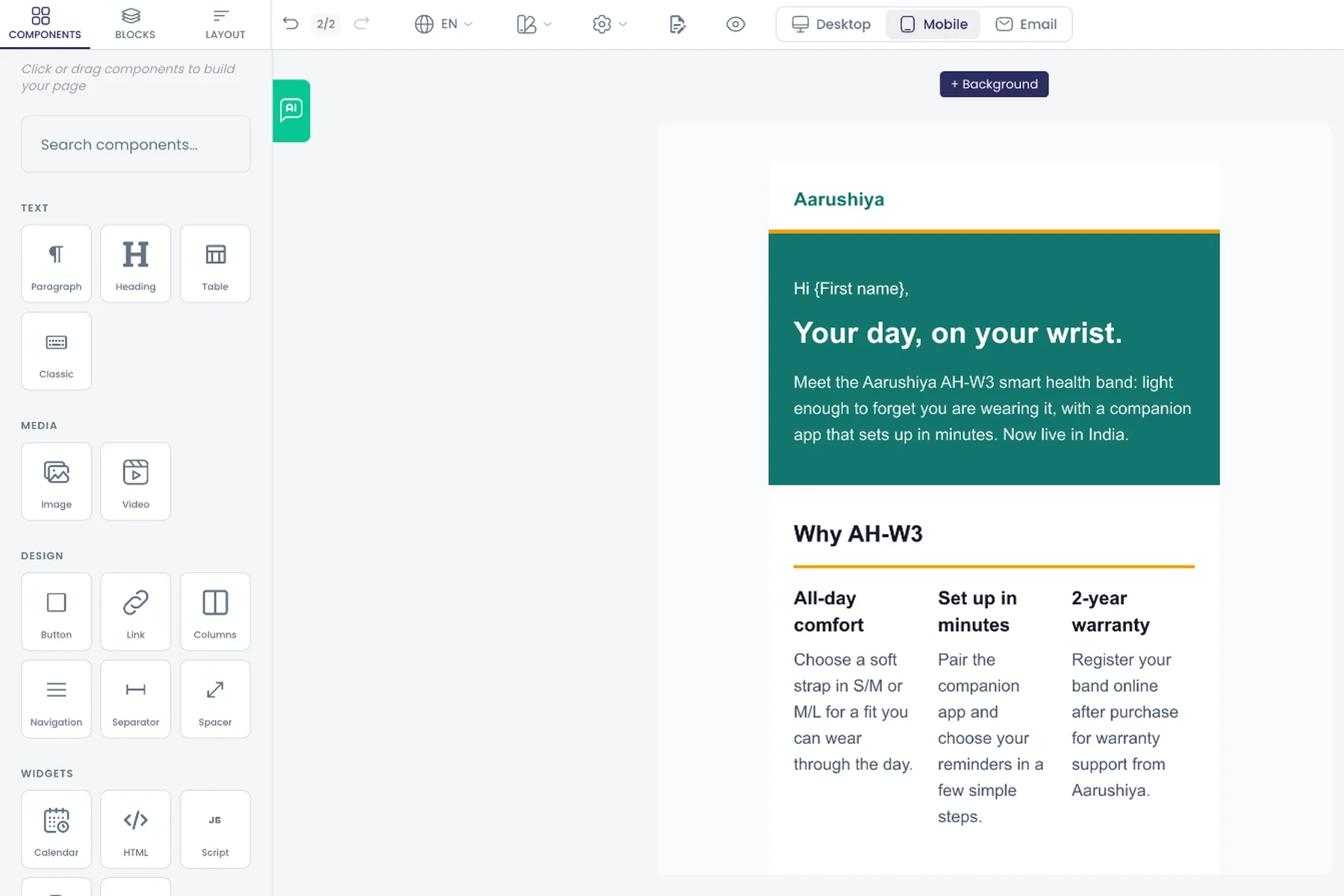
Prebuilt content blocks
Insert ready sections such as header, hero, features, call to action, testimonials, pricing, statistics and footer.
What it does
Insert a ready section from the Blocks tab in one click, then edit it like any other content. Eleven blocks cover the usual parts of an email or landing page.
Highlights and options
- Header
- Footer
- Hero Section
- Features
- Call to Action
- Testimonials
- Contact Section
- Newsletter
- Pricing Table
- Statistics
- Image + Text
Where in the product
Dashboard › Campaigns › open a campaign › Design › open an Email or Web step › Blocks
Plans and limits
- Professional and Enterprise
Related capabilities
Eight design themes
Apply one of eight themes, then recolour and change fonts per block to match your brand.
What it does
Apply one of eight themes to an email or page, then recolour and change fonts block by block to match your brand.
Highlights and options
- Modern Professional
- Minimal Clean
- Bold Vibrant
- Corporate Dark
- Warm Nature
- Tech Startup
- Elegant Luxury
- Playful Fun
Where in the product
Dashboard › Campaigns › open a campaign › Design › open an Email or Web step › edit content
Plans and limits
- Professional and Enterprise
Related capabilities
Embed surveys and reports
Place a live survey or report inside a campaign email or landing page.
What it does
Drop the Survey or Report widget into a campaign email or landing page and choose which survey or report it shows.
Highlights and options
- Survey widget
- Report widget
- Works in emails and landing pages
Where in the product
Dashboard › Campaigns › open a campaign › Design › open an Email or Web step › Components › Widgets
Plans and limits
- Professional and Enterprise
Related capabilities
Personalisation with merge variables
Insert contact and system variables into content and map contact fields per send for personalised messages.
What it does
Insert contact and campaign variables, such as {First name}, into subjects, messages and pages. Add your own variables with a type and a default value. Each send maps variables to contact-list fields, so every recipient gets their own values.
Highlights and options
- Predefined: First Name, Last Name, Email, Phone, Company
- Custom variables typed Text, Number, Date or Boolean
- Default value and Required flag per variable
- Field mapping to contact-list columns at send time
- WhatsApp template variables mapped the same way
Where in the product
Dashboard › Campaigns › open a campaign › Design › Custom Variables
Plans and limits
- Professional and Enterprise
Related capabilities
32 email and page templates
Start from templates for welcome, promotion, newsletter, launch, webinar, survey invite and reminder, invoice and industry landing pages.
What it does
Start an email or landing page from one of 32 templates and edit it in the designer. They cover landing pages, marketing email, events, industries, survey invites and reminders, automation email and a tax invoice.
Highlights and options
- Landing pages: SaaS, Agency, Fitness & Gym, Law Firm, App Download, Travel, Consulting
- Email: Welcome, Promotional Sale, Weekly Newsletter
- Blog Post Article and Product Launch Page
- Events: Event Invitation, Webinar Registration Page
- Industry: Property Listing, Restaurant Menu, Healthcare Clinic, Online Course
- Non-Profit Donation Page and Personal Portfolio
- Survey Invitation, Survey Reminder and Report Sharing emails
- Automation: Notification, Thank You, Action Required, Data Update
- Reminders: Gentle Nudge, Last Chance, Thank You Nudge, Incentive
- Document: Tax Invoice (GST)
Where in the product
Templates › Campaign › Web & Email
Plans and limits
- Professional and Enterprise
Related capabilities
Ten ready-made campaign plans
Plans such as Product Launch, Win-Back, Post-Purchase and NPS Feedback Loop, with days laid out and nine with follow-ups.
What it does
Start from a ready campaign plan with steps laid out on relative days across channels. Ten plans ship in seven languages, and nine include follow-up flows, such as sending the launch email to people who clicked the teaser. Use this template copies the plan into a new campaign.
Highlights and options
- Email Newsletter
- Onboarding Sequence
- Multi-Channel Promo
- Feedback Campaign
- Webinar Promotion
- Product Launch
- WhatsApp Survey Campaign
- Customer Win-Back
- Post-Purchase Follow-Up
- NPS Feedback Loop
Where in the product
Templates › Campaign › Multichannel campaigns
Plans and limits
- Professional and Enterprise
Related capabilities
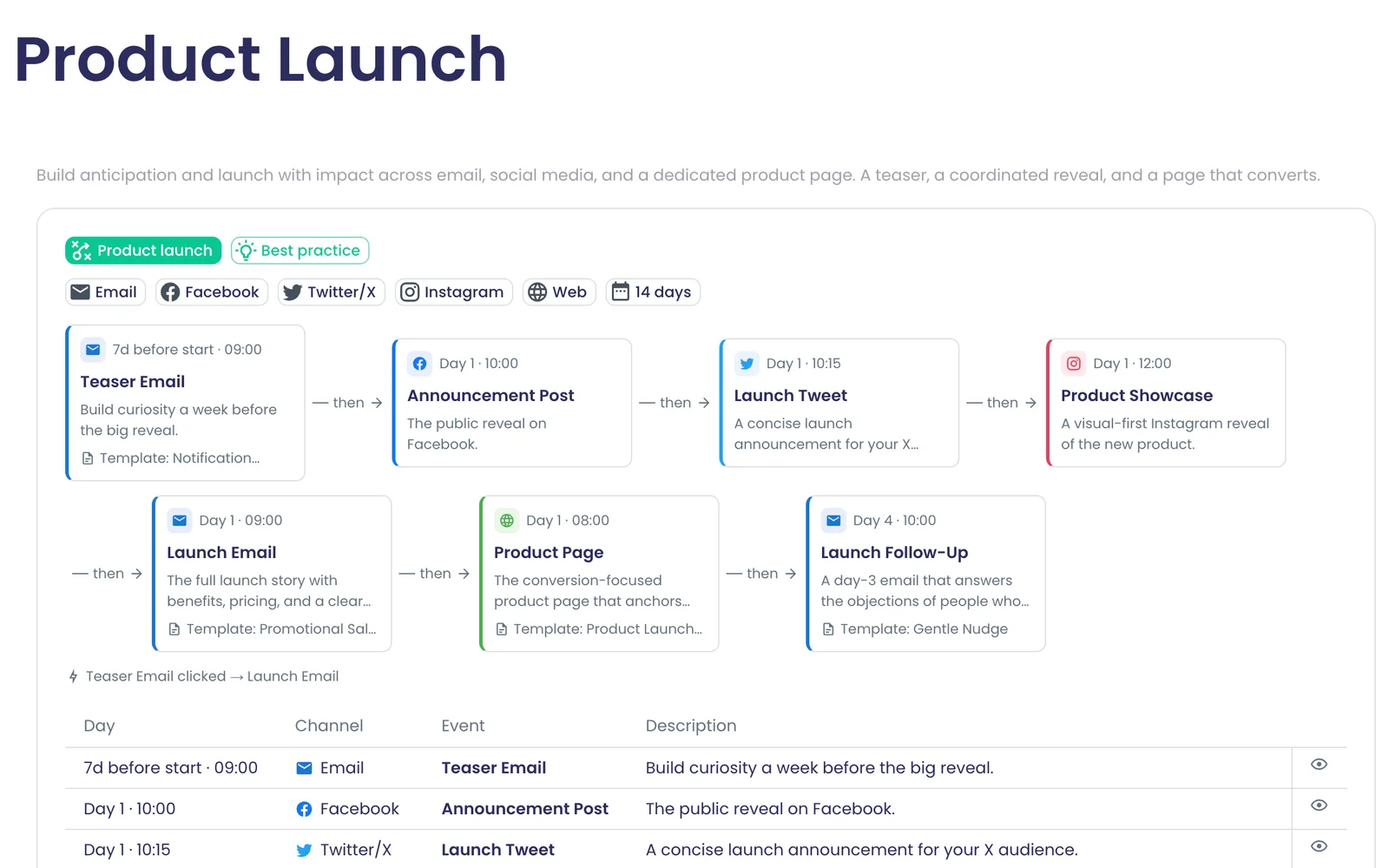
WhatsApp template library
Ten ready WhatsApp message templates in seven languages to adapt and submit for approval.
What it does
Ten starter WhatsApp templates, each written in seven languages. Each has a header, body, footer, variables with examples, and URL or quick-reply buttons. Adapt one and submit it to Meta for approval from your WhatsApp account.
Highlights and options
- Survey Invitation
- Survey Reminder
- NPS Rating Request
- Customer Feedback Thank You
- Appointment Reminder
- Order Confirmation Update
- Event Invitation
- Webinar Reminder
- Exclusive Offer Announcement
- Win-Back Reactivation
Where in the product
Templates › Campaign › WhatsApp
Plans and limits
- Professional and Enterprise
Related capabilities
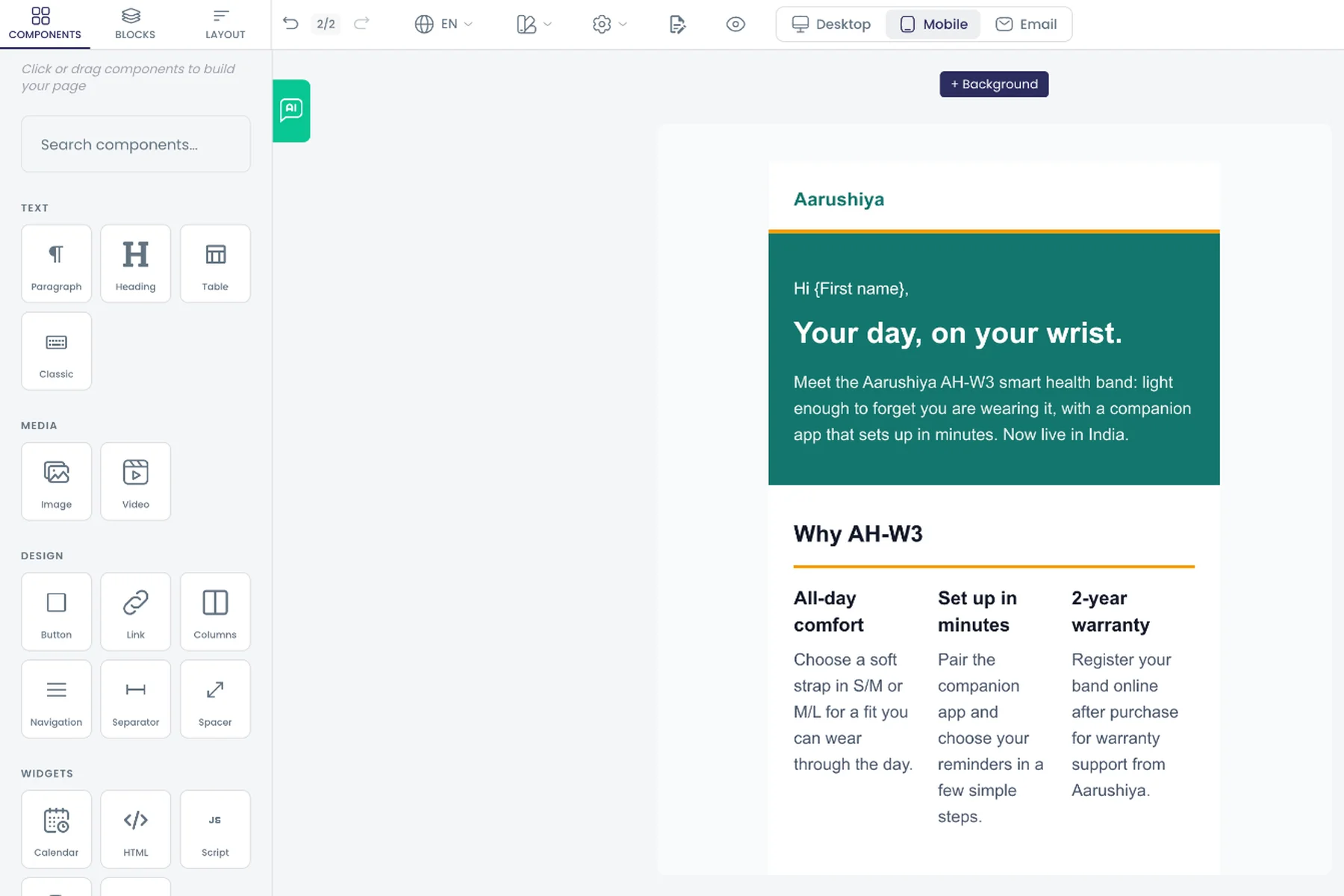
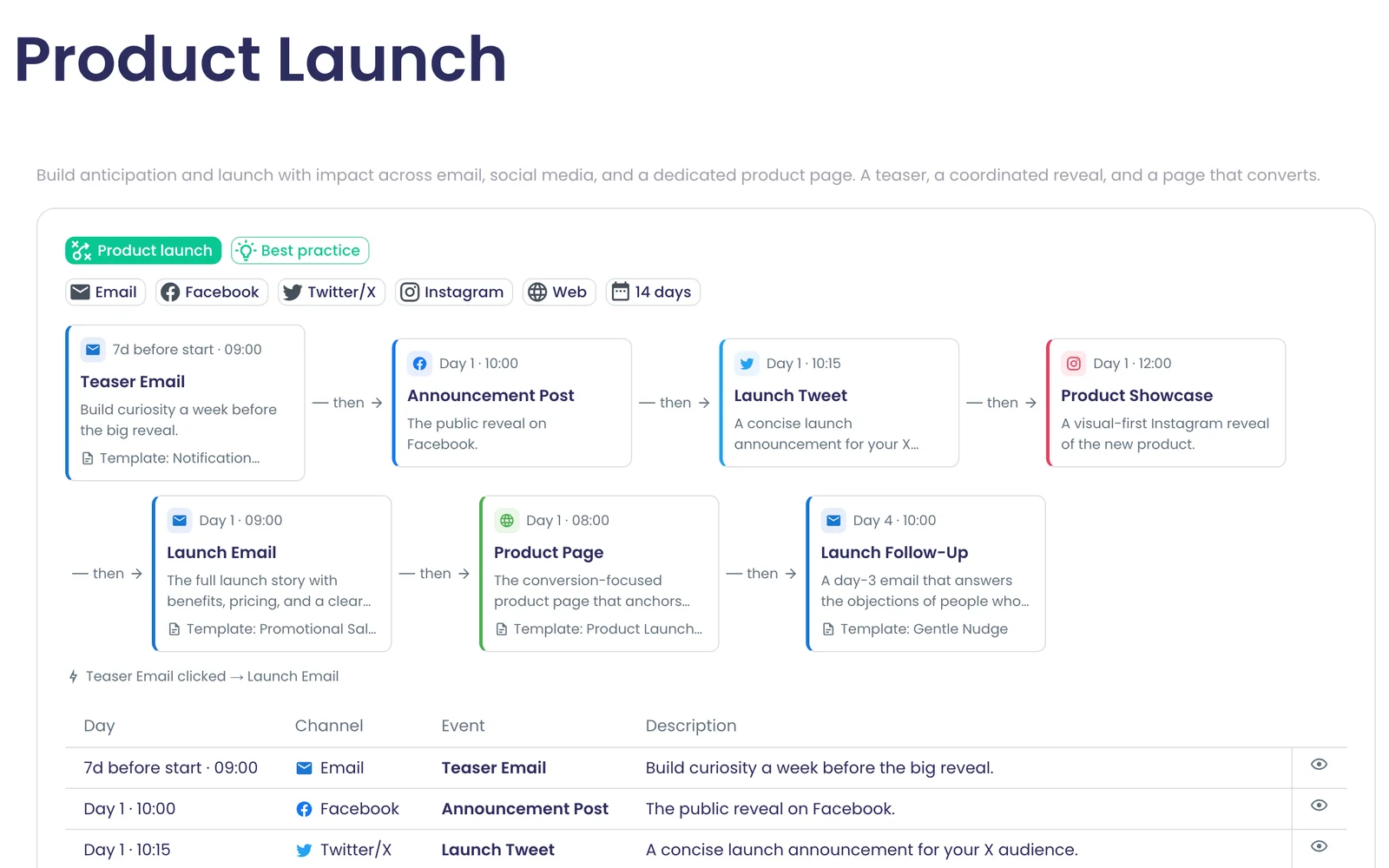
AI assistance
Create a campaign with AI
Describe your goal, such as onboarding or a feedback survey, and AI drafts the campaign's steps and content.
What it does
Describe the campaign you want and AI drafts its steps and content across channels. The draft opens in the designer for you to change anything.
Highlights and options
- Example: Email newsletter campaign
- Example: User onboarding sequence
- Example: Multi-channel promotion
- Example: Customer feedback survey
- Any channel mix: the AI Assistant picks steps from your brief
Where in the product
Dashboard › Campaigns › Create Campaign › AI Assistant
Plans and limits
- Professional and Enterprise
Uses your plan's AI units.
Related capabilities
Campaign Copilot chat
Chat inside the designer to add steps and edit content; history is kept and files can be attached.
What it does
Chat with the AI Assistant inside the designer to add steps and edit content. The conversation is saved with the campaign, so you can pick it up later. Attach files or paste reference URLs for it to work from.
Highlights and options
- Adds and edits steps on the timeline
- Thread history restored when you reopen the campaign
- Attach PDF, Word, TXT, CSV, Excel, PNG, JPG or WebP files
- Paste reference URLs to ground the content
Where in the product
Dashboard › Campaigns › open a campaign › Design › AI Assistant
Plans and limits
- Professional and Enterprise
Uses your plan's AI units; the assistant says so when the limit is reached.
Related capabilities
Import or ground from URLs
Paste a URL, HTML or file for the assistant to import as-is or use as reference material.
What it does
Paste a URL, HTML or a file into the assistant. Import it as it is, keeping the markup, or use it as reference material for new content. PDFs are converted so the model can read them, and private network addresses are refused.
Highlights and options
- Sources: URL, pasted HTML, uploaded file
- Import as-is with the markup kept
- Or use as reference for new content
- PDFs made readable to the model
- Private network addresses refused
Where in the product
Dashboard › Campaigns › open a campaign › Design › AI Assistant
Plans and limits
- Professional and Enterprise
Related capabilities
Recurring AI content schedule
Generate new steps daily, weekly, biweekly or monthly from themes, brand voice and channels, with run history.
What it does
Set a schedule and AI adds new campaign steps on its own, from your themes, brand voice and channels. Choose how often it runs and how many steps each run creates. Every run is logged, and you can run it now or pause it.
Highlights and options
- Frequency: Daily, Weekly, Biweekly, Monthly
- Day of week, time of day and time zone
- 1 to 10 events per run
- Themes, brand voice, target audience, channels and reference URLs
- Optional image and video generation with a style
- Run history, Run now, Pause
Where in the product
Dashboard › Campaigns › open a campaign › Design › Content Schedule
Plans and limits
- Professional and Enterprise
1 to 10 new steps per run. Each run uses AI units.
Related capabilities
AI image generation
Generate images from a prompt or from the step's content, with style, size and logo placement.
What it does
Generate an image for a step from a prompt or from the step's own content. Choose a style and size, and place your logo on it. Prompt suggestions help you start.
Highlights and options
- Sources: your prompt or the step's content
- Styles: Professional, Minimalist, Vibrant, Creative, Modern
- Sizes: Square 1:1, Landscape 3:2, Portrait 2:3, Auto
- Logo placement: top left, top right, bottom left, bottom right, center
- Prompt suggestions and live progress
Where in the product
Dashboard › Campaigns › open a campaign › Design › open a step › AI image
Plans and limits
- Professional and Enterprise
Uses your plan's AI units.
Related capabilities
AI video generation
Generate short videos with Google Veo models from a prompt or content, with a cost estimate first.
What it does
Generate a short video for a step with Google Veo models, from a prompt or the step's content. See a cost estimate before you generate.
Highlights and options
- Quality: Fast (Veo 3.1 Fast), Standard (Veo 3.0), High Quality (Veo 3.1)
- Aspect ratio: Landscape 16:9, Portrait 9:16, Square 1:1
- Length: 3, 5, 8 or 10 seconds
- Cost estimate shown first
Where in the product
Dashboard › Campaigns › open a campaign › Design › open a step › AI video
Plans and limits
- Professional and Enterprise
Up to 10 seconds per video. Uses your plan's AI units.
Related capabilities
AI Google Ads copy
Generate headlines and descriptions for a Google Ads step from your campaign brief.
What it does
Generate headlines and descriptions for a Google Ads step from your campaign brief. They fill the responsive search ad, and you edit them before the campaign is created.
Highlights and options
- Headlines
- Descriptions
- Fills the step's responsive search ad
Where in the product
Dashboard › Campaigns › open a campaign › Design › open a Google Ads step
Plans and limits
- Professional and Enterprise
Uses your plan's AI units.
Related capabilities
Deliverability and compliance
Automatic recipient suppression
Bounced, complained and unsubscribed contacts are excluded from email audiences at send time.
Also in: Conversations, Contacts and lists
What it does
Email sends skip contacts who should not get them, without you cleaning lists by hand. Contact status rules out unsubscribed, complained and inactive contacts, and your organisation's suppression list stops hard bounces. The check runs again inside every send.
Highlights and options
- Skipped by contact status: Unsubscribed, Complained, Inactive
- Hard bounces stopped by the organisation's suppression list
- Checked at send time, every time
- Email only: an email opt-out never removes a phone contact
- List health shows skips by reason
Where in the product
Dashboard › Campaigns › open a campaign › Distribution (applies automatically)
Plans and limits
- Professional and Enterprise
Related capabilities
Per-organisation sender reputation
Each organisation's email routes through its own sending tenant when ready, so others' sending cannot hurt your reputation.
What it does
Each organisation's campaign email goes through its own sending tenant once that tenant is ready, so other senders' bounces and complaints cannot affect your reputation. Until then, mail goes through a shared tier that matches your plan.
Highlights and options
- Own sending tenant per organisation
- Reputation scored per tenant
- Shared tier by plan until the tenant is ready
Where in the product
Applies automatically to every email send
Plans and limits
- Professional and Enterprise
Related capabilities
One-click unsubscribe handling
Every email gets a signed unsubscribe link and one-click headers; a hosted page in eight languages processes opt-outs.
Also in: Contacts and lists
What it does
Every campaign email carries a signed unsubscribe link and the one-click headers mail providers look for. People opt out on a hosted page, and they are left out of later email sends.
Highlights and options
- Signed unsubscribe link per contact
- Footer added when your content lacks a link
- List-Unsubscribe and one-click headers
- Hosted page in 8 languages: en, de, es, fr, hi, it, ru, pa
- Opt-outs skipped at the next send
Where in the product
Applies automatically to every campaign email
Plans and limits
- Professional and Enterprise
Related capabilities
Missing-unsubscribe-link warning
The designer flags email content that lacks an unsubscribe link before you send.
What it does
The designer flags email content that has no unsubscribe link, before you send. Web pages are not flagged.
Highlights and options
- "No Unsubscribe Link" chip on email content
- Hidden for web pages
Where in the product
Dashboard › Campaigns › open a campaign › Design › open an Email step
Plans and limits
- Professional and Enterprise
Related capabilities
Plan email quota check
Each email blast is checked against your plan's monthly email allowance before it sends.
What it does
Each email blast is checked against your plan's email allowance before it goes out. You get a warning at 80% of the allowance.
Highlights and options
- One check per blast, before sending
- Warning at 80% of the allowance
- Free plans: an over-limit blast stops with a clear reason
- Paid plans keep sending and meter the overage
- If the count cannot be read, the blast is held and retried
Where in the product
Dashboard › Campaigns › open a campaign › Distribution (applies at send time)
Plans and limits
- Professional and Enterprise
Free: 100 emails. Professional: 10,000 to 500,000, chosen in steps of 1,000. Enterprise: set per contract.
Related capabilities
Email and WhatsApp reputation view
See bounce and complaint rates for email and WhatsApp on a 14-day chart, with warn and pause alerts.
Also in: Conversations, Contacts and lists
What it does
See bounce and complaint rates for email and WhatsApp in one view, or each channel alone. A 14-day chart shows the trend, and the email view marks the warn and pause levels.
Highlights and options
- Views: All, Email, WhatsApp
- Bounce and complaint rates
- 14-day chart
- Warn and pause levels on the email view
- Shown on Contact List and as a badge in the Conversations header
Where in the product
Dashboard › Contact List; Conversations › reputation badge
Plans and limits
- Professional and Enterprise
Related capabilities
Contact list health panel
See each contact list's delivery health per channel with a trend sparkline before sending.
Also in: Contacts and lists
What it does
Open a contact list to see how well it delivers on each channel, with a trend sparkline. It also counts the contacts a send would skip, by reason.
Highlights and options
- Channels: Email, WhatsApp, SMS, All
- Delivery trend sparkline
- Skip reasons: Known bounced, Complained, Unsubscribed, Inactive
- Skip reasons: Suppressed, Invalid address, Could not be checked
Where in the product
Dashboard › Contact List › open a list
Plans and limits
- Professional and Enterprise
Related capabilities
Scheduling and launch
Scheduled step delivery
Each step sends automatically at its scheduled date and time; rescheduling on the timeline updates the queue.
What it does
Once a campaign is launched, each step sends at its own scheduled date and time. Moving a bar on the timeline reschedules the queued send.
Highlights and options
- Per-step date and time
- Rescheduling on the timeline updates the queue
- A scheduler sweep picks up steps up to 30 days ahead
- Each queued send runs once per campaign version
Where in the product
Dashboard › Campaigns › open a campaign › Design (timeline) and Distribution
Plans and limits
- Professional and Enterprise
Related capabilities
Pre-launch audience check
Launch is blocked until every email, SMS and WhatsApp step has an audience or a flow; a summary shows reach.
What it does
Launch checks that every step is ready. Email, SMS and WhatsApp steps need a contact list or a flow; web, social, Slack and Teams steps never block. A summary shows how many events go to how many contacts across how many channels.
Highlights and options
- Email, SMS and WhatsApp steps need an audience or a flow
- Web, social, Slack and Teams steps never block launch
- Unconfigured Events listed before launch
- Summary: N events to M contacts across K channels
- The server repeats the check at launch
Where in the product
Dashboard › Campaigns › open a campaign › Distribution › Launch
Plans and limits
- Professional and Enterprise
Related capabilities
Campaign start and end dates
Launch with a start date and time and an optional end date and time.
What it does
Launch with a start date and time and, if you want, an end date and time. The same dates sit in Campaign Settings.
Highlights and options
- Start Date & Time
- End Date & Time (Optional)
- Also set in Campaign Settings › General
Where in the product
Dashboard › Campaigns › open a campaign › Distribution › Schedule Campaign Launch
Plans and limits
- Professional and Enterprise
Related capabilities
Cancel a scheduled launch
Cancel a launched campaign before sends go out; queued steps are withdrawn and return to draft.
What it does
Cancel Launch withdraws the queued sends of a launched campaign and returns its steps to draft. Fix what you need, then launch again.
Highlights and options
- Cancel Launch on the Distribution step
- Queued sends withdrawn
- Steps return to draft
Where in the product
Dashboard › Campaigns › open a campaign › Distribution › Cancel Launch
Plans and limits
- Professional and Enterprise
Related capabilities
Follow-up journeys
Steps sent by flows
Mark a step as distributed by a flow so it goes only to contacts who qualify, with no bulk list needed.
What it does
Mark a step as sent by a flow and it goes only to the contacts the flow picks, with no bulk list. Launch counts the flow as the step's audience.
Highlights and options
- Shown as "Distributed via flow"
- No contact list needed
- Only contacts the flow selects receive it
- Counts as an audience at launch
Where in the product
Dashboard › Campaigns › open a campaign › Distribution
Plans and limits
- Professional and Enterprise
Related capabilities
Resend a step from flows
A flow action sends a campaign's email, WhatsApp or SMS step to qualifying contacts for follow-ups and fallbacks.
Also in: Workflows
What it does
In a flow, the Send Campaign Activity action sends one of a campaign's email, WhatsApp or SMS steps to the contact the flow is handling. Use it for follow-ups, fallbacks and retargeting.
Highlights and options
- Flow action: Send Campaign Activity
- Email, WhatsApp and SMS steps
- One contact at a time, from the flow
- For follow-ups, channel fallbacks and retargeting
Where in the product
Dashboard › Flows › open a flow › add an action › Send Campaign Activity
Plans and limits
- Professional and Enterprise
Related capabilities
In-campaign follow-up builder
Build trigger-to-action follow-ups inside the campaign, with the full flow designer one click away.
What it does
Build a follow-up inside the campaign: pick a step and the activity that triggers it, then the step to send next. The Advanced button opens the full flow designer for anything more.
Highlights and options
- Trigger: Campaign Activity on a step
- Events: Sent, Delivered, Opened, Clicked, Replied, Bounced, Failed
- Trigger steps: Email, WhatsApp, SMS, Slack, Teams
- Action: Send Campaign Activity (Email, WhatsApp or SMS step)
- Advanced opens the full flow designer
- A dashed connector appears on the timeline
Where in the product
Dashboard › Campaigns › open a campaign › Design › Flows
Plans and limits
- Professional and Enterprise
Related capabilities
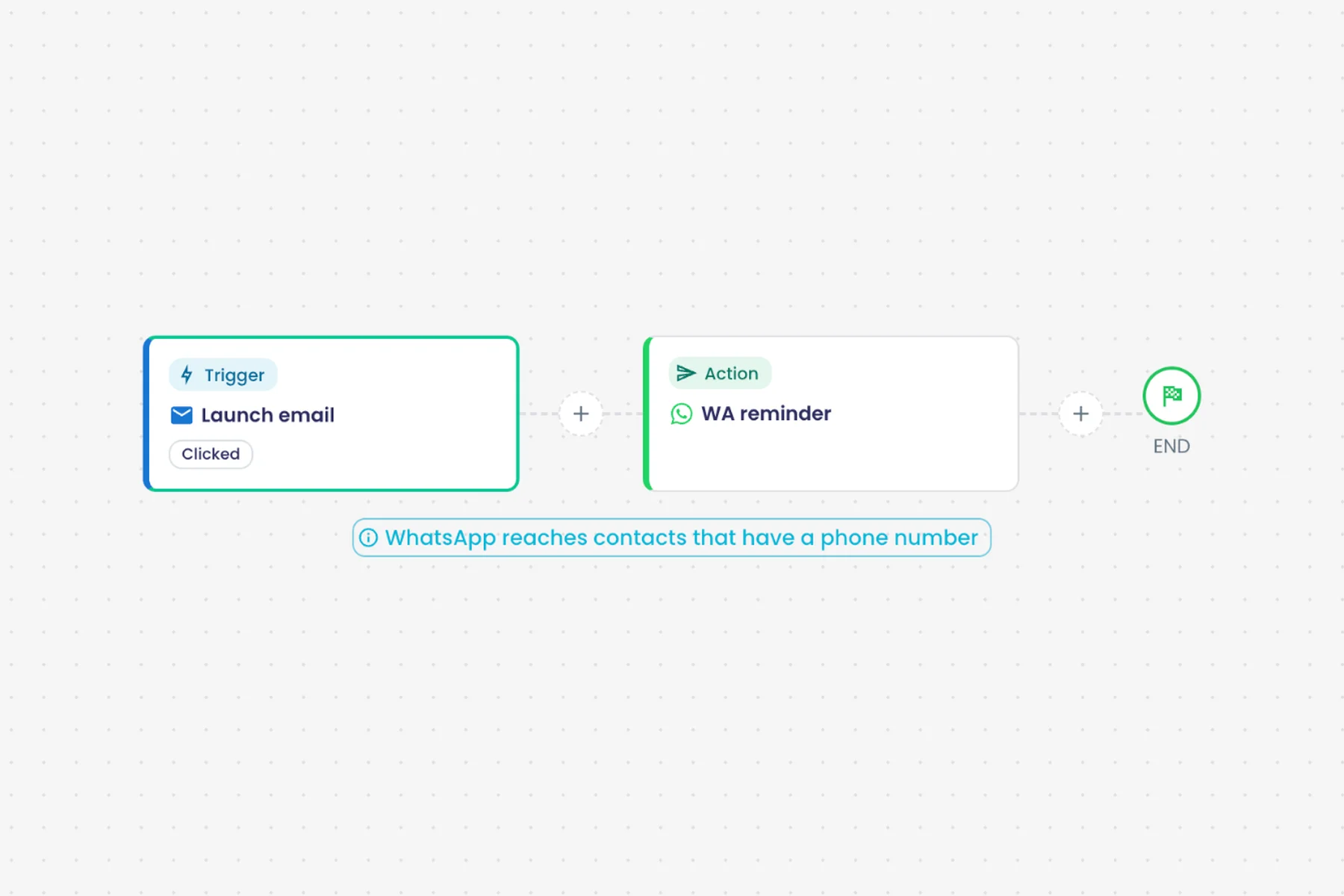
Fallback and retargeting follow-ups
Ready plans include a bounced-email-to-SMS fallback and a clicked-to-WhatsApp retarget, built as flows you can edit.
What it does
The ready campaign plans come with follow-up flows you can edit. They cover fallbacks to another channel and retargeting people who engaged.
Highlights and options
- Feedback Campaign: invite bounced → SMS fallback
- Multi-Channel Promo: clicked → WhatsApp
- Webinar Promotion: invitation clicked → WhatsApp reminder
- Product Launch: teaser clicked → launch email
- Onboarding Sequence: welcome opened → quick-start
- Customer Win-Back: replied → exclusive offer
Where in the product
Templates › Campaign › Multichannel campaigns
Plans and limits
- Professional and Enterprise
Related capabilities
AI conversational follow-up
Pass a recipient's campaign conversation to an AI agent in a flow and reply on the same channel.
What it does
A flow can pass a recipient's campaign conversation to an AI agent and send its answer on the same channel. The agent sees the conversation history from the campaign.
Highlights and options
- Campaign engagement step passes the conversation history
- AI agent writes the answer
- Reply on channel sends it where the customer wrote
Where in the product
Dashboard › Flows › open a flow
Plans and limits
- Professional and Enterprise
Related capabilities
Replies land in shared inbox
Replies to WhatsApp, email and own-number SMS arrive in the team's Conversations inbox for follow-up.
What it does
When people answer a campaign, their replies land in the team's Conversations inbox. Each conversation shows the campaign and contact list it came from.
Highlights and options
- WhatsApp replies
- Email replies to your own addresses
- SMS replies to your Twilio or Telnyx number
- Campaign and contact list shown on each conversation
Where in the product
Conversations
Plans and limits
- Professional and Enterprise
Related capabilities
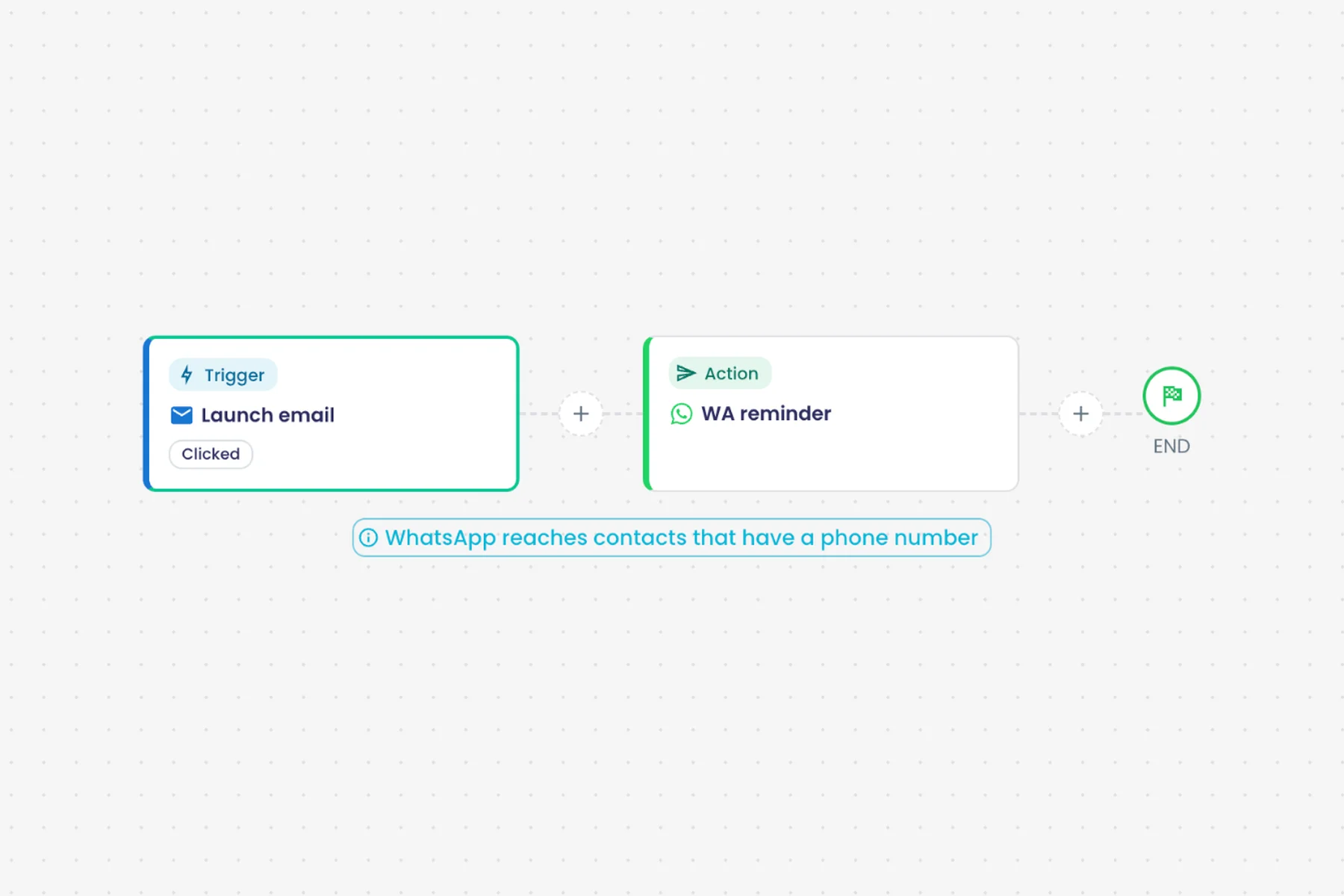
Preview and testing
Per-channel previews
Preview every step as it will appear in its channel, on desktop and mobile, by clicking it.
What it does
Click any step to see it as recipients will, in a frame that matches its channel. Email previews switch between desktop and mobile.
Highlights and options
- Email: desktop and mobile
- WhatsApp and SMS
- Slack and Microsoft Teams
- Facebook, X, Instagram and LinkedIn posts
- Google Ads search result
- Web page
Where in the product
Dashboard › Campaigns › open a campaign › Preview & Testing
Plans and limits
- Professional and Enterprise
Related capabilities
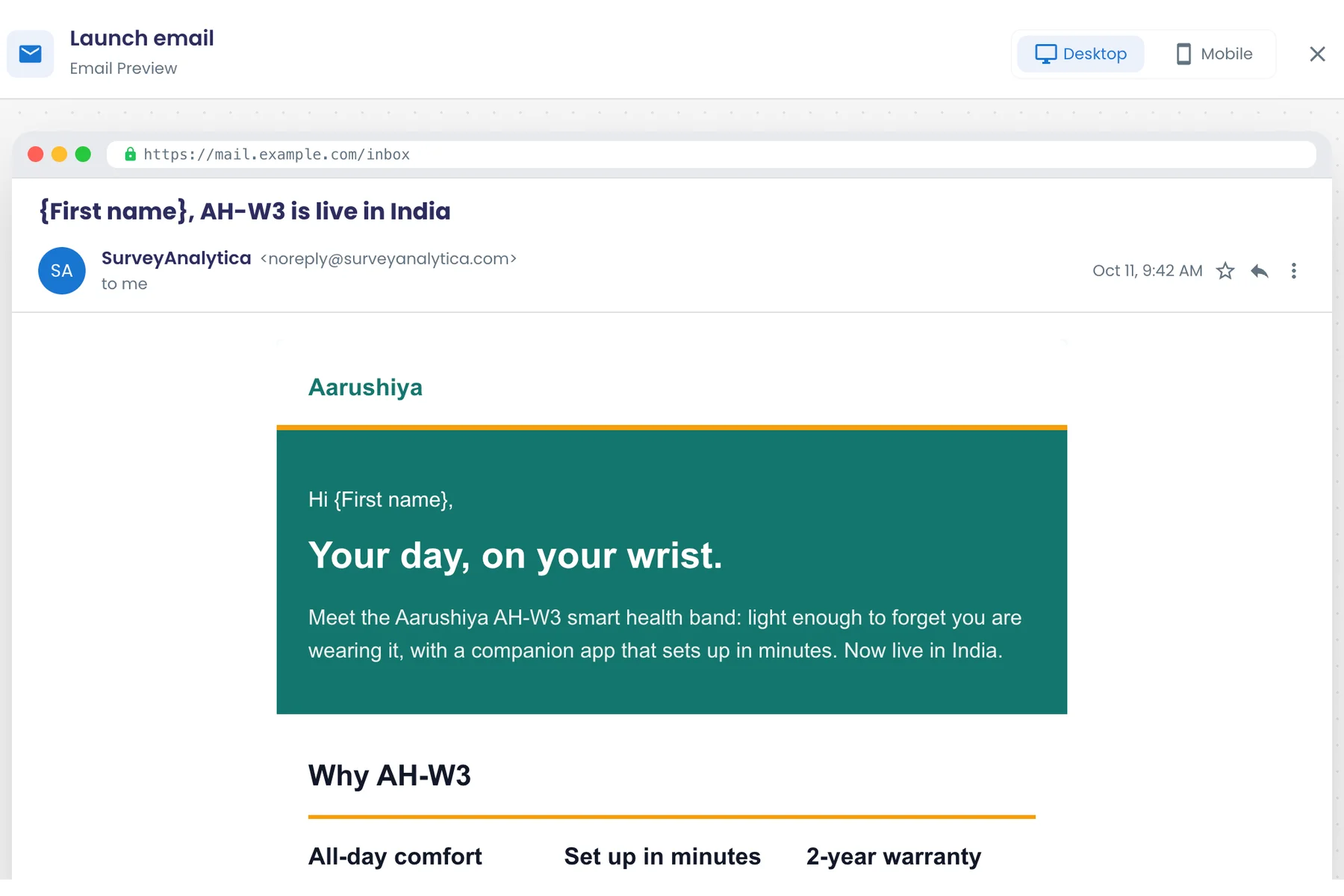
Test sends to testing contacts
Send any step to chosen testing contacts; test sends are tracked separately and never start live follow-ups.
What it does
Add testing contacts and send any step to them before launch. Test sends are marked as tests, so they never start live follow-up flows, and their tracking stays apart from live numbers.
Highlights and options
- Add Testing Contacts from lists, one by one, or by Bulk Import
- Test button per step
- Marked as tests: never start live follow-ups
- Test tracking kept apart from live counts
Where in the product
Dashboard › Campaigns › open a campaign › Preview & Testing › Testing Contacts
Plans and limits
- Professional and Enterprise
Related capabilities
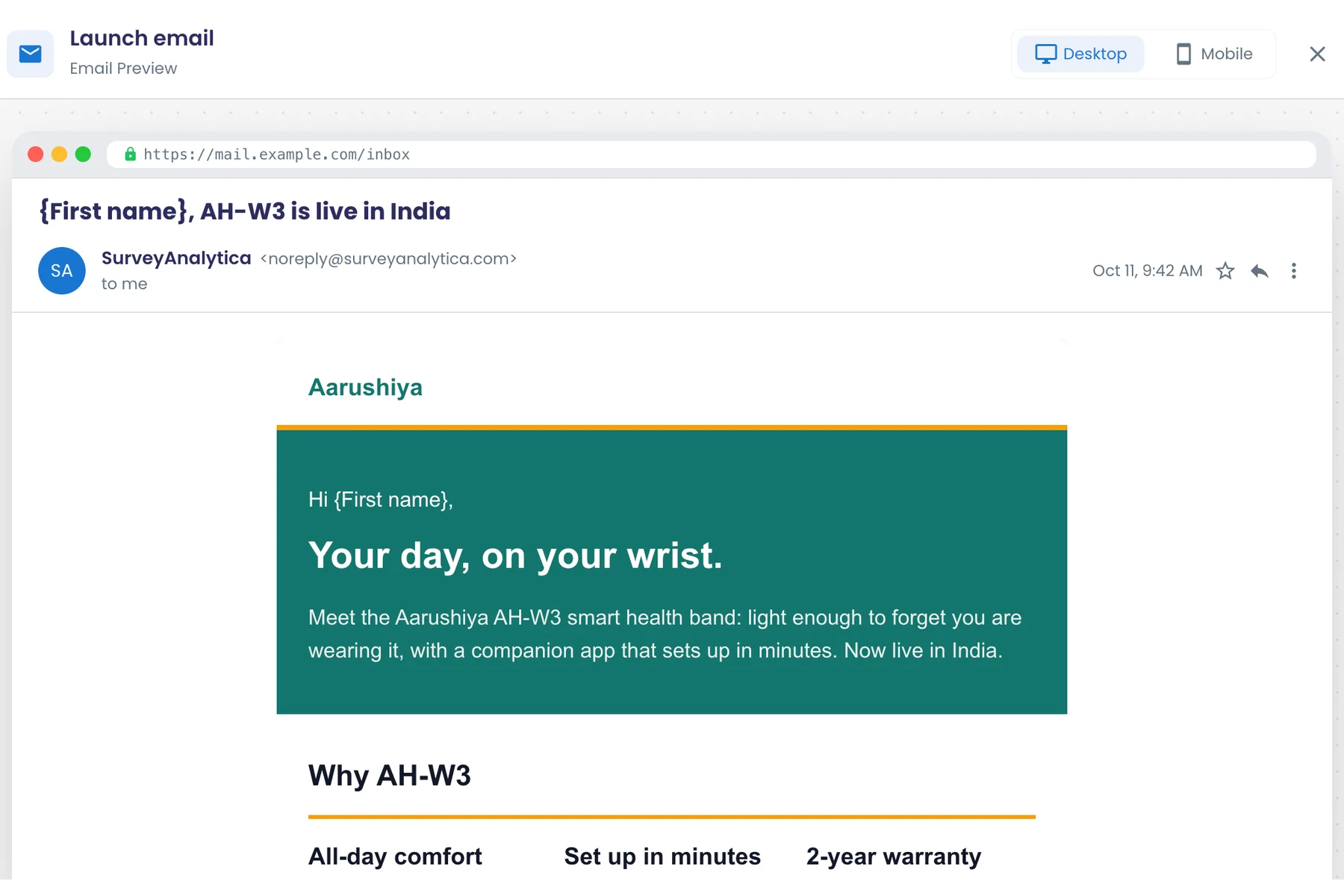
Tracking and analytics
Live step tracker
Track each step's progress, sent, delivered, opened, clicked and failed counts, plus views and responses for pages and surveys.
What it does
After launch, the Distribution step tracks each step as it goes out. Messaging steps show progress and delivery counts; pages and surveys show views and responses.
Highlights and options
- Overall Progress per campaign
- Per step: progress, sent, delivered, opened, clicked, failed
- Web and survey steps: views and responses
- Copy Link or Open in New Tab for live pages
Where in the product
Dashboard › Campaigns › open a campaign › Distribution
Plans and limits
- Professional and Enterprise
Related capabilities
Unique opens, reads and clicks
Delivery, reads, unique opens and clicks are counted once per message, so provider retries never inflate results.
What it does
Every message's progress is counted once. Provider retries and repeat opens never inflate the numbers.
Highlights and options
- Counted: sent, delivered, read, opened, clicked
- Counted: bounced, complained, failed
- Each transition counted once per message
Where in the product
Dashboard › Campaigns › open a campaign › Distribution and Analyze
Plans and limits
- Professional and Enterprise
Related capabilities
Per-recipient link tracking
Links in email, SMS and WhatsApp carry a per-recipient id, so each click ties back to the contact.
What it does
Links in email, SMS and WhatsApp messages carry a per-recipient id. Each click ties back to the contact and can start a follow-up flow.
Highlights and options
- Email links
- SMS links
- WhatsApp links
- Clicks can trigger follow-up flows
Where in the product
Applies automatically to every send
Plans and limits
- Professional and Enterprise
Related capabilities
Campaign analytics dashboard
See an overview, time series and trends for sends, deliveries, opens, clicks and replies across campaigns.
Also in: Analytics
What it does
The Analyze step shows how a campaign performed: totals, rates, a time series and trends. It also opens in Analytics, where you can compare campaigns.
Highlights and options
- Totals: sent, delivered, opened, clicked, bounced, complaints, replies
- Rates: delivery, open, click, click-through, bounce, complaint, reply
- Unique recipients, campaigns and contact lists
- Trends by day, week or month; per campaign, cumulative or single metric
- Funnel, hour and weekday, lists, links, bounces, message types, top recipients
Where in the product
Dashboard › Campaigns › open a campaign › Analyze
Plans and limits
- Professional and Enterprise
Related capabilities
Engagement funnel
See the funnel from sent to delivered, opened and clicked for each campaign.
What it does
See how many messages moved from sent to delivered, opened, clicked and replied.
Highlights and options
- Sent
- Delivered
- Opened
- Clicked
- Replied
Where in the product
Dashboard › Campaigns › open a campaign › Analyze
Plans and limits
- Professional and Enterprise
Related capabilities
Hour and weekday engagement
Charts show which hours and weekdays recipients engage, to inform when you schedule steps.
What it does
Charts show the hours of the day and the days of the week when recipients engage, so you can schedule the next steps then.
Highlights and options
- By hour of day
- By day of week
- Opens by default; other metrics selectable
Where in the product
Dashboard › Campaigns › open a campaign › Analyze
Plans and limits
- Professional and Enterprise
Related capabilities
Link performance report
See which links in your messages received the most clicks.
What it does
See which links in your messages got the most clicks.
Highlights and options
- Per link: sent, delivered, opened, clicked
- Open rate and click rate per link
Where in the product
Dashboard › Campaigns › open a campaign › Analyze
Plans and limits
- Professional and Enterprise
Related capabilities
Results by contact list
Compare delivery and engagement across the contact lists a campaign reached.
Also in: Contacts and lists
What it does
Compare delivery and engagement across the contact lists a campaign reached.
Highlights and options
- Per list: sent, delivered, opened, clicked, bounced
- Open rate and click rate per list
Where in the product
Dashboard › Campaigns › open a campaign › Analyze
Plans and limits
- Professional and Enterprise
Related capabilities
Top engaged recipients
List the recipients who engaged most, ready for follow-up or a targeted list.
What it does
List the recipients who engaged most, ready for a follow-up or a targeted list.
Highlights and options
- Top 20 recipients
- Opens, clicks and replies per recipient
Where in the product
Dashboard › Campaigns › open a campaign › Analyze
Plans and limits
- Professional and Enterprise
Related capabilities
Bounce and message-type breakdown
Break down bounces and compare performance by message type within campaign analytics.
What it does
Break bounces down by the error the provider reported, and compare results by message type.
Highlights and options
- Bounces grouped by error type
- Message types with sent, delivered, opened and clicked
Where in the product
Dashboard › Campaigns › open a campaign › Analyze
Plans and limits
- Professional and Enterprise
Related capabilities
Collaboration and security
Role-based campaign access
Admins and surveyors edit campaigns; maintainers, marketers, billing and agents get read-only access.
What it does
Workspace roles decide who can change campaigns. Admins and surveyors edit; every other role can view.
Highlights and options
- Edit: Admin, Surveyor
- View only: Maintainer, Marketer, Billing, Agent
Where in the product
Workspaces › open a workspace › Users
Plans and limits
- Professional and Enterprise
Related capabilities
Workflows
51 capabilitiesOpen the pageFlows that start on a response, message, store event or schedule and do the follow-up.
Workflows at a glance
Flows do the follow-up work for every response, order, message, file or schedule that starts them. Build one on a canvas, from a template or from a sentence, and branch it on scores, answers, dates or what AI found. Steps send messages, create tasks and approvals, and update your records and other systems. Before going live, a dry run shows every step's values and nothing is sent. Afterwards, every run can be traced, explained and re-run.
- trigger types
- 21
- comparison operators
- 19
- flow templates
- 61
- Shopify store operations
- 58
Start here
- Build every flow on one canvas: a trigger, then conditions and actions as a tree
- One trigger for messages received, sent, opened, clicked, bounced or failed on any channel
- Turn a multi-item request into one task and approve each item on its own
- AI reads text, images, PDFs, audio and video, and the next step branches on it
- Dry-run a flow with sample data and see every step's values; nothing is sent
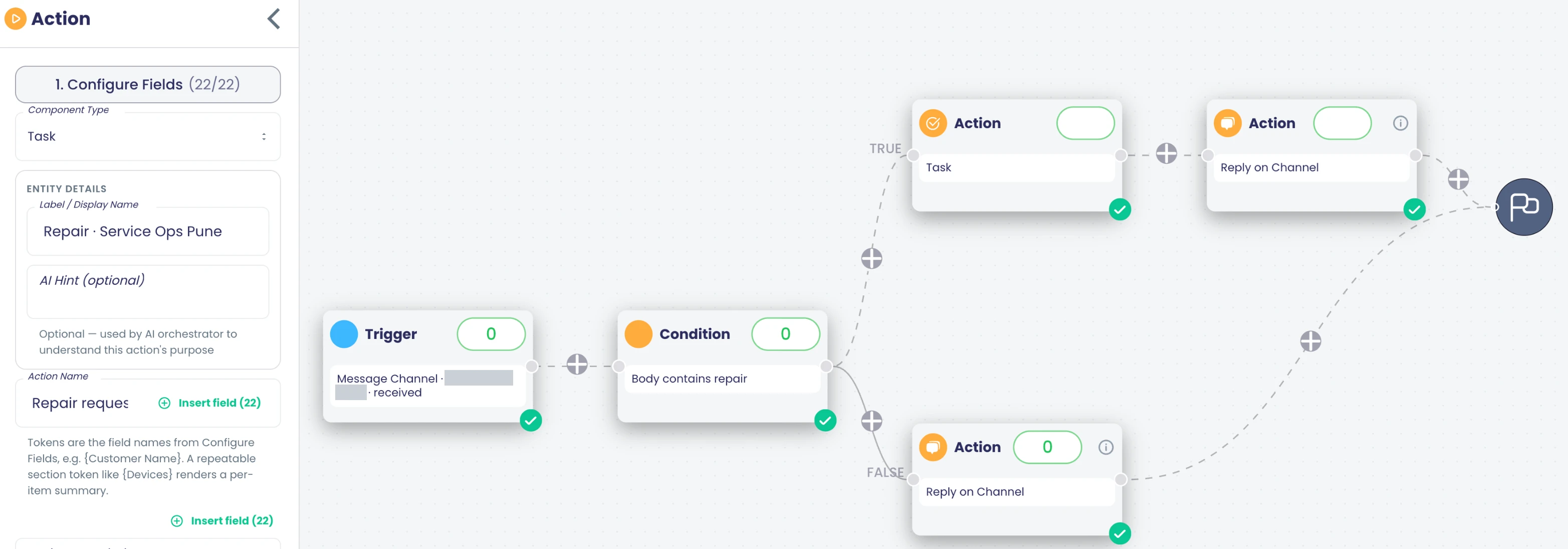
Build
Visual flow designer
Build flows on a canvas: trigger, conditions and actions laid out as a tree, with a plus button to insert steps on any edge.
What it does
Flows are built on a canvas as a tree: one trigger at the top, then conditions and actions below it. A plus button on any line inserts a step there, and several steps can hang side by side under one parent. Each step opens a side panel for its settings, and the canvas marks steps that still need work.
Highlights and options
- One trigger per flow, then conditions, actions, waits and loops
- Plus button on any line inserts a step at that point
- Steps side by side under one parent run together
- A send or write step ends its branch; the next step goes beside it
- Side panel per step with its fields and record values
- Run counts can be shown on every step
Where in the product
Flows › open a flow
Plans and limits
- Professional and Enterprise
Related capabilities
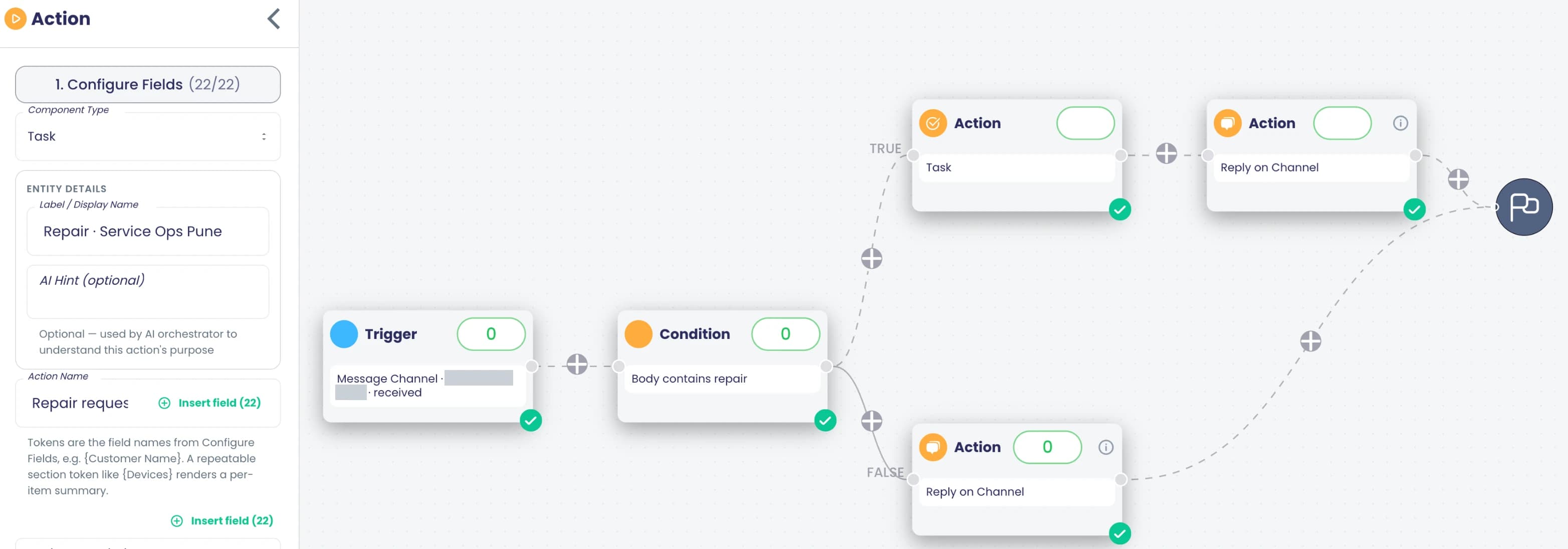
Record fields in any text
Insert {Field} tokens into messages, URLs and bodies so every customer gets their own name, reference and details.
What it does
Insert record fields as {Field} tokens into subjects, message text, bodies and web addresses. Each record fills in its own values when the step runs, so one flow sends every customer their own name, reference and details.
Highlights and options
- Insert {Field} tokens from a field picker
- Works in email subjects and bodies, messages and API URLs
- Values come from the trigger and earlier read steps
- The field list follows the trigger when you change it
Where in the product
Flows › open a flow › any step › field picker
Plans and limits
- Professional and Enterprise
Related capabilities
Publish checks per step
Each step shows what is missing, the flow lists every issue, and publishing is blocked until they are fixed.
What it does
Every step checks its own settings and shows what is missing, such as a recipient field or a template. The flow lists every issue under 'Fix these before publishing', and the server checks the flow again when it is saved.
Highlights and options
- Per-step badge for missing settings
- Issue list: 'Fix these before publishing'
- Publishing waits until every issue is fixed
- Steps placed under a send or write step are flagged
- The server validates the flow again on save
Where in the product
Flows › open a flow › toolbar
Plans and limits
- Professional and Enterprise
Related capabilities
60+ flow templates
Start from ready-made flows for surveys, NPS and CSAT, WhatsApp, Shopify, tasks, hot folders, clickstream and data upkeep.
What it does
61 ready-made flows open straight in the designer, and 60 of them come in all 7 app languages. You then choose the accounts, templates and recipients for your workspace.
Highlights and options
- Survey Integration (5)
- Webhook & API (4)
- Contact Management (4)
- Social Media (3)
- E-Commerce (5)
- Team Communication (2)
- Task Automation (3)
- Data Management (3)
- AI & Automation (1)
- Advanced Workflows (13)
- Campaign Automation (2)
- User Replication (4)
- Hot Folder (9)
- Clickstream (1)
- Data Maintenance (2)
- Examples: WhatsApp NPS Routing, Create Task from Survey, Delayed Follow-up Email
Where in the product
Templates › Flows
Plans and limits
- Professional and Enterprise
61 templates.
Related capabilities
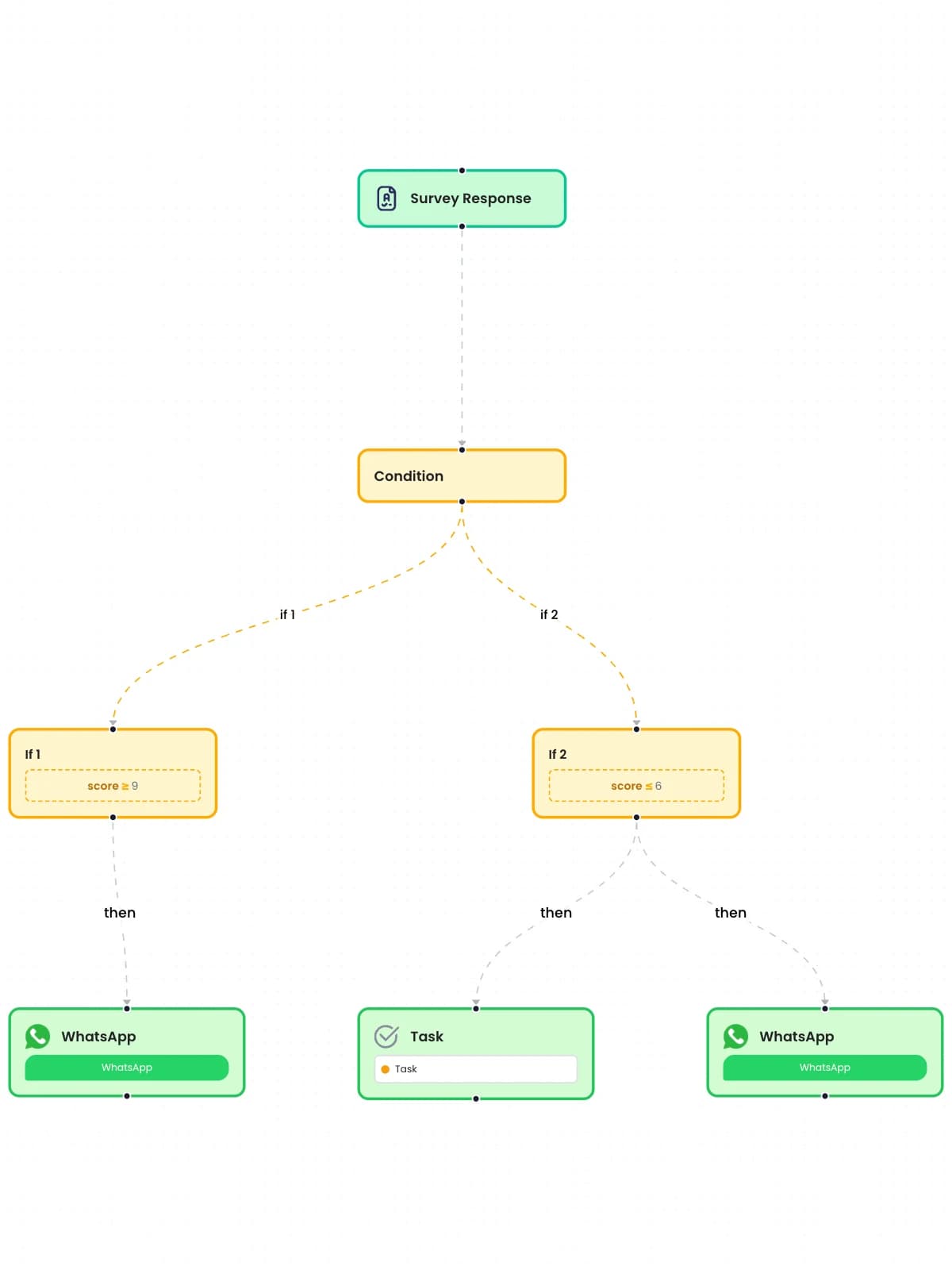
Clone a flow
Duplicate an existing flow as the starting point for a new one.
What it does
Duplicate any flow, with its trigger, conditions and steps, as the starting point for a variant. The copy starts as a separate flow, so the original keeps running unchanged.
Highlights and options
- Clone from the flow's row menu or the designer
- Copies trigger, conditions and every step
- The copy is independent of the original
Where in the product
Workspaces › open a workspace › Flows › row menu › Clone
Plans and limits
- Professional and Enterprise
Related capabilities
Activate, update live, pause
Switch a flow on, push edits to the live version, or pause it without deleting anything.
What it does
A flow moves between Draft, Active and Paused. Activate switches it on, Update Live pushes your edits to the running version, and Pause stops new runs without deleting anything.
Highlights and options
- Activate a draft
- Update Live pushes edits to the active flow
- Pause stops new runs; the flow is kept
- Status shown in the flows list: Draft, Active, Inactive
Where in the product
Flows › open a flow › toolbar
Plans and limits
- Professional and Enterprise
Related capabilities
Draft autosave
The designer keeps a local copy of your draft and checks it against the saved version, so edits survive a dropped connection.
What it does
The designer keeps a copy of your draft on the device and compares it with the saved version. If the connection drops, your edits are kept and saved when it returns.
Highlights and options
- Draft copy kept in the browser
- Compared with the server version on open
- Shows 'Unsaved changes' until saved
Where in the product
Flows › open a flow
Plans and limits
- Professional and Enterprise
Related capabilities
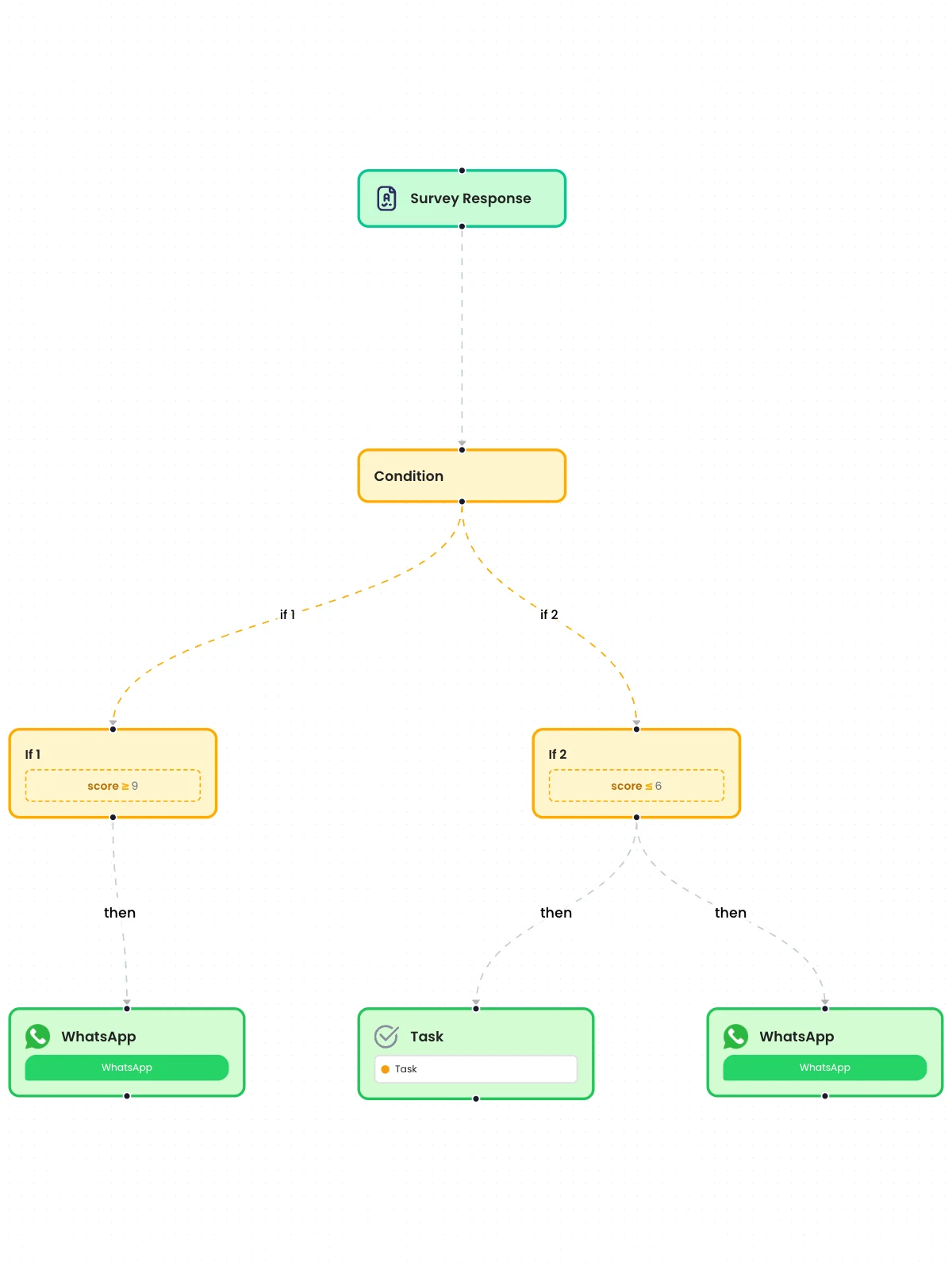
Logic
Parallel steps
Run several actions side by side from one step, so the customer confirmation and the team alert go out together.
What it does
One step can have several children that run at the same time. A customer confirmation and a team alert go out together, and a record update can sit beside a message. Use this whenever a send or write step would otherwise end the branch.
Highlights and options
- Add a step beside an existing one instead of below it
- All children of a step run together for each record
- Messages, tasks and record updates can share one parent
- The designer offers 'add beside' after a send or write step
Where in the product
Flows › open a flow › plus button on a line
Plans and limits
- Professional and Enterprise
Related capabilities
If / else-if / else paths
Send each record down the first path it matches, with an else path for everything that matches none.
What it does
A condition step holds an ordered list of paths. Each record goes down the first path whose rules it matches, and an else path can catch every record that matches none. Paths can branch on answers, scores, dates, amounts or AI results.
Highlights and options
- Ordered paths: if, else if, else
- First matching path wins; later paths are skipped
- Optional else path for records that match nothing
- Each path can hold several rules joined with AND or OR
- Branch on AI results such as sentiment from an AI step
Where in the product
Flows › open a flow › condition step
Plans and limits
- Professional and Enterprise
Related capabilities
AND / OR condition groups
Combine several rules in one path with AND or OR, up to 20 rules per group.
What it does
Inside one path, rules combine with AND (all must match) or OR (any may match). The server checks each group before the flow is saved, so a group that is too large or badly formed is refused instead of failing at run time.
Highlights and options
- Join rules with AND or OR
- Up to 20 rules per path
- Groups are checked on the server when the flow is saved
- Works with every comparison operator
Where in the product
Flows › open a flow › condition step › path
Plans and limits
- Professional and Enterprise
Up to 20 rules per path.
Related capabilities
19 comparison operators
Compare values with equals, greater or less than, any of, contains, regex, between, is answered, within N days and more.
What it does
Conditions compare a record field with a value using one of 19 operators. Some take no value (is answered, is empty), one takes two (is between), and two work on dates relative to today.
Highlights and options
- equals
- does not equal
- is greater than
- is at least
- is less than
- is at most
- is any of
- is none of
- matches pattern
- contains
- starts with
- ends with
- is answered
- is not answered
- is empty
- is not empty
- is between
- is within N days
- is more than N days ago
Where in the product
Flows › open a flow › condition step › rule
Plans and limits
- Professional and Enterprise
Related capabilities
Score and answer routing
Branch on survey scores, answers, dates and amounts, for example routing detractors to a call-back task.
What it does
Conditions read survey scores, answers, dates and amounts as typed values, so 'score 6 or less' compares numbers and 'ordered in the last 7 days' compares dates. Shipped templates use this to send detractors to a call-back task and promoters to a review request.
Highlights and options
- Number fields compare as numbers: greater than, at most, between
- Date fields support within N days and more than N days ago
- Branch on whether a question was answered at all
- Template: WhatsApp NPS Routing (9 to 10 and 6 or below)
- Template: WhatsApp CSAT: Low-Score Task (call-back task)
Where in the product
Flows › open a flow › condition step
Plans and limits
- Professional and Enterprise
Related capabilities
Wait step
Pause each record for hours, days or weeks, until a date field on the record, or that date plus an offset.
What it does
Hold each record before the next step: for a set time, until a date on the record, or until that date plus an offset. Each record waits from its own moment.
Highlights and options
- Wait hours, days or weeks
- Wait until a date field on the record
- Or that date plus an offset in hours, days or weeks
- Each record's wait is scheduled separately
Where in the product
Flows › open a flow › plus button › Wait
Plans and limits
- Professional and Enterprise
Related capabilities
Loop over line items
Repeat the following steps for each item in a list, such as order lines or repeatable survey sections.
What it does
Repeat the following steps once for each item in a list field, such as order lines or the instances of a repeatable survey section. Values from each item stay together.
Highlights and options
- Pick any list field from the record
- Order line items or repeatable section instances
- Following steps run once per item
- Used for item-by-item approval tasks
Where in the product
Flows › open a flow › plus button › Loop
Plans and limits
- Professional and Enterprise
Related capabilities
Read data mid-flow
Read rows from an API, survey responses, contact lists, data tables or the Planner mid-flow; the next steps run once per returned row.
What it does
Some steps read data instead of writing it. The result lands in a named field on the record, and when a read returns several rows, the following steps run once for each row.
Highlights and options
- Read from: an API (REST step in read mode)
- Read from: survey responses, contact lists, data tables, the Planner
- Read from: Slack, Teams, Facebook, LinkedIn, X, Instagram, Messenger, Shopify
- Read from: Tally Prime
- Result stored under a field name you choose
- Several rows: the next steps run once per row
Where in the product
Flows › open a flow › step › Read
Plans and limits
- Professional and Enterprise
Related capabilities
Check opens, clicks and replies
Check whether a message the flow sent was opened or clicked, and branch on the answer.
What it does
Look up a message this flow or campaign sent to the record's address and add whether it was found, opened or clicked to the record. A condition after it can then send a reminder only to people who did not engage. Place the check beside the send step (wait, then check), not under it.
Highlights and options
- Channels: email, SMS, WhatsApp
- Looks back 30 days by default
- Adds _engagement fields: found, opened, clicked
- Can include the recent two-way conversation (10 by default, up to 50)
Where in the product
Flows › open a flow › plus button › Track campaign engagement
Plans and limits
- Professional and Enterprise
AI in the designer
Plain-language conditions
Type a rule the way you would say it, such as 'score 3 or lower', and the designer builds the condition.
What it does
Type a rule in plain words, such as 'score 3 or lower', and AI turns it into a structured condition using the trigger's real fields. You see the parsed rule before it is applied and can edit it like any other rule.
Highlights and options
- Plain-words box on a condition path
- 'Parse with AI' builds the rule from the trigger's fields
- Result shown as normal rules you can edit
- Works with the same 19 operators
Where in the product
Flows › open a flow › condition step › Parse with AI
Plans and limits
- Professional and Enterprise
Related capabilities
Describe a flow, AI drafts it
Describe the automation in a sentence and AI drafts the flow, previewed and opened in the designer.
What it does
Describe the automation in a sentence and AI drafts the whole flow: trigger, conditions and steps. The draft is previewed, then opened in the designer, where you fill in templates, recipients and accounts.
Highlights and options
- Start from a sentence instead of a blank canvas
- Draft streams in and is previewed first
- Opens in the designer for editing
- Accounts, templates and recipients are chosen by you
Where in the product
Flows › Create Flow › describe your automation
Plans and limits
- Professional and Enterprise
Related capabilities
AI flow review
AI reviews the whole flow and points out gaps and risky steps before you switch it on.
What it does
'Review flow with AI' reads the whole flow and lists gaps and risky steps before you switch it on, each with a confidence level. 'Jump to node' takes you to the step concerned.
Highlights and options
- Reviews the whole flow in one pass
- Lists issues with a confidence level
- Jump to node from each issue
- Says 'No issues found' when the flow looks good
Where in the product
Flows › open a flow › toolbar › Review flow with AI
Plans and limits
- Professional and Enterprise
Related capabilities
AI fix this step
For a step with errors, AI suggests a corrected configuration you can apply.
What it does
On a step with errors, 'Let AI fix this node' proposes a corrected configuration. You see the proposal first and apply it with one click, or ignore it.
Highlights and options
- Offered on steps with validation errors
- Shows the AI fix proposal before anything changes
- Apply fix with one click
Where in the product
Flows › open a flow › step with errors › Let AI fix this node
Plans and limits
- Professional and Enterprise
Related capabilities
Triggers
Fire only when fields change
On response updates, run the flow only when the fields you mapped actually changed.
What it does
For survey response update events, a flow can run only when the fields you mapped actually changed. A response saved again with the same values does not start the flow a second time.
Highlights and options
- Available on survey response update triggers
- Compares the mapped fields before and after the update
- Unchanged saves do not start a run
Where in the product
Flows › open a flow › trigger step
Plans and limits
- Professional and Enterprise
Related capabilities
Survey response trigger
Start a flow when a survey response is created, updated or deleted, with every answer available to later steps.
Also in: Surveys and forms
What it does
Start a flow when a response to a chosen survey is created, updated or deleted. Every answer, score and custom variable is available to later steps, including repeated sections.
Highlights and options
- Events: create, update, delete
- Pick the survey the flow listens to
- Every answer available as a field
- Optional: run only when mapped fields changed
- Run once over earlier responses from a date you choose
Where in the product
Flows › open a flow › trigger › Survey Response
Plans and limits
- Professional and Enterprise
Related capabilities
Contact list trigger
Start a flow when a contact is added, updated or removed in a chosen list.
Also in: Contacts and lists
What it does
Start a flow when a contact is added, updated or removed in a chosen contact list. Contact fields are available to later steps.
Highlights and options
- Events: create, update, delete
- Pick the contact list
- Run once over existing contacts
Where in the product
Flows › open a flow › trigger › Contact List
Plans and limits
- Professional and Enterprise
Related capabilities
Unified message trigger
Start a flow when a message is received, sent, delivered, opened, clicked, replied, bounced or failed on any connected channel.
Also in: Conversations
What it does
One trigger covers message events on every connected channel. Filter by channel, by activity type and by address, so a flow can react to a WhatsApp reply, a bounced email or a new review.
Highlights and options
- Events: received, sent, delivered, opened, clicked, bounced, replied, failed
- Channels: Email, WhatsApp, SMS, Slack, Microsoft Teams, Messenger
- Channels: Facebook, Instagram, X, LinkedIn, Outlook Mail, Google Business Profile
- Activity filter: message, comment, reply, mention, post, review
- Activity filter: reaction, share, follow, unfollow, block, mute
- Optional filter by receiving address or number
Where in the product
Flows › open a flow › trigger › Message
Plans and limits
- Professional and Enterprise
Related capabilities
Email received trigger
Start a flow when an email arrives at the flow's inbound address.
What it does
Each flow can have its own inbound email address. An email arriving there starts the flow, and its contents are available to later steps, for example an AI step that reads it.
Highlights and options
- Event: Received
- Own inbound address per flow
- Pairs with AI steps that read the email
Where in the product
Flows › open a flow › trigger › Email
Plans and limits
- Professional and Enterprise
Related capabilities
Inbound webhook trigger
Each flow gets its own URL that accepts POST, PUT or DELETE, with optional HMAC signature verification.
Also in: Platform
What it does
Each flow gets its own URL that accepts POST, PUT or DELETE requests from your systems. Optional HMAC-SHA256 signature checking rejects requests that were not signed with your secret.
Highlights and options
- Methods: POST, PUT, DELETE
- Own URL per flow
- Optional HMAC-SHA256 signature check
- Default signature header X-Hub-Signature-256, or your own
- Accepts 'sha256=<hex>' or plain hex signatures
- Unsigned or wrongly signed requests get 401
Where in the product
Flows › open a flow › trigger › Webhook
Plans and limits
- Professional and Enterprise
Related capabilities
Shopify store events
Start a flow on Shopify orders, checkouts, customers, products, refunds and fulfilments from your connected store.
What it does
Start a flow on events from your connected Shopify store. Webhooks are checked with Shopify's signature before the flow runs.
Highlights and options
- Orders: created, updated, paid, cancelled, fulfilled, partially fulfilled, edited
- Checkouts and carts: created, updated
- Customers: created, updated, disabled, enabled, marketing consent
- Products, collections and product listings
- Refunds, disputes, fulfilments and fulfilment events
- Draft orders, inventory items and levels, locations
- Subscription contracts and selling plan groups
- Order and tender transactions, payment methods
- Shop updated, app uninstalled
- 25 event groups in all
Where in the product
Flows › open a flow › trigger › Shopify
Plans and limits
- Professional and Enterprise
Related capabilities
Google Sheets and Excel triggers
Start a flow when rows change in a Google Sheet or an Excel workbook on OneDrive or SharePoint.
What it does
Start a flow when rows change in a Google Sheet or an Excel workbook on OneDrive or SharePoint, through your connected account. A schedule can also read new rows on a timetable.
Highlights and options
- Google Sheets: row updates
- Excel (OneDrive or SharePoint): row updates
- Connected account per sheet
- Or read rows on a schedule
Where in the product
Flows › open a flow › trigger › Google Sheets or Excel
Plans and limits
- Professional and Enterprise
Related capabilities
Slack, Teams and Outlook triggers
Start flows from Slack messages and reactions, Microsoft Teams chat and channel messages, and Outlook mail or calendar changes.
What it does
Start flows from Slack, Microsoft Teams and Outlook through your connected accounts.
Highlights and options
- Slack: messages in channels, groups, DMs and threads; edits and deletes
- Slack: app mentions, reactions, members joining or leaving, new channels, files
- Teams: chat and channel messages created, updated or deleted
- Teams: team created, member added or removed, channel created or deleted
- Outlook: mail created, updated or deleted
- Outlook: calendar events created, updated or deleted
Where in the product
Flows › open a flow › trigger › Slack, Microsoft Teams or Outlook
Plans and limits
- Professional and Enterprise
Related capabilities
Task event trigger
Start a flow when a task is created, changes status or is completed.
Also in: Collaboration, Tasks and approvals
What it does
Start a flow when a task is created, changes status or is completed. Use it to notify a requester, update a record or open the next task.
Highlights and options
- Events: created, status changed, completed
- Task fields and the record's answers available
- Pairs with tasks raised by other flows
Where in the product
Flows › open a flow › trigger › Task
Plans and limits
- Professional and Enterprise
Related capabilities
Thread event trigger
Start a flow when a conversation thread is created, resolved, changes status, gets a message or a new participant.
Also in: Collaboration
What it does
Start a flow when a conversation thread is created, resolved, changes status, gets a new message or a new participant.
Highlights and options
- Events: created, resolved, status changed, message posted, participant added
- Thread fields available to later steps
Where in the product
Flows › open a flow › trigger › Thread
Plans and limits
- Professional and Enterprise
Related capabilities
Scheduled flows
Run a flow on a cron schedule in your timezone, optionally reading new rows from a sheet, API, store or list each time.
Also in: Planner
What it does
Run a flow on a cron schedule in the time zone you pick. Each run can read records from a source; every record read then runs the following steps. 'Test read' shows what the next run would pick up.
Highlights and options
- Cron editor with a plain-language description; hourly by default
- Any IANA time zone
- Read from: Google Sheets, Excel, an API, Shopify, Tally Prime
- Read from: Facebook, Instagram, X, LinkedIn, Slack, Teams, Outlook
- Read from: a contact list, survey responses, the Planner, an AI agent
- Test read before switching on
Where in the product
Flows › open a flow › trigger › Schedule
Plans and limits
- Professional and Enterprise
Related capabilities
Hot folder file drops
Drop CSV, Excel, documents or media into a flow's upload folder; each file's name, type, size and link start the flow.
Also in: Platform
What it does
Each flow can have its own upload folder. Dropping a file starts the flow with the file's name, extension, content type, size and download link. CSV and Excel files can be split so every row runs the flow.
Highlights and options
- Fields: file name, extension, content type, size, download URL
- Large files upload in resumable chunks
- Upload from the browser or with an API key
- Accept only the file types you set
- CSV and Excel rows can each run the flow
- 9 hot-folder templates (Sheets, Salesforce, Slack, AI analysis)
Where in the product
Flows › open a flow › trigger › Hot Folder
Plans and limits
- Professional and Enterprise
Related capabilities
Website clickstream trigger
Start flows from visitor events, identity changes and consent rejections sent by the clickstream script on your website.
Also in: Platform
What it does
The clickstream script on your website or app sends visitor events to a flow. Flows can react to page and custom events, a visitor's ID changing at sign-in, and consent being refused.
Highlights and options
- Events: event, ID change (uid transition), consent rejected
- Fields: contact, session, event type and name, page, referrer
- Fields: platform, browser, app version, timestamp
- Script from the Connectors Marketplace (Clickstream Publisher)
Where in the product
Flows › open a flow › trigger › Clickstream
Plans and limits
- Professional and Enterprise
Related capabilities
Campaign step events
Inside a campaign, start a flow when a step's message is sent, delivered, opened, clicked, replied, bounced or failed.
Also in: Campaigns
What it does
Inside a campaign, a flow can start when one of that campaign's steps records a message event, so follow-ups react to what each recipient did.
Highlights and options
- Events: sent, delivered, opened, clicked, bounced, replied, failed
- Scoped to one campaign step
- Available in the campaign's own flow designer
Where in the product
Campaigns › open a cross-channel campaign › step flow
Plans and limits
- Professional and Enterprise
Related capabilities
Run once on existing records
Run a new flow once over existing responses or contacts from a date you choose, up to 2,000 records per run.
What it does
Run a new flow once over records you already have, such as earlier survey responses or existing contacts, from now or from a date you choose. Re-runs send again, so pick the start date with care.
Highlights and options
- Run Once from the designer toolbar
- 'Process records since' a date
- Works for survey responses, contacts and scheduled sources
- Shows how many records were processed
Where in the product
Flows › open a flow › toolbar › Run Once
Plans and limits
- Professional and Enterprise
Up to 2,000 records per run.
Related capabilities
Fire one planner row
Send a single scheduled-events row through its flow immediately from the Planner.
What it does
Send one Planner row through its flow straight away, without waiting for its scheduled time. Useful for testing a row or re-sending one event.
Highlights and options
- Fire a single row from the Planner
- Runs the flow linked to that row now
Where in the product
Workspaces › open a workspace › Planner › open a planner › row
Plans and limits
- Professional and Enterprise
Related capabilities
CSV and Excel rows from dropped files
A CSV or Excel file dropped into a flow's folder is split into rows, and each row runs the flow.
What it does
Set a hot-folder flow to parse files and each CSV or Excel file becomes rows. Every row runs the following steps with its columns as fields, so a spreadsheet of enquiries becomes one Salesforce lead or one sheet row per line.
Highlights and options
- CSV and Excel (.xlsx, .xls)
- Each row runs the flow
- Columns become record fields
- Templates: CSV to Google Sheets, Excel to Salesforce, CSV File to Slack
Where in the product
Flows › open a flow › trigger › Hot Folder
Plans and limits
- Professional and Enterprise
Runs and monitoring
AI explains a run
Explain this run says in plain words which path a record took and where it stopped.
What it does
'Explain this run' describes in plain words which path one record took through the flow, which steps ran and where it stopped. It reads the run's real trace, so support teams can answer 'did it go out?' without reading raw data.
Highlights and options
- Plain-language summary of one run
- Names the path taken and the step where it stopped
- Opened from the run history
Where in the product
Flows › open a flow › run history › Explain this run
Plans and limits
- Professional and Enterprise
Related capabilities
Per-step run counts and history
Each step shows how often it has run; open the paged history to see each execution with its data.
What it does
Each step on the canvas can show how often it has run. Open its history to page through every execution with the data it carried.
Highlights and options
- Run counts on every step
- Paged execution history per step
- Data carried by each run
Where in the product
Flows › open a flow › run counts
Plans and limits
- Professional and Enterprise
Related capabilities
Step-by-step run trace
Follow one run step by step, with the data it carried and where it stopped.
What it does
Follow one run step by step: which path it took, the data at each step, and where it stopped or failed, with the reason.
Highlights and options
- Step-by-step trace of one run
- Data at each step
- Failure reason on the failed step
Where in the product
Flows › open a flow › run history › open a run
Plans and limits
- Professional and Enterprise
Related capabilities
Re-run a step or whole run
Re-run just one step, everything from a step onward, or the whole run for a record.
What it does
After fixing a cause, re-run one record's run in one of three ways. A re-run sends that step's messages again, so re-run only the records that need it.
Highlights and options
- Re-run this step only
- Re-run from this step onward
- Re-run the whole run
Where in the product
Flows › open a flow › run history › Re-run
Plans and limits
- Professional and Enterprise
Related capabilities
Governance
Version history with restore
See every saved and published version with who made it, preview any version and restore it.
What it does
Every saved and published version is listed with who made it and when. Preview any version on the canvas, go back to the latest, or restore an older one.
Highlights and options
- Saved and published versions in one timeline
- Who changed it and when
- Preview a version, then 'Back to latest'
- Restore this version
- Change history kept for one month
Where in the product
Flows › open a flow › toolbar › Version history
Plans and limits
- Professional and Enterprise
History is kept for one month.
Related capabilities
Who can change a flow
Workspace admins build and change flows; give other members view-only access to see what runs.
Also in: Collaboration
What it does
Workspace roles decide who changes flows. Admins build, edit and publish flows; Surveyors can open them to see what runs but not change them. The server enforces this on every request.
Highlights and options
- Admin: create, edit, publish and delete flows
- Surveyor: view flows only
- Checked on the server, not only in the browser
Where in the product
Workspaces › open a workspace › Users
Plans and limits
- Professional and Enterprise
Related capabilities
Lock a flow while editing
Lock a flow from the workspace list so nobody else's changes save until you unlock it.
What it does
Lock a flow from the workspace list while you work on it. Until you unlock it, only you can save changes; teammates still see it.
Highlights and options
- Lock and Unlock from the row menu
- Only the lock holder can save
- The lock holder unlocks it
Where in the product
Workspaces › open a workspace › Flows › row menu › Lock
Plans and limits
- Professional and Enterprise
Related capabilities
Actions: messaging
Send email
Send templated emails from your organisation's verified sending domain, with record fields filled in.
What it does
Send templated emails from your organisation's verified sending domain to an address on the record. Subject and body take {Field} values, so every recipient gets their own details.
Highlights and options
- Send from your verified domain
- Recipient from any record field
- {Field} values in subject and body
- Ends its branch; add the next step beside it
Where in the product
Flows › open a flow › plus button › Email
Plans and limits
- Professional and Enterprise
Related capabilities
Send SMS
Send SMS from your own Telnyx or Twilio number.
What it does
Send SMS from your own Telnyx or Twilio number to a phone field on the record, with {Field} values in the text.
Highlights and options
- Providers: Telnyx, Twilio
- Your own sender number
- {Field} values in the text
- Ends its branch; add the next step beside it
Where in the product
Flows › open a flow › plus button › SMS
Plans and limits
- Professional and Enterprise
Related capabilities
WhatsApp messages and forms
Send approved WhatsApp templates with record fields, or a WhatsApp form built from your survey.
What it does
Send approved WhatsApp templates from your connected business number, filling template variables with record fields. Or send a WhatsApp Flow form built from one of your surveys.
Highlights and options
- Approved templates from your WhatsApp Business account
- Template variables mapped to record fields
- Recipient from a phone field
- Send a survey as a WhatsApp Flow form
- Ends its branch; add the next step beside it
Where in the product
Flows › open a flow › plus button › WhatsApp
Plans and limits
- Professional and Enterprise
Related capabilities
Reply on the same channel
Reply on whichever channel the customer's message came from, without building a branch per channel.
Also in: Conversations
What it does
Reply on whichever channel the customer's message came from. One step covers every channel, so you do not build a branch per channel.
Highlights and options
- Replies on the channel of the triggering message
- One step for every connected channel
- Pairs with the Message trigger and AI agents
Where in the product
Flows › open a flow › plus button › Reply on channel
Plans and limits
- Professional and Enterprise
Related capabilities
Slack and Teams alerts
Post messages to Slack or Microsoft Teams channels and chats, with attachments, or read their messages mid-flow.
What it does
Post to Slack or Microsoft Teams channels and chats with record fields and attachments, or read messages from them mid-flow.
Highlights and options
- Slack: post to a channel, read messages
- Teams: post to a channel or chat, read messages
- Attachments and {Field} values
- Test channel per flow for safe tests
Where in the product
Flows › open a flow › plus button › Slack or Microsoft Teams
Plans and limits
- Professional and Enterprise
Related capabilities
Google Business Profile replies
Reply to Google reviews and publish Business Profile posts from a flow.
What it does
Reply to Google reviews and publish Business Profile posts from a flow. Pair it with the Message trigger, which can start on new reviews.
Highlights and options
- Reply to a review
- Publish a Business Profile post
- Text takes {Field} values
Where in the product
Flows › open a flow › plus button › Google Business Profile
Plans and limits
- Professional and Enterprise
Related capabilities
Actions: developer
Push notifications
Send push notifications through Firebase Cloud Messaging, browser Web Push, MQTT or WebSocket.
Also in: Platform
What it does
Push flow data to a device or app through a channel you connect. Each connection is saved once and reused across flows; secrets are encrypted on the server.
Highlights and options
- Push notification (Firebase Cloud Messaging)
- Web Push (browser)
- MQTT (IoT devices)
- Live app (WebSocket)
- Delivery test before go-live
Where in the product
Flows › open a flow › plus button › Notify
Plans and limits
- Professional and Enterprise
Related capabilities
Call any REST API
Read from or write to any REST API, with basic, OAuth, API-key or bearer auth, {Field} URLs and a test button.
Also in: Platform
What it does
Call any REST API to send records or read data. The URL, headers and body take {Field} values, and a Test button runs the call from the designer. In read mode the reply becomes a field for later steps.
Highlights and options
- Auth: basic, OAuth, API key, bearer
- Read mode (reply becomes a field) or write mode
- {Field} values in URL, headers and body
- Test button in the designer
- Reaches systems such as HubSpot or Zendesk through their APIs
Where in the product
Flows › open a flow › plus button › Webhook
Plans and limits
- Professional and Enterprise
Related capabilities
Zapier catch hooks
Send records to a Zapier Catch Hook to reach apps outside the built-in connectors.
Also in: Platform
What it does
Send records to a Zapier Catch Hook to reach apps that have no built-in step. It runs on the same engine as the REST step.
Highlights and options
- Paste a Zapier Catch Hook URL
- Read or write mode
- Record fields sent as the body
Where in the product
Flows › open a flow › plus button › Zapier
Plans and limits
- Professional and Enterprise
Related capabilities
Publish to event streams
Publish records to your own Google Pub/Sub, Kafka, AWS SNS, AWS SQS or AMQP broker, with a delivery test.
Also in: Platform
What it does
Publish records to a message broker your engineers already run. Your systems consume them when they are ready, instead of waiting on an API call. A delivery test checks the connection first.
Highlights and options
- Google Pub/Sub
- Kafka
- AWS SNS
- AWS SQS
- AMQP
- Delivery test
Where in the product
Flows › open a flow › plus button › Message Queue
Plans and limits
- Professional and Enterprise
Related capabilities
Actions: records
Write to Sheets and Excel
Append or update rows in Google Sheets or Excel; read rows on a schedule with the Schedule trigger.
What it does
Append or update rows in Google Sheets or Excel workbooks through your connected account, choosing which record field goes in each column. To pull rows in, use a scheduled read.
Highlights and options
- Google Sheets: append or update rows
- Excel (OneDrive or SharePoint): append or update rows
- Map record fields to columns
- Read rows on a schedule from the Schedule trigger
- Writing ends its branch
Where in the product
Flows › open a flow › plus button › Google Sheets or Excel
Plans and limits
- Professional and Enterprise
Related capabilities
Salesforce records
Create or update Salesforce leads, contacts and opportunities through your connected Salesforce account.
What it does
Create or update Salesforce records, such as leads, through your connected Salesforce account, mapping record fields to Salesforce fields.
Highlights and options
- Uses your connected Salesforce account
- Create or update
- Endpoint and field mapping set in the step
- Template: Hot Folder: Excel to Salesforce
- Ends its branch
Where in the product
Flows › open a flow › plus button › Salesforce
Plans and limits
- Professional and Enterprise
Related capabilities
58 Shopify store operations
Update Shopify customers, tags, orders, refunds, draft orders, fulfilments, discounts, gift cards, products and inventory from a flow.
What it does
Run 58 Shopify Admin operations from a flow through your connected store, plus raw REST and GraphQL calls for anything else.
Highlights and options
- Customers (9): create, update, delete, marketing consent, tax exemptions
- Tags (2) and metafields and metaobjects (10)
- Segments (4): create, update, delete, query members
- Orders (10): update, close, reopen, cancel, mark paid, capture, refund, invoice
- Draft orders (5): create, update, complete, delete, send invoice
- Fulfilment (4): create, update tracking, cancel
- Discounts and gift cards (4)
- Products and inventory (7): create, update, delete, publish, adjust stock
- Storefront: create URL redirect
- Advanced: raw REST call, raw GraphQL call
Where in the product
Flows › open a flow › plus button › Shopify
Plans and limits
- Professional and Enterprise
58 operations on Shopify Admin API version 2026-07.
Related capabilities
Update contact lists
Add, update or remove contacts in a list, matching on a unique field so repeats update instead of duplicating.
Also in: Contacts and lists
What it does
Add, update or remove contacts in a contact list from a flow. Matching on a unique field such as email means a repeat updates the contact instead of creating a duplicate.
Highlights and options
- Add, update or remove contacts
- Match on a unique field to avoid duplicates
- Read contacts mid-flow
- Template: WhatsApp Lead Qualification
Where in the product
Flows › open a flow › plus button › Contact List
Plans and limits
- Professional and Enterprise
Related capabilities
Write back to responses
Update a survey response from a flow, for example to store a follow-up outcome or an enriched field.
What it does
Update a survey response from a flow, for example to store a follow-up outcome or an AI summary in its own field. Read mode pulls responses into the flow.
Highlights and options
- Update fields on a response
- Store AI summaries and sentiment
- Read responses mid-flow
Where in the product
Flows › open a flow › plus button › Survey Response
Plans and limits
- Professional and Enterprise
Related capabilities
Store records in data tables
Save and read records in your workspace data tables as part of a flow.
Also in: Analytics
What it does
Save records to your workspace data tables and read them back in later flows. A flow-fed table can then be analysed like any other dataset.
Highlights and options
- Write records to a data table
- Read records mid-flow
- Tables open in Data for analysis
Where in the product
Flows › open a flow › plus button › Data
Plans and limits
- Professional and Enterprise
Related capabilities
Create planner entries
Create scheduled-event entries in the Planner from a flow, and use the Planner as a scheduled source.
Also in: Planner
What it does
Create scheduled-event entries in the Planner from a flow. The Planner can also act as a scheduled source that starts flows.
Highlights and options
- Create Planner entries
- Read Planner rows mid-flow
- Template: Planner → Flow
Where in the product
Flows › open a flow › plus button › Scheduled Events
Plans and limits
- Professional and Enterprise
Related capabilities
Create organisation users
Create or update users in your organisation from another system, for user replication.
Also in: Portals
What it does
Create or update users in your organisation from another system's records, for example dealers or members. The step can place them in a portal and send a set-password invite.
Highlights and options
- Create or update organisation users
- Assign a portal
- Optional set-password invite email
- Templates: Tally, Salesforce and SAP records to org users
Where in the product
Flows › open a flow › plus button › Org User
Plans and limits
- Professional and Enterprise
Related capabilities
Tally Prime vouchers and masters
Write vouchers and masters into Tally Prime, or read them on a schedule, through the Tally Prime connector.
What it does
Write vouchers and masters into Tally Prime, or read them on a schedule, through the Tally Prime connector installed on the machine that runs Tally.
Highlights and options
- Write vouchers and masters
- Read on a schedule
- Connector package from the Connectors Marketplace
- Set up with our onboarding team
Where in the product
Flows › open a flow › plus button › Tally
Plans and limits
- Professional and Enterprise
Related capabilities
Actions: AI and content
Generate PDF documents
Turn your own designed template into a PDF per record, with a private or public stable link and QR codes.
What it does
Turn a template you designed into a PDF for each record. The file gets a stable link, private by default or public, and can carry QR codes.
Highlights and options
- Your own designed template
- One PDF per record
- Private (default) or public stable link
- QR codes in the document
- Link available to later steps
Where in the product
Flows › open a flow › plus button › Create Document
Plans and limits
- Professional and Enterprise
Related capabilities
AI reads files and media
AI analyses text, images, PDFs, audio and video, returning a summary, sentiment, entities or custom answer the next step can branch on.
What it does
An AI step reads text, images, PDFs, audio and video on the record and writes structured results the next step can branch on. Choose preset analyses or define your own output fields; an agentic mode can plan several rounds towards a goal.
Highlights and options
- Summary
- Sentiment: positive, negative, neutral, mixed
- Content extraction from files
- Entity detection: people, places, organisations, dates
- Content classification: topics
- Visual entities from images and video frames
- Custom schema: string, number, boolean or list fields
- Agentic loop: 1 to 10 rounds, 5 by default
Where in the product
Flows › open a flow › plus button › Multimodal
Plans and limits
- Professional and Enterprise
Long extracted text over 5,000 characters (default) is stored as a summary.
Related capabilities
Call your AI agents
Send a record to one of your deployed custom AI agents and use its answer in later steps.
Also in: Conversations
What it does
Send a record to one of your deployed custom AI agents and use its answer in later steps, for example to draft a reply sent with Reply on channel.
Highlights and options
- Pick a deployed agent
- Record sent as the agent's input
- Answer available to later steps
- Agents can also feed scheduled reads
Where in the product
Flows › open a flow › plus button › Agent
Plans and limits
- Professional and Enterprise
Related capabilities
AI image generation
Generate an image from a prompt or a record field inside a flow.
What it does
Generate an image from a prompt or a record field inside a flow, then pass it to a post, document or message step.
Highlights and options
- Prompt from text or a record field
- Image link available to later steps
- Template: AI Image Generation
Where in the product
Flows › open a flow › plus button › Image Generation
Plans and limits
- Professional and Enterprise
Related capabilities
AI blog posts to your portal
Write and publish a blog post to your organisation's portal from a flow; available to organisation admins.
Also in: Portals
What it does
Write a blog post with AI and publish it to your organisation's portal from a flow. Each post gets a readable, unique address.
Highlights and options
- Writes and publishes to your portal
- Unique readable slug per post
- Only organisation admins can add this step
Where in the product
Flows › open a flow › plus button › Blog
Plans and limits
- Professional and Enterprise
Organisation admins only.
Related capabilities
Tasks and approvals
Open conversation threads
Create or update a conversation thread so your team discusses and resolves the case in one place.
Also in: Collaboration
What it does
Create or update a conversation thread so your team discusses and resolves the case in one place.
Highlights and options
- Create a thread
- Post a message
- Resolve a thread
- Add a participant
- Link to related records
Where in the product
Flows › open a flow › plus button › Thread
Plans and limits
- Professional and Enterprise
Related capabilities
Create tasks from flows
Create a task with assignees, an approver, a priority and a due date, with the record's answers attached.
Also in: Conversations, Collaboration, Tasks and approvals
What it does
Create a task with assignees, an approver, a priority and a due date. The record's chosen answers are attached, assignees are notified, and the task opens in the Action Center.
Highlights and options
- Assignees and an approver from your team
- Priority: Low, Medium, High, Critical
- Due in hours, days or weeks
- Chosen record fields attached
- Assignees notified in the app
- Assignees and approvers join the task's thread
Where in the product
Flows › open a flow › plus button › Task
Plans and limits
- Professional and Enterprise
Related capabilities
Approve item by item
A request with several items becomes one task with an item each, approved or rejected one by one.
Also in: Collaboration, Tasks and approvals
What it does
A request with several items, such as devices in a return or lines in an order, becomes one task with one item each. Each item is approved or rejected on its own, or all at once.
Highlights and options
- One item per repeatable-section instance or loop item
- Approve or reject per item
- Approve all in one action
- Portal reviewers decide items in one step
Where in the product
Action Center › open a task
Plans and limits
- Professional and Enterprise
Related capabilities
Continue after approval
Steps after a task run once every item is approved, so confirmations and bookings wait for a decision.
Also in: Tasks and approvals
What it does
Steps placed after a task wait for it. They run once the task is complete, and for an approval only once every item is approved. A rejection keeps the request open for changes.
Highlights and options
- Following steps run at completion
- Approvals: only when every item is approved
- Rejection keeps the request open
- Approved corrections written back first
Where in the product
Flows › open a flow › step after a Task
Plans and limits
- Professional and Enterprise
Related capabilities
Due-soon and overdue reminders
Assignees are notified when a task is due within a day, and again once it is overdue.
Also in: Tasks and approvals
What it does
A daily check notifies assignees when a task is due within a day, and again once it is overdue. Each reminder is sent once.
Highlights and options
- Due-soon notice within 24 hours of the due date
- Overdue notice after the due date
- Sent to the task's assignees
- Each notice sent once per task
Where in the product
Notifications (bell)
Plans and limits
- Professional and Enterprise
Related capabilities
Action Center task inbox
Your team works assigned tasks, comments and approvals in the Action Center.
Also in: Collaboration, Tasks and approvals
What it does
The Action Center is your team's task inbox. Assignees and approvers open each task with the record's fields beside it, comment, approve and track due dates.
Highlights and options
- Tasks assigned to you or awaiting your approval
- Record fields shown with the task
- Comments on each task
- Approve, reject or complete
- Due dates and priority
Where in the product
Action Center
Plans and limits
- Professional and Enterprise
Related capabilities
Testing
Dry-run test
Test a flow with branch-aware sample data and see each step's final values; nothing is sent.
What it does
Test a flow with sample data before it goes live. Pick a sample for each path, edit the payload if you like, and see each step's final values. Nothing is sent.
Highlights and options
- Sample payloads per path
- Editable event payload
- Each step's final values shown
- Lists the actions that would fire
- Nothing is sent
Where in the product
Flows › open a flow › toolbar › Test
Plans and limits
- Professional and Enterprise
Related capabilities
Test recipients per flow
Point test sends at your own email, phone, WhatsApp number or Slack channel before going live.
What it does
Set test destinations per flow so test sends go to you, not to customers.
Highlights and options
- Test email
- Test phone (SMS)
- Test WhatsApp
- Test Slack channel
- Test Teams channel
- Test Google Sheet and Excel workbook
- Test contact list
- Test webhook URL
Where in the product
Flows › open a flow › toolbar › Test › Test destinations
Plans and limits
- Professional and Enterprise
Related capabilities
Connector tests
Test an API call, a scheduled data read or a broker and push delivery before you switch the flow on.
Also in: Platform, Integrations
What it does
Check a connection from the designer before switching the flow on: run an API call, test a scheduled read, or send a delivery test to a broker or push channel.
Highlights and options
- API call test from the REST step
- Test read for scheduled sources
- Delivery test for message queues and push channels
- Webhook test capture while designing
Where in the product
Flows › open a flow › step › Test
Plans and limits
- Professional and Enterprise
Related capabilities
Plans and usage
Included flow actions per plan
Professional includes 10,000 flow actions a month, scalable to 100,000; only action steps count, Enterprise volumes are custom.
What it does
Usage counts action steps only; triggers and conditions are free. Professional includes 10,000 flow actions a month and can be raised up to 100,000 in steps of 1,000. Enterprise volumes are agreed per contract.
Highlights and options
- Only action steps count
- Triggers and conditions do not count
- Professional: 10,000 a month included
- Professional: raise up to 100,000 a month
- Enterprise: custom volumes
Where in the product
Account › Billing
Plans and limits
- Professional and Enterprise
Professional: 10,000 flow actions a month, up to 100,000. Enterprise: custom.
Related capabilities
Connectivity
Downloadable connector packages
Download versioned connector packages, such as Tally Prime and the clickstream SDK, with changelog and security status per version.
Also in: Platform, Integrations
What it does
Download versioned connector packages for systems that need software on your side. Each version shows its changelog and a status of Stable, Deprecated or Vulnerable.
Highlights and options
- Clickstream Publisher (web and app script)
- Tally Prime connector
- Version status: Stable, Deprecated, Vulnerable
- Changelog per version
Where in the product
Account › My Integrations › Connectors Marketplace
Plans and limits
- Professional and Enterprise
Related capabilities
SAP connectors
Connector packages for SAP ERP, SAP SCPI, SAP Commerce, SAP C4C and SAP Marketing Cloud are shown as coming soon.
Also in: Platform, Integrations
What it does
SAP connector packages are listed in the Connectors Marketplace and marked Coming Soon. They cannot be downloaded yet.
Highlights and options
- SAP ERP
- SAP SCPI
- SAP Commerce
- SAP C4C
- SAP Marketing Cloud
- A Salesforce package is also listed as coming soon; Salesforce flow steps work today
Where in the product
Account › My Integrations › Connectors Marketplace
Plans and limits
- All plans
Coming soon.
Related capabilities
Conversations
34 capabilitiesOpen the pageOne shared inbox for email, WhatsApp, SMS and social replies, with notes and assignment.
Conversations at a glance
Conversations is one shared inbox for the replies your customers send: email to your own domain, WhatsApp, SMS on your own number, Facebook comments and replies on X. Folders match how a team works, with queues for what is yours, what is unassigned and what did not deliver. Reply on the customer's channel with saved replies and approved WhatsApp templates, and start new conversations from a docked composer that connects senders on the spot. Everything works from the keyboard, and on phones with swipes.
- channels in one list
- 5
- folders for messages that did not deliver
- 4
- to undo any reply
- 5 s
- conversations per bulk action round
- 1,000
Start here
Channels
Email to your own addresses
Email sent to addresses on your verified domain arrives in the shared inbox of every workspace that uses them.
What it does
Email sent to addresses on your verified domain, such as support@, arrives in the shared inbox. It lands in every workspace you shared the domain with, joined to the message it answers.
Highlights and options
- Any address on your verified sending domain
- Delivered to each workspace the domain is shared with
- Replies join the conversation they answer
- A flow can start on each inbound email
Where in the product
Conversations › Inbox
Plans and limits
- Professional and Enterprise
Related capabilities
WhatsApp Business conversations
Customer WhatsApp messages to your own Business number land in the inbox, and replies go out from that number.
What it does
Messages customers send to your WhatsApp Business number land in the inbox, and your replies go out from that same number. Each thread shows whether Meta's 24-hour reply window is still open.
Highlights and options
- Inbound messages to your own Business number
- Replies sent from the same number
- 24-hour window shown on the thread
- Images, audio, video and documents play in the thread
Where in the product
Conversations › Inbox › filter Channel › WhatsApp
Plans and limits
- Professional and Enterprise
Related capabilities
Two-way SMS on your number
Customers text back to your own Twilio or Telnyx number and replies arrive in the inbox; the shared sender cannot receive.
What it does
Customers text back to your own Twilio or Telnyx number and the replies arrive in the inbox, routed to the right workspace. You answer from the same number. The shared platform sender cannot receive replies.
Highlights and options
- Twilio and Telnyx numbers
- Inbound requests checked against the provider's signature
- Routed to the workspace that owns the number
- Replies go out from the same number
Where in the product
Conversations › Inbox › filter Channel › SMS
Plans and limits
- Professional and Enterprise
Related capabilities
Facebook post comments
Comments on your Facebook Page posts arrive as conversations, grouped with the post they were left on.
What it does
Comments on your Facebook Page posts arrive as conversations with the commenter's name, grouped with the post they belong to.
Highlights and options
- Comments on posts from your connected Page
- Shown with the commenter's name
- Grouped with the post they were left on
Where in the product
Conversations › Inbox › filter Channel › Facebook
Plans and limits
- Professional and Enterprise
Related capabilities
Replies on X
Replies to your posts on X come into the same list and can be answered from the inbox.
What it does
Replies to your posts on X come into the same list as every other channel, threaded and shown with the person's name, and can be answered from the inbox.
Highlights and options
- Replies to your posts on X
- Threaded under the post
- Answered from the inbox
Where in the product
Conversations › Inbox › filter Channel › X (Twitter)
Plans and limits
- Professional and Enterprise
Related capabilities
Inbox and folders
Replies join their thread
A customer reply attaches to the message it answers, so the whole exchange reads in order in one conversation.
What it does
A customer's reply attaches to the message it answers, so the whole exchange reads in order in one conversation. Inbound and outbound messages each keep their own status.
Highlights and options
- Replies join the message they answer
- Inbound and outbound in order
- Each outbound message keeps its delivery status
Where in the product
Conversations › open a conversation
Plans and limits
- All plans
Related capabilities
Campaign shown on each reply
Each conversation shows the campaign and contact list it came from, inherited from the message the customer answered.
What it does
Each conversation shows the campaign and contact list it came from, taken from the message the customer answered. Filter the list by campaign or list, and jump to the campaign's results.
Highlights and options
- Details panel tags: "Campaign: …" and "Contact list: …"
- Inherited from the message the customer answered
- Filter the list by Campaign or Contact list
- Analyze opens the campaign's results
Where in the product
Conversations › open a conversation › Details (Shift+D)
Plans and limits
- All plans
Related capabilities
Inbox, Sent, Archive, Trash, Spam
Familiar folders: All, Inbox, Sent, Starred, Drafts, Archive, Trash and Spam, each with its own count.
What it does
The rail has the folders you expect from email, each with its count. Team queues, delivery issues and your labels sit in their own sections below.
Highlights and options
- All conversations
- Inbox
- Sent
- Starred
- Snoozed
- Drafts
- Archive
- Trash
- Spam
Where in the product
Conversations › Folders
Plans and limits
- All plans
Related capabilities
Live counts per folder
Every folder and filter option shows how many conversations wait in it, shortened above 999.
What it does
Every folder and filter option shows how many conversations it holds. Working folders count unread conversations; Archive, Trash and the delivery folders count all of them. Large numbers are shortened.
Highlights and options
- Working folders show unread counts
- Snoozed, Drafts, Archive, Trash, Spam and delivery folders show totals
- Shortened as 1.2k, 34k, 2.1M
- Counts beside each Status and Channel option
Where in the product
Conversations › Folders
Plans and limits
- All plans
Related capabilities
Star and pin conversations
Star a conversation to find it in Starred, or pin it to the top of the list under Pinned.
What it does
Star a conversation to find it in Starred, or pin it to the top of the list. Both work from the keyboard and from a swipe on phones.
Highlights and options
- Star / unstar: s
- Pin / unpin: Shift+P
- Pinned conversations sit above the rest
- Starred folder: g s
Where in the product
Conversations › select a conversation › Star or Pin
Plans and limits
- All plans
Related capabilities
Snooze until later
Snooze a conversation to later today, tomorrow, the weekend, next week or a chosen time; it returns to you then.
What it does
Snooze a conversation and it leaves your list until the time you pick, then comes back. Choose a preset or a date and time.
Highlights and options
- Later today (18:00)
- Tomorrow (09:00)
- This weekend (09:00)
- Next week (09:00)
- Pick a date and time, up to 366 days ahead
- Snoozed folder; shortcut b
Where in the product
Conversations › select a conversation › Snooze
Plans and limits
- All plans
Related capabilities
Read and unread per agent
Each agent has their own read state: opening a conversation marks it read, and you can mark it unread again.
What it does
Each agent has their own read state. Opening a conversation marks it read for you only, and you can mark it unread again.
Highlights and options
- Opening marks read for you
- Mark read / unread: u
- Unread toggle in the filter bar
Where in the product
Conversations › select a conversation › Mark read / unread
Plans and limits
- All plans
Related capabilities
Report spam
Report a conversation as spam to move it out of the inbox, and mark it not spam to bring it back.
What it does
Report a conversation as spam to move it out of the inbox, and mark it not spam to bring it back.
Highlights and options
- Report spam: !
- Not spam returns it
- Spam folder
- Also in Move to…
Where in the product
Conversations › select a conversation › Report spam
Plans and limits
- All plans
Related capabilities
Real-time new arrivals
New messages appear without refreshing; while you scroll, a pill shows how many arrived and reveals them on click.
What it does
New messages appear without refreshing. While you scroll, a pill shows how many arrived and reveals them when you click it.
Highlights and options
- New conversations arrive live
- New-arrivals pill while you scroll
- Counts update with them
Where in the product
Conversations
Plans and limits
- All plans
Related capabilities
Move to a folder
Move a conversation to Inbox, Archive, Trash or Spam from one menu, or press v.
What it does
Move to… puts a conversation back in the Inbox or sends it to Archive, Trash or Spam from one menu. In Spam the option becomes Not spam.
Highlights and options
- Move to…: v
- Targets: Inbox, Archive, Trash, Spam
- Not spam when the conversation is in Spam
- Undo with z
Where in the product
Conversations › select a conversation › Move to…
Plans and limits
- All plans
Search and filters
Newest or oldest first
Sort the list newest first or oldest first, so the longest-waiting customers can be answered first.
What it does
Sort the list newest first or oldest first, so the customers waiting longest can be answered first.
Highlights and options
- Newest First
- Oldest First
- Kept in the view's link
Where in the product
Conversations › Sort by
Plans and limits
- All plans
Related capabilities
Search conversations
Search the current folder or all folders at once; press / to jump to the search box.
What it does
Search the current folder or every folder at once. Press / from anywhere in the inbox to jump to the search box.
Highlights and options
- / focuses search
- Search all folders switch
- Says so when a word is too common to search
Where in the product
Conversations › Search
Plans and limits
- All plans
Related capabilities
Filter by channel, campaign, list
Filter by status, channel, campaign, contact list, workspace or label, combining several values in each.
What it does
Narrow any folder with filters, ticking several values in each. Status and Channel options show their counts.
Highlights and options
- Status
- Channel
- Campaign
- Contact list
- Workspace
- Label
Where in the product
Conversations › filter bar
Plans and limits
- All plans
Related capabilities
Filter by delivery status
Find conversations whose latest sent message was delivered, opened, clicked or failed, matched exactly.
What it does
Find conversations by the status of the latest message you sent in them. The match is exact: Opened means opened but not clicked. Tick several to combine.
Highlights and options
- Based on the latest message you sent
- Delivered, Opened, Clicked or Failed
- Exact match, combinable
Where in the product
Conversations › filter bar › Status
Plans and limits
- All plans
Related capabilities
Unread and attachment toggles
One-tap toggles narrow the list to unread conversations or conversations with attachments.
What it does
Two toggles after the filters narrow the list to unread conversations or to conversations with attachments.
Highlights and options
- Unread
- Has attachment
Where in the product
Conversations › filter bar
Plans and limits
- All plans
Related capabilities
Reading pane
Media plays in the thread
Images, audio and video play inside the thread, and PDFs and other files open in a new tab.
What it does
Images, audio and video play inside the thread. PDFs and other files open in a new tab.
Highlights and options
- Images shown inline
- Audio and video players
- PDFs and other files open in a new tab
- Files listed in the Details panel
Where in the product
Conversations › open a conversation
Plans and limits
- All plans
Related capabilities
HTML email in a safe frame
HTML emails render as designed inside a sandboxed frame where no script runs, after the markup is sanitised.
What it does
HTML emails render as designed inside a sandboxed frame, after the markup is cleaned. No script in the email runs, and its styles cannot touch the inbox.
Highlights and options
- Markup sanitised first
- Sandboxed frame, scripts never run
- Original layout kept
Where in the product
Conversations › open an email conversation
Plans and limits
- All plans
Related capabilities
Remote images hidden by default
Remote images in emails stay hidden until you show them, and you can always allow images from trusted senders.
What it does
Remote images in emails stay hidden until you choose to show them. You can always show images from senders you trust, and manage that list in Inbox settings.
Highlights and options
- Remote images hidden by default
- Show images per message
- Always show from trusted senders
- Remove a sender from the list
Where in the product
Conversations › Inbox settings › Hidden images
Plans and limits
- All plans
Related capabilities
Per-message delivery timeline
Each message you send shows how far it got: sent, delivered, opened, clicked, or the failure reason.
What it does
Each message you send shows how far it got, with the time of each step. A message that did not land shows the problem and the reason the provider gave.
Highlights and options
- Steps: Sent, Delivered, Opened, Clicked
- Problems: Bounced, Complained, Failed, Rejected
- Failure reason as the provider reported it
Where in the product
Conversations › open a conversation › message status
Plans and limits
- All plans
Related capabilities
Conversation details panel
See who is on a conversation, its workspace and account, its files, and the campaign and list behind it.
What it does
A side panel shows the people on a conversation, the workspace and account it belongs to, every file shared in it, and the campaign and contact list it came from. Show or hide it with Shift+D.
Highlights and options
- From, To, Cc and Participants
- Workspace, Account and Date
- Files shared in the thread
- Tags: Campaign and Contact list
- Show / hide: Shift+D
Where in the product
Conversations › open a conversation › Details
Plans and limits
- All plans
Team collaboration
Assign conversations
Assign a conversation to a teammate or take it yourself, one at a time or in bulk.
What it does
Give a conversation to a teammate or take it yourself, one at a time or many at once.
Highlights and options
- Assign: a
- Assign to me: Shift+A
- Pick a teammate from the Assign menu
- Bulk assign from the selection bar
Where in the product
Conversations › select a conversation › Assign
Plans and limits
- All plans
Related capabilities
Assigned to me and Unassigned
Two team folders show what is yours and what still needs an owner, each one keystroke away.
What it does
Two team folders show what is yours and what still needs an owner, each one shortcut away.
Highlights and options
- Assigned to me: g m
- Unassigned: g u
- Unread counts on both
Where in the product
Conversations › Team
Plans and limits
- All plans
Related capabilities
Private notes with @mentions
Write team-only notes in the thread and @mention colleagues, who are notified; customers never see notes.
What it does
Write notes in the thread that only your team sees. @mention a colleague to notify them. Customers never see notes.
Highlights and options
- Internal note tab beside Reply; shortcut Shift+N
- @mention menu of teammates
- Mentioned colleagues are notified
- Notes styled apart from customer messages
Where in the product
Conversations › open a conversation › Internal note
Plans and limits
- All plans
Related capabilities
Coloured labels as folders
Create labels in your own colours, apply several per conversation, and open each label as a folder.
What it does
Create labels in your own colours, put several on one conversation, and open each label as a folder in the rail.
Highlights and options
- Your own names and colours
- Several labels per conversation
- Every label is a folder
- Label…: l; also in bulk
Where in the product
Conversations › select a conversation › Label…
Plans and limits
- All plans
Related capabilities
Pull into a team thread
Link a conversation to a collaboration thread when it needs a wider decision from colleagues.
What it does
Link a conversation to a team thread when it needs a decision from colleagues outside the inbox. The discussion and the customer messages stay connected.
Highlights and options
- Link to thread…: Shift+L
- Pick an existing team thread
Where in the product
Conversations › select a conversation › Link to thread…
Plans and limits
- All plans
Related capabilities
Replying
Reply on the customer's channel
Reply, reply all or forward on the channel the customer used, from the same sender.
What it does
Reply, reply all or forward on the channel the customer used, from the same sender. Conversations on other channels can be forwarded by email.
Highlights and options
- Reply: r
- Reply all: Shift+R
- Forward: f
- Forward by email for WhatsApp, SMS and social threads
- Sender picked to match the thread
Where in the product
Conversations › open a conversation › Reply
Plans and limits
- All plans
Related capabilities
Team saved replies
Keep a shared library of ready-written answers per channel and drop one into the reply to adjust before sending.
What it does
Keep a shared library of ready-written answers for each channel. Drop one into the reply and adjust it before sending.
Highlights and options
- Saved per workspace and channel
- Title and reply text
- Add, edit or delete for the whole team
- Inserted into the reply box to edit
Where in the product
Conversations › open a conversation › Saved replies
Plans and limits
- All plans
Related capabilities
WhatsApp 24-hour window tracking
The composer knows when Meta's 24-hour window has closed and offers your approved templates instead.
What it does
WhatsApp only allows free-form replies within 24 hours of the customer's last message. The composer tracks that window and, once it closes, offers your approved templates instead.
Highlights and options
- 24-hour window from the customer's last message
- Notice when the window has closed
- Approved templates offered instead
Where in the product
Conversations › open a WhatsApp conversation › Reply
Plans and limits
- All plans
Related capabilities
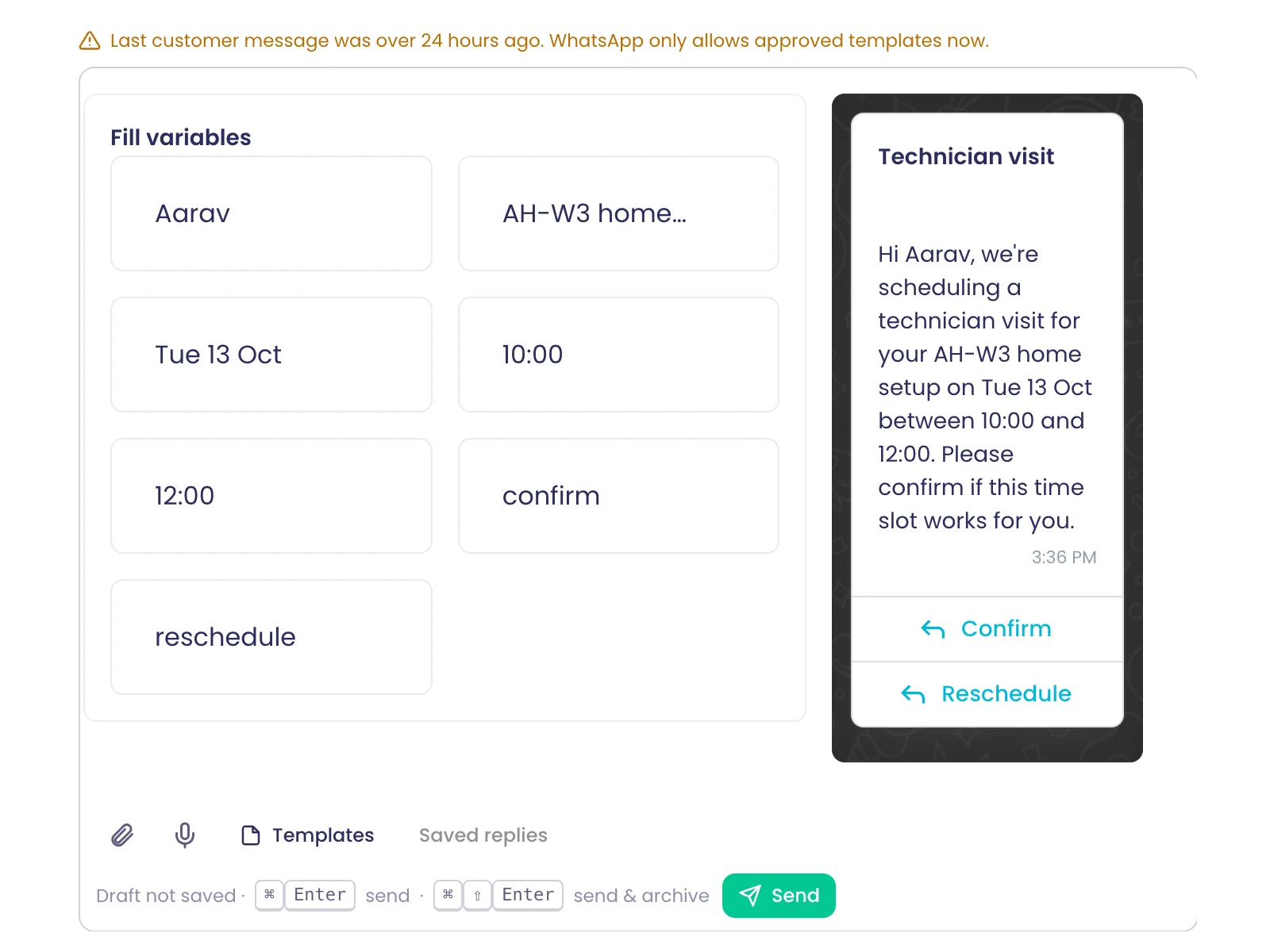
Approved WhatsApp templates
Send an approved WhatsApp template from the reply box, filling in each variable before it goes.
What it does
Send an approved WhatsApp template from the reply box. Fill in each variable and check the preview before it goes.
Highlights and options
- Templates menu in the composer
- Fill variables, one field each
- Preview with header, body and buttons
- Also in the New message composer
Where in the product
Conversations › open a WhatsApp conversation › Templates
Plans and limits
- Professional and Enterprise
Related capabilities
Record WhatsApp voice notes
Record a voice note in the browser and send it so it plays as a WhatsApp voice message.
What it does
Record a voice note in the browser and send it so it plays as a WhatsApp voice message. Pause and resume while recording.
Highlights and options
- Record, pause, resume, cancel
- Encoded so WhatsApp plays it as a voice note
- Works in every major browser
Where in the product
Conversations › open a WhatsApp conversation › Record a voice message
Plans and limits
- Professional and Enterprise
Up to 5 minutes per voice note.
Related capabilities
Attach files to replies
Attach images, documents, audio and video, checked against each channel's size limits before sending.
What it does
Attach images, documents, audio and video to a reply. Each file is checked against the channel's limits before sending, so a reply never fails at upload.
Highlights and options
- Email: images, video, audio, PDF, Word and XML files
- WhatsApp: JPEG/PNG images, MP4/3GP video, AAC/MP4/MPEG/AMR/OGG audio, documents
- SMS: text only
Where in the product
Conversations › open a conversation › attach
Plans and limits
- All plans
Email: about 7 MB per message. WhatsApp: images 5 MB, video and audio 16 MB, documents 25 MB.
Related capabilities
Drafts saved on the server
Unsent replies are saved as drafts that survive a reload and wait in the Drafts folder.
What it does
Unsent replies are saved as drafts on the server. They survive a reload and wait in the Drafts folder until you come back.
Highlights and options
- Saved to the server, not the browser
- Kept per agent
- Drafts folder
Where in the product
Conversations › Drafts
Plans and limits
- All plans
Related capabilities
Undo send for five seconds
Each reply waits five seconds before it leaves, so Undo takes it back without anything reaching the customer.
What it does
Each reply waits five seconds before it leaves. Undo in that time and nothing reaches the customer.
Highlights and options
- "Sending in 5 seconds" with Undo
- Nothing is sent until the time runs out
Where in the product
Conversations › open a conversation › Send
Plans and limits
- All plans
5-second undo window.
Related capabilities
Send and archive
Send with Ctrl+Enter or Cmd+Enter, or send and archive in one step with Shift added.
What it does
Send with Ctrl+Enter or Cmd+Enter. Add Shift to send and archive in one step.
Highlights and options
- Send: Ctrl/Cmd+Enter
- Send and archive: Ctrl/Cmd+Shift+Enter
- Where the reading pane goes next is set in Inbox settings
Where in the product
Conversations › open a conversation › Send
Plans and limits
- All plans
Related capabilities
New message beside the thread
Write a new message on any connected channel while the conversation you are reading stays in view.
What it does
Write a new message in a composer docked at the bottom of the inbox, while the conversation you are reading stays in view. Pick the channel and the sender; if one is missing, connect it right there.
Highlights and options
- New conversation: n or c
- Channel picker, then the sender
- Attach to a campaign
- Attachments and WhatsApp templates
- Connect a domain, address, SMS number or WhatsApp in place
Where in the product
Conversations › New message
Plans and limits
- All plans
Related capabilities
Link a message to a campaign
Tie a new message to a campaign so its replies are attributed to that campaign's results.
What it does
Tie a new message to a campaign, so its replies count toward that campaign and show it in the inbox.
Highlights and options
- Campaign row in the New message composer
- Replies attributed to the campaign
- Filter and Analyze by that campaign
Where in the product
Conversations › New message › Campaign
Plans and limits
- All plans
Related capabilities
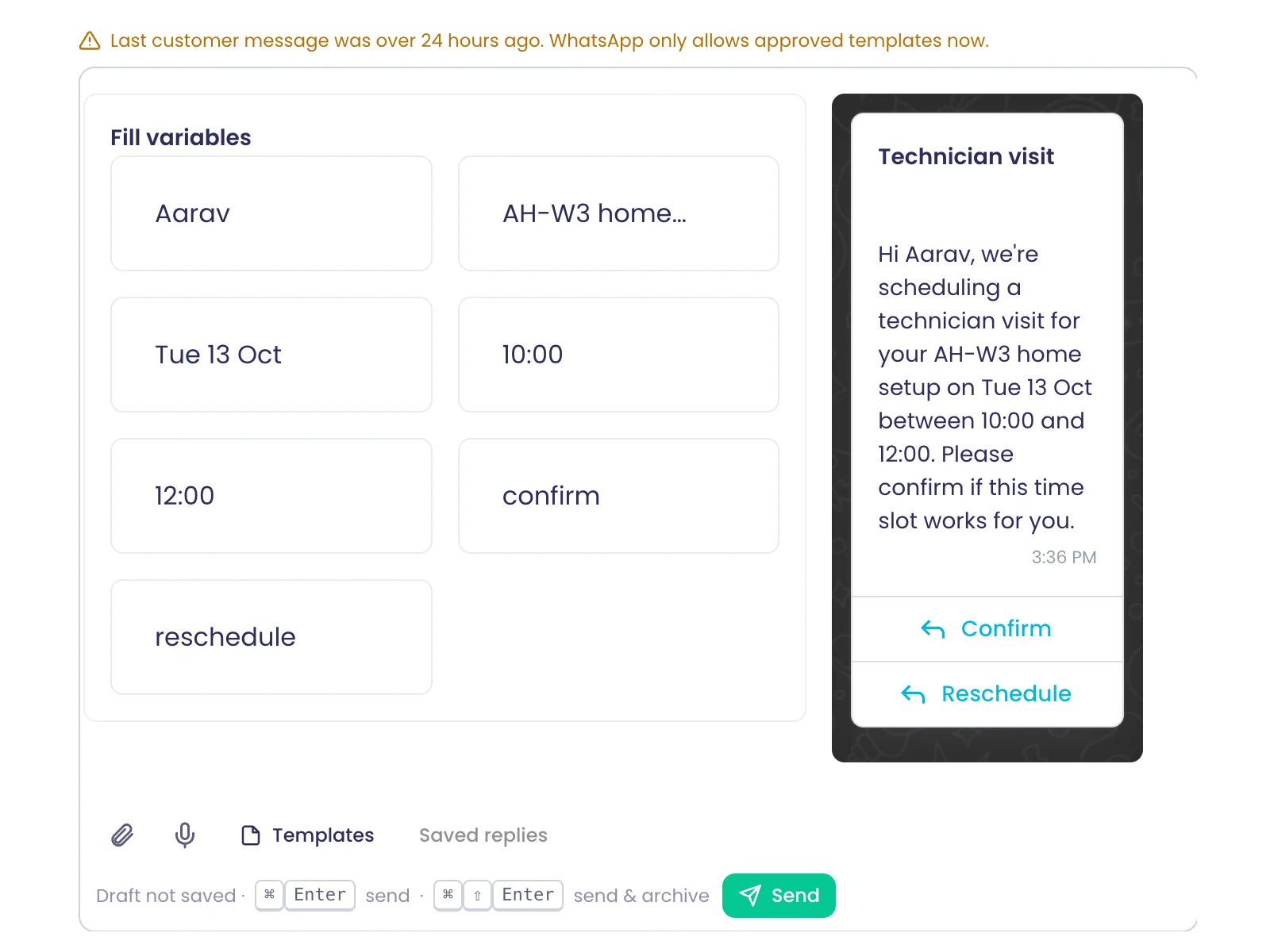
Senders and numbers
Verify your sending domain
Verify your domain once with DKIM, right from the composer, then share it with the workspaces you choose.
Also in: Campaigns, Platform
What it does
Verify your sending domain once with DKIM records, right from the composer or from My Domains. Then share it with the workspaces you choose.
Highlights and options
- Add domain, then the DNS records to publish (Type, Name, Value)
- Copy each record, or Email these records to a colleague
- Check now, or Finish later
- Share with one or more workspaces
- Domains claimed by another account are refused
Where in the product
Conversations › New message › Email › add a sending domain; Account › My Domains
Plans and limits
- Professional and Enterprise
Related capabilities
Addresses with sender names
Add addresses such as support@ and orders@ on your domain, each with the sender name customers see.
Also in: Platform
What it does
Add addresses such as support@ and orders@ on your verified domain, each with the sender name customers see. Each address belongs to a workspace and appears in its sender list.
Highlights and options
- Several addresses per domain
- Sender name per address
- Added to a workspace's senders
- Use this address right away
Where in the product
Conversations › New message › Email › Add an address on a verified domain
Plans and limits
- Professional and Enterprise
Related capabilities
Connect a Twilio or Telnyx number
Connect your own Twilio or Telnyx SMS number from the composer without leaving the inbox.
Also in: Platform
What it does
Connect your own Twilio or Telnyx SMS number from the composer, without leaving the inbox. Only organisation admins can add numbers.
Highlights and options
- Providers: Twilio, Telnyx
- Started from Connect an SMS Number
- Also in Account › My Domains
- Admins only
Where in the product
Conversations › New message › SMS › Connect an SMS Number
Plans and limits
- Professional and Enterprise
Related capabilities
WhatsApp Business via Meta signup
Connect your WhatsApp Business number through Meta's embedded sign-up, launched from the composer.
Also in: Campaigns
What it does
Connect your WhatsApp Business number through Meta's own sign-up window, launched from the composer. Add more numbers to an account you already connected.
Highlights and options
- Continue with Facebook opens Meta's sign-up
- Add a number to a connected WhatsApp account
- Use this number right after connecting
Where in the product
Conversations › New message › WhatsApp › Connect a WhatsApp Business account
Plans and limits
- Professional and Enterprise
Related capabilities
Choose the sending address or number
Pick which of your connected addresses or numbers a message goes out from.
What it does
Pick which of your connected addresses or numbers a message goes out from. Each option shows its health, and you can connect a new account from the same list.
Highlights and options
- Email addresses with sender names
- WhatsApp and SMS numbers
- Health line under each sender
- Connect account from the list
Where in the product
Conversations › New message › sender
Plans and limits
- All plans
Related capabilities
WhatsApp number quality rating
See Meta's quality rating for each WhatsApp number beside it in the sender picker before you send.
Also in: Campaigns
What it does
See Meta's quality rating for each WhatsApp number beside it in the sender picker, before you send. Last week's failed-to-sent ratio shows below it.
Highlights and options
- Rating: High, Medium, Low
- Unknown shown as neutral, never as healthy
- Refreshed at most hourly
- Last week's failed over sent
Where in the product
Conversations › New message › WhatsApp › sender
Plans and limits
- All plans
Related capabilities
Delivery and deliverability
Folders for delivery problems
Failed to send, Bounced, Complained and Delivery failed folders collect every message that did not land.
What it does
Messages that did not reach someone have their own folders under Delivery issues, so you can fix them without searching the inbox.
Highlights and options
- Failed to send
- Bounced
- Complained
- Delivery failed
Where in the product
Conversations › Delivery issues
Plans and limits
- All plans
Related capabilities
Retry a failed email
A failed email shows its reason and campaign, with Retry send or Delete permanently.
What it does
Open an email that never left to see why it failed and which campaign it belongs to. Send it again or delete it permanently.
Highlights and options
- Failure reason and campaign shown
- Retry send: r
- Delete permanently
- Failed to send folder: g f
Where in the product
Conversations › Delivery issues › Failed to send
Plans and limits
- All plans
Related capabilities
Bulk actions
Bulk triage actions
Select many conversations and archive, trash, mark read, star, label or assign them at once.
What it does
Select many conversations and act on them at once from the selection bar. Select with x, or extend the selection with Shift and an arrow key.
Highlights and options
- Archive
- Delete
- Mark read / unread
- Star
- Label
- Assign
- Send follow-up
- Add to contact list
Where in the product
Conversations › select conversations › selection bar
Plans and limits
- All plans
Related capabilities
Act on every matching conversation
Select all conversations matching a filter and the server archives, labels or assigns every one, not just loaded rows.
What it does
Select all conversations that match a filter, not just the loaded rows, and the server applies the action to every one. Progress shows as it runs, and you can stop it.
Highlights and options
- Select all matching (Ctrl/Cmd+A)
- Server-side: archive, delete, star, read/unread, label, assign
- Progress: "N of M done", with Stop
- Other actions say they apply to loaded rows only
Where in the product
Conversations › select conversations › Select all matching
Plans and limits
- All plans
Applied in rounds of up to 1,000 conversations.
Related capabilities
Send one follow-up to many
Send one follow-up message to everyone in the selected conversations from a single composer.
What it does
Send one follow-up message to everyone in the selected conversations from a single composer.
Highlights and options
- Send follow-up in the selection bar
- One composer for every recipient
- Uses the selected conversations' contacts
Where in the product
Conversations › select conversations › Send follow-up
Plans and limits
- All plans
Related capabilities
Add senders to a contact list
Add the people behind selected conversations to a contact list for a later campaign or flow.
Also in: Contacts and lists
What it does
Add the people behind the selected conversations to a contact list, ready for a campaign or a flow.
Highlights and options
- Add to contact list in the selection bar
- Pick an existing list
- Use the list in campaigns and flows
Where in the product
Conversations › select conversations › Add to contact list
Plans and limits
- All plans
Related capabilities
Undo triage actions
Archive, delete or label by mistake and press z or Undo to reverse it.
What it does
Archived, deleted or labelled something by mistake? Press z or Undo to reverse it.
Highlights and options
- Undo: z or Ctrl/Cmd+Z
- Undo button in the confirmation toast
Where in the product
Conversations
Plans and limits
- All plans
Related capabilities
Automation
Create a flow from a conversation
Start a new flow from any conversation with its channel and contact already filled in.
What it does
Start a new flow from any conversation. The flow designer opens in a new tab with a Message trigger, the conversation's channel, workspace and contact filled in.
Highlights and options
- Create a flow: w
- Message trigger pre-set
- Channel, workspace and contact filled in
- Opens in a new tab
Where in the product
Conversations › select a conversation › Create a flow
Plans and limits
- Professional and Enterprise
Related capabilities
Analytics and context
Open the campaign's results
Analyze jumps from a conversation to the results of its campaign, flow or survey.
What it does
Analyze jumps from a conversation to the results of the campaign, flow or survey it belongs to.
Highlights and options
- Analyze: i
- Campaign first, then flow, then survey
- Hidden when a conversation has none
Where in the product
Conversations › select a conversation › Analyze
Plans and limits
- All plans
Related capabilities
Productivity
Full keyboard shortcuts
Move with j and k, select with x, archive with e, reply with r, go to folders with g, and ? lists all.
What it does
Work the whole inbox from the keyboard. Press ? to see every shortcut, grouped by what it does.
Highlights and options
- Move: j/k next and previous, Enter or o to open, / to search
- Go to: g a, g i, g t, g s, g m, g u, g e, g f
- Select: x, Shift+j/k to extend, Ctrl/Cmd+A
- Triage: e archive, # delete, ! spam, u read, s star, b snooze, l label, a assign
- Reply: r, Shift+R reply all, f forward, Shift+N note, n new
- Analyze & automate: i analyze, w create a flow, Shift+L link to thread
- z undo, ? all shortcuts
Where in the product
Conversations › press ?
Plans and limits
- All plans
Related capabilities
Phone layout with swipe actions
On phones, folders slide in, conversations open full screen, and swipes archive, star or assign, as you configure.
What it does
On phones the folders slide in from the side, a conversation opens full screen, and swipes act on a row. Choose what swiping left and right does.
Highlights and options
- Swipe actions: Archive, Delete, Mark read / unread, Star
- More swipe actions: Pin, Assign to me, Report spam
- Set swipe left and swipe right separately
- Folders in a slide-in drawer
Where in the product
Conversations (phone) › Inbox settings › Swipe left / Swipe right
Plans and limits
- All plans
Related capabilities
Personal inbox settings
Choose what opens after archiving, your swipe actions, single-key shortcuts and trusted image senders.
What it does
Set how the inbox behaves for you: what opens after you archive, your swipe actions, single-key shortcuts and the senders whose images always show.
Highlights and options
- After archive or delete: next, previous, or back to the list
- Swipe left and swipe right actions
- Single-key shortcuts on or off
- Hidden images: always show from trusted senders
Where in the product
Conversations › Inbox settings
Plans and limits
- All plans
Related capabilities
Works through dropped connections
When the connection drops the inbox holds its state, then refreshes the list once it reconnects.
What it does
When the connection drops, the inbox keeps what you were looking at. Once it reconnects, the list refreshes on its own.
Highlights and options
- State kept while offline
- List refreshes on reconnect
Where in the product
Conversations
Plans and limits
- All plans
Related capabilities
Analytics
22 capabilitiesOpen the pageDashboards, trends, pivots and AI text analytics on every answer.
Analytics at a glance
Every survey gets a dashboard that builds itself as answers arrive, with a chart chosen for each question. Go deeper with trends and forecasts, a pivot, AI on open comments and plain-language questions to Ask AI. Bring in files, public data or rows written by your flows, join them with your surveys and contact lists, and share the results as reports, OData feeds or a REST API.
- chart types in ten families
- 54
- sentiment levels on open answers
- 6
- curated public datasets
- 19
- join types: inner, left, right, full
- 4
Start here
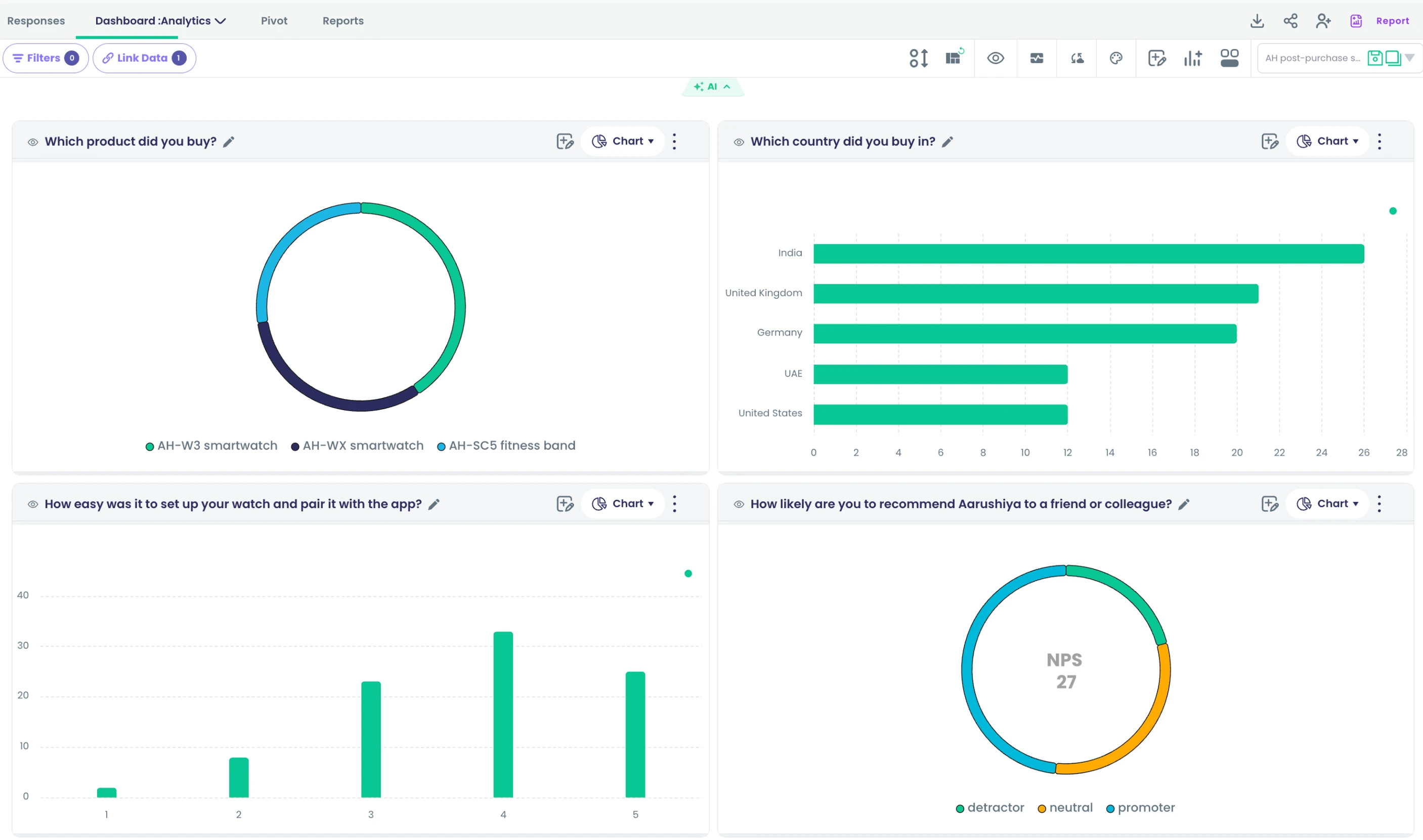
Dashboards
Auto-built survey dashboards
Opening a survey builds one card per question, each with a chart chosen to suit the question type.
What it does
Every survey gets its own dashboard as soon as answers arrive. Each question gets a card with a chart chosen for its type, next to a response timeline and a drop-off path. Change any chart, hide a card or add your own widgets.
Highlights and options
- Single choice, multiple choice, image choice and product cards: pie chart
- Yes/No questions: donut chart
- NPS and rating questions: NPS chart
- Drop-down, multi-select drop-down, matrix and ranking: column chart
- Date answers: column chart on a time axis
- Text, multiple text boxes, slider, phone and appointment answers: table
- Payment questions: number card
- File uploads, signatures and video answers: media grid
- Response timeline (line chart) and drop-off path (Sankey chart)
Where in the product
Surveys › open a survey › Analyze › Dashboard
Plans and limits
- All plans
Related capabilities
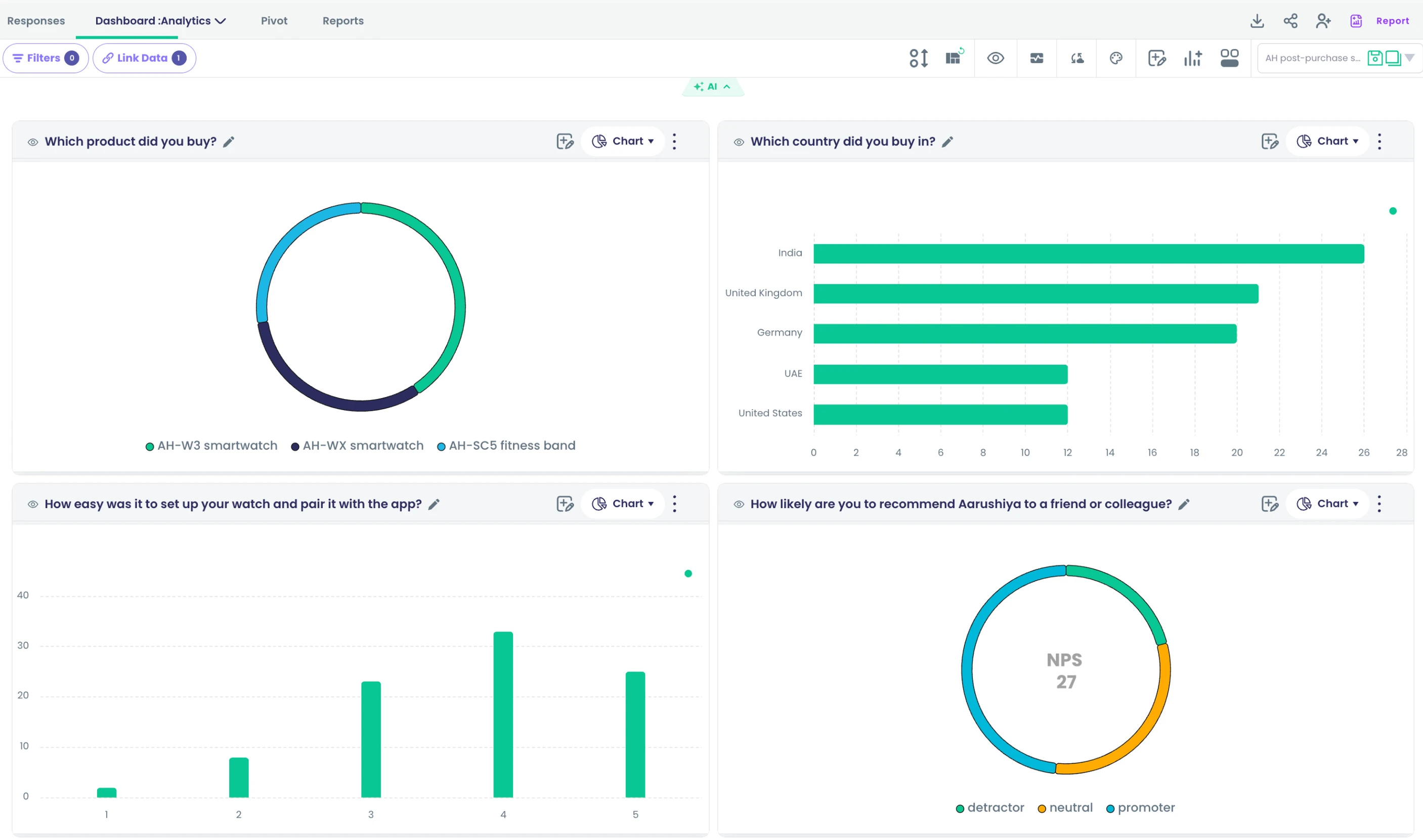
Survey health cards
Add device, browser, OS, completion, channel, language, response-time, hourly and day-of-week cards to a survey dashboard.
What it does
Switch on Platform Metrics to add cards about how people answered, not only what they said. The cards are built from the survey's own responses and sit beside the question cards. Switch them off again with the same button.
Highlights and options
- Device type, browser and operating system
- Completion rate
- Channel split and language split
- Response-time distribution and response-time figures
- Responses by hour of day and by day of week
- Survey overview and score figures as number cards
- Link performance for each survey link
- Segment distribution, once segments are applied
Where in the product
Surveys › open a survey › Analyze › Dashboard › Platform Metrics
Plans and limits
- All plans
Related capabilities
Survey drop-off flow
A Sankey chart traces respondents' paths through a survey and shows where they leave.
What it does
A Sankey card shows the paths respondents take through a survey and where they stop. Wider bands mean more people, so the biggest exit is easy to spot. The card follows the dashboard's filters and date range.
Highlights and options
- Built from each respondent's navigation through the survey
- Uses only each respondent's latest path, so repeat visits are not double-counted
- Narrows with answer filters and the date range
- Shown by default on every survey dashboard
Where in the product
Surveys › open a survey › Analyze › Dashboard
Plans and limits
- All plans
Related capabilities
Response location map
Plot where responses came from on a map card in the survey dashboard.
What it does
Surveys that collect location get a map card showing where responses came from. It filters with the rest of the dashboard, so you can see where a group of answers was given.
Highlights and options
- Appears when the survey collects location
- Uses the map chart from the chart library
- Narrows with answer filters and the date range
Where in the product
Surveys › open a survey › Analyze › Dashboard
Plans and limits
- Professional and Enterprise
Needs a survey that collects location.
Related capabilities
Click-to-filter dashboards
Click any bar, slice, word or candle and every card on the dashboard filters to those answers.
What it does
Click a bar, a slice, a word or a candle and every card on the dashboard narrows to the matching answers. The active filter shows as a chip in the toolbar, and you clear it with one click.
Highlights and options
- Bars and columns
- Pie and donut slices
- Words in a word cloud
- Candles in a candlestick chart
- Active filters shown as chips in the toolbar
Where in the product
Surveys › open a survey › Analyze › Dashboard › click any chart
Plans and limits
- All plans
Related capabilities
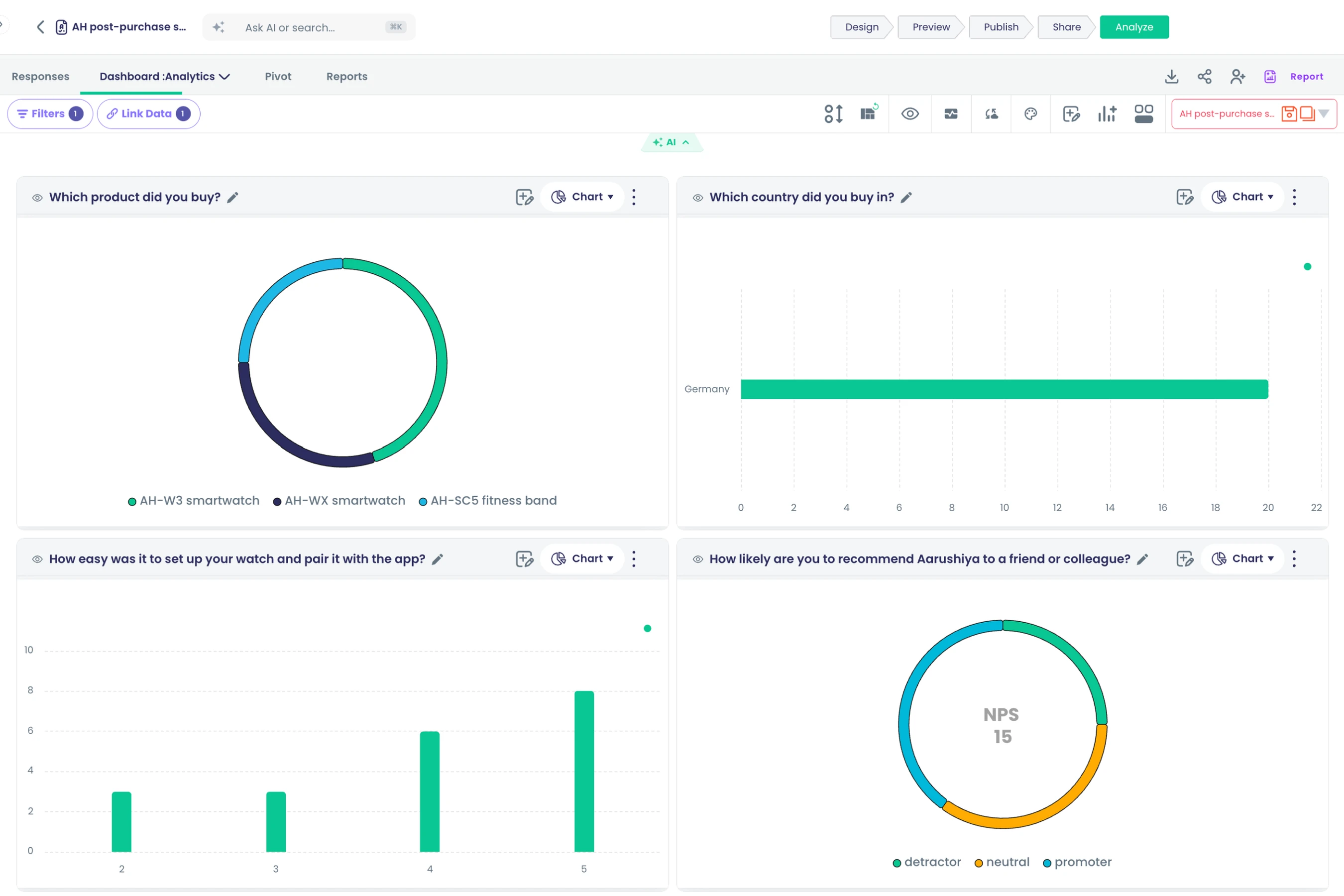
Answer filters and date range
Narrow a dashboard by question, answer or date range from the toolbar filter panel.
What it does
Open Filters in the dashboard toolbar to narrow every card by a question and its answers, or to a date range. Filters apply to the whole dashboard, including the drop-off path and the map.
Highlights and options
- Filter by any question and the answers you pick
- One date range for the whole dashboard
- Combines with click-to-filter on charts
Where in the product
Surveys › open a survey › Analyze › Dashboard › Filters
Plans and limits
- All plans
Related capabilities
Dashboards refresh every minute
Open dashboards and the responses grid refresh every 60 seconds; saved widgets recalculate from your data on every load.
What it does
Dashboards and the responses grid fetch new data every minute while they are open. Saved widgets run against your data each time a dashboard loads, so nobody reads stale numbers.
Highlights and options
- Open dashboards refresh every 60 seconds
- The responses grid refreshes every 60 seconds
- Saved widgets recalculate on every load
Where in the product
Any dashboard or Analyze › Responses
Plans and limits
- All plans
Refresh interval: 60 seconds.
Related capabilities
Drag-and-resize dashboard layouts
Move, resize, hide and reorder cards; each layout is saved per user, workspace and view.
What it does
Move, resize, hide and reorder dashboard cards. Your layout is saved for you, per workspace and per view, so each teammate keeps the arrangement that suits them. Reset Layout returns to the starting layout.
Highlights and options
- Drag cards to reorder them
- Resize cards from the corner
- Hide cards and bring them back with Show Hidden Charts
- Saved per user, workspace and view
- Reset Layout returns to the shared or built-in default
Where in the product
Surveys › open a survey › Analyze › Dashboard › Reorder
Plans and limits
- Professional and Enterprise
Related capabilities
Workspace home dashboard
A tabbed home dashboard for surveys, campaigns, contact lists, flows and data, with a layout per user and workspace.
What it does
The home dashboard gives each workspace one screen across all its work. Tabs group widgets for surveys, campaigns, contact lists, flows and data, and each person keeps their own layout in each workspace.
Highlights and options
- Surveys tab
- Campaigns tab
- Contact List tab
- Flows tab
- Data tab
- Widget Library to add widgets
- Layout saved per user and workspace
Where in the product
Dashboard
Plans and limits
- Professional and Enterprise
Related capabilities
Role-based default dashboards
Each role starts from its own default home dashboard layout until the user customises it.
What it does
Each role starts from its own default home dashboard. Admins see survey, campaign and response widgets first, Agents a layout suited to support work. Once someone rearranges their dashboard, their own layout takes over.
Highlights and options
- Admin default: response stats, survey stats, recent surveys and survey insights
- Agent default: a layout of its own
- Personal changes replace the role default for that person only
Where in the product
Dashboard
Plans and limits
- All plans
Related capabilities
Widget library and templates
Add ready-made widgets from a library drawer and install shared widget templates on the home dashboard.
What it does
Open the Widget Library from the home dashboard to add ready-made widgets. Shared widget templates can be installed in one click and then adjusted like any other widget.
Highlights and options
- My Widgets, Shared, Pushed and Quick Templates tabs
- Search widgets by name
- New Chart or New Metric from the drawer
- Clone a widget and edit it like your own
Where in the product
Dashboard › Widget Library
Plans and limits
- All plans
Related capabilities
Admin-pushed widgets and shortcuts
Admins push locked widgets and toolbar shortcuts to everyone in the workspace, one role or one user.
What it does
Admins push widgets and toolbar shortcut buttons to people's home dashboards. A push can target everyone in the workspace, one role or one person, and pushed widgets are locked so everyone sees the same definition.
Highlights and options
- Push to all workspace members
- Push to everyone holding one role
- Push to one person
- Pushed widgets are locked
- Push toolbar shortcut buttons as well as widgets
- Un-push to remove a widget from everyone's dashboard
Where in the product
Dashboard › Widget Library › Push Widget
Plans and limits
- All plans
Related capabilities
Feedback on the survey itself
Ask respondents a few questions about the survey after they finish, and read the results on their own view.
Also in: Surveys and forms
What it does
Switch on Collect Feedback and respondents get a short set of questions about the survey after they finish. Results land on a separate Survey Feedback Questions view, so they never mix with the survey's own answers.
Highlights and options
- Switch: Feedback Collection › Collect Feedback
- Starts with a Yes/No question you can reword
- Shown after the survey is completed
- Results on their own view, apart from survey answers
- Text feedback can carry sentiment and topic cards
Where in the product
Surveys › open a survey › Analyze › Dashboard › Survey Feedback Questions
Plans and limits
- All plans
Related capabilities
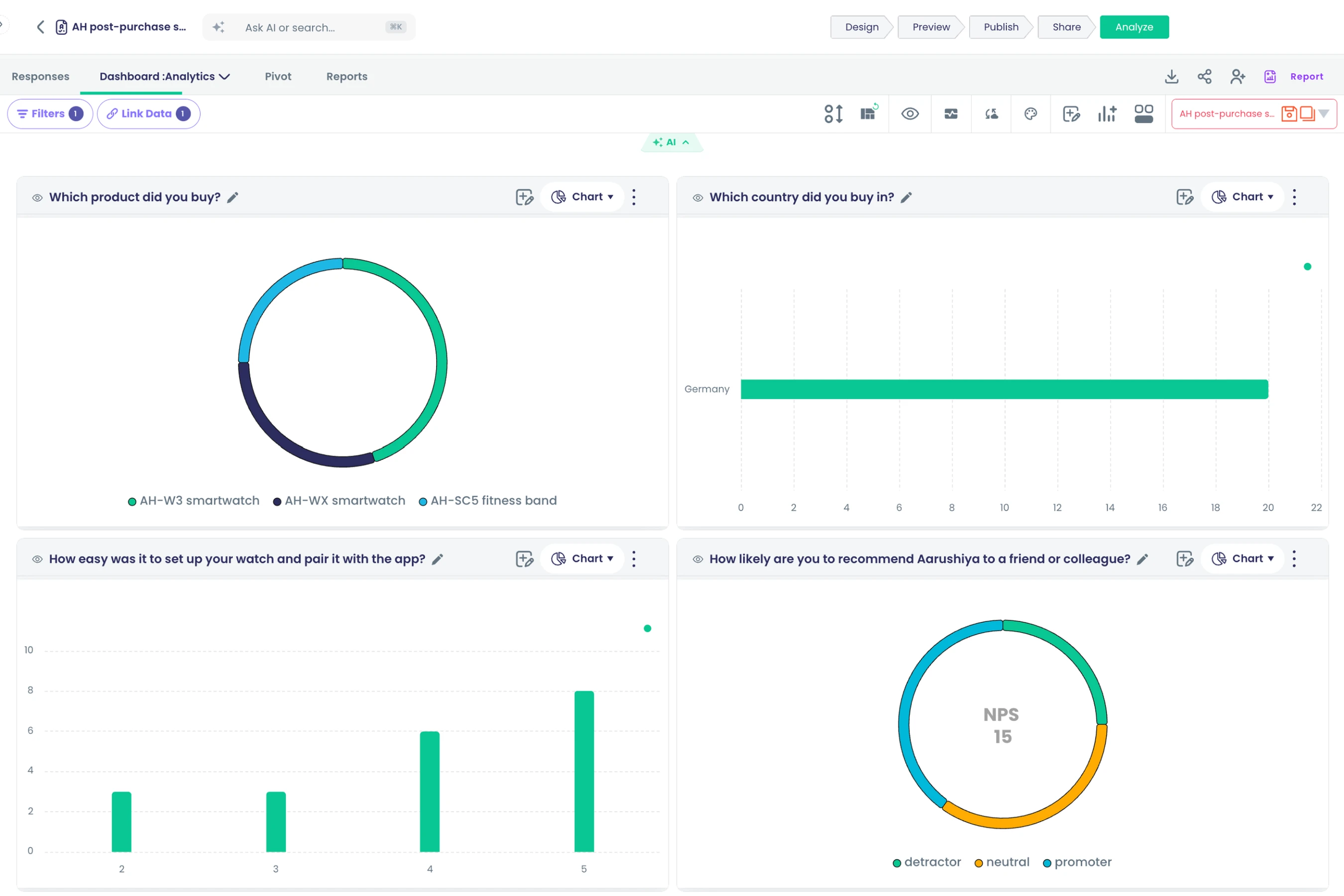
Charts and widgets
Guided widget builder
Build a widget step by step: choose data, configure it with a live preview and overlay series, then save.
What it does
The widget builder walks you through four steps and shows a live preview while you set it up. Pick what to measure, choose the data, configure grouping and totals, add overlay series if you need them, then save.
Highlights and options
- Steps: Category, Data Source, Configure, Save
- Totals: Count, Sum, Average, Min, Max
- Measure as stored, as an absolute value or rounded
- Number formats: Number, Percentage, Currency
- Overlay extra series on bar and line charts
- Start from a widget template
- Live preview beside the settings
Where in the product
Dashboard › add widget
Plans and limits
- Professional and Enterprise
Related capabilities
Widgets across platform data
Chart survey responses, campaign messages, conversations, contacts or your own datasets from one builder.
What it does
One widget builder charts data from across the platform. Choose a data category, then the fields to group and measure, and mix sources across the widgets on the same dashboard.
Highlights and options
- Survey Responses
- Messages from campaigns and flows
- Conversations
- Contacts
- Datasets
Where in the product
Dashboard › add widget › Data Source
Plans and limits
- All plans
Related capabilities
50+ chart types
Choose from 54 chart types in ten families, including Sankey, treemap, heatmap, gauge, radar, waterfall and maps.
What it does
Pick from 54 chart types grouped into ten families, with a search box to find one by name. Only the types that fit the data are offered, so a chart never renders blank.
Highlights and options
- Basic: Column, Bar
- Line & Area: Line, Spline, Area, Area Spline, Candlestick
- Stacked: Stacked Column, Stacked Bar, Stacked Area, Streamgraph
- Pie & Donut: Pie, Donut, Variable Pie
- Radial: NPS, Radar, Polar Area, Radial Bar, Gauge, Solid Gauge
- Funnel: Funnel, 3D Funnel, Pyramid, 3D Pyramid, Pyramid Bar
- Hierarchy: Treemap, Sunburst, Sankey, Dependency Wheel, Organization, Network Graph
- Specialized: Scatter, Bubble, Packed Bubble, Histogram, Box Plot, Bell Curve, Likert
- Specialized: Waterfall, Bullet, Lollipop, Dumbbell, Combo, Pareto, Venn
- Specialized: Timeline, X-Range, Word Cloud
- Maps: Map
- Data: Table, Number, HeatMap, Tilemap, Calendar
Where in the product
Any dashboard card › Edit › chart picker
Plans and limits
- All plans
Related capabilities
Chart picker that fits data
Histogram, box plot and bell curve are offered only for numeric questions, and Likert only for rating or matrix questions.
What it does
The chart picker checks the question before it offers a type. Statistical charts appear only for numeric answers, and the Likert chart only for ordered scales. A chart you already picked is never changed.
Highlights and options
- Histogram, Box Plot and Bell Curve: only when every answer is a number
- Likert: only for rating and matrix questions
- Every other type is offered for every question
Where in the product
Any dashboard card › Edit › chart picker
Plans and limits
- All plans
Related capabilities
NPS and rating charts
NPS and rating questions default to an NPS chart on the dashboard and in trends.
What it does
NPS and rating questions open as an NPS chart on the dashboard and on the Trends view. You can switch the card to any other chart type.
Highlights and options
- Default for NPS questions on the dashboard
- Default for rating questions on the dashboard
- Also the default on Trends for both question types
Where in the product
Surveys › open a survey › Analyze › Dashboard
Plans and limits
- All plans
Related capabilities
Word cloud of answers
Show the most frequent words in open answers, and click a word to filter the dashboard.
What it does
A word cloud shows the words used most often in open answers. Click a word and the whole dashboard narrows to the answers that use it.
Highlights and options
- Built from open-text answers
- Bigger words appear more often
- Click a word to filter every card
- Also part of the Text Analytics view
Where in the product
Surveys › open a survey › Analyze › Dashboard, or Dashboard › Text Analytics
Plans and limits
- All plans
Related capabilities
Candlestick charts for numeric series
Map date, open, high, low and close columns to plot candlesticks, and click a candle to filter.
What it does
Plot candlesticks from any numeric series that has date, open, high, low and close columns. Map the columns once, then click a candle to filter the dashboard. Forecasts and unusual-period markers work on the close series.
Highlights and options
- Map date, open, high, low and close columns
- Click a candle to filter the dashboard
- Forecast and Find Anomalies run on the close series
- Suggested for datasets with a matching shape
Where in the product
Data › open a dataset › Analyze › Dashboard
Plans and limits
- All plans
Related capabilities
Chart styling and themes
Edit titles, colours and chart-specific options per chart, and switch the dashboard's chart theme.
What it does
Edit each chart's title, colours and the options that belong to its type. Pick a chart theme for the dashboard, and your choice is kept for you.
Highlights and options
- Title and colours per chart
- Options specific to each chart type
- Chart themes: Modern, Minimal, Classic
- Theme saved per user
Where in the product
Any dashboard card › Edit; Dashboard toolbar › Chart theme
Plans and limits
- All plans
Related capabilities
Export charts as images
Download any chart as a PNG, SVG or PDF file.
What it does
Download any chart from its card menu. Image files are rendered at a high resolution, so they stay sharp in slides and documents.
Highlights and options
- PNG
- SVG
Where in the product
Any dashboard card › menu › Download
Plans and limits
- All plans
Related capabilities
Suggested charts for your data
An AI hub under the toolbar suggests charts, such as trend lines, scatter or heatmaps, that suit the current view.
What it does
A suggestions row under the toolbar proposes charts that suit the data you are looking at. Pick one and it is added as a card, ready to adjust.
Highlights and options
- Trend lines
- Candlestick
- Scatter
- Bubble
- Heatmap
Where in the product
Any analysis › Analyze › Dashboard › suggestions row
Plans and limits
- All plans
Related capabilities
Trends and forecasts
Trends over time
See every question over time, grouped by hour, day, week, month, quarter or year.
What it does
The Trends view shows every question over time. Pick the period size and each card regroups, with one crosshair that moves across all charts together.
Highlights and options
- Group by hour, day, week, month, quarter or year
- Choice questions as column charts over time
- NPS and rating questions as NPS charts over time
- Completion over time
- Filters and the date range apply here too
Where in the product
Surveys › open a survey › Analyze › Dashboard › Trends
Plans and limits
- Professional and Enterprise
Datasets without a date column have no Trends view.
Related capabilities
Synced crosshair across trends
Hover over one period and the same moment is highlighted on every trend chart.
What it does
Hover over one period on a trend chart and the same moment is highlighted on every other trend chart. Compare questions without lining up axes by eye.
Highlights and options
- One crosshair across every card on the Trends view
- Works at any period size
Where in the product
Surveys › open a survey › Analyze › Dashboard › Trends
Plans and limits
- Professional and Enterprise
Related capabilities
Forecasts on survey trends
Forecast the coming periods on survey trend charts, with a band of likely values and a summary of how well the model fits.
What it does
Click Forecasting on a trend card to project the series forward. A shaded band shows the range of likely values, and fit details show how closely the model follows your history.
Highlights and options
- Forecast 7 periods ahead by default; change the number
- Confidence band at 95% by default; change the level
- Fit details: AIC, variance, model order, drift and seasonal periods
- Models are trained on your data inside your workspace
- Also works on candlestick close series
Where in the product
Surveys › open a survey › Analyze › Dashboard › Trends › card › Forecasting
Plans and limits
- Professional and Enterprise
Available on survey trend cards and candlestick cards.
Related capabilities
Unusual-period detection
Mark the periods on a survey trend chart that broke the usual pattern.
What it does
Click Find Anomalies on a trend card to mark the periods that broke the usual pattern. The markers sit on the chart itself, so you can see when the change happened.
Highlights and options
- Marks unusual periods on the line
- Works at any period size
- Uses the same time-series model as forecasting
Where in the product
Surveys › open a survey › Analyze › Dashboard › Trends › card › Find Anomalies
Plans and limits
- Professional and Enterprise
Related capabilities
Pivot
Pivot tables (Stats view)
Cross-tabulate any survey questions in rows and columns, shown as a table or bar and column charts.
What it does
The Pivot view cross-tabulates survey questions. Drag questions into rows and columns, pick a total, and read the result as a table or a chart.
Highlights and options
- Drag any question to rows or columns
- Views: Table, Bar, Stacked Bar, Column, Stacked Column
- Works on every survey with no setup
Where in the product
Surveys › open a survey › Analyze › Pivot
Plans and limits
- Professional and Enterprise
Related capabilities
Statistical pivot aggregations
Aggregate pivot cells by count, sum, average, minimum, maximum, standard deviation or variance.
What it does
Choose how each pivot cell is totalled, from a simple count to spread measures. Population and sample forms of variance are both offered.
Highlights and options
- Count
- Sum
- Average
- Min and Max
- Standard deviation, and population standard deviation
- Population variance and sample variance
Where in the product
Surveys › open a survey › Analyze › Pivot › measure
Plans and limits
- Professional and Enterprise
Related capabilities
Text analytics
Six-level answer sentiment
AI gives each open answer one of six sentiment levels, from very negative to very positive, including mixed.
Also in: Surveys and forms
What it does
Switch on Sentiment Analysis for an open question and AI gives every answer one of six sentiment levels. The levels chart on the dashboard and in Text Analytics, and travel with downloads.
Highlights and options
- Very negative
- Negative
- Neutral
- Mixed
- Positive
- Very positive
- Runs on text, multiple-text-box, file-upload and video answers
- Correct any answer's level; charts use your correction
Where in the product
Surveys › open a survey › Design › select an open question › Sentiment Analysis
Plans and limits
- Professional and Enterprise
Related capabilities
Topic classification of comments
AI sorts open answers into topics, written in the survey's own language.
What it does
Switch on Content Classification for an open question and AI sorts each answer into topics. Topics are written in the survey's own language, so teams read them without translating.
Highlights and options
- Switch per question
- Topics written in the survey's language
- Top topics charted in Text Analytics
- Topics included in CSV and Excel downloads
Where in the product
Surveys › open a survey › Design › select an open question › Content Classification
Plans and limits
- Professional and Enterprise
Related capabilities
Named-item extraction
AI pulls the named items mentioned in open answers into their own fields for counting and filtering.
What it does
Switch on Entity Detection and AI pulls the names, places and other items people mention into their own fields. Count them, filter by them, and read the answers behind each one.
Highlights and options
- Names of people, products, places and other items
- Each item stored as its own field
- Counts in an entity tree, with related names suggested
- Add or correct items by hand
Where in the product
Surveys › open a survey › Design › select an open question › Entity Detection
Plans and limits
- Professional and Enterprise
Related capabilities
Summaries of uploaded files
Uploaded PDFs, images, audio and video answers are summarised in a few lines, stored in their own column.
Also in: Surveys and forms
What it does
Switch on Analyze Content for a file or video question and AI writes a short summary of each upload. The summary sits in its own column in the responses grid, so nobody has to open every file.
Highlights and options
- Images: PNG, JPEG, WebP, HEIC, HEIF, GIF
- Video: MP4, WebM, QuickTime, AVI
- Audio: MP3, WAV, WebM
- Documents: PDF and plain text
- Summary stored in its own responses column
Where in the product
Surveys › open a survey › Design › select a file or video question › Analyze Content
Plans and limits
- Professional and Enterprise
Related capabilities
Text analytics view
See the sentiment split, top topics, named items and a word cloud for chosen open questions in one view.
What it does
The Text Analytics view puts the AI results for chosen open questions on one screen. See how people feel, what they talk about and what they name, then open the comments behind any of it.
Highlights and options
- Sentiment split across six levels
- Top topics
- Named items with counts
- Word cloud
- Pick which open questions to include
Where in the product
Surveys › open a survey › Analyze › Dashboard › Text Analytics
Plans and limits
- Professional and Enterprise
Related capabilities
Read comments behind a topic
Open the entity editor to read the comments behind any topic, with named items highlighted and sentiment shown.
What it does
Open the entity editor to read the comments behind a topic or a named item. Named items are highlighted in each comment, with its sentiment beside it.
Highlights and options
- Entity tree with counts on the left
- Comments with named items highlighted in the middle
- Topic and sentiment summary on the right
- Add your own tags while you read
Where in the product
Surveys › open a survey › Analyze › Dashboard › Text Analytics › Define Entities
Plans and limits
- Professional and Enterprise
Related capabilities
Correct AI tags
Correct the sentiment or a named item on any answer, and every chart uses your correction.
What it does
Correct the sentiment or a named item on any answer, and every chart uses your correction from then on. The original AI result is kept, so a correction never overwrites history.
Highlights and options
- Change an answer's sentiment level
- Add, edit or remove named items
- Your correction always wins over the AI result
- The original AI result stays on record
Where in the product
Text Analytics › Define Entities › select a comment
Plans and limits
- Professional and Enterprise
Topics cannot be corrected.
Related capabilities
Text analytics on datasets
Run the text analytics view on joined analyses and uploaded datasets as well as surveys.
What it does
Text Analytics also runs on joined analyses and uploaded datasets. The same sentiment, topic and named-item views work on any text column you bring in.
Highlights and options
- Joined analyses
- Uploaded datasets
- Same view and entity editor as surveys
Where in the product
Data › open a dataset › Analyze › Dashboard › Text Analytics
Plans and limits
- Professional and Enterprise
Related capabilities
Ask AI
Ask AI in plain language
Ask about a survey, dataset or joined analysis in everyday words and get figures and a chart from your data.
What it does
Ask a question about your data in everyday words and get figures and a chart worked out from it. Follow-up questions keep the context, so you can refine an answer step by step.
Highlights and options
- Works on surveys, datasets and joined analyses
- Writes and runs the query on your workspace's data
- Answers with figures and a chart when one helps
- Explains fields and finds the right one by meaning
- Follow-up questions keep the conversation's context
Where in the product
Any analysis › Analyze › Dashboard › Ask AI about this data
Plans and limits
- Professional and Enterprise
Each question uses 1 AI unit. Up to 1,000 rows per query result.
Related capabilities
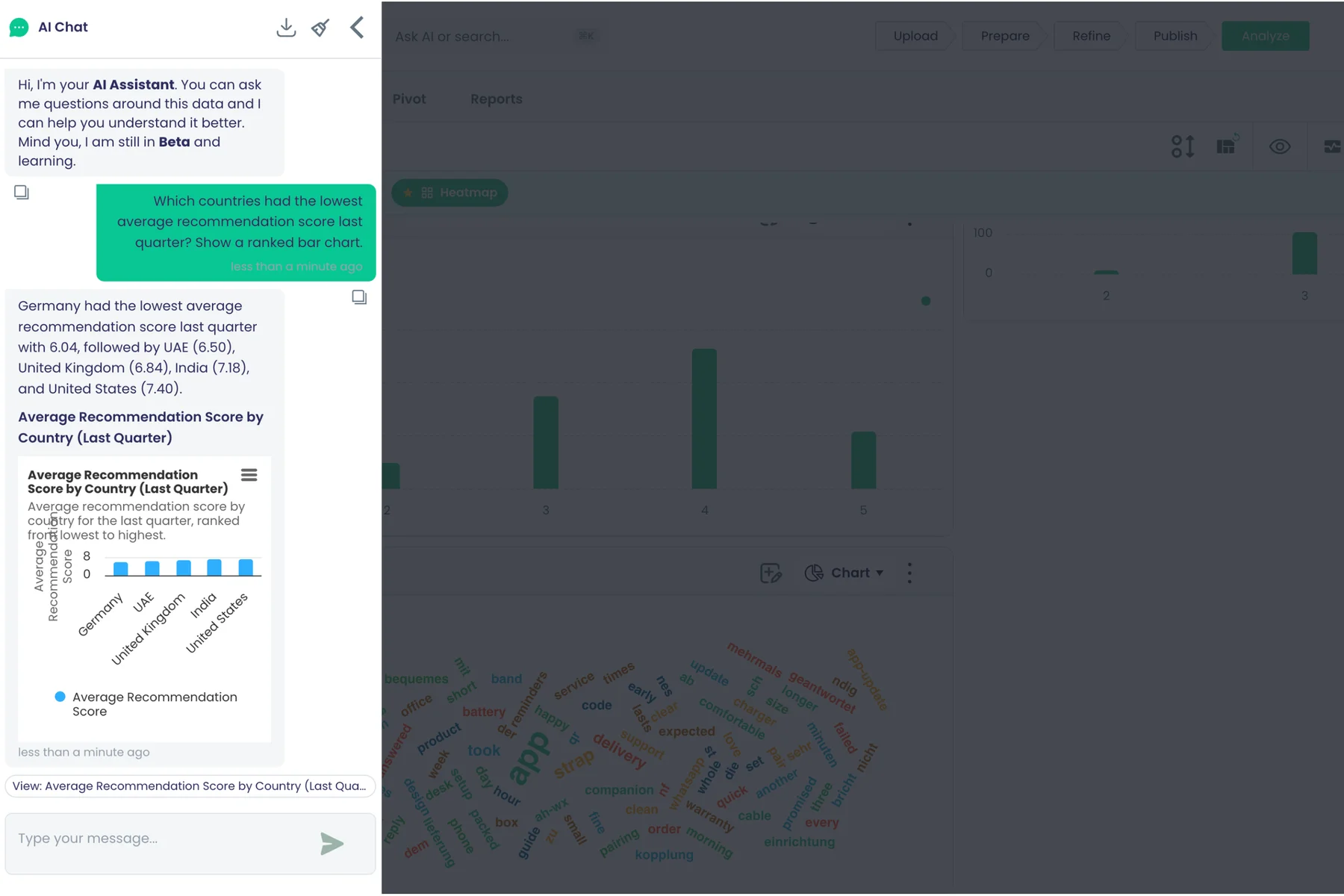
AI forecasts, correlations and cross-tabs
Ask the assistant for a forecast, anomalies, a correlation, a cross-tab, summary statistics or a sentiment breakdown.
What it does
Ask the assistant for analysis that goes past a single number. It runs the method on your data and explains the result in plain words.
Highlights and options
- Forecast
- Unusual points
- Summary statistics
- Correlation between two measures
- Cross-tab
- Text analytics and sentiment breakdown
Where in the product
Any analysis › Analyze › Dashboard › Ask AI about this data
Plans and limits
- Professional and Enterprise
Each question uses 1 AI unit.
Related capabilities
Self-correcting AI queries
If the assistant's first query fails, it fixes the query and tries again before answering.
What it does
If the assistant's first query fails, it reads the error, fixes the query and runs it again before it answers. You get a result instead of an error message.
Highlights and options
- Fixes and reruns failed queries automatically
- Up to 3 attempts per query
Where in the product
Any analysis › Analyze › Dashboard › Ask AI about this data
Plans and limits
- Professional and Enterprise
Up to 3 query attempts.
Related capabilities
Turn AI answers into widgets
Open a chart answer in the widget builder and save it as a dashboard card that updates itself.
What it does
Click the chip under a chart answer to open it in the widget builder, already filled in. Save it and it becomes a dashboard card that recalculates from your data every time the dashboard loads.
Highlights and options
- Chart answers carry a "View" chip
- Opens the widget builder pre-filled
- Saved cards update with new data
Where in the product
Ask AI › chart answer › View chip › Save
Plans and limits
- Professional and Enterprise
Related capabilities
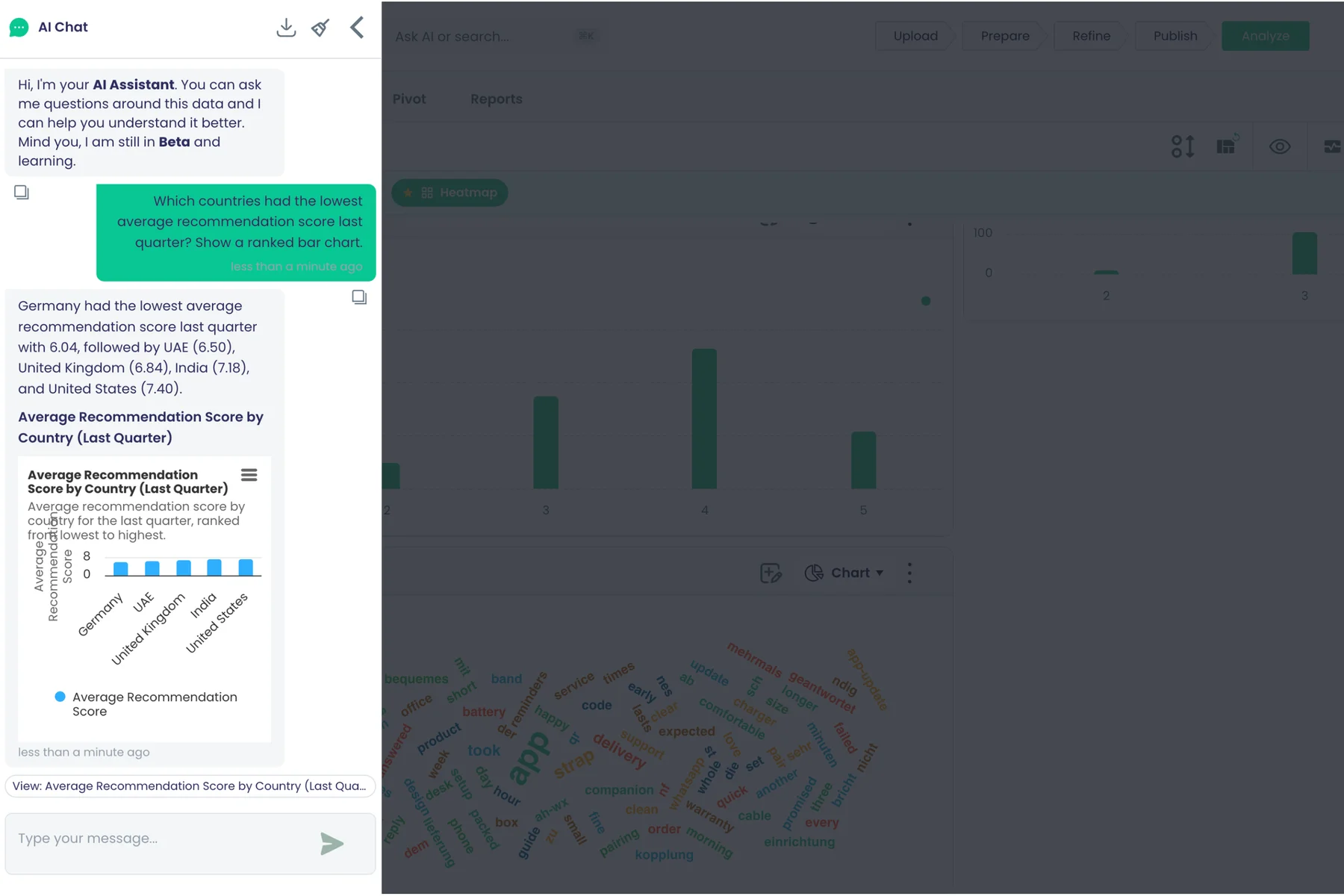
Data hub
Upload data files
Import CSV, Excel, Parquet, Avro, JSON, tables in PDFs, HDF5 and ZIP archives as datasets.
What it does
Upload a file and it becomes a dataset with its own dashboard, Ask AI and reports. ZIP archives are unpacked, and tables are read out of PDFs.
Highlights and options
- CSV
- Excel (XLS, XLSX)
- Parquet
- Avro
- JSON
- Tables in PDF files
- HDF5
- ZIP archives
- Images (PNG, JPEG, TIFF, WebP, BMP, GIF) for image datasets
Where in the product
Data › create › Upload a file
Plans and limits
- All plans
Related capabilities
Resumable large uploads
Large files upload in chunks with a progress bar and pick up where they left off.
What it does
Large files upload in chunks with a progress bar. If the connection drops, the upload picks up from the last chunk instead of starting again.
Highlights and options
- Chunked upload with progress
- Resumes from the last chunk after a drop
- Files are joined and checked when the last chunk arrives
Where in the product
Data › create › Upload a file
Plans and limits
- All plans
Chunks of 5 MB by default.
Related capabilities
Schema inference and data profiling
Preview a file, infer its column types and check each column's quality before publishing.
What it does
Before you publish, the data wizard previews the file and infers each column's type. A quality card for every column flags gaps and odd values, so problems are fixed before anyone charts them.
Highlights and options
- Preview of the first rows
- Column types inferred and editable
- Quality card per column: gaps and odd values
- Validate before publishing
Where in the product
Data › create › Prepare
Plans and limits
- All plans
Related capabilities
Clean and transform data
Apply cleaning steps, or your own transform code, to a dataset before you publish it.
What it does
Apply cleaning steps to a dataset in a pipeline, or write your own transform code in the built-in editor. The pipeline runs before the dataset is published, and you can validate the result first.
Highlights and options
- Cleaning steps arranged as a pipeline
- Code editor for your own transforms
- Validate, then publish
Where in the product
Data › create › Refine
Plans and limits
- All plans
Related capabilities
Calculated columns
Add calculated columns to a dataset while you prepare it.
What it does
Add calculated columns while you prepare a dataset, such as an order value from quantity and price. Calculated columns chart and filter like any other column.
Highlights and options
- Define a column from other columns
- Saved as a regular column of the dataset
Where in the product
Data › create › Prepare › add calculated field
Plans and limits
- All plans
Related capabilities
Public and industry datasets
Add curated public data, such as World Bank indicators or US census figures by ZIP, with its licence shown.
What it does
Add curated public data to your workspace and compare it with your own results. Search by what you want to measure, and each dataset shows its licence and attribution.
Highlights and options
- 19 curated public datasets
- World Bank World Development Indicators
- US Census population by ZIP and American Community Survey
- US BLS unemployment and NOAA daily weather
- Eurostat regional GDP and Our World in Data CO2 emissions
- Licences shown: CC-BY-4.0 or US Government public domain
Where in the product
Data › create › Industry data › Featured
Plans and limits
- All plans
Related capabilities
Browse public BigQuery data
Explore all BigQuery public datasets and tables and add one to your workspace.
What it does
Explore every BigQuery public dataset and its tables from inside the app. Add the table you need to your workspace and analyse it like your own data.
Highlights and options
- Browse all BigQuery public datasets
- Open a dataset to list its tables
- Add a table to your workspace
Where in the product
Data › create › Industry data › Explore all
Plans and limits
- All plans
Related capabilities
Clickstream into datasets
Route web and app clickstream events into a dataset through a flow, with field mapping preset.
What it does
Route web and app clickstream events into a dataset through a flow. The field mapping is preset, so events land in columns ready to chart.
Highlights and options
- Events sent from your site or app
- A flow writes each event as a dataset row
- Field mapping preset for clickstream events
Where in the product
Data › create › From a flow
Plans and limits
- All plans
Related capabilities
Edit records with version history
Add or delete individual dataset records and view each record's version history.
Also in: Collaboration
What it does
Add or delete individual records in a dataset, and open any record's version history. Small fixes do not need a new upload.
Highlights and options
- Add a record
- Delete a record
- Version history for each record
Where in the product
Data › open a dataset › Data
Plans and limits
- All plans
Related capabilities
Full analytics on any dataset
Every dataset gets its own dashboard, Ask AI, segments, predictions and reports; Trends appears when it has dates.
What it does
Every dataset gets the same analytics as a survey. Open it to find its own dashboard, Ask AI, segments, predictions and reports.
Highlights and options
- Data grid
- Dashboard and Text Analytics
- Trends, when the dataset has dates
- Segments and Predictions
- Pivot and Reports
Where in the product
Data › open a dataset › Analyze
Plans and limits
- All plans
Related capabilities
Cloud Storage drop-zone import
For uploads over 5 GB, scan a Cloud Storage path and import its files into a dataset.
What it does
For very large uploads, generate a drop-zone path in Cloud Storage and copy the files there directly. Then scan the drop zone and import the files into your dataset.
Highlights and options
- Generate Dropzone Path
- Copy files to the path with your own storage tools
- Scan the drop zone to list what arrived
- Import moves the files in and starts schema checks
Where in the product
Data › create › Upload a file › Advanced: GCS Direct Upload
Plans and limits
- All plans
Suggested for datasets over 5 GB.
Related capabilities
Joins
Joined multi-source analyses
Combine surveys, contact lists and datasets in one analysis with its own dashboard, Ask AI and reports.
What it does
Combine surveys, contact lists and datasets in one analysis. The joined analysis gets its own data grid, dashboard, Ask AI, segments, predictions and reports.
Highlights and options
- Sources: surveys, contact lists, datasets
- Draw the relationships in a visual builder
- Own dashboard, Ask AI and reports
- Train models on the joined data
Where in the product
Analytics › create
Plans and limits
- Professional and Enterprise
Related capabilities
Visual relationship builder
Draw relationships between sources and choose inner, left, right or full joins.
What it does
See your sources as a diagram and draw the relationships between them. For each relationship, choose the join type and the matching rule.
Highlights and options
- Inner join
- Left join
- Right join
- Full join
- Match rule per relationship
Where in the product
Analytics › open an analysis › relationship builder
Plans and limits
- Professional and Enterprise
Related capabilities
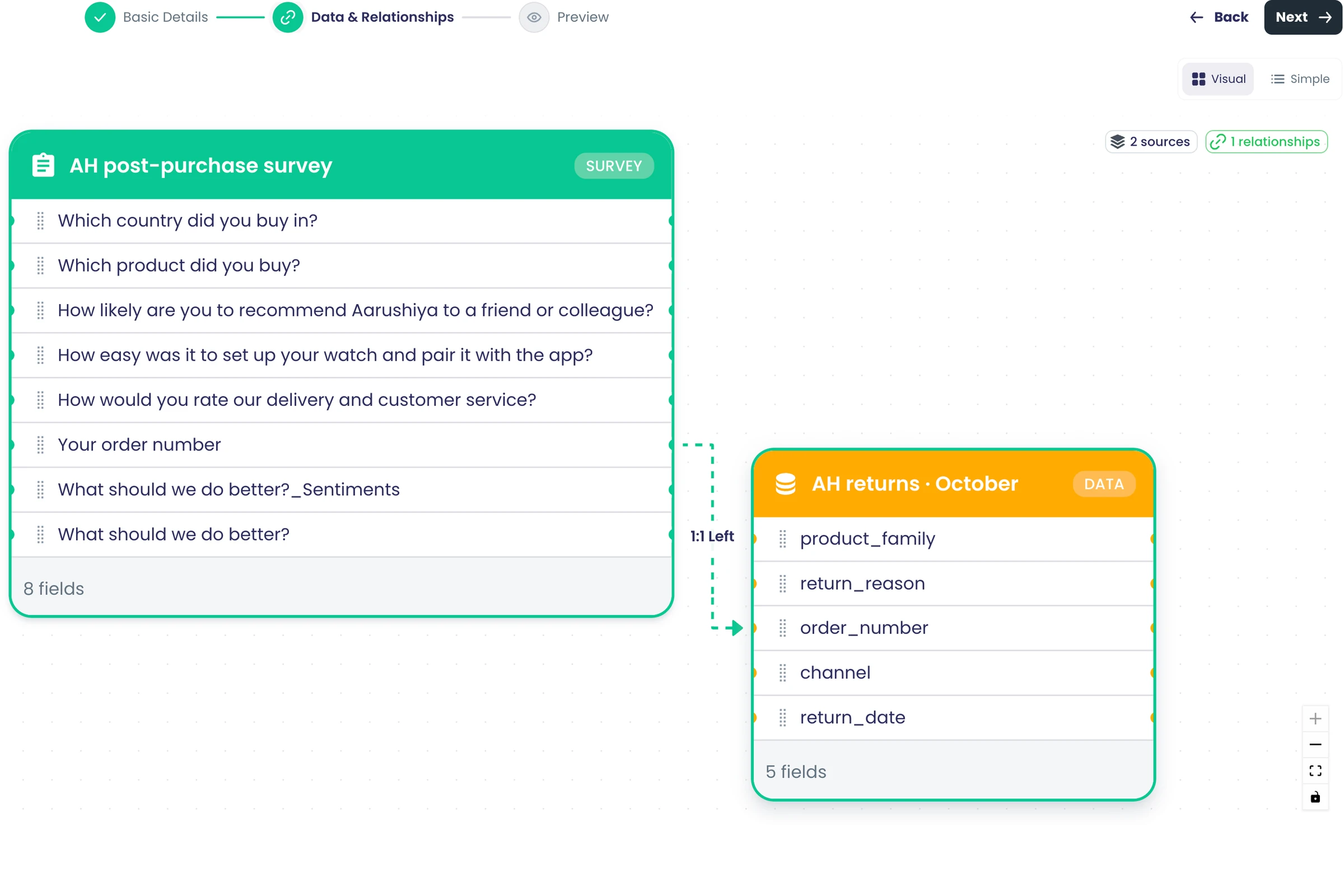
Suggested join keys
Get match keys suggested from field names, data types and overlapping values.
What it does
The builder suggests which fields to join on. Suggestions come from field names, data types and how many values the two fields share.
Highlights and options
- Similar field names
- Matching data types
- Overlapping values
Where in the product
Analytics › open an analysis › relationship builder › suggestions
Plans and limits
- Professional and Enterprise
Related capabilities
Exact or case-insensitive matching
Match join keys exactly or ignoring upper and lower case, on every dashboard, pivot and segment view.
What it does
Match join keys exactly, or ignore upper and lower case so "ACME" and "acme" line up. The rule applies on every dashboard, pivot and segment view of the analysis.
Highlights and options
- Exact match
- Ignore case
Where in the product
Analytics › open an analysis › relationship builder › match rule
Plans and limits
- Professional and Enterprise
Related capabilities
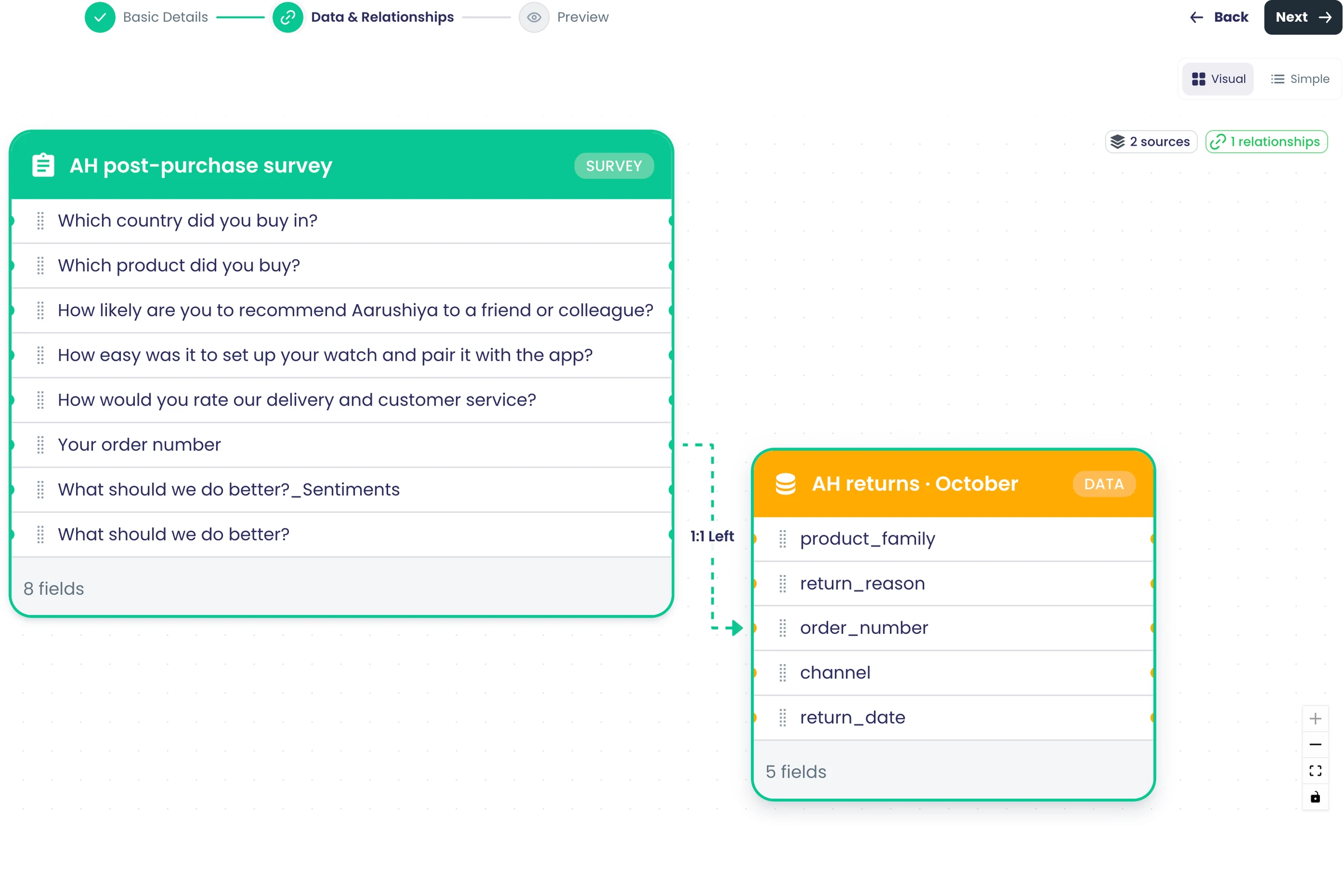
Segments
Rule-based segments
Define segments with field rules and save them for reuse across the analysis.
Also in: Contacts and lists
What it does
Define a segment with rules on any field, combined with AND or OR. Save the definition and apply it again later.
Highlights and options
- Equals, not equals
- Contains, does not contain, starts with, ends with
- Is empty, is not empty
- Greater than, less than, at least, at most, between
- In list, not in list
- Before, after, in the last N days, in the next N days
- Combine rules with AND or OR
Where in the product
Surveys › open a survey › Analyze › Dashboard › Segments
Plans and limits
- Professional and Enterprise
Related capabilities
Automatic clustering segments
Find groups automatically with K-Means, hierarchical or DBSCAN clustering, with a suggested group count and group profiles.
What it does
Let clustering find the groups in your responses. The system suggests how many groups to look for, then profiles each one so you can see what sets it apart.
Highlights and options
- K-Means
- Hierarchical, which handles answers that are categories
- DBSCAN (density-based)
- Suggested number of groups
- Group profiles and a cluster chart
Where in the product
Surveys › open a survey › Analyze › Dashboard › Segments › automatic
Plans and limits
- Professional and Enterprise
Related capabilities
Predictive segments
Train a logistic regression or random forest model that assigns each response to a segment.
Also in: Contacts and lists
What it does
Train a model that assigns each response to a segment from examples you already have. Choose a fast, readable model or one that handles complex patterns.
Highlights and options
- Logistic Regression: fast and easy to read
- Random Forest: handles complex patterns, robust to outliers
- Saved models listed for reuse
Where in the product
Surveys › open a survey › Analyze › Dashboard › Segments › predictive
Plans and limits
- Professional and Enterprise
Related capabilities
Feature Studio
Check data readiness, build feature pipelines and view importance, correlation matrices and PCA before modelling.
What it does
Check your data before you segment or train. Feature Studio scores readiness, shows which fields matter and how they relate, and reduces many columns to a few.
Highlights and options
- Data readiness check
- Feature pipelines
- Feature importance
- Correlation matrix
- PCA to reduce dimensions
Where in the product
Analyze › Dashboard › Segments › Feature Studio
Plans and limits
- All plans
Related capabilities
Segments in responses and downloads
Applied segments show as a responses column, in CSV and Excel downloads and in segment distribution cards.
Also in: Contacts and lists
What it does
Once applied, segments travel with your data. Each response shows its segment in the responses grid and in downloads, and a distribution card appears on the dashboard.
Highlights and options
- Segments column in the responses grid
- Segments in CSV and Excel downloads
- Segment distribution card on the dashboard
Where in the product
Surveys › open a survey › Analyze › Responses
Plans and limits
- Professional and Enterprise
Related capabilities
Predictions and ML
No-code model training
Pick what to predict, choose input columns and train a versioned model without writing code.
What it does
Pick the column you want to predict and the columns to learn from, and Training Studio trains a versioned model. The catalog shows which kinds of model fit your question.
Highlights and options
- Choose a target column
- Choose input columns, with feature engineering
- Model catalog filtered to your target
- Every run saved as a new version
Where in the product
Data › open a dataset › Analyze › Dashboard › Predictions
Plans and limits
- Professional and Enterprise
Related capabilities
Classification and regression models
Train logistic regression, boosted tree, DNN, random forest or AutoML classifiers, and linear, boosted tree or DNN regressors.
What it does
Predict a category, such as yes or no, or predict a number. Pick from the model families the catalog offers for your target.
Highlights and options
- Classification: Logistic Regression
- Classification: Boosted Tree, DNN, Random Forest
- Classification: AutoML Tables
- Regression: Linear Regression
- Regression: Boosted Tree, DNN
Where in the product
Predictions › Training Studio › model catalog
Plans and limits
- Professional and Enterprise
Related capabilities
Forecasting and clustering models
Train ARIMA_PLUS or ARIMA_PLUS_XREG forecasting models and K-Means clustering models on your own data.
What it does
Forecast a value over time, with or without outside factors, or find natural groups in your data. The models train on your own data inside your workspace.
Highlights and options
- ARIMA_PLUS time-series forecasting
- ARIMA_PLUS_XREG forecasting with extra columns
- K-Means clustering
Where in the product
Predictions › Training Studio › model catalog
Plans and limits
- Professional and Enterprise
Related capabilities
Hyperparameter grid search
Run a grid search over model settings on a single source to find the best parameters.
What it does
Try several combinations of model settings in one run. The search keeps the best-scoring settings, so you do not tune by hand.
Highlights and options
- Grid of settings tried in one run
- Best combination reported
- Runs on a single source
Where in the product
Predictions › Training Studio › tuning
Plans and limits
- Professional and Enterprise
Single-source data only.
Related capabilities
Train models on joined data
Train a model on a joined analysis that combines datasets, contact lists and surveys.
What it does
Train a model on a joined analysis, so survey answers, contact details and your own records feed one prediction. The joins you drew are used as the training data.
Highlights and options
- Uses the analysis's relationships
- Combines datasets, contact lists and surveys
- Same model catalog and versions
Where in the product
Analytics › open an analysis › Analyze › Dashboard › Predictions
Plans and limits
- Professional and Enterprise
Related capabilities
Model versions and comparison
Keep model versions, archive others, refresh metrics and compare versions side by side.
What it does
Each training run is kept as a version with its metrics. Compare versions side by side, archive the ones you no longer need and refresh metrics when the data changes.
Highlights and options
- Version list per model
- Side-by-side comparison chart
- Archive versions
- Refresh metrics
Where in the product
Predictions › open a model › Versions
Plans and limits
- Professional and Enterprise
Related capabilities
Model metrics and feature importance
See each model version's metrics, confusion matrix, per-class results and which inputs matter most.
What it does
See how each model version performs and which inputs drive its predictions. Classification models also show where they confuse one class for another.
Highlights and options
- Metrics per version
- Confusion matrix
- Per-class results
- Feature importance
Where in the product
Predictions › open a model › Metrics
Plans and limits
- Professional and Enterprise
Related capabilities
Training jobs and activity timeline
Follow active training jobs live and see each model's activity history.
What it does
Follow training jobs while they run, and read each model's history in a timeline. You can see when a model was trained, refreshed or archived.
Highlights and options
- Active training jobs, updated live
- Activity timeline per model
Where in the product
Predictions › Active jobs; open a model › Activity
Plans and limits
- Professional and Enterprise
Related capabilities
Image datasets
Image auto-tagging
Tag an image dataset in bulk with AI vision, then review, approve, bulk-edit and promote suggested tags.
What it does
Tag a whole image dataset with AI vision in one run. Review the suggested tags, approve them, edit them in bulk and promote suggestions to real tags.
Highlights and options
- Bulk auto-tag with AI vision
- Review and approve suggested tags
- Bulk-edit tags
- Promote suggestions to tags
Where in the product
Data › open an image dataset › Prepare › Tags
Plans and limits
- All plans
Each tagged image counts toward your plan's machine-learning allowance.
Related capabilities
Image tag history and restore
See every tag change on an image dataset and restore earlier tags in bulk.
What it does
Every tag change on an image dataset is recorded. Open the history to see what changed and restore earlier tags in bulk.
Highlights and options
- Tag change history
- Bulk restore of earlier tags
Where in the product
Data › open an image dataset › Prepare › Tags › History
Plans and limits
- All plans
Related capabilities
Exclude images from training
Exclude images as low quality, duplicate or mislabelled, and restore them later.
What it does
Exclude images that would hurt training, with a reason for each. Excluded images are not deleted: they are skipped in splits and exports, and you can restore them at any time.
Highlights and options
- Low Quality
- Duplicate
- Mislabeled
- Restore excluded images later
Where in the product
Data › open an image dataset › Refine › Curate
Plans and limits
- All plans
Related capabilities
Image classification dataset prep
Assign images to classes from tags or a CSV, check class balance and split into train, validation and test sets.
What it does
Assign images to classes from their tags or from a CSV file, check how balanced the classes are and split the set for training. The balance check warns you and suggests a fix when one class dominates.
Highlights and options
- Assign classes from tags
- Assign classes from a CSV file
- Class balance check with recommendations
- Train / validation / test splits: 80/10/10, 70/15/15, 60/20/20 or custom
Where in the product
Data › open an image dataset › Prepare, then Publish
Plans and limits
- All plans
Default split: 80% train, 10% validation, 10% test.
Related capabilities
Responses and exports
Responses grid
Browse responses in a paged, sortable grid and open any response in full, including answer files and media.
What it does
Browse every response in a paged, sortable grid. Open any response in full, including uploaded files, signatures and video.
Highlights and options
- 25, 50, 100 or 200 responses per page
- Sort by any column
- Open a response in full
- Answer files and media shown in the grid
- AI summaries and segments as their own columns
Where in the product
Surveys › open a survey › Analyze › Responses
Plans and limits
- All plans
Related capabilities
Edit or delete responses
Correct or remove individual responses from the responses grid, with each response's change history.
What it does
Correct or remove individual responses from the responses grid. Each response keeps its change history, so you can see what was edited and when.
Highlights and options
- Edit a response
- Delete a response
- Change history for each response
Where in the product
Surveys › open a survey › Analyze › Responses › Edit Responses
Plans and limits
- All plans
Related capabilities
CSV and Excel downloads
Download all responses as CSV or Excel, including segments and AI tags, prepared in the background.
What it does
Download every response as a CSV or Excel file. Large files are prepared in the background with a progress bar, and every field comes with them, including segments and AI tags.
Highlights and options
- CSV file
- Excel file
- Every answer field
- Segments, sentiment, topics and named items
- Prepared in the background with progress
Where in the product
Surveys › open a survey › Analyze › Responses › Download
Plans and limits
- Professional and Enterprise
Related capabilities
OData feed for Power BI
Create a password-protected OData v4 feed for one survey or every workspace survey, ready for Power BI or Excel.
Also in: Platform
What it does
Create an OData v4 feed for chosen surveys, or for every survey in a workspace, and connect it from Excel or Power BI. Each feed has its own username and password.
Highlights and options
- Pick surveys, or Allow All Surveys in the workspace
- Username and password per feed (8+ characters)
- Surveys and SurveyResponses tables
- Query options: $select, $filter, $top, $skip, $orderby
- Works in Excel and Power BI
Where in the product
Surveys › open a survey › Analyze › Responses › Download › OData Endpoint
Plans and limits
- Professional and Enterprise
Up to 10,000 rows per request by default.
Related capabilities
Data API with expiring keys
Expose a survey or dataset as a paged REST endpoint, with API keys that expire after 30 days, 90 days or a year.
Also in: Platform
What it does
Expose survey responses or dataset records as a paged REST endpoint. Choose the scope and how callers authenticate, set an expiry, and copy a ready curl request.
Highlights and options
- Scope: this survey, all surveys, this dataset, all data or the entire workspace
- Auth: API key, OAuth (signed-in user) or public
- Expiry: 30 days, 90 days, 1 year, a custom date or none
- Rotate or deactivate a key at any time
- Copy-ready curl example
- Paged results
Where in the product
Surveys › open a survey › Analyze › Responses › Download › Share API
Plans and limits
- Professional and Enterprise
Keys default to 90 days. A key is shown once when created.
Related capabilities
Add responses by hand or from a file
Type in a response yourself, or upload a CSV or Excel file of responses into a survey.
What it does
Bring answers collected elsewhere into a survey. Type a single response into the survey's own form, or upload a CSV or Excel file of responses. Imported responses chart, filter and download like any other.
Highlights and options
- Manual entry using the survey's questions
- Upload a CSV file
- Upload an Excel file
Where in the product
Surveys › open a survey › Analyze › Responses › upload
Plans and limits
- All plans
Related capabilities
Reports and sharing
Drag-and-drop report builder
Drag charts onto a resizable report grid and add a title and description.
What it does
Drag charts onto a resizable report grid, then add a title and a description. Choose whether readers can interact with the charts.
Highlights and options
- Drag charts onto a grid
- Resize each chart
- Title and description
- Interactive switch for readers
- For surveys, datasets and joined analyses
Where in the product
Surveys › open a survey › Analyze › Reports
Plans and limits
- Professional and Enterprise
Related capabilities
PDF report export
Download any report as a PDF with its charts rendered on the server.
What it does
Download any report as a PDF. Charts are drawn on our servers, so the file looks the same for every reader.
Highlights and options
- One-click PDF download
- Charts rendered on the server
- Same PDF attaches to scheduled emails
Where in the product
Analyze › Reports › report › PDF
Plans and limits
- All plans
Related capabilities
Shareable report links
Share a report by link for survey, dataset or joined-analysis data, showing the latest numbers each time it opens.
What it does
Every report has its own web address. Whoever opens it sees the latest numbers, not a copy from when it was shared.
Highlights and options
- A link per report
- Shows current data each time it opens
- For surveys, datasets and joined analyses
- Restrict by email or domain when needed
Where in the product
Analyze › Reports › report › copy link
Plans and limits
- All plans
Related capabilities
Reports restricted by email or domain
Limit a report to named email addresses or a whole email domain; viewers sign in to open it.
What it does
Limit a report to named email addresses or to a whole email domain. Readers sign in, and we check their address before the report opens.
Highlights and options
- Allow named email addresses
- Allow a whole email domain
- Readers sign in before viewing
- Reports with no valid rule stay closed
Where in the product
Analyze › Reports › report › restrictions
Plans and limits
- All plans
Related capabilities
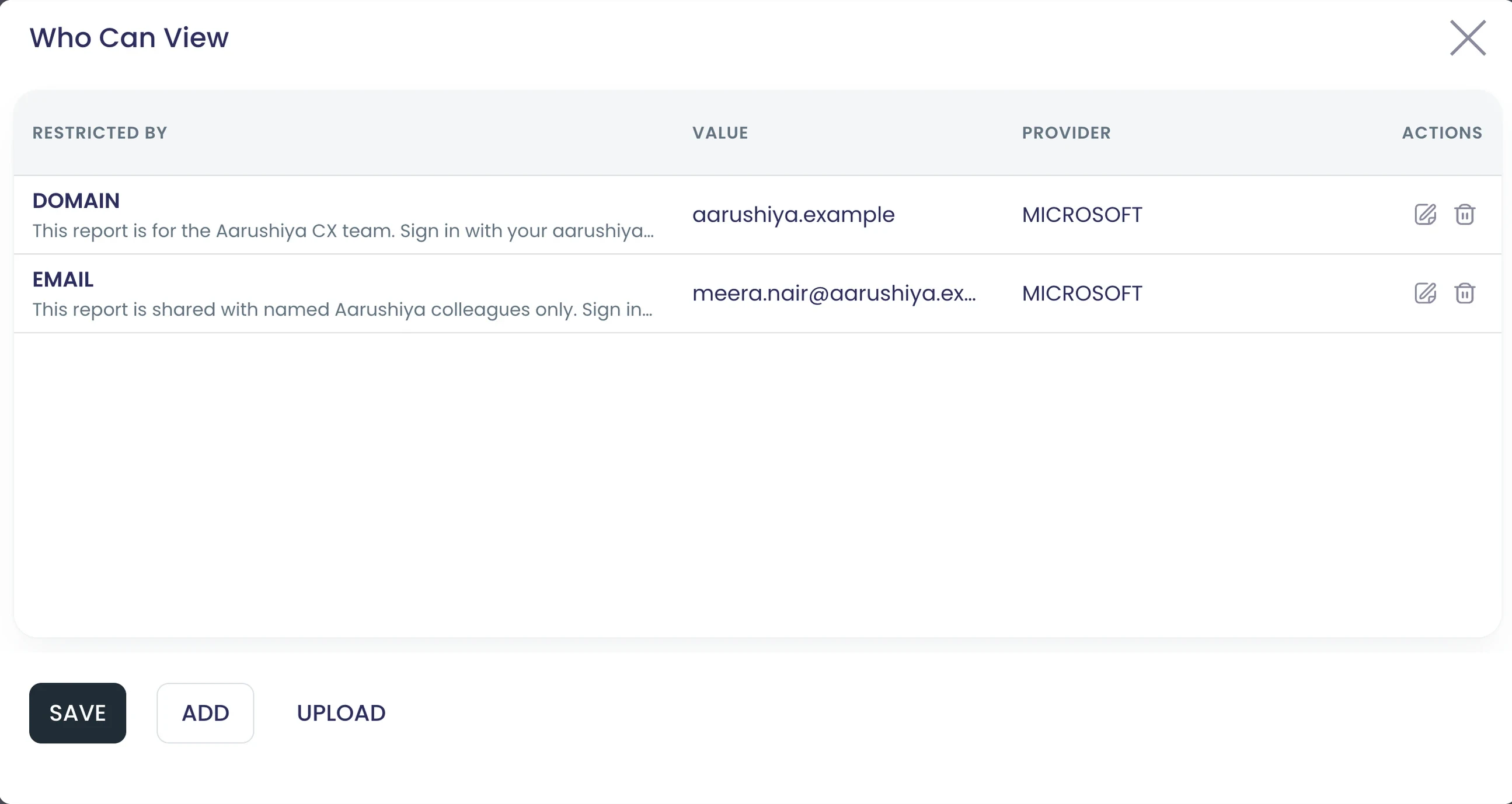
Scheduled report emails
Email a report to a contact list now or on a repeating schedule, with a PDF attached and a link to live numbers.
What it does
Email a report to a contact list now, at a date and time you pick, or on a repeating schedule. Each email carries the PDF and a link that always opens the current report.
Highlights and options
- Send now
- Send once at a date and time
- Repeat on a schedule, such as every Monday or the 1st of the month
- PDF attached, plus a link to live numbers
- Recipients from a contact list
Where in the product
Analyze › Reports › report › Email
Plans and limits
- Professional and Enterprise
The attached PDF is the version from when the schedule was set; the link always shows current data.
Related capabilities
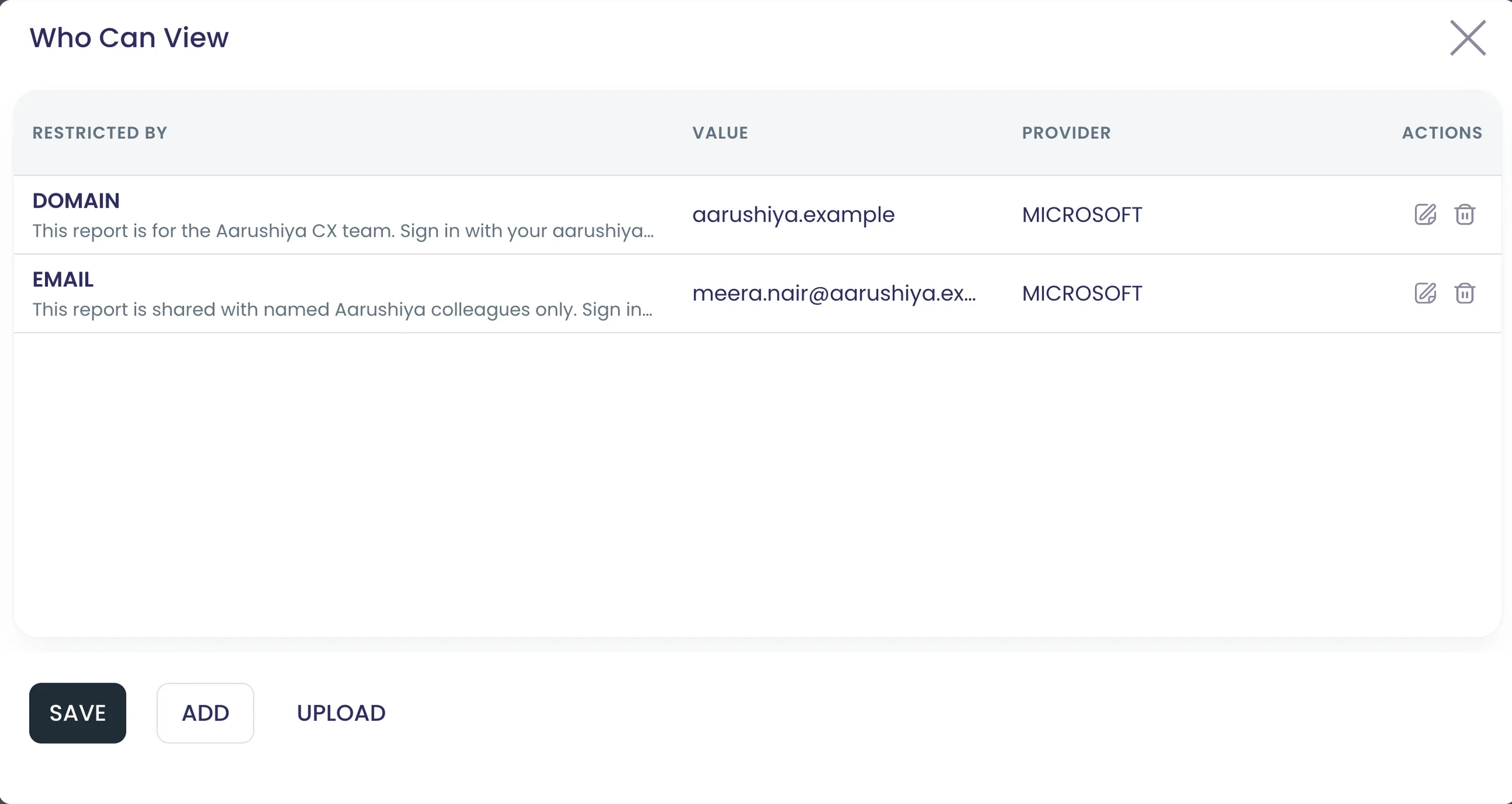
Across the platform
Order revenue and units
Survey dashboards show an order summary plus revenue and units charts for payment and product questions.
What it does
Surveys that take orders or payments get order analytics on their dashboard. An order summary card sits beside revenue and units charts for each payment and product question.
Highlights and options
- Order summary card: orders, revenue, units
- Revenue chart per payment question
- Units chart per product question
Where in the product
Surveys › open a survey › Analyze › Dashboard
Plans and limits
- All plans
Related capabilities
Collaboration
18 capabilitiesOpen the pageRoles, locks, threads and version history for teams working together.
Collaboration at a glance
Give each team its own workspace and each person the role their job needs, with every permission checked on our servers. Edit surveys, campaigns and portals together without overwriting each other, lock work while you finish it, and keep every discussion on the question, campaign or flow it is about. Tasks, approvals, notifications and two-step verification keep the right people involved and every account protected.
- organisation roles
- 4
- workspace roles, plus Participants
- 3
- kinds of work you can lock
- 7
- places to start a thread
- 13
Start here
- Admin, Surveyor and Agent roles, checked on every request
- Lock surveys, campaigns, lists, Planners, flows, analyses and datasets
- Threads on surveys, single questions, responses, campaigns, flows and more
- All messages, Mentions only or Muted, per workspace and per thread
- Two-step verification with an authenticator app or SMS
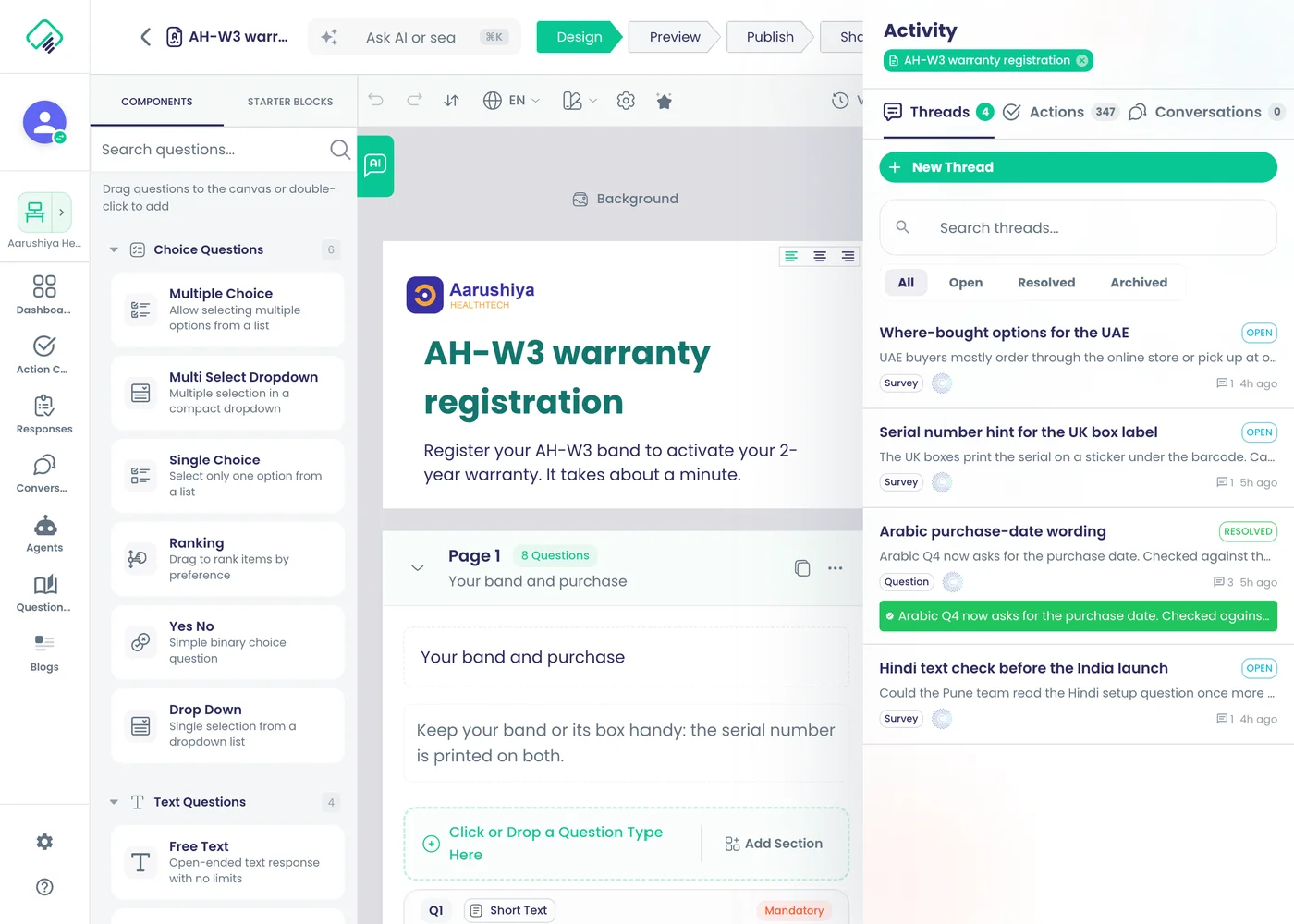
Workspaces and members
A workspace for every team
Give each region, brand or client team its own workspace, holding its own surveys, campaigns, flows and members.
What it does
Give each region, brand or client team its own workspace. A workspace holds its own surveys, campaigns, contact lists, Planners, flows, analyses, datasets and members. Organisation Owners and Admins create workspaces.
Highlights and options
- Surveys, Campaigns, Contact List, Planner, Flows, Analytics and Data tabs
- Users tab for the workspace's members
- Settings tab for thread and notification settings
- Created by organisation Owners and Admins
Where in the product
Workspaces › Add workspace
Plans and limits
- Professional and Enterprise
Related capabilities
Workspace switcher in the side menu
Switch workspace from the side menu, and every list shows only the work of the workspace you picked.
What it does
The workspace panel at the top of the side menu shows the workspace you are in and switches it. Every list then shows only that workspace's work.
Highlights and options
- Current workspace named in the side menu
- Switch workspace from the panel
- View all workspaces, or add one
- Lists of surveys, campaigns, flows and data follow your choice
Where in the product
Side menu › workspace panel › Switch workspace
Plans and limits
- All plans
Related capabilities
Invite teammates by email
Organisation admins invite people by email with a role; the invitee accepts from the email and joins the organisation.
What it does
Organisation admins invite people by email and pick their role. The invitee accepts from the email and signs in with a password or a Google, Microsoft or Apple account.
Highlights and options
- Invite by email address
- Choose the organisation role: Admin, Member or Billing
- Only an Owner can make someone an Owner
- Accept with a password, Google, Microsoft or Apple
Where in the product
Account › Organisation › Users › add user
Plans and limits
- Professional and Enterprise
Each new member uses a seat; participants do not.
Related capabilities
Add or remove workspace members
Workspace admins add organisation members to a workspace, invite new ones, or remove them from the workspace editor.
What it does
Workspace admins add organisation members to a workspace, invite new people, or remove someone. Each member gets a workspace role when they are added.
Highlights and options
- Add an existing organisation member
- Invite a new person by email
- Pick Admin, Surveyor or Agent
- Remove a member from the workspace
Where in the product
Workspaces › open a workspace › Users › Add user
Plans and limits
- All plans
Related capabilities
Workspace members page
See every workspace member with a role chip and summary stats on the workspace's users tab.
What it does
The workspace's Users tab lists every member with a role chip and their status. Summary figures at the top show how many people are active and how many are admins.
Highlights and options
- Totals: users, active, inactive, admins
- Role chips: Owner, Admin, Surveyor, Agent
- Search and filter members
- Change a member's status or remove several at once
Where in the product
Workspaces › open a workspace › Users
Plans and limits
- All plans
Related capabilities
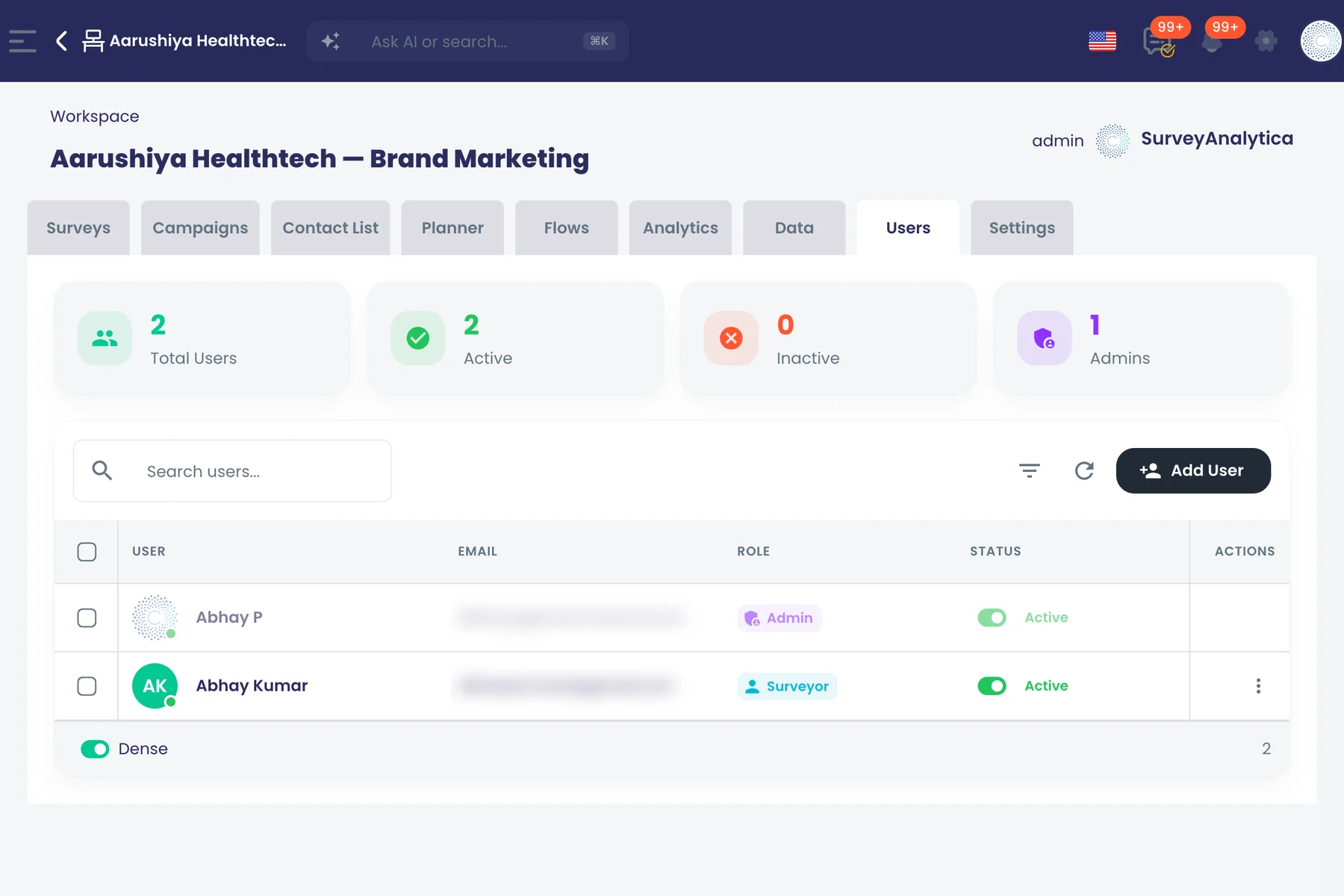
Find colleagues in pickers
Search your organisation's members by name or email when assigning tasks, mentioning or adding people.
What it does
Pickers across the app search your organisation's members by name or email. Use it to assign a task, mention someone or add a person, without remembering exact addresses.
Highlights and options
- Search by name or email
- Used when assigning, mentioning and adding people
- Limited to your own organisation
Where in the product
Any people picker
Plans and limits
- All plans
Related capabilities
Seats checked on the server
Adding a member is checked against your plan's seat count on our servers, not only in the browser.
What it does
When someone is added, the member count is checked against your plan's seats on our servers, not only in the browser. People who only take part, such as portal participants, never use a seat.
Highlights and options
- Seat count checked on the server for every add
- Portal participants are not counted
- SurveyAnalytica support staff in your organisation are not counted
- The same count appears on your usage page
Where in the product
Account › Organisation › Users
Plans and limits
- All plans
Adding a member beyond your plan's seats is refused.
Related capabilities
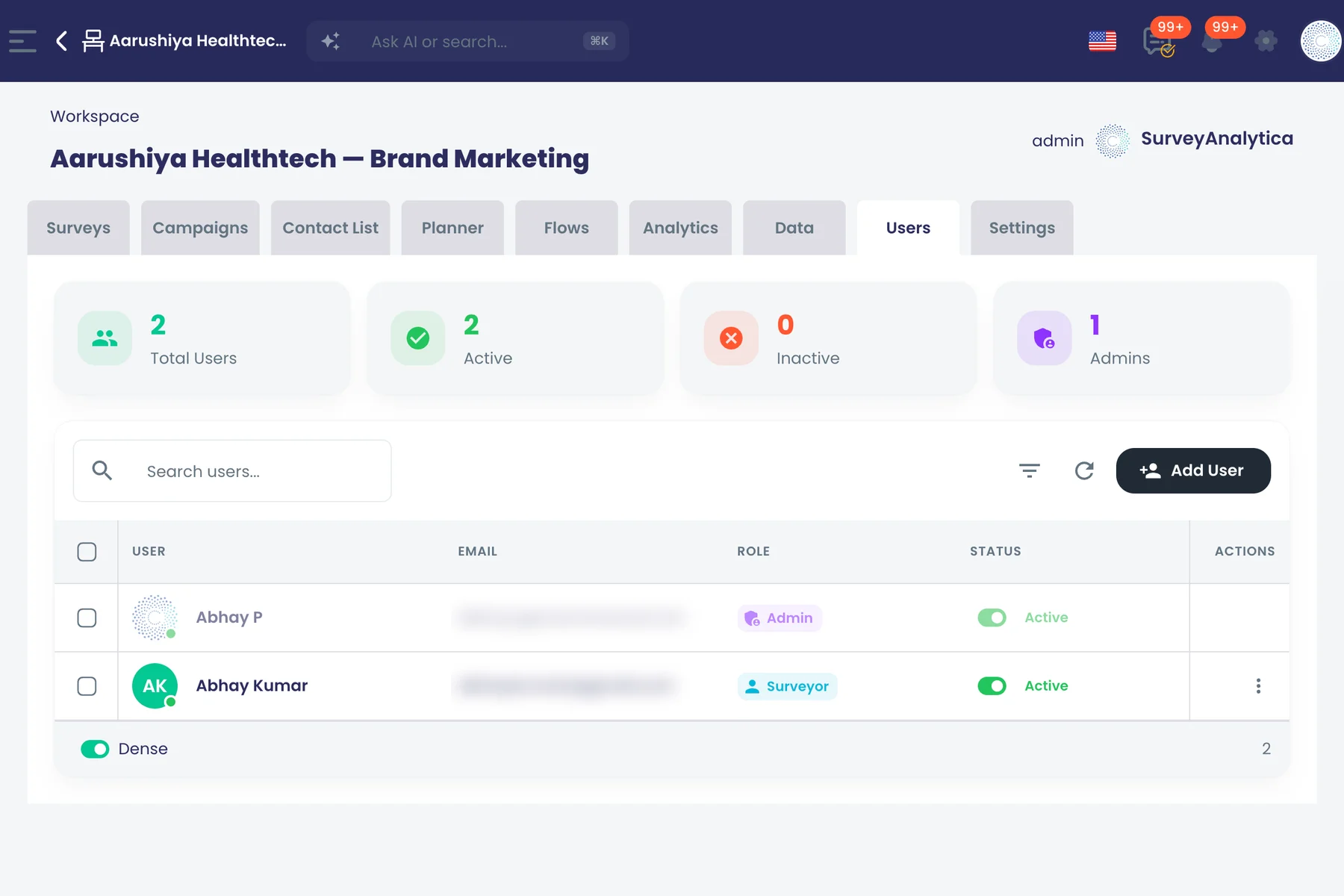
Roles and permissions
Organisation roles
Make each person an Owner, Admin, Member or Billing user of the organisation; only Owners can grant Owner.
What it does
Each person in the organisation has one organisation role. It decides who manages members, who runs billing and who can grant ownership.
Highlights and options
- Owner: full control; only an Owner can make another Owner
- Admin: creates workspaces and manages members
- Member: works inside the workspaces they belong to
- Billing: opens the billing pages
Where in the product
Account › Organisation › Users › edit member
Plans and limits
- Professional and Enterprise
Related capabilities
Admin, Surveyor and Agent roles
Give each person a workspace role: Admin, Surveyor or Agent, matching what their job needs them to do.
Also in: Platform
What it does
Inside each workspace, give each person the access their job needs. The same person can hold a different role in another workspace.
Highlights and options
- Admin: create and edit everything, including flows and workspace settings
- Surveyor: create and edit surveys, responses, campaigns, lists, analyses, datasets
- Surveyor: views flows and workspace members, but cannot change them
- Agent: views surveys, responses, campaigns, lists, analyses and datasets
- Agent: works on tasks assigned to them
- Participant: for people who take part through a portal; not a seat
Where in the product
Workspaces › open a workspace › Users › Add user › role
Plans and limits
- Professional and Enterprise
Related capabilities
Read-only access for Agents
Agents can read surveys, campaigns and responses without changing them, ideal for support desks.
What it does
Agents can read surveys, campaigns and responses across the workspace without changing them. Support desks get the context they need to help people, and the work itself stays safe.
Highlights and options
- Read surveys, campaigns, responses, contact lists, analyses and datasets
- Cannot change any of them
- No access to flows or workspace settings
- Can work on tasks assigned to them
Where in the product
Workspaces › open a workspace › Users › role: Agent
Plans and limits
- All plans
Related capabilities
Billing-only access
A Billing user can manage invoices and payment pages without the right to build or change surveys.
Also in: Platform
What it does
A Billing user manages invoices and payment pages for the organisation. They cannot build or change surveys.
Highlights and options
- Opens Account › Organisation › Billing
- Manages invoices and payment details
- No right to create or edit surveys
Where in the product
Account › Organisation › Billing
Plans and limits
- All plans
Related capabilities
Permissions enforced on the server
Each role's read and write access to every kind of work is checked on our servers on every request.
What it does
What each role may read or change is checked on our servers on every request, for every kind of work. Hiding a button is never the only protection.
Highlights and options
- Surveys, responses and question banks
- Campaigns and cross-channel campaigns
- Contact lists, Planners and conversations
- Flows and integrations
- Analyses, datasets and models
- Tasks and workspace settings
Where in the product
Applies everywhere in the app
Plans and limits
- All plans
Related capabilities
Push dashboard widgets by role
Admins push dashboard widgets and shortcut buttons to everyone holding a chosen workspace role.
What it does
Admins push dashboard widgets and shortcut buttons to everyone who holds a chosen role. People in that role see the same locked widget on their home dashboard.
Highlights and options
- Pick a target role
- Push widgets or toolbar shortcut buttons
- Pushed widgets are locked
- Un-push to remove it from everyone's dashboard
Where in the product
Dashboard › Widget Library › Push Widget › By Role
Plans and limits
- All plans
Related capabilities
Edit together
Edit campaigns together
Teammates co-edit classic and cross-channel campaigns, with each saved step change shared to everyone editing.
What it does
Teammates work on the same classic or cross-channel campaign at once. Each saved step change reaches everyone editing within moments, without a refresh.
Highlights and options
- Classic campaigns
- Cross-channel campaigns
- Saved changes sent to everyone in the session
- Older tabs cannot overwrite newer work
Where in the product
Campaigns › open a campaign
Plans and limits
- All plans
Related capabilities
Edit portals together
Build a portal with teammates in the same designer session, with saved changes shared live.
What it does
Build a portal with teammates in the same designer session. Saved changes reach everyone working on it, and an older tab cannot overwrite them.
Highlights and options
- Shared designer session per portal
- Saved changes sent to everyone in the session
- Undo reverses only your own edits
Where in the product
Account › Organisation › Portal Designs › open a portal
Plans and limits
- All plans
Related capabilities
No overwrites from old tabs
There is always one current version, so a save from an out-of-date tab is refused instead of overwriting newer work.
What it does
The server keeps one current version of each design. A save from a tab that fell behind is refused instead of replacing newer work, and an old tab can never change whether an item is published or locked.
Highlights and options
- Every save checked against the current version
- Out-of-date saves refused, not merged blindly
- Publish state and lock fields protected from old tabs
- Applies to surveys, campaigns and portals
Where in the product
Survey, campaign and portal designers
Plans and limits
- All plans
Related capabilities
Members-only editing sessions
Only members of the workspace with access to the item can join its live editing session.
What it does
Only members of the workspace, with access to the item, can join its live editing session. A request to join work from another workspace is refused.
Highlights and options
- Workspace membership checked when joining
- Read access to the item checked too
- Requests from other workspaces refused
Where in the product
Survey, campaign and portal designers
Plans and limits
- All plans
Related capabilities
Undo only your own edits
Undo and redo in survey, campaign, flow and dataset designers reverse your edits, never a teammate's.
What it does
Undo and Redo reverse your own edits, never a teammate's. Changes that arrive from someone else stay out of your undo history.
Highlights and options
- Survey designer
- Campaign designer
- Portal designer
- Flow designer
- Dataset wizard and editor
- Email template designer
Where in the product
Designer toolbar › Undo / Redo
Plans and limits
- All plans
Related capabilities
Share a preview with teammates
Copy a preview link for the draft; teammates signed in to your organisation can open it.
What it does
Copy a preview link for a draft survey and send it to teammates. Anyone signed in to your organisation can open it, even before the survey is published.
Highlights and options
- Copy link from Share Preview
- Opens the real survey screen
- For people signed in to your organisation
- Works on unpublished drafts
Where in the product
Surveys › open a survey › Design › Share Preview
Plans and limits
- All plans
Related capabilities
Locking
Lock work while you finish
Lock a survey, campaign, contact list, Planner, flow, analysis or dataset from its menu in the workspace list.
What it does
Lock an item from its row menu in the workspace list while you finish it. Lock and Unlock sit in the same menu and always match the item's state.
Highlights and options
- Surveys
- Cross-channel campaigns
- Contact lists
- Planners
- Flows
- Analyses
- Datasets
Where in the product
Workspaces › open a workspace › any tab › row menu › Lock
Plans and limits
- All plans
Related capabilities
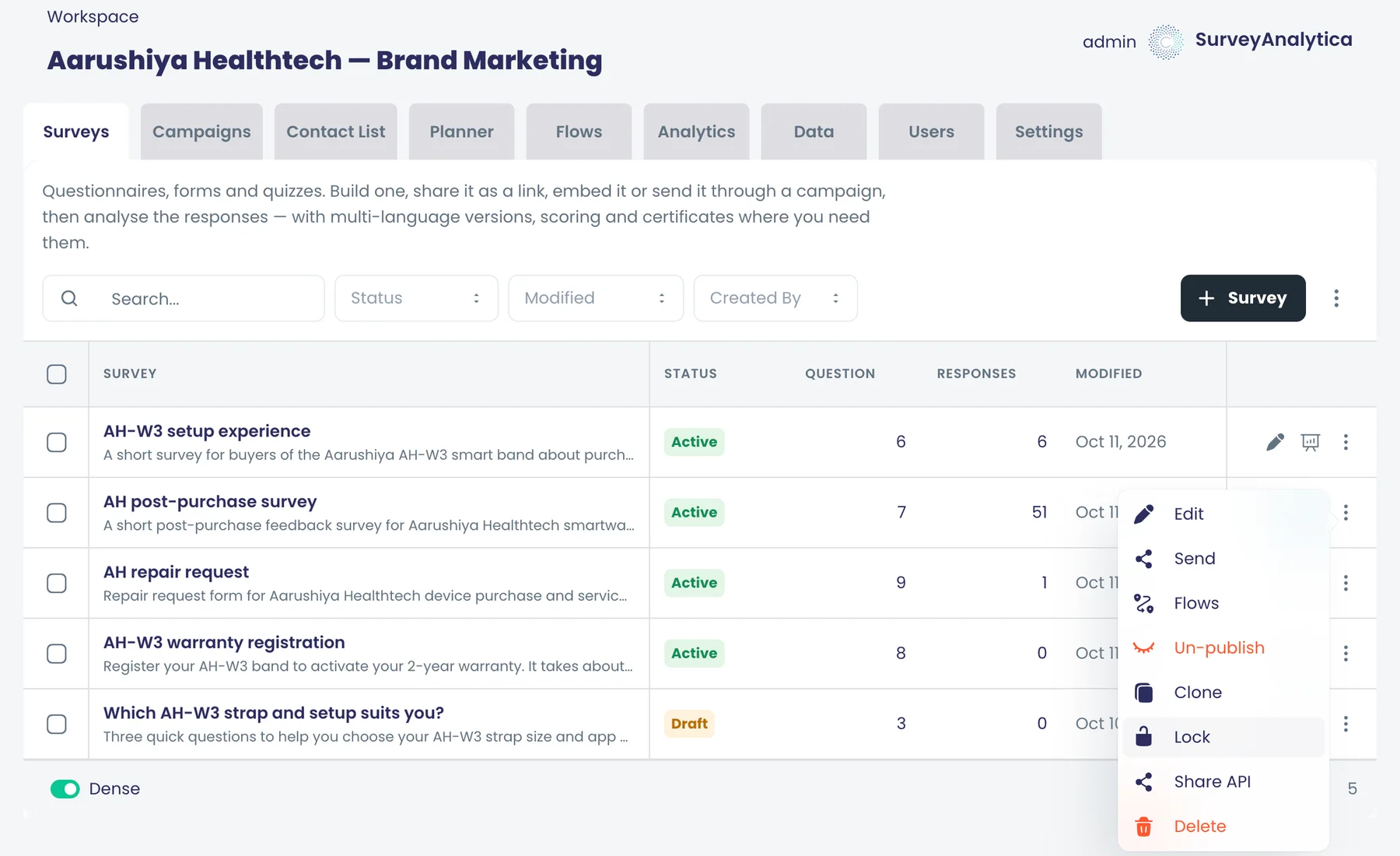
Only the holder can save
While an item is locked, only the person holding the lock can save changes to it.
What it does
While an item is locked, only the person holding the lock can save it. Saves from anyone else are refused, whether they come from the designer or the item's editor.
Highlights and options
- Holder keeps editing and saving as usual
- Other saves refused in the designer
- Other saves refused in the item editor
- Locking needs edit access to the item
Where in the product
Any locked item
Plans and limits
- All plans
Related capabilities
See who holds a lock
Anyone opening a locked survey or campaign sees a notice that a teammate is holding it.
What it does
Anyone who opens a locked survey or campaign sees a notice that a teammate holds it. Nobody wonders where their change went.
Highlights and options
- Survey designer
- Campaign designer
- Cross-channel campaign designer
Where in the product
Open a locked survey or campaign
Plans and limits
- All plans
Related capabilities
One lock holder at a time
Taking a lock is a single server transaction, so two people can never hold the same item; only the holder unlocks.
What it does
Taking a lock is a single server transaction, so two people can never hold the same item at once. Only the person who locked an item can unlock it.
Highlights and options
- Lock taken in one transaction
- Never two holders at once
- Only the holder unlocks
Where in the product
Workspaces › open a workspace › row menu › Lock / Unlock
Plans and limits
- All plans
Related capabilities
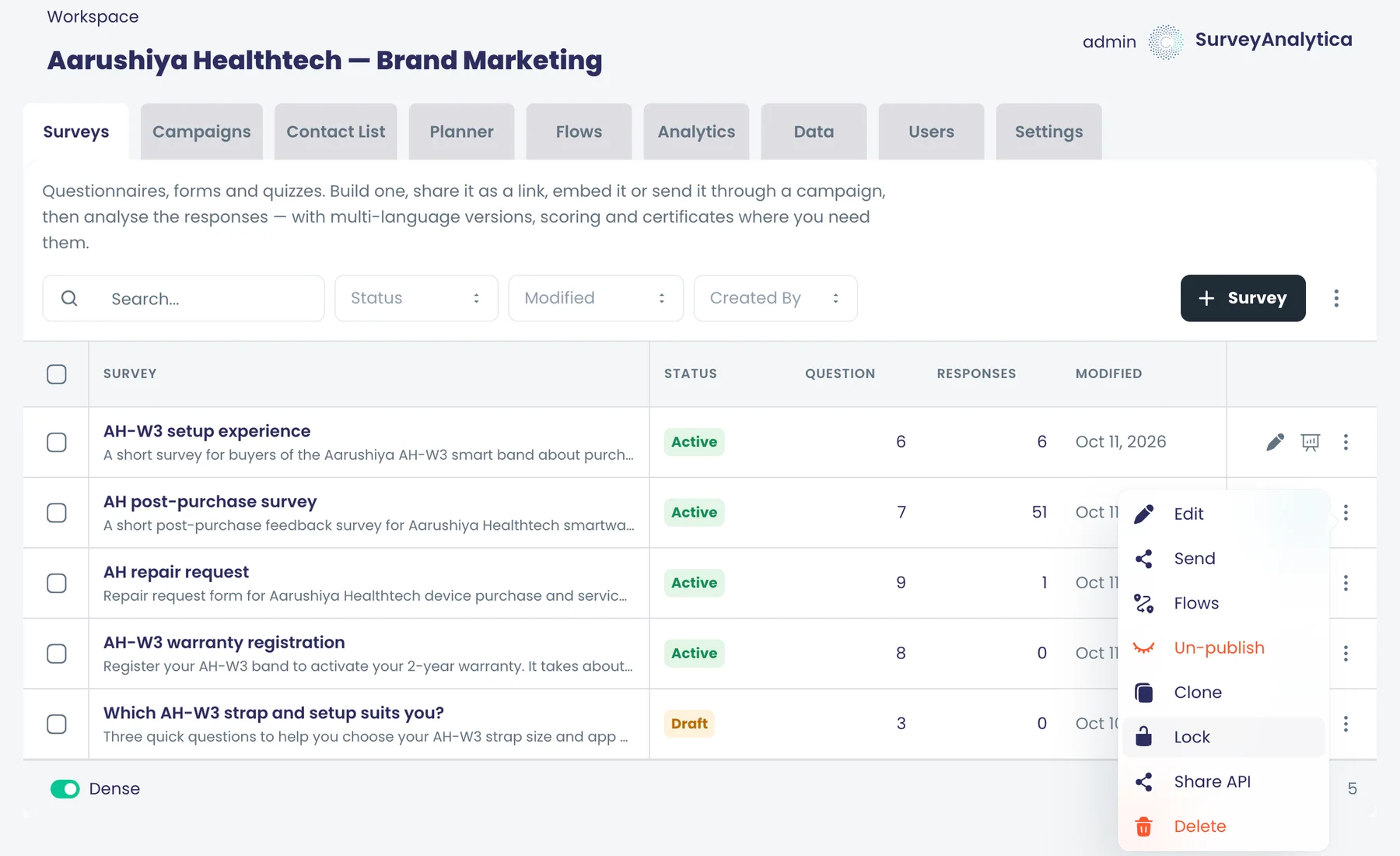
Version history
Restores keep the replaced version
Restoring a campaign first saves the version being replaced, so you can always go back to it.
What it does
Restoring an earlier campaign version first saves the version being replaced. If the restore was a mistake, the version you replaced is still there to go back to.
Highlights and options
- Snapshot of the current version before every restore
- The replaced version appears in the version list
Where in the product
Campaigns › open a campaign › version history › Restore
Plans and limits
- All plans
Related capabilities
Question bank versions
Question banks keep numbered versions you can open and restore, so shared questions stay recoverable.
What it does
Question banks keep numbered versions. Open any version to check it, and restore it when shared questions need to go back.
Highlights and options
- Numbered version list
- Open a single version
- Restore a version
Where in the product
Question Banks › open a bank › Versions
Plans and limits
- All plans
Related capabilities
Threads
Threads on any piece of work
Discuss surveys, responses, campaigns, flows, contact lists, Planners, question banks, datasets, analytics, tasks and conversations in place.
What it does
Open the Activity drawer on a piece of work and discuss it right there. The thread stays attached to the item, so the decision and the reason for it stay with the work.
Highlights and options
- Surveys and single questions
- Survey responses
- Cross-channel campaigns and their channel events
- Flows
- Contact lists and Planners
- Question banks
- Datasets and analyses
- Tasks
- Conversations
Where in the product
Open any of these items › Activity
Plans and limits
- Professional and Enterprise
Related capabilities
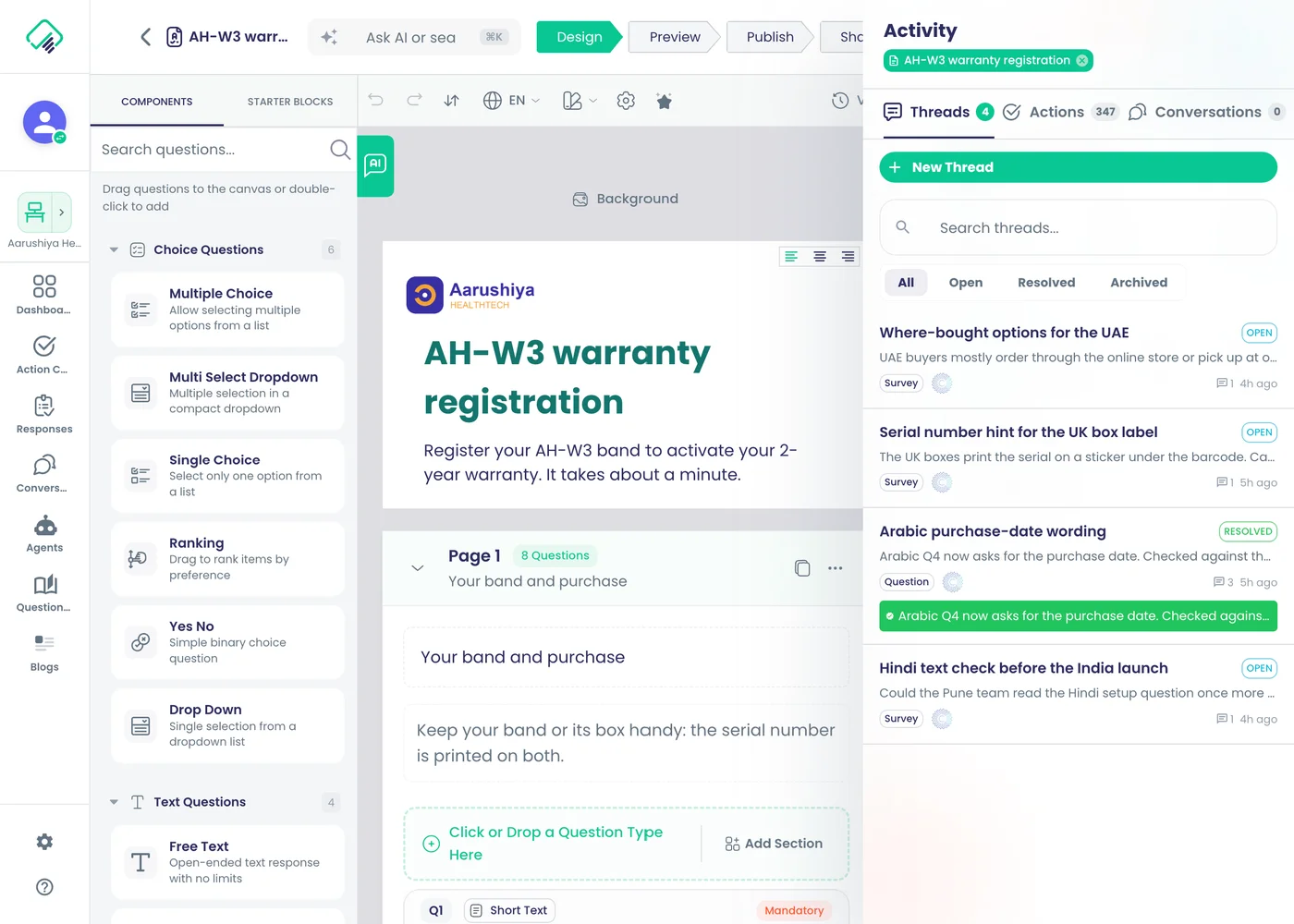
Threads on a single question
Open a thread on one survey question; the drawer shows both the survey and the question it belongs to.
What it does
Start a thread on one question in the survey designer. The drawer shows both the survey and the question, so the context stays with the discussion.
Highlights and options
- Thread scoped to a single question
- Survey and Question scope chips in the drawer
Where in the product
Surveys › open a survey › Design › select a question › Activity
Plans and limits
- All plans
Related capabilities
Discuss an individual response
Start a thread on a single survey response to agree follow-up on that customer's or employee's feedback.
What it does
Start a thread on a single survey response to agree what to do about that person's feedback. The thread opens from the response row.
Highlights and options
- Thread scoped to one response
- Opens from the Responses grid
- Turn the outcome into a task
Where in the product
Surveys › open a survey › Analyze › Responses › open a response › Activity
Plans and limits
- All plans
Related capabilities
@mention teammates
Type @ to bring a teammate into a thread; the mention reaches their notification bell.
What it does
Type @ in a thread and pick a teammate from the list. The mention reaches their notification bell, even if they mute the rest of the workspace's chatter.
Highlights and options
- Autocomplete after @
- Mention appears in the person's notification bell
- Mentions-only level still delivers mentions
Where in the product
Activity › thread › message box › @
Plans and limits
- All plans
Related capabilities
Attach files to messages
Attach new files or pick existing ones from your media library when posting in a thread.
What it does
Attach new files, or pick existing ones from your media library, when you post in a thread. Screenshots and documents stay next to the discussion they belong to.
Highlights and options
- Upload new files
- Pick from the media library
Where in the product
Activity › thread › message box › attach
Plans and limits
- All plans
Related capabilities
Edit or delete your messages
Correct or remove your own thread messages after posting them.
What it does
Correct or remove your own thread messages after posting. The message menu holds Edit and Delete.
Highlights and options
- Edit your message
- Delete your message
Where in the product
Activity › thread › message menu › Edit / Delete
Plans and limits
- All plans
Related capabilities
Resolve with a written summary
Resolve a thread with a short written summary of the outcome, and reopen it if the topic comes back.
What it does
Resolve a thread with a short written summary of the outcome. Edit the summary later, and reopen the thread if the topic comes back.
Highlights and options
- Resolve with a written summary
- Edit the summary afterwards
- Reopen a resolved thread
- A system note records each resolve and reopen
Where in the product
Activity › thread › Resolve
Plans and limits
- All plans
Related capabilities
Archive and restore threads
Archive finished threads to keep the drawer tidy, and restore any of them later.
What it does
Archive finished threads to keep the drawer tidy. Restore any archived thread later and carry on.
Highlights and options
- Archive a thread
- Restore an archived thread
- Resolved threads can also archive automatically
Where in the product
Activity › thread › Archive
Plans and limits
- All plans
Related capabilities
Spin out a side thread
Move a side topic into its own new thread so the original discussion stays focused.
What it does
Move a side topic into its own new thread, so the original discussion stays focused. Both threads note the spin-out.
Highlights and options
- Name the new sub-thread
- Choose visibility: Shared or Internal
- Carry over the original thread's links
- Both threads record the spin-out
Where in the product
Activity › thread › Create Sub-Thread
Plans and limits
- All plans
Related capabilities
Internal-only threads
Mark a thread internal so only workspace admins and agents can read it.
What it does
Mark a thread internal and only workspace admins and agents can read it. Use it for notes that should not reach everyone with access to the item.
Highlights and options
- Visibility: shared or internal
- Internal threads readable by admins and agents only
- Access checked on the server
Where in the product
Activity › thread › Create Sub-Thread › Visibility
Plans and limits
- All plans
Related capabilities
Link threads to related records
Link a thread to other records, such as a contact or dataset row, so it shows up wherever it matters.
What it does
Link a thread to other records so it shows up wherever it matters. Unlink it when it no longer applies.
Highlights and options
- Contacts
- Dataset records
- Channel content
- Organisation members
- ML models
- Unlink at any time
Where in the product
Activity › thread › links
Plans and limits
- All plans
Related capabilities
Unread counts per item
Each piece of work shows how many unread thread messages it has, so nothing gets missed.
What it does
Each piece of work shows how many unread thread messages it holds, so nothing waiting for you gets missed.
Highlights and options
- Unread count per item
- Counts kept on the server, so they match on every device
Where in the product
Activity drawer on any item
Plans and limits
- All plans
Related capabilities
Replies appear without refresh
New messages and status changes appear for everyone viewing the thread without reloading the page.
What it does
New messages and status changes appear for everyone viewing the thread without reloading the page.
Highlights and options
- New messages appear live
- Resolve, reopen and archive appear live
Where in the product
Activity › any open thread
Plans and limits
- All plans
Related capabilities
All your threads in one place
The header threads button lists your threads with counts and opens any one in the side drawer.
What it does
The threads button in the header lists your threads with their counts. Pick one and it opens in the side drawer, wherever you are in the app.
Highlights and options
- All your threads in one list
- Unread counts
- Opens the thread in the side drawer
- Notifications about a thread open it too
Where in the product
Header › threads button
Plans and limits
- All plans
Related capabilities
Auto-archive resolved threads
Resolved threads archive automatically after a number of days each workspace sets, 30 by default.
What it does
Resolved threads with no further activity archive themselves after a number of days that each workspace sets. Archived threads can be restored.
Highlights and options
- Set per workspace
- Default: 30 days after resolving
- Restore archived threads at any time
Where in the product
Workspaces › open a workspace › Settings › Retention policy
Plans and limits
- All plans
Default 30 days, set per workspace.
Related capabilities
Alerts for stalled threads
Get alerted when an open thread has had no activity for the number of days your workspace sets.
What it does
When an open thread has had no activity for the number of days your workspace sets, it gets a reminder and workspace admins are notified.
Highlights and options
- Set per workspace
- Default: 7 days without activity
- Workspace admins notified
Where in the product
Workspaces › open a workspace › Settings › Retention policy
Plans and limits
- All plans
Default 7 days, set per workspace.
Related capabilities
System notes in threads
Threads note when a link or participant is added, a thread is resolved, reopened or spun out, its summary changes, or a flow is published.
What it does
Threads record what happened as well as what was said. A short system note appears when the thread or the work it is about changes, so anyone reading later can follow the story.
Highlights and options
- Link added
- Participant added
- Thread resolved
- Thread reopened
- Sub-thread spun out
- Resolution summary updated
- Flow published
Where in the product
Activity › any thread
Plans and limits
- All plans
Related capabilities
Notifications
In-app notification inbox
A bell and a notifications page collect mentions, tasks and alerts, with unread counts and mark-all-read.
Also in: Platform
What it does
A bell in the header and a full notifications page collect mentions, tasks and alerts. Click a notification to open the item or thread it is about.
Highlights and options
- Bell with an unread count
- Full Notifications page
- Mark one read, or mark all read
- Clicking opens the item or thread
Where in the product
Header › bell; Notifications page
Plans and limits
- All plans
Related capabilities
Browser push notifications
Receive browser push notifications for new items; clicking one opens the related record or thread.
What it does
Get browser push notifications for new items. Click one to open the record or thread it is about.
Highlights and options
- Browser notifications
- Click to open the related record or thread
Where in the product
Allow notifications in your browser when asked
Plans and limits
- All plans
Related capabilities
Notification levels per workspace
Choose all activity, mentions only, or muted for each workspace, and override it on any single thread.
What it does
Choose how much you hear from each workspace, and override it on any single thread. Mentions still reach you on Mentions only.
Highlights and options
- All messages
- Mentions only
- Muted
- Per-thread override, or use the workspace default
Where in the product
Workspaces › open a workspace › Settings; thread › Notification preferences
Plans and limits
- All plans
Related capabilities
Choose which alerts reach you
Switch personal alerts on or off for responses, conversations, inbound messages, tasks assigned, completed or due, and followers.
What it does
Switch each kind of personal alert on or off in your account. The switches are checked before an alert is sent.
Highlights and options
- New survey responses
- Message status updates: delivered, opened, bounced, replied
- Inbound messages and replies
- Task assigned to me
- Task I created was completed
- Task due soon or overdue
- Someone follows me
- Scheduled campaign content ready for review
Where in the product
Account › Notifications
Plans and limits
- All plans
Related capabilities
Tasks and sign-offs
Turn a message into a task
Create a task from any thread message, with an assignee, priority and due date.
Also in: Tasks and approvals
What it does
Create a task from any thread message, so the follow-up has an owner. The task keeps a link to the message it came from.
Highlights and options
- Title and description
- Assignee by user ID, or Assign to me
- Priority: Low, Medium, High, Critical
- Due date
- Link back to the source message
Where in the product
Activity › thread › message menu › Create Action
Plans and limits
- Professional and Enterprise
Related capabilities
Create a task on any record
From the activity drawer, raise a task linked to the survey, response, campaign or other record you are viewing.
Also in: Tasks and approvals
What it does
From the Activity drawer, raise a task linked to the survey, response, campaign or other record you are viewing. The task opens in the Action Center with that link.
Highlights and options
- Linked to the record you are viewing, or to another one
- Assigned to: search your teammates, or Assign to me
- Priority and due date
- Listed in the Action Center
Where in the product
Open a record › Activity › Create Action
Plans and limits
- Professional and Enterprise
Related capabilities
Assignees and approvers on tasks
Each task can name who does the work and who signs it off, whatever their workspace role.
What it does
Each task can name who does the work and who signs it off. Both can act on the task whatever their workspace role.
Highlights and options
- Assignee does the work
- Approver signs it off
- Both can act regardless of workspace role
Where in the product
Action Center › open a task
Plans and limits
- Professional and Enterprise
Related capabilities
Comment on tasks
Assignees and approvers discuss the work in comments on the task itself.
Also in: Tasks and approvals
What it does
Assignees and approvers discuss the work in comments on the task itself, so the reasoning sits next to the decision.
Highlights and options
- Comments on the task
- Comments on approve or reject
Where in the product
Action Center › open a task › comments
Plans and limits
- All plans
Related capabilities
Corrections apply only when approved
Answer corrections are written to the response only after every item is approved, and the task lists the fields written.
What it does
When a flow raises a task to correct a response, each answer becomes an item to approve. Corrections are written to the response only after every item is approved, and the task lists the fields it wrote.
Highlights and options
- One item for each answer that may need correcting
- Approve or reject each item, with a comment
- A rejected item returns for approval once edited
- Written to the response only when all items are approved
- The task names the fields it wrote
Where in the product
Action Center › open a task
Plans and limits
- All plans
Related capabilities
Account security
Two-step verification
Each person can add a second sign-in step using an authenticator app or SMS.
Also in: Platform
What it does
Each person can add a second sign-in step. A guided setup links an authenticator app or a phone number, and the second step is asked for at sign-in.
Highlights and options
- Authenticator app (time-based codes)
- SMS code to a phone number
- Guided setup
- Second step asked for at sign-in
Where in the product
Account › Security
Plans and limits
- All plans
Related capabilities
Trusted devices list
Keep a list of devices you trust and remove one, or all the others, at any time.
Also in: Platform
What it does
Mark a device you use every day as trusted. Remove one trusted device, or all the others, at any time.
Highlights and options
- Trust this device at sign-in
- List of trusted devices
- Remove one device
- Remove all other devices
Where in the product
Account › Security
Plans and limits
- All plans
Related capabilities
See and end active sessions
See every device you are signed in on and sign out of any one, or all the others.
Also in: Platform
What it does
See every device you are signed in on, and sign out of any one of them, or all the others. Useful when you forget to sign out of a shared computer.
Highlights and options
- Active sessions with their device
- Sign out one session
- Sign out all other sessions
Where in the product
Account › Security › Active sessions
Plans and limits
- All plans
Related capabilities
Sign in with Google, Microsoft, Apple
Teammates join and sign in with a password or their Google, Microsoft or Apple account.
Also in: Platform
What it does
Teammates sign in, and accept invitations, with a password or with the Google, Microsoft or Apple account they already use.
Highlights and options
- Email and password
- Continue with Google
- Continue with Microsoft
- Continue with Apple
Where in the product
Sign-in page
Plans and limits
- All plans
Related capabilities
Portals
46 capabilitiesOpen the pageBranded portals where customers and employees sign in, submit and track requests.
Portals at a glance
A portal gives customers, partners and learners one signed-in place on your own domain. Each person sees only their own records, responses, scores, certificates and tasks, filtered on the server. Public pages and a blog sit on the same address, rendered for search engines. You build it in a drag-and-drop designer, from a template or by describing it to AI, then preview it and publish.
- portal building blocks
- 12
- starter templates
- 6
- languages for signed-in people
- 7
- page access levels
- 3
Start here
- Build multi-page portals in a drag-and-drop designer
- Each person sees only their own records, filtered on the server
- Reviewers approve grouped items in one step or send back exceptions
- Learners download their certificates with a freshly signed link
- Public pages rendered on the server on your own domain for search engines
Build and design
Portal list and management
Create, edit and delete portal designs; see each portal's domain, draft or published status, version and last update.
What it does
Portal Designs lists every portal in your organisation with its domain, Draft or Live status, version and last update. Create a new portal, open one in the designer, or delete it.
Highlights and options
- Domain, status (Draft or Live), version and last update per portal
- Create, edit and delete portal designs
- Open any portal in the designer
Where in the product
Account › Portal Designs
Plans and limits
- All plans
Related capabilities
Multi-page visual portal designer
Drag-and-drop canvas with pages, a component tree and a style panel, shared with the campaign editor.
What it does
A drag-and-drop designer for multi-page portals. The left panel lists pages, the canvas shows the page as visitors will see it, and a component tree and style panel edit each block. It is the same designer as the campaign editor, with portal blocks added.
Highlights and options
- Pages panel with every page and its URL
- Drag-and-drop canvas
- Component tree and style panel
- Shared layouts for header, menu and footer
- Themes and global styles
- AI Chat beside the canvas
- Preview, Version History and Publish in the toolbar
Where in the product
Account › Portal Designs › open a portal
Plans and limits
- All plans
Related capabilities
Starter portal templates
Start from Retailer, Education, Support, Research, Survey Analytics or a blank canvas, then connect your data.
What it does
Start from a ready-made portal with pages, layout and menu already in place, then connect each list and tile to your own data.
Highlights and options
- Retailer Portal: RMAs, warranties, invoices
- Education Portal
- Support Portal
- Research Portal
- Survey Analytics Portal
- Blank Canvas
Where in the product
Account › Portal Designs › open a portal › Templates
Plans and limits
- All plans
Templates come without data connected.
Related capabilities
AI drafts portal pages
Describe the portal and AI drafts pages, layout, navigation, public and private access and blog pages.
What it does
Describe the portal you want and AI drafts it: pages, a shared layout with a menu, which pages are public and which need sign-in, and blog pages. Starter prompts show the public and private split it supports.
Highlights and options
- Drafts pages, layout and navigation
- Sets each page to public or private
- Can add blog listing and post pages
- Starter prompts to edit before generating
- You connect lists and tiles to data afterwards
Where in the product
Account › Portal Designs › open a portal › Templates › describe your portal
Plans and limits
- All plans
Related capabilities
In-canvas AI edits
Ask the in-canvas assistant to change the current portal; it edits what you asked and keeps the rest.
What it does
Ask the AI Chat beside the canvas to change the current portal, such as 'add a FAQ page' or 'replace this band with a how-it-works section'. It edits what you asked across pages and keeps everything else.
Highlights and options
- Edits across several pages in one request
- Keeps pages you did not mention
- Replies say what changed
- Attach files or links to a request
Where in the product
Account › Portal Designs › open a portal › AI Chat
Plans and limits
- All plans
Related capabilities
Twelve portal building blocks
Page content, data list, detail, metric, responses, scores, profile, widgets, surveys, blog listing, blog details and tasks.
What it does
Twelve portal blocks sit alongside the general blocks (text, headings, images, video, buttons, tables, columns, calendars, HTML). Each portal block shows the signed-in person's own data or your published content.
Highlights and options
- Page content
- Data list
- Data detail
- Data metric
- Responses
- Scores
- Profile
- Widgets
- Surveys
- Blog listing
- Blog details
- Tasks
Where in the product
Account › Portal Designs › open a portal › Components
Plans and limits
- All plans
Related capabilities
Per-page access levels
Set each page to Public, Public-richer-when-signed-in, or Private, with default pages before and after sign-in.
What it does
Choose who can see each page, and set the landing page for visitors and for signed-in people.
Highlights and options
- Public: anyone can open it
- Public, richer when signed in
- Private: sign-in required
- Landing page before sign-in
- Landing page after sign-in
Where in the product
Account › Portal Designs › open a portal › Pages › Who can see this page
Plans and limits
- All plans
Related capabilities
Page URLs with parameters
Give pages readable slugs, including parameter segments like rma/:rmaId for record detail pages.
What it does
Give each page a readable address. Parameter segments such as orders/:orderId make one detail page serve every record.
Highlights and options
- Readable slugs such as /partners
- Parameter segments such as orders/:orderId
- Slugs checked for valid characters
Where in the product
Account › Portal Designs › open a portal › Pages
Plans and limits
- All plans
Related capabilities
Clone, hide and delete pages
Duplicate a page to start a similar one, or hide it from the portal without deleting it.
What it does
Duplicate a page to start a similar one, hide a page from the portal without deleting it, or delete it.
Highlights and options
- Clone a page
- Hide or show a page
- Delete a page
Where in the product
Account › Portal Designs › open a portal › Pages
Plans and limits
- All plans
Related capabilities
Mobile app shell navigation
On phones, show navigation as a menu button with bottom tabs, keep it stacked, or scroll it sideways.
What it does
Choose how the menu behaves on phones, per menu.
Highlights and options
- App style: menu button with bottom tabs (default)
- Stacked
- Scrolling row
Where in the product
Account › Portal Designs › open a portal › menu settings
Plans and limits
- All plans
Related capabilities
Automatic light and dark readability
Follows the visitor's dark mode and derives readable text colour from each background automatically.
What it does
Portals follow the visitor's light or dark mode, and text colour is worked out from each background so it stays readable without manual tuning.
Highlights and options
- Follows the device's dark mode
- Readable text colour derived per background
Where in the product
Your portal (signed in)
Plans and limits
- All plans
Related capabilities
Live preview at three widths
Preview the real portal at desktop, tablet and phone widths as a signed-in test person before publishing.
What it does
Preview the real portal before publishing, at three widths, signed in as a test person so private pages show real blocks.
Highlights and options
- Desktop 1280 px
- Tablet 768 px
- Phone 390 px
- Signed in as a test person
Where in the product
Account › Portal Designs › open a portal › Preview
Plans and limits
- All plans
Related capabilities
Version history, compare, restore
Browse saved portal versions, compare two side by side and restore an earlier one.
Also in: Collaboration
What it does
Every saved version of the portal is kept. Open the history, compare two versions side by side and restore an earlier one.
Highlights and options
- Version list with time
- Compare two versions side by side
- Restore a version
Where in the product
Account › Portal Designs › open a portal › Version History
Plans and limits
- All plans
Related capabilities
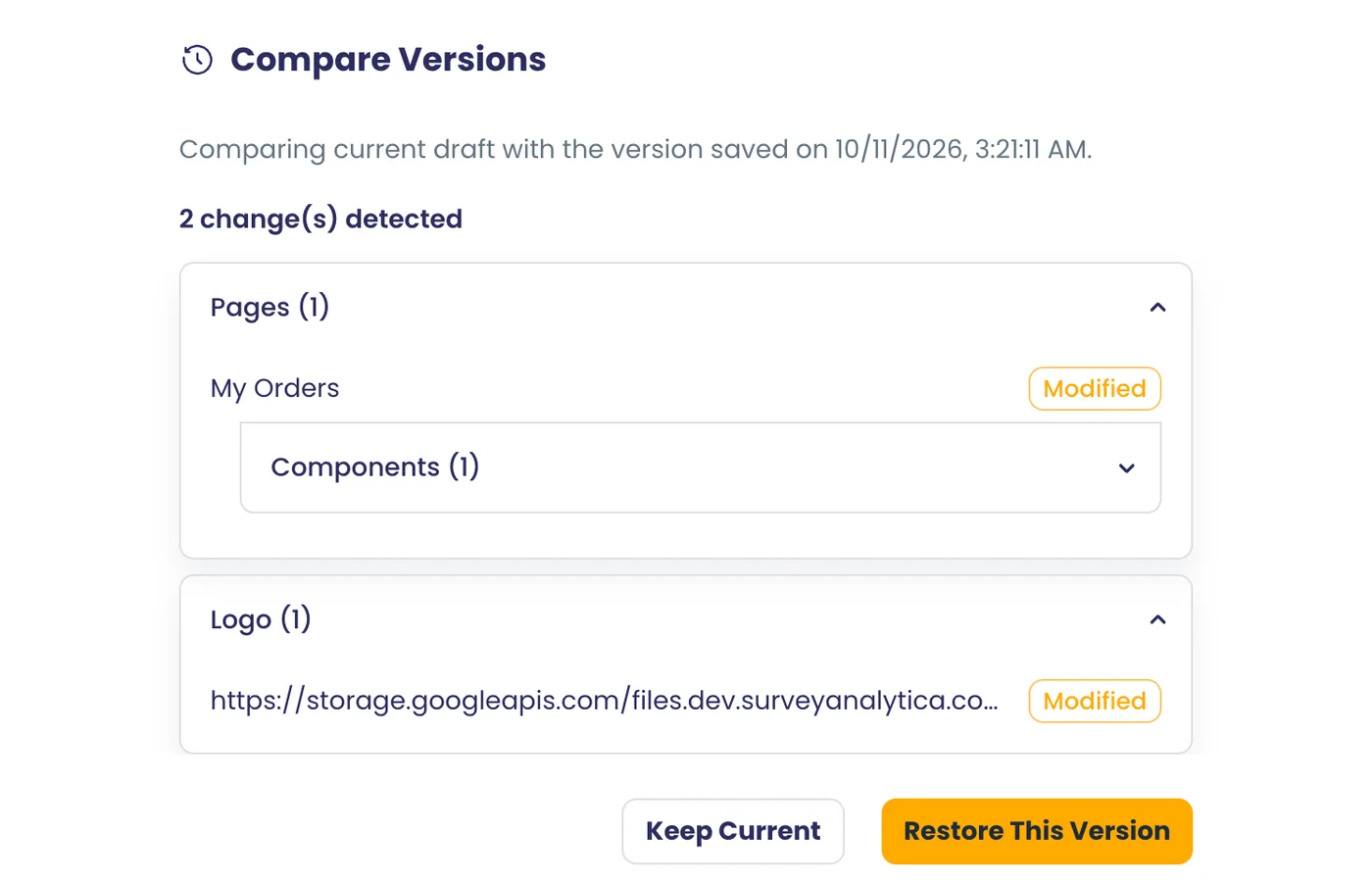
Publish and unpublish portals
Publish shows page counts and the live URL with copy and open; unpublish takes it offline.
What it does
Publishing shows where the portal will go live and how many pages it has, then gives the live URL with copy and open buttons. Unpublish takes it offline. Your draft stays separate from the live version.
Highlights and options
- Shows the domain it will publish to
- Page counts before publishing
- Live URL with Copy link and Open in New Tab
- Publish changes later from the draft
- Unpublish at any time
- A connected domain is needed first
Where in the product
Account › Portal Designs › open a portal › Publish
Plans and limits
- All plans
Related capabilities
Portal content auto-translated
Changed page and navigation text is translated on save; signed-in visitors switch among seven languages.
What it does
When you save, changed page and menu text is translated into the portal's languages. Signed-in people choose their language from the header.
Highlights and options
- Only changed text is sent for translation
- Pages, menus and shared layouts
- Languages: English, Français, Español, Deutsch, हिन्दी, Русский, Italiano
- Public pages show the portal's main language
Where in the product
Account › Portal Designs › open a portal › Manage Languages
Plans and limits
- All plans
Related capabilities
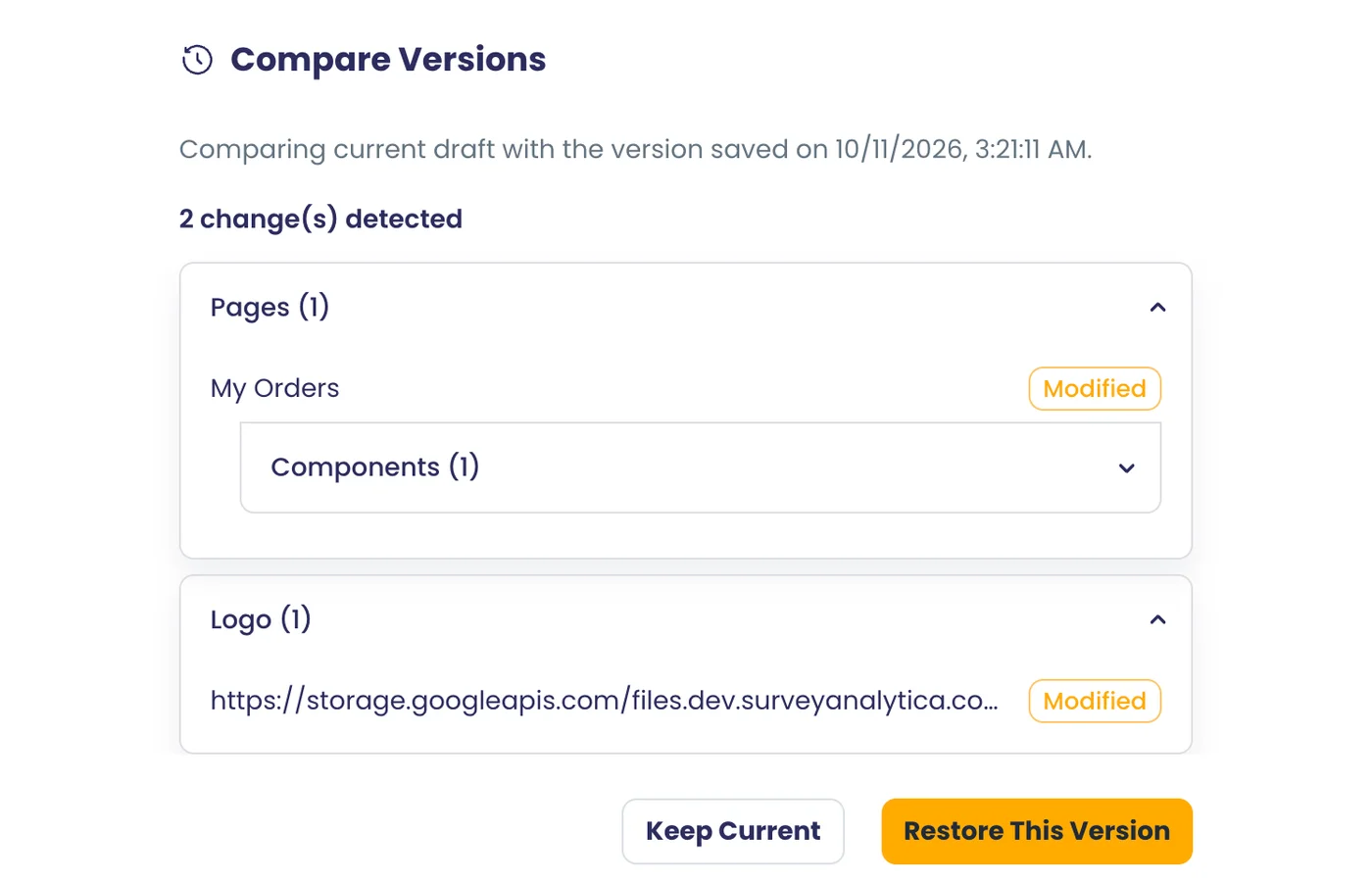
Brand and domain
Your own portal domain
Connect a domain like portal.yourbrand.com with HTTPS provisioned automatically, and check its status.
Also in: Platform
What it does
Connect a domain such as portal.yourbrand.com. HTTPS is set up automatically and the Domains screen shows whether it is connected.
Highlights and options
- Your own subdomain
- HTTPS provisioned automatically
- Connection status on the Domains screen
- Required before publishing
Where in the product
Account › My Domains
Plans and limits
- Professional and Enterprise
Professional and Enterprise plans (custom_domain).
Related capabilities
Domain mapped to workspaces
Each portal domain serves content from the workspaces you map to it, resolved live without copying.
What it does
Map a portal domain to one or more workspaces. The portal serves those workspaces' surveys and content live, without copying anything.
Highlights and options
- Pick the workspaces a domain serves
- Content resolved live per request
- Several teams can share one portal
Where in the product
Account › My Domains
Plans and limits
- All plans
Related capabilities
Logo and sign-in page text
Set the portal logo from the media library, or fall back to the org logo, plus sign-in title and description.
What it does
Set the portal's logo from your media library, or fall back to the organisation logo, and write the sign-in page title and description.
Highlights and options
- Logo from the media library
- Organisation logo as fallback
- Sign-in title and description
Where in the product
Account › Portal Designs › open a portal › Branding
Plans and limits
- All plans
Related capabilities
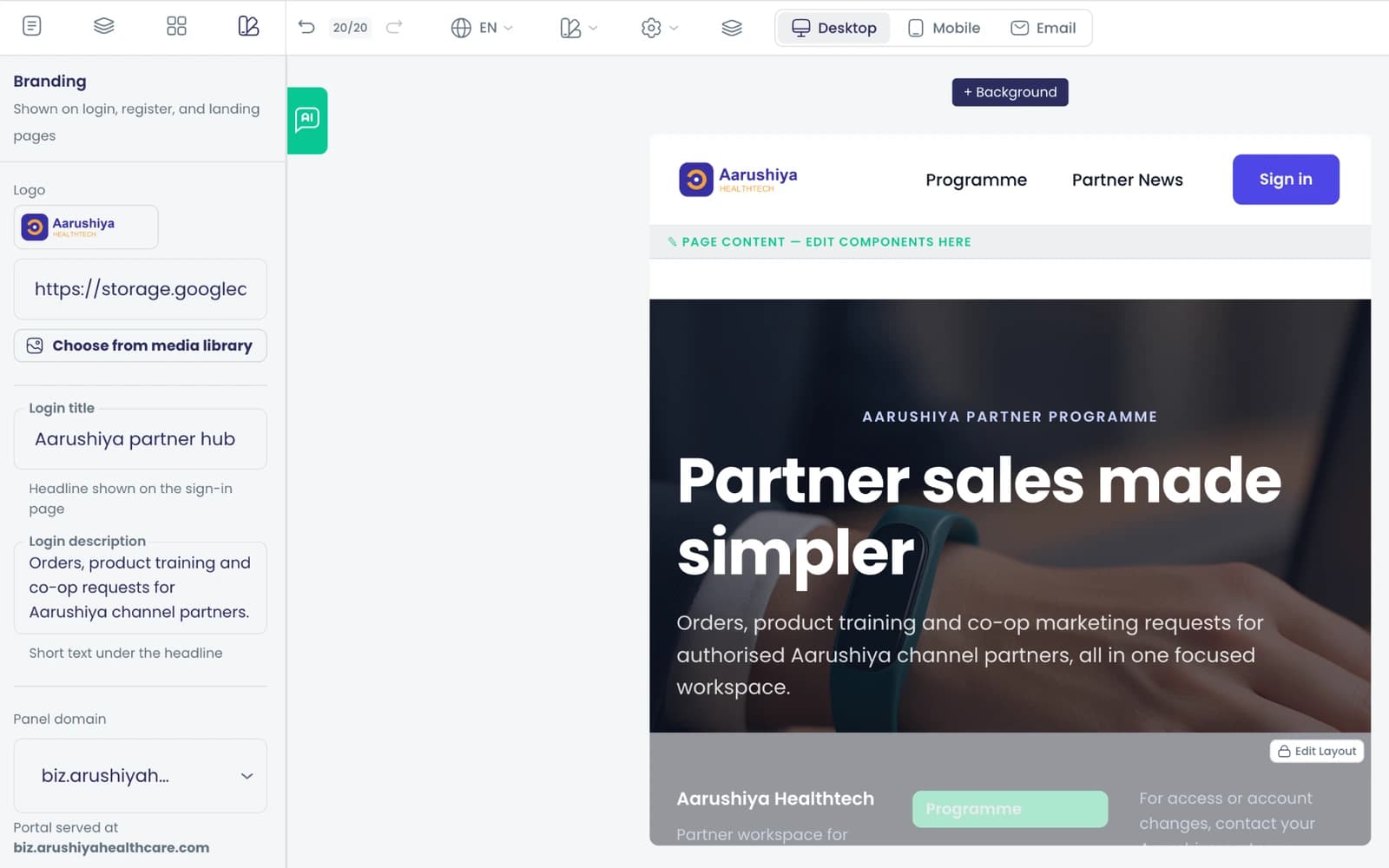
Your favicon and app name
Each domain shows your portal logo as favicon and your org name in the web-app manifest.
What it does
Each portal domain shows your logo as the browser tab icon and uses your organisation's name in the web-app manifest.
Highlights and options
- Logo as favicon per domain
- Organisation name in the app manifest
Where in the product
Your portal (signed in)
Plans and limits
- All plans
Related capabilities
Installable portal app
Visitors can install the portal to their phone home screen with your icon and name.
What it does
Visitors can add the portal to their phone home screen, where it opens like an app with your icon and organisation name.
Highlights and options
- Install prompt on supported browsers
- Your icon and organisation name
- Opens full screen
Where in the product
Your portal (signed in)
Plans and limits
- All plans
Related capabilities
Portal-branded sign-in emails
Verify, set-password and reset emails carry your portal name and a link back to your portal.
What it does
Account confirmation, invitation and sign-in-link emails carry your organisation's name and a link back to your portal. Password-reset emails currently carry SurveyAnalytica branding.
Highlights and options
- Confirmation, invitation and sign-in-link emails
- Organisation name and portal link
- Small 'Powered by SurveyAnalytica' footer
Where in the product
Sent automatically
Plans and limits
- All plans
Related capabilities
Email links land on your portal
Sign-in and password links point to your own portal domain, only if that domain is registered to the account.
What it does
Sign-in and set-password links in emails open on your own portal domain, and only if that domain is registered to your account.
Highlights and options
- Links open on your portal's domain
- Only registered domains are used
Where in the product
Sent automatically
Plans and limits
- All plans
Related capabilities
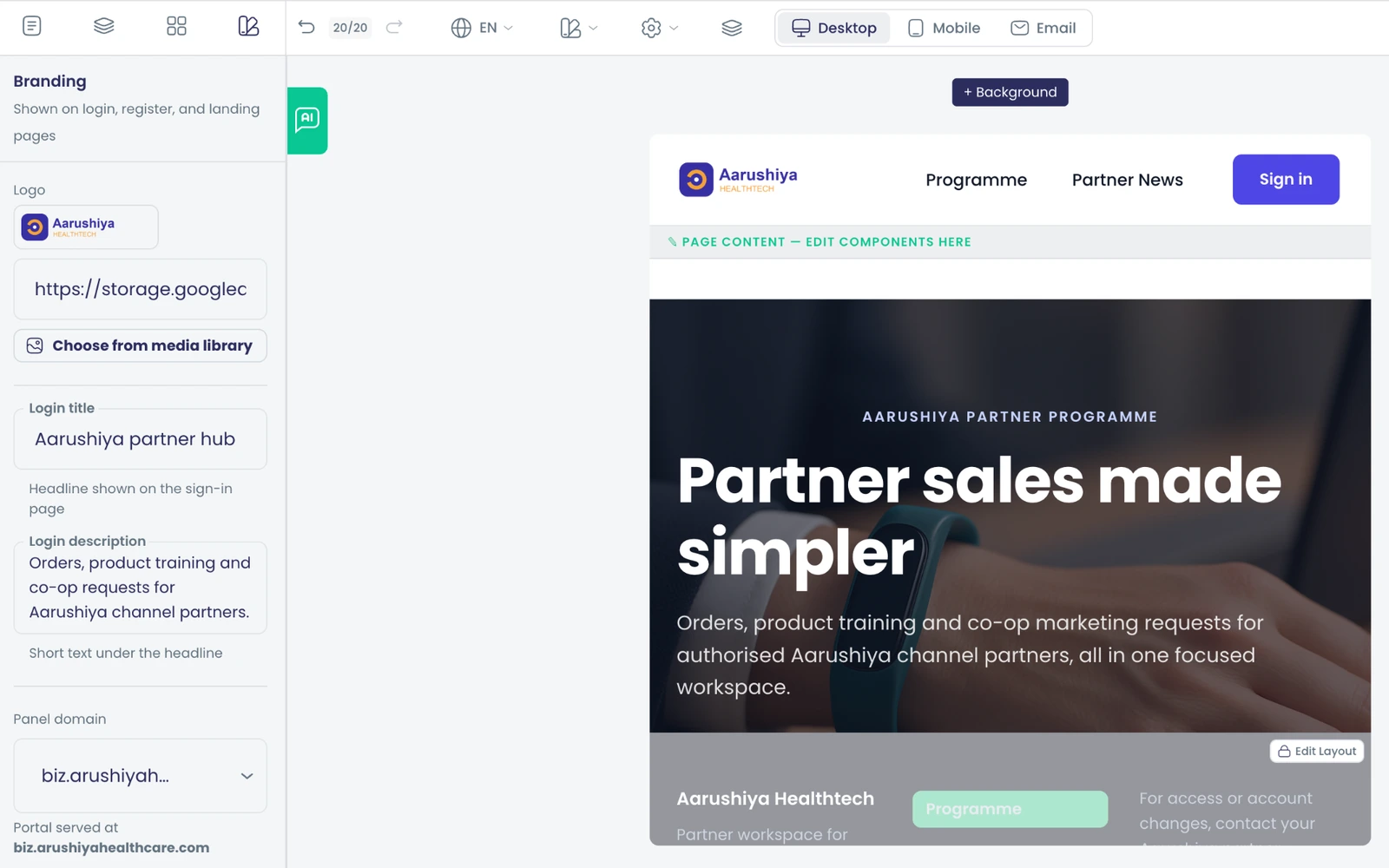
Public website and SEO
Server-rendered public pages
Public pages render server-side on your domain for search engines; private page names never leak to visitors.
What it does
Public pages are rendered on the server on your domain, so search engines read the full page. Names and content of private pages are never sent to visitors who are not signed in.
Highlights and options
- Server-rendered public pages
- Private pages stripped for visitors
- Public site and sign-in on one address
Where in the product
Your portal (signed in)
Plans and limits
- All plans
Related capabilities
Per-page search and share settings
Set search title, description and share image per page, or hide a page from search engines.
What it does
Set the search title, description and share image for each page, or hide a page from search engines.
Highlights and options
- Search title
- Search description
- Share image
- Hide from search engines
Where in the product
Account › Portal Designs › open a portal › Pages › page settings
Plans and limits
- All plans
Related capabilities
Canonical, Open Graph and JSON-LD
Pages emit self-referencing canonical URLs, Open Graph tags and schema.org structured data per content type.
What it does
Every public page and post carries a self-referencing canonical URL, Open Graph tags for link previews, and schema.org structured data matched to its content type.
Highlights and options
- Self-referencing canonical URL
- Open Graph tags
- schema.org JSON-LD per content type
Where in the product
Automatic on public pages
Plans and limits
- All plans
Related capabilities
Per-domain sitemap and robots.txt
Each domain gets a sitemap of public pages and blog posts, and a default-deny robots.txt allowing only public pages.
What it does
Each portal domain serves a sitemap of its public pages and blog posts, and a robots.txt that blocks everything except public pages.
Highlights and options
- Per-domain sitemap.xml
- Public pages and blog posts listed
- Default-deny robots.txt
Where in the product
Automatic per domain
Plans and limits
- All plans
Related capabilities
Google and Bing site verification
Enter Google verification files and a Bing token; the portal serves them on your domain.
What it does
Enter your Google verification files and Bing token, and the portal serves them on your domain so you can verify it in each search console.
Highlights and options
- Google verification files
- Bing verification token
- Served on your own domain
Where in the product
Account › Portal Designs › open a portal › Branding
Plans and limits
- All plans
Related capabilities
Blog listing pages
List posts as featured cards, a grid or a list, in two to four columns, with pagination or pinned posts.
What it does
List posts on any page. Choose cards, a list or a featured row, set two to four columns, and page through with numbered pages.
Highlights and options
- Layouts: cards, list, featured row
- 2 to 4 columns
- Numbered pagination
- Show or hide cover and excerpt
- Pinned posts
- List any content type, not only blog
Where in the product
Account › Portal Designs › open a portal › Components › Blog listing
Plans and limits
- All plans
Related capabilities
Blog post pages with sharing
Post pages show a hero, reading time, breadcrumbs and tags, and can be shared to X, LinkedIn, Facebook or WhatsApp.
What it does
Post pages show a cover image, reading time, breadcrumbs, tags and a share menu.
Highlights and options
- Cover image, reading time, breadcrumbs, tags
- Share: Facebook, LinkedIn, X, WhatsApp, Telegram, Email, Copy link
Where in the product
Account › Portal Designs › open a portal › Components › Blog details
Plans and limits
- All plans
Related capabilities
Readable post URLs with redirects
Each post gets an editable, org-unique slug; old slugs and id URLs permanently redirect to the current one.
What it does
Every post gets an editable slug, unique in your organisation. Old slugs and id-based addresses redirect permanently to the current one.
Highlights and options
- Editable, organisation-unique slug
- Old slugs redirect permanently
- Id URLs redirect to the slug
Where in the product
Posts › open a post
Plans and limits
- All plans
Related capabilities
Custom content types
Define content kinds beyond blog, such as case studies, mapped to schema.org types like FAQPage, Event or JobPosting.
What it does
Publish more than a blog. Define content kinds such as case studies and map each to a schema.org type, so its structured data is always valid.
Highlights and options
- Seeded: Blog (BlogPosting) and Case Study (Article)
- Types: Article, BlogPosting, NewsArticle, TechArticle, FAQPage
- Types: Event, Review, Person, Service, JobPosting, CreativeWork
Where in the product
Account › Content Types
Plans and limits
- All plans
Related capabilities
Sign-in and access
Email and password sign-in
People sign in on your branded portal login page, with self-service forgot password.
What it does
People sign in with email and password on your branded login page, with forgot-password on the same page.
Highlights and options
- Branded login page
- Forgot password
- Account status checked on every request
Where in the product
Your portal (signed in) › Sign in
Plans and limits
- All plans
Related capabilities
Passwordless email sign-in link
People can choose to get a sign-in link by email instead of a password, with rate limits and no account enumeration.
What it does
People can ask for a sign-in link by email instead of typing a password. Requests are rate-limited, and the reply is the same whether or not the address has an account.
Highlights and options
- 'Email me a sign-in link' on the login page
- Rate-limited
- No account enumeration
Where in the product
Your portal (signed in) › Sign in
Plans and limits
- All plans
Related capabilities
Self-registration per portal
Turn sign-up on or off per portal; new people verify their email through a branded link.
What it does
Turn sign-up on or off for each portal. New people confirm their email through a branded link before the account becomes active.
Highlights and options
- Sign-up on or off per portal
- Email confirmation first
- Enforced on the server
Where in the product
Account › Portal Designs › open a portal › Branding
Plans and limits
- All plans
Related capabilities
Auto-approve or approval queue
Let new sign-ups in automatically, or hold them on a pending page until an admin approves.
What it does
Let new sign-ups in automatically, or hold them on a 'waiting for approval' page until an admin approves them.
Highlights and options
- Auto-approve sign-ups on or off
- Pending page for people awaiting approval
- Approve or reject from Participants
Where in the product
Account › Portal Designs › open a portal › Auto-approve sign-ups
Plans and limits
- All plans
Related capabilities
Two-factor sign-in for participants
Participants enrol an authenticator app or SMS code themselves, and sign-in then asks for it.
What it does
Participants add a second sign-in step themselves, and sign-in then asks for it.
Highlights and options
- Authenticator app (TOTP)
- SMS code
- Set up by each person
Where in the product
Your portal (signed in) › two-step setup
Plans and limits
- All plans
Related capabilities
People management
Participants admin
List people by portal, filter orphans, bulk reassign, approve or reject, resend invites, reactivate or remove.
What it does
See everyone who uses your portals, filter by portal, find people with no portal, and act on one person or many.
Highlights and options
- Filter: all, main site, one portal, no portal
- Bulk reassign portals
- Approve or reject pending sign-ups
- Resend invite
- Reactivate or remove
Where in the product
Account › Participants
Plans and limits
- All plans
Related capabilities
Add people or import CSV
Add a person or import a CSV, choose their portal and optionally send an invite email.
What it does
Add one person or import a CSV, choose their portal and optionally send each an invite to set a password on your portal. People already on your team are refused, so their team access never changes.
Highlights and options
- Add one person
- Import a CSV with preview
- Pick the portal per import
- Optional set-password invite
- Team members are not imported as participants
Where in the product
Account › Participants
Plans and limits
- All plans
Related capabilities
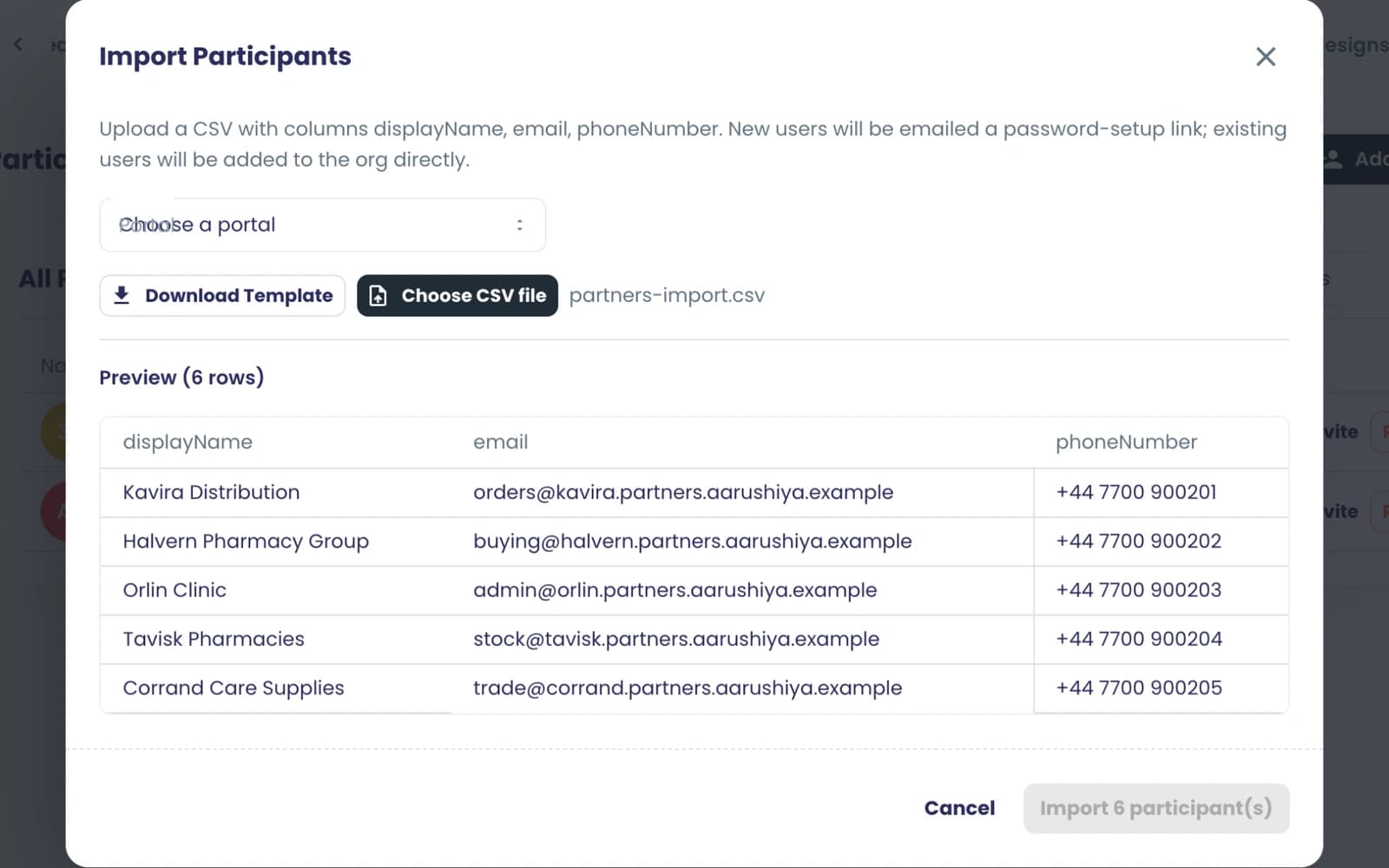
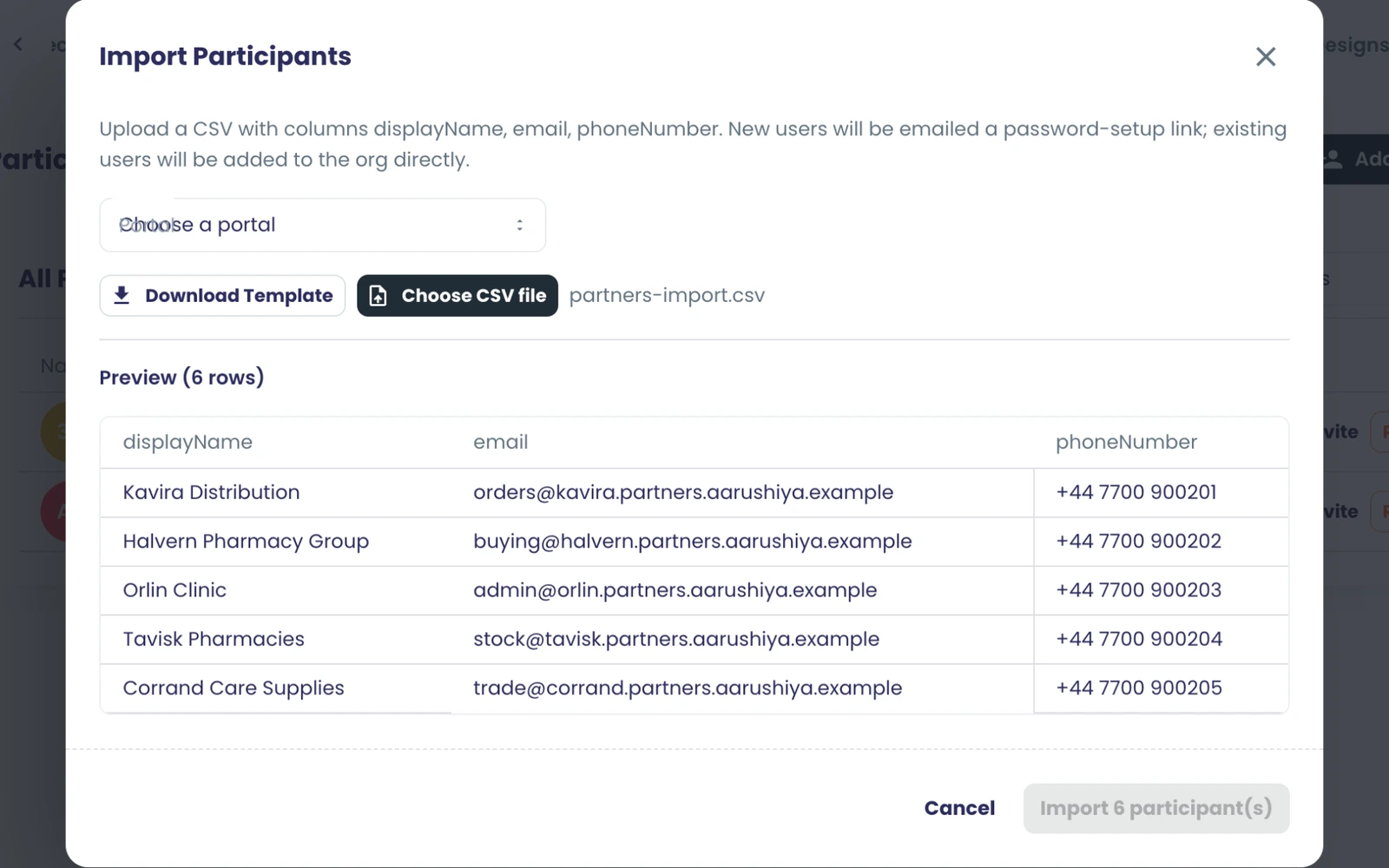
Participant experience
Surveys listed in the portal
Surveys marked portal-visible appear as cards or a list, opening in an overlay or new tab.
What it does
Surveys switched to 'Available in Participant Portal' appear in the portal's Surveys block as cards or a list. They open in an overlay or a new tab.
Highlights and options
- Per-survey portal visibility switch
- Cards or list
- Open in overlay or new tab
- Retake and view-results buttons where allowed
Where in the product
Surveys › open a survey › Settings
Plans and limits
- All plans
Related capabilities
My responses with filters
People see their own submissions with metrics, filters, score and status columns and a detail panel.
What it does
People see their own submissions in a table with metrics, a filter builder, chosen columns, score and status, and a detail panel.
Highlights and options
- Metrics row
- Filter builder
- Choose columns and page size
- Score and status columns
- Detail panel
Where in the product
Your portal (signed in) › Responses block
Plans and limits
- All plans
Related capabilities
Manage own uploaded files
People open and delete the files they uploaded in their own survey answers.
What it does
People open the files they uploaded in their own answers, and can delete them.
Highlights and options
- Open uploaded files
- Delete own files
Where in the product
Your portal (signed in) › Responses block
Plans and limits
- All plans
Related capabilities
Edit a submitted response
When the survey allows edits, people reopen their own submission with a one-time edit link.
What it does
When the survey allows edits, people reopen their own submission through a one-time edit link and correct it.
Highlights and options
- One-time edit link
- Only when the survey allows edits
Where in the product
Your portal (signed in) › Responses block
Plans and limits
- All plans
Related capabilities
Scores and attempt history
Learners see score summaries, score history and every attempt per quiz.
What it does
Learners see score summaries, score history and every attempt per quiz.
Highlights and options
- Score summaries
- Score history
- Attempt history per quiz
Where in the product
Your portal (signed in) › Scores block
Plans and limits
- All plans
Related capabilities
Certificate downloads
Learners download certificates for their responses, with a freshly signed link each time.
What it does
Learners download certificates from their attempt history. The link is signed fresh on each download, so it keeps working.
Highlights and options
- Download from attempt history
- Freshly signed link each time
Where in the product
Your portal (signed in) › Scores block › attempt history
Plans and limits
- All plans
Related capabilities
Quiz leaderboard
A survey's portal page can show a leaderboard of participant results.
What it does
A survey's portal page can show a leaderboard of participant results.
Highlights and options
- Leaderboard on the survey page
- Ranks participant results
Where in the product
Your portal (signed in) › survey page
Plans and limits
- All plans
Related capabilities
Personal dashboard widgets
People arrange their own drag-and-drop grid of metric and chart widgets from a widget library.
Also in: Analytics
What it does
People arrange their own grid of metric and chart widgets from a widget library. Widgets read only that person's data.
Highlights and options
- Drag-and-drop grid
- Widget library drawer
- Metric and chart widgets
- Layout saved per person
Where in the product
Your portal (signed in) › Widgets block
Plans and limits
- All plans
Related capabilities
Participant report pages
People open per-survey report cards and analytics for surveys they took.
What it does
People open report cards and analytics for the surveys they took.
Highlights and options
- Report card per survey
- Survey analytics page
Where in the product
Your portal (signed in) › Reports
Plans and limits
- All plans
Related capabilities
Self-service profile
People update their own name, phone and bio from a profile block.
What it does
People update their own name, phone and bio from a Profile block.
Highlights and options
- Name
- Phone
- Bio
Where in the product
Your portal (signed in) › Profile block
Plans and limits
- All plans
Related capabilities
Offline changes sync later
Changes made offline are queued on the device and sent automatically when the connection returns.
What it does
Changes made without a connection are queued on the device and sent automatically when the connection returns.
Highlights and options
- Queued on the device
- Sent when back online
- Used by task reviews
Where in the product
Your portal (signed in)
Plans and limits
- All plans
Related capabilities
Personal data
Own-records data lists
Show rows from any dataset, filtered on the server so each person sees only records matching their identity.
What it does
A Data list shows rows from any dataset, filtered on the server so each person sees only rows that match their identity. Someone with no matching rows sees an empty list.
Highlights and options
- Rows from any dataset
- Filtered on the server per person
- Choose the columns shown
- Row click opens a detail page
- Empty list when nothing matches
Where in the product
Account › Portal Designs › open a portal › Components › Data list
Plans and limits
- All plans
Related capabilities
Match rows by email, phone, ID
Match dataset rows to people by user ID, verified email, imported phone or source-system record ID.
What it does
Choose how a dataset's rows are matched to signed-in people.
Highlights and options
- Platform user ID (default)
- Verified sign-in email
- Imported phone (from participant import)
- Source system record ID (from participant import)
Where in the product
Data › open a dataset › settings › participant match
Plans and limits
- All plans
Related capabilities
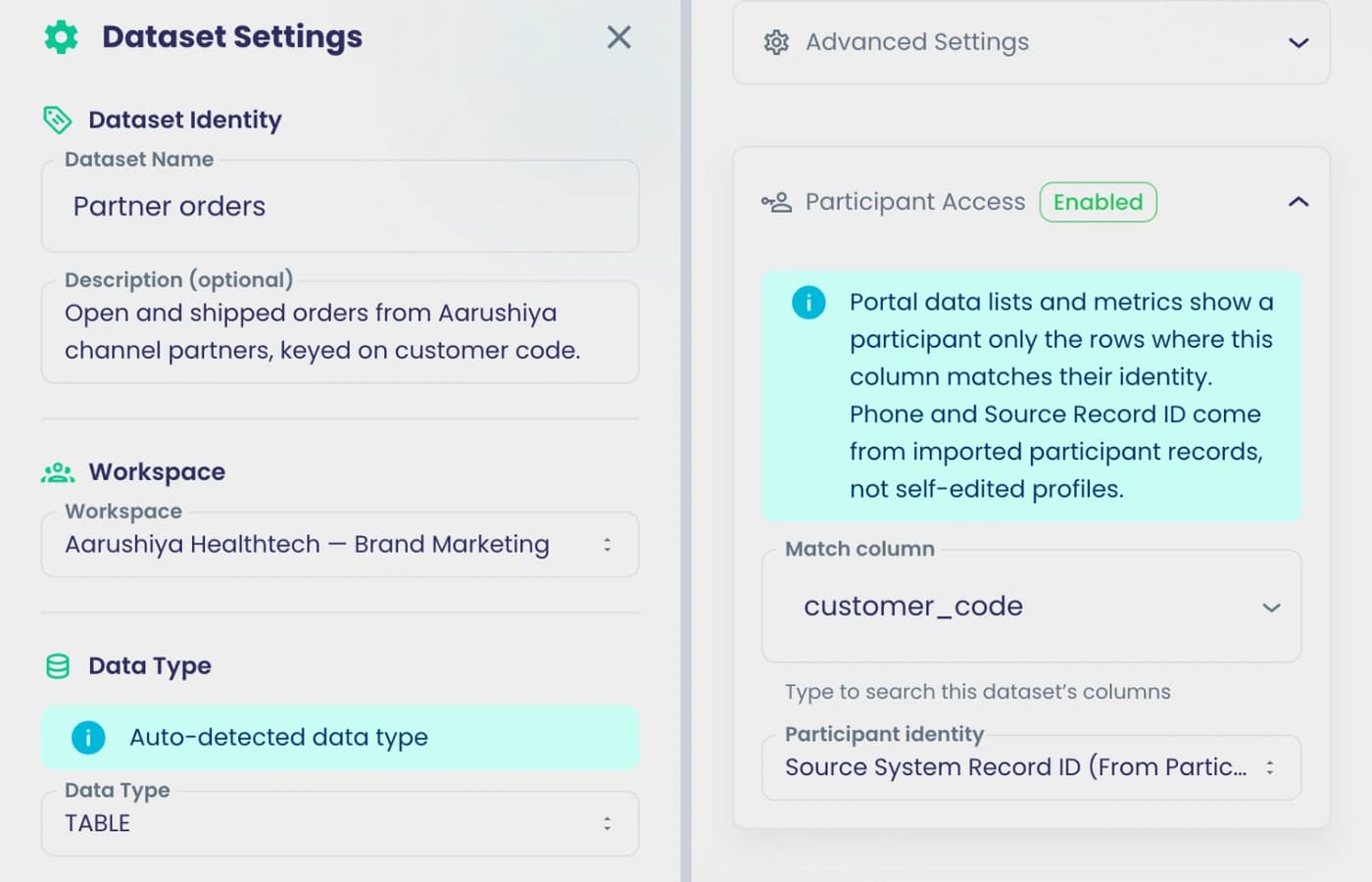
Record detail pages
Clicking a row opens a detail page that reads the record ID from the page URL.
What it does
Clicking a row opens a detail page that reads the record ID from the page address, such as orders/:orderId.
Highlights and options
- Detail page per record
- Record ID from the URL parameter
- Same identity filter as the list
Where in the product
Account › Portal Designs › open a portal › Components › Data detail
Plans and limits
- All plans
Related capabilities
Personal KPI tiles
Metric tiles aggregate each person's own records, such as counts or currency totals.
What it does
Metric tiles add up each person's own records, such as a count of open orders or a currency total.
Highlights and options
- Counts and sums
- Currency-aware totals
- Filters per tile
- Only the person's own records
Where in the product
Account › Portal Designs › open a portal › Components › Data metric
Plans and limits
- All plans
Related capabilities
Records from your own API
Show data from a connected API, called with the signed-in person's verified email substituted on the server.
What it does
Show data from a connected API. The call is made on the server with the signed-in person's verified email filled in, so nobody can ask for someone else's data.
Highlights and options
- Connected API as a data source
- Verified email substituted on the server
Where in the product
Account › Portal Designs › open a portal › Components › Data list
Plans and limits
- All plans
Related capabilities
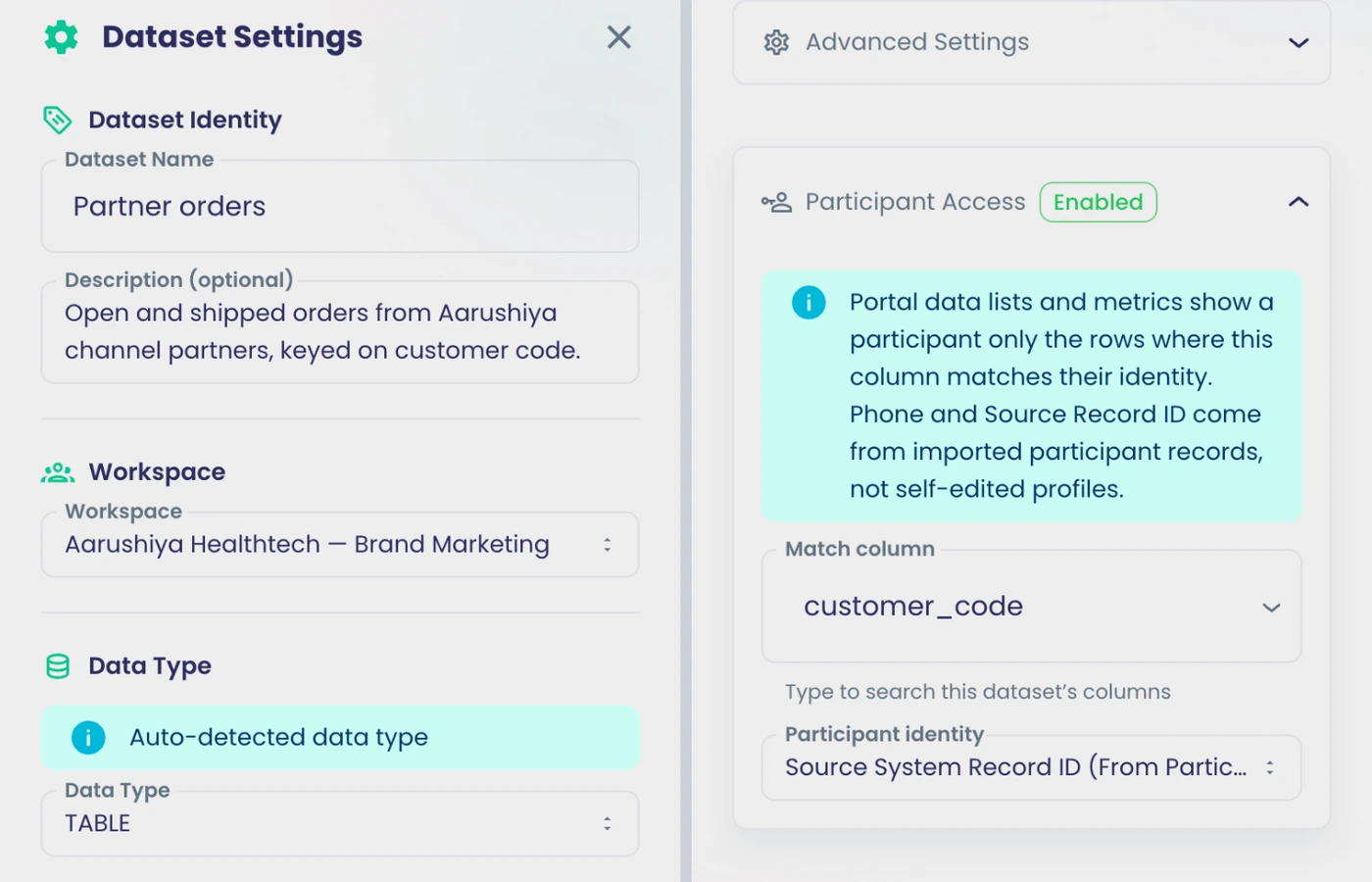
Tasks and conversations
My tasks in the portal
A tasks block shows open and done tasks with due dates, priority and items waiting for review.
Also in: Tasks and approvals
What it does
A Tasks block shows the person's open and done tasks with due dates, priority and the number of items still to review.
Highlights and options
- Open and done tasks
- Due date and priority
- Items waiting for review
- Task screens in 7 languages
Where in the product
Your portal (signed in) › Tasks
Plans and limits
- All plans
Related capabilities
One-step task review
Approve grouped items in one step or send back exceptions, with inline corrections and comments written back.
Also in: Tasks and approvals
What it does
A reviewer opens a task grouped by section, approves each group in one switch or sends back exceptions, corrects values inline and comments. Approved corrections are written back to the record.
Highlights and options
- One switch per group: OK or Send back
- Inline corrections: text, number, date, rating, choice
- Comments on the task
- Approved values written back to the record
- If saving fails, retry with one tap
Where in the product
Your portal (signed in) › Tasks › open a task
Plans and limits
- All plans
Related capabilities
Conversation threads with live updates
Participants read their conversation threads, which update live, and open them from the header.
What it does
Participants read and reply to the conversation threads they are part of. New messages appear without refreshing, and threads open from the header.
Highlights and options
- Threads the person is in
- Live updates
- Open from the header
Where in the product
Your portal (signed in) › header › threads
Plans and limits
- All plans
Related capabilities
AI agents
0 capabilitiesOpen the pageDescribe an agent or start from a template, test and fix it in a build loop, and deploy it as its own service for flows and schedules.
AI agents at a glance
Describe an agent or start from one of 8 templates; edit its code, input and output schemas, packages and environment in the builder; run payload tests; let the build loop generate, deploy a test service, run your cases and fix failures; give it knowledge from PDFs, pages, text and your own workspace data; deploy it as its own service with logs; call it from flows or on a schedule. Professional and Enterprise.
- starter agents
- 8
- generate, test, fix
- Build loop
- from files, pages and your data
- Knowledge
- runs an agent as a step
- Any flow
Start here
Templates
Agent catalog
My Agents and Templates with search and a status filter.
What it does
My Agents and Templates with search and a status filter.
Highlights and options
- My Agents and Templates tabs
- Search across your agents
- Filter by deployment status
Where in the product
Agents › My Agents
Plans and limits
- Professional and Enterprise
Related capabilities
8 starter agents
Survey insight, email intelligence, lead qualifier, campaign content generator, data transformer, customer experience analyzer, webhook intelligence, RAG knowledge agent.
What it does
Eight starter agents: survey insight, email intelligence, lead qualifier, campaign content generator, data transformer, customer experience analyzer, webhook intelligence, RAG knowledge agent. Use a template, then change anything.
Highlights and options
- Survey insight
- Email intelligence
- Lead qualifier
- Campaign content generator
- Data transformer
- Customer experience analyzer
- Webhook intelligence
- RAG knowledge agent
Where in the product
Agents › Templates
Plans and limits
- Professional and Enterprise
Each template needs the workspace's own OPENAI_API_KEY
Related capabilities
Builder
Describe the agent in chat
A chat panel beside the editor drafts and changes the agent from plain language.
What it does
A chat panel beside the editor drafts and changes the agent from plain language.
Highlights and options
- Chat panel beside the code editor
- Drafts the agent from a plain-language description
- Changes the agent when you ask
Where in the product
Agents › open an agent › chat panel
Plans and limits
- Professional and Enterprise
Related capabilities
Code editor
Edit index.js in a full code editor with syntax highlighting.
What it does
Edit index.js in a full code editor with syntax highlighting.
Highlights and options
- Full code editor over index.js and package.json
- Syntax highlighting
- Autosave 10 s after a change
Where in the product
Agents › open an agent › Build
Plans and limits
- Professional and Enterprise
Node 18 runtime, fixed
Related capabilities
Input and output schemas
Define the input payload and the output shape; inputs drive flow mapping and test payloads, outputs become flow fields.
What it does
Define the input payload and the output shape; inputs drive flow mapping and test payloads, outputs become flow fields.
Highlights and options
- Input schema for the incoming payload
- Output schema for the result
- Inputs drive flow mapping and test payloads
- Outputs become fields in flows
Where in the product
Agents › open an agent › Input Schema and Output Schema
Plans and limits
- Professional and Enterprise
Output is not validated at run time
Related capabilities
Package definition
Edit package.json; missing packages your code requires are added at build with their npm versions.
What it does
Edit package.json; missing packages your code requires are added at build with their npm versions.
Highlights and options
- Edit package.json in the builder
- Missing packages your code requires are added at build
- Added packages carry their npm versions
Where in the product
Agents › open an agent › package.json
Plans and limits
- Professional and Enterprise
Related capabilities
Environment variables
Masked values, variables your code reads detected automatically, names normalised.
What it does
Masked values, variables your code reads detected automatically, names normalised.
Highlights and options
- Values masked in the editor
- Detects the variables your code reads
- Variable names normalised
- Missing variables flagged before anything deploys
Where in the product
Agents › open an agent › Environment
Plans and limits
- Professional and Enterprise
Values are stored in plain text
Related capabilities
Build loop
Build, test and fix loop
Generate the agent, deploy a test service, run the test cases, feed failures back, up to three rounds.
What it does
Generate the agent, deploy a test service, run the test cases, feed failures back, up to three rounds. Missing environment variables are flagged before anything deploys. Each round runs Cloud Build (minutes).
Highlights and options
- Generates the agent from your description and schemas
- Deploys a test service and runs your test cases
- Feeds failures back to the model
- Up to three rounds
Where in the product
Agents › open an agent › Build
Plans and limits
- Professional and Enterprise
1 AI unit per build request; each round runs Cloud Build (minutes)
Related capabilities
Testing
Test cases with payloads
Several cases per agent, input JSON plus optional expected output; auto-generate from the schema; run one or all; cases saved with the agent.
What it does
Several test cases per agent, each an input JSON and an optional expected output; auto-generate a payload from the input schema; run one or all; pass or fail per key; cases are saved with the agent.
Highlights and options
- Several test cases per agent
- Input JSON plus optional expected output
- Auto-generate a payload from the input schema
- Run one case or all
- Cases saved with the agent
Where in the product
Agents › open an agent › Test
Plans and limits
- Professional and Enterprise
Pass/fail is exact equality per key
Related capabilities
Knowledge
Knowledge from pages, PDFs and text
Add URLs, PDFs up to 10 MB or pasted text; chunked, embedded and ranked when the agent answers.
What it does
Add URLs, PDFs up to 10 MB or pasted text; chunked, embedded and ranked when the agent answers.
Highlights and options
- Web pages by URL
- PDFs up to 10 MB
- Pasted text
- Chunked, embedded and ranked when the agent answers
Where in the product
Agents › open an agent › Knowledge
Plans and limits
- Professional and Enterprise
Related capabilities
Knowledge from your workspace data
Point the agent at a survey, a contact list, an import or messages, queried live with filters mapped from its inputs.
What it does
Point the agent at a survey, a contact list, an import or messages, queried live with filters mapped from its inputs.
Highlights and options
- A survey, a contact list, an import or messages
- Queried live
- Filters mapped from the agent's inputs
Where in the product
Agents › open an agent › Knowledge
Plans and limits
- Professional and Enterprise
Related capabilities
Deploy and logs
Deploy as its own service
One click builds a container and runs the agent as its own service in our cloud; redeploy any time.
What it does
One click builds a container and runs the agent as its own service in our cloud; redeploy any time. Node 18 runtime. Test deployments clean themselves up after 7 days.
Highlights and options
- One click builds a container
- Runs as its own service in our cloud
- Redeploy any time
- Node 18 runtime
Where in the product
Agents › open an agent › Deploy
Plans and limits
- Professional and Enterprise
Cloud Run defaults for scaling (no min/max settings)
Related capabilities
Undeploy
Stop the service and mark the agent undeployed; test deployments clean themselves up after 7 days.
What it does
Stop the service and mark the agent undeployed; test deployments clean themselves up after 7 days.
Highlights and options
- Stops the agent's service
- Marks the agent undeployed
- Test deployments clean themselves up after 7 days
Where in the product
Agents › open an agent › Deploy
Plans and limits
- Professional and Enterprise
Related capabilities
Logs console
Read the agent's production or test logs with severity, since and limit filters.
What it does
Read the agent's test or production logs with severity and time-range filters; the console shows up to 200 entries.
Highlights and options
- Production or test logs
- Severity filter
- Time-range and limit filters
- Up to 200 entries in the console
Where in the product
Agents › open an agent › Logs
Plans and limits
- Professional and Enterprise
Related capabilities
Version counter and code hash
Every save bumps the version; every deploy stamps a code hash; autosave 10 s after a change.
What it does
Every save bumps the version; every deploy stamps a code hash; autosave 10 s after a change.
Highlights and options
- Version number goes up on every save
- Code hash stamped on every deploy
- Autosave 10 s after a change
Where in the product
Agents › open an agent
Plans and limits
- Professional and Enterprise
No version history, diff or rollback
Related capabilities
In flows
Run an AI agent in a flow
Pick a deployed agent, map each input to a field of the record, use every output in later steps and conditions.
Also in: Workflows
What it does
Pick a deployed agent, map each input to a field of the record, use every output in later steps and conditions.
Highlights and options
- Pick a deployed agent
- Map each input to a field of the record
- Every output is a field for later steps and conditions
Where in the product
Flows › open a flow › plus button › Agent
Plans and limits
- Professional and Enterprise
One record per run; outputs not schema-validated
Related capabilities
Agents as a scheduled source
A schedule can call an agent and run the flow on what it returns.
Also in: Workflows
What it does
A schedule can call an agent and run the flow on what it returns.
Highlights and options
- A schedule calls the agent
- The flow runs on what the agent returns
Where in the product
Flows › open a flow › trigger › Schedule
Plans and limits
- Professional and Enterprise
Related capabilities
Flow templates with an agent step
AI Agent Response and Feedback Loop with AI Analysis ship with an agent step.
Also in: Workflows
What it does
AI Agent Response and Feedback Loop with AI Analysis ship with an agent step.
Highlights and options
- AI Agent Response
- Feedback Loop with AI Analysis
Where in the product
Templates › Flows
Plans and limits
- Professional and Enterprise
Related capabilities
Dependency check before delete
Before an agent is deleted, every flow that uses it is listed; active flows must be deactivated first or you choose Delete Anyway.
What it does
Before deleting, the platform lists every flow that uses the agent; if any of them are active, it warns you and asks you to deactivate them first or explicitly choose Delete Anyway. Inactive flows are only shown as a note.
Highlights and options
- Lists every flow that uses the agent
- Warns when any of those flows are active
- Deactivate them first or choose Delete Anyway
Where in the product
Agents › My Agents › delete an agent
Plans and limits
- Professional and Enterprise
Related capabilities
Security
Plan gate, metering and code check
Professional and Enterprise; one AI unit per build; generated code is checked for forbidden calls before deploy.
What it does
Professional and Enterprise; one AI unit per build; generated code is checked for forbidden calls before deploy.
Highlights and options
- Professional and Enterprise plans
- One AI unit per build
- Generated code checked for forbidden calls before deploy
Where in the product
Agents (Professional and Enterprise plans)
Plans and limits
- Professional and Enterprise
Gate does not cover save, knowledge, test runs or logs
Related capabilities
Platform
4 capabilitiesOpen the pageSign-in security, plans and billing, APIs, languages and the app experience shared by every module.
Platform at a glance
The platform layer sits under every module: sign-in and security, plans and billing, the public API and the app itself. Plans are Free, a Professional plan you size with sliders, and Enterprise. Usage is metered on six dimensions, and you keep working past a limit. The app runs in seven languages, in light or dark mode, and installs to your home screen.
- plans: Free, Professional, Enterprise
- 3
- usage meters you size and track
- 6
- app and help-centre languages
- 7
Start here
- Size Professional with sliders for responses, emails, contacts, flow runs, AI and users
- Go past a limit and keep working; overage is charged per unit
- Public API with key or OAuth access, per-key rate limits and automatic blocking
- Use the app and the help centre in English, Spanish, French, German, Hindi, Italian or Russian
- HTTPS only, with HSTS on the app and on every survey page
Security and sign-in
Self-service password reset
Forgot your password? Request a reset email from the sign-in page without contacting support.
What it does
Forgot your password? Request a reset email from the sign-in page and set a new one, without contacting support.
Highlights and options
- Forgot password link on sign-in
- Reset link sent by email
- Set a new password yourself
Where in the product
Sign in › Forgot password
Plans and limits
- All plans
Related capabilities
HTTPS-only with strict browser headers
Every page is HTTPS-only with HSTS; the app also blocks framing by other sites.
What it does
Every page is served over HTTPS only. The app sends HSTS for two years with preload, blocks framing by other sites, and sets content-type and permissions policies. Survey pages send HSTS too, and can be embedded on your own site.
Highlights and options
- Strict-Transport-Security: 2 years, subdomains, preload
- App: X-Frame-Options SAMEORIGIN and frame-ancestors 'self'
- X-Content-Type-Options: nosniff
- Permissions-Policy and X-XSS-Protection
- Survey pages: HSTS and nosniff, embeddable on your site
Where in the product
Applies to every page
Plans and limits
- All plans
Related capabilities
Automatic abusive-traffic blocking
Addresses sending abusive request volumes to public survey endpoints are blocked automatically, with allowlists for legitimate high-volume senders.
What it does
Request counts on public endpoints are tracked per address. Addresses that send abusive volumes are blocked automatically, and blocks expire on their own so a spike never becomes a permanent lockout. Allowlisted addresses, such as an office gateway, are never blocked.
Highlights and options
- Covers clickstream, survey navigation, public API and calendar bookings
- Automatic blocks with a time limit
- Allowlist for legitimate high-volume senders
Where in the product
Applies automatically
Plans and limits
- All plans
Related capabilities
Published content screened for phishing
Published surveys and campaigns are checked for phishing automatically, so the platform stays safe for your respondents.
What it does
Published surveys and campaigns are checked for phishing automatically. Content found to be phishing is taken down; the owner can contest the decision through an appeal link.
Highlights and options
- Checked automatically on publish
- Surveys and campaigns
- Reversible takedown
- Appeal page for the owner
Where in the product
Applies automatically on publish
Plans and limits
- All plans
Related capabilities
Live status page
Check the live health of every SurveyAnalytica service at any time, linked from the site footer.
What it does
A public status page checks every SurveyAnalytica service and shows its health by area. The site footer links to it and shows the current state.
Highlights and options
- Platform Core, Survey Collection, Campaigns & Messaging
- Analytics & Reports, AI & Agents, Machine Learning
- Integrations, OData & Data Export, Chart Export, Payments
Where in the product
Site footer › status
Plans and limits
- All plans
10 service areas.
Related capabilities
Languages
App in seven languages
Use SurveyAnalytica itself in English, Spanish, French, German, Hindi, Italian or Russian.
What it does
Use SurveyAnalytica in seven languages. The app picks up your browser language and you can switch at any time.
Highlights and options
- English
- Spanish
- French
- German
- Hindi
- Italian
- Russian
Where in the product
Language menu in the page header
Plans and limits
- All plans
Related capabilities
Help centre in seven languages
Every published help article is available in the same seven languages, each at its own translated address.
What it does
Help articles are published in the same seven languages, each at its own translated address and linked to the others for search engines. If one translation is missing, the English article is shown.
Highlights and options
- English, Spanish, French, German, Hindi, Italian, Russian
- Translated address per language
- Language alternates for search engines
- English shown when a translation is missing
Where in the product
Help (sidebar)
Plans and limits
- All plans
Related capabilities
Plans and billing
Free plan
Start free with unlimited surveys, unlimited rules, one user, and 100 responses, emails and contacts.
What it does
Start free with unlimited surveys and unlimited rules for one user. The plan includes 100 responses, 100 emails and 100 contacts, plus email support.
Highlights and options
- Unlimited surveys
- Unlimited rules
- 1 user
- 100 responses, 100 emails, 100 contacts
- 2 languages per survey
- Email support
Where in the product
Plans
Plans and limits
- Free
1 user; 100 responses, 100 emails and 100 contacts.
Related capabilities
Build-your-own Professional plan
Set responses, users, contacts, emails, flow runs, AI units and training minutes with sliders, and see the price update.
What it does
Size the Professional plan with sliders and watch the price update. The base price includes starter quotas; each slider adds capacity in steps.
Highlights and options
- Responses: from 1,000 up to 1,000,000
- Emails: from 10,000 up to 500,000
- Contacts: from 10,000 up to 1,000,000
- Flow runs: from 10,000 up to 100,000
- Full-access users: 1 to 100
- AI units: 100 to 50,000
- AI training minutes: 10 to 5,000
Where in the product
Plans › Professional
Plans and limits
- Professional
Starter quotas: 1,000 responses, 10,000 emails, 10,000 contacts, 10,000 flow runs, 100 AI units, 10 training minutes, 1 user.
Related capabilities
Enterprise plan
Custom pricing and limits for large organisations, arranged with our sales team.
What it does
For large organisations, Enterprise sets limits and pricing by agreement with our sales team. Contracts run for one, two or three years.
Highlights and options
- Custom limits for users, responses, contacts, flow runs and AI
- Unlimited emails
- 1, 2 or 3-year contracts
- Arranged with sales
Where in the product
Plans › Enterprise › Contact us
Plans and limits
- Enterprise
Related capabilities
AI plan concierge
Describe your needs in a chat and get a suggested plan configuration you can check out directly.
What it does
Describe your team and usage in a chat. The concierge suggests a Professional configuration and you can go straight to checkout with it.
Highlights and options
- Chat on the Plans page
- Suggested slider settings
- Check out the suggestion directly
Where in the product
Plans › plan concierge
Plans and limits
- All plans
Related capabilities
Monthly or annual billing
Pay monthly or yearly; annual billing takes 20% off the add-ons you configure.
What it does
Pay monthly or yearly. Yearly billing costs 20% less than twelve monthly payments, on the base price and on every add-on you configure.
Highlights and options
- Monthly or annual
- 20% off add-ons on annual billing
- Base price also 20% lower per year
Where in the product
Plans › Professional › Monthly or Annual
Plans and limits
- Professional
20% annual discount.
Related capabilities
Prices in rupees or dollars
Plans are priced in INR for India and USD elsewhere, picked from your country automatically.
What it does
Prices show in Indian rupees for India and US dollars everywhere else, picked from your country automatically.
Highlights and options
- INR for India
- USD for other countries
- Picked from your country
Where in the product
Plans
Plans and limits
- All plans
Related capabilities
Overage without interruption
Go past a plan limit and keep working; overage is charged per unit instead of stopping your surveys.
What it does
When usage passes a Professional limit, work carries on. The extra is charged per unit instead of stopping surveys, emails or flows.
Highlights and options
- Responses
- Emails
- Contacts
- Flow runs
- AI units
- AI training minutes
Where in the product
Plans › Professional
Plans and limits
- Professional
Related capabilities
Usage meters and warnings
Billing shows usage against each limit, and the app warns you as you approach a quota.
What it does
Billing shows usage against each limit. Once a meter reaches 80%, the app warns you, and it flags any limit you have passed.
Highlights and options
- Meters: responses, emails, contacts
- Meters: flow runs, AI units, AI training minutes
- Warning at 80% of a limit
- Flag when a limit is exceeded
Where in the product
Account › Organisation › Billing
Plans and limits
- All plans
Warning at 80%.
Related capabilities
Coupon codes at checkout
Apply a coupon code when you buy a plan; it is validated before payment.
What it does
Enter a coupon code when you buy a plan. It is checked before payment, so you see the discount first.
Highlights and options
- Coupon field at checkout
- Validated before payment
Where in the product
Plans › checkout
Plans and limits
- All plans
Related capabilities
Invoices to view and download
Open every invoice online or download it as a PDF from the billing page.
What it does
Every invoice is listed on the Billing page. Open it online or download it as a PDF.
Highlights and options
- Invoice list
- Open the hosted invoice
- Download PDF
Where in the product
Account › Organisation › Billing
Plans and limits
- All plans
Related capabilities
Manage cards in Stripe
See saved cards and open Stripe's secure billing portal to update payment details.
What it does
See your saved cards on the Billing page and open Stripe's billing portal to add or update payment details.
Highlights and options
- Saved cards listed
- Stripe billing portal for changes
Where in the product
Account › Organisation › Billing
Plans and limits
- All plans
Related capabilities
Cancel from the billing page
Cancel your membership yourself from billing settings, without contacting support.
What it does
Cancel your membership from the Billing page yourself. Stores billed through Shopify cancel from Shopify admin instead.
Highlights and options
- Cancel membership on the Billing page
- No support ticket needed
- Shopify-billed stores cancel in Shopify admin
Where in the product
Account › Organisation › Billing
Plans and limits
- All plans
Related capabilities
Billing through Shopify
Stores that install from the Shopify App Store are billed by Shopify and manage their subscription in Shopify admin.
What it does
Stores that install SurveyAnalytica from the Shopify App Store are billed by Shopify. They manage and cancel the subscription in Shopify admin.
Highlights and options
- Billed through Shopify
- Managed in Shopify admin
- Billing page shows the Shopify hint
Where in the product
Account › Organisation › Billing
Plans and limits
- All plans
Related capabilities
API and webhooks
Rate-limited public API
Every data API call passes key authentication and a per-key rate limit before data is returned.
What it does
Every public data API call is authenticated and counted before data is returned. Each API key gets 600 requests a minute unless you set your own limit, and open endpoints are limited per address.
Highlights and options
- Access modes: API key, OAuth or public
- Default 600 requests per minute per key
- Set your own per-key limit
- Public endpoints: 60 requests per minute per address
- Over-limit keys and addresses get 429 and are blocked for up to 24 hours
Where in the product
Surveys › open a survey › Analyze › Responses › download › Share API
Plans and limits
- All plans
600 requests per minute per key by default; 60 per minute per address on public endpoints.
Related capabilities
Payload templates without code
Shape the outgoing webhook body with a template, or write code when you need full control.
What it does
Shape the body a flow sends without writing code. Build a JSON structure with tokens for record fields, or a raw text body such as XML with value escaping. Code still wins when you need full control.
Highlights and options
- JSON tree template with {tokens}
- Raw text template, for example XML, with XML escaping
- Repeatable sections sent as nested lists
- SOAP requests with action and version
- Order: your code, then the template, then the raw record
Where in the product
Workspaces › open a workspace › Flows › open a flow › webhook step › body
Plans and limits
- Professional and Enterprise
Related capabilities
Clickstream SDKs
Ready snippets for plain JavaScript, React, Next.js, React Native, Flutter and iOS send activity to your flows.
What it does
Copy a ready snippet to send app and website activity to SurveyAnalytica, where it can start flows.
Highlights and options
- JavaScript
- React
- Next.js
- React Native
- Flutter
- iOS
Where in the product
Account › Organisation › My Integrations › connectors
Plans and limits
- All plans
Related capabilities
Proxy and SSH tunnel connections
Route webhook and data-source traffic to your systems through an HTTP, HTTPS or SOCKS5 proxy, or an SSH tunnel.
What it does
Reach systems behind your firewall. Define a connection once and pick it in webhook steps and data sources, and test it before use.
Highlights and options
- HTTP Proxy
- HTTPS Proxy
- SOCKS5 Proxy
- SSH Tunnel
- Test a connection before using it
Where in the product
Account › Organisation › Connections
Plans and limits
- All plans
Up to 25 connections per organisation.
Related capabilities
Orders and payments
Server-checked order totals
Order totals are priced on the server from your product list, so a price changed in the browser cannot be charged.
What it does
When an order is placed, the server prices it again from your product list. A price changed in the browser is refused, and only the server total is charged.
Highlights and options
- Prices read from the saved product list
- Totals recalculated per currency
- Mismatched browser prices refused
Where in the product
Applies automatically to order forms
Plans and limits
- All plans
Related capabilities
Order forms without online payment
Take orders without card payment; stock is allocated as soon as the form is submitted.
What it does
Take orders without online payment, for cash on delivery or invoices. Stock is allocated as soon as the form is submitted, and returned if the order is undone.
Highlights and options
- Product cards without a Payment question
- Stock allocated at submit
- Allocation reversed if the order is undone
Where in the product
Surveys › open a survey › Design › Components › Advanced › Product Cards
Plans and limits
- All plans
Related capabilities
App experience
Search across your workspace
Search surveys, campaigns and other items from the header search bar.
What it does
Search your workspace from the header search bar. Results are grouped by type and open the item directly.
Highlights and options
- Surveys
- Campaigns
- Flows
- Contact lists
Where in the product
Header search bar
Plans and limits
- All plans
Related capabilities
In-app support tickets
Raise and follow support tickets with the SurveyAnalytica team from inside your account.
What it does
Raise a ticket from inside the app and follow the replies in one thread. The app attaches a screenshot and technical details automatically, and colleagues in your organisation can see and escalate tickets.
Highlights and options
- Categories: bug, how-to, billing, data issue, feature request, other
- Priority: low, medium, high, urgent
- Screenshot and technical details attached automatically
- Statuses: Open, In progress, Waiting on you, Resolved, Closed
- My tickets or All org tickets; Escalate to support
Where in the product
Account › Support
Plans and limits
- All plans
Related capabilities
Installable app (PWA)
Install SurveyAnalytica to your phone or desktop home screen and open it like an app.
What it does
Install SurveyAnalytica to your phone or desktop home screen and open it like an app. On iPhone and iPad, the app shows how to add it to the home screen.
Highlights and options
- Install prompt on supported browsers
- Add to Home Screen hint on iOS
- Opens in its own window
Where in the product
Install prompt in the browser
Plans and limits
- All plans
Related capabilities
Light and dark mode
Use the app in light or dark mode, following your device setting by default.
What it does
Use the app in light or dark mode. It follows your device setting by default, and you can switch in the settings drawer.
Highlights and options
- Light and dark
- Follows the device setting
- Switch from the settings drawer
Where in the product
Page header › settings › Mode
Plans and limits
- All plans
Related capabilities